How to Factory Reset Google Pixel and Pixel XL

Annoying of Google Pixel & Pixel XL black screen or touchscreen unresponsive? You need to hard reset or factory reset Google Pixel and Pixel XL to fix the issue. This factory data reset Pixel XL also useful to solve Pixel crashing or freezing, can’t make or receive calls, poor sound call quality, and other Google Pixel issues. It will remove all data including your Google account, third party apps, system apps, photos, music, all app settings, and more. Before factory reset data, backup & restore your Pixel phone data.

Read Also:

How to Factory Data Reset Google Pixel & Pixel XL

Step 1: Make sure your Pixel phone is powered off.

Step 2: Press & hold the volume down button and the power button at the same time until the phone vibrates.

Android system recovery mode view in pixel phone

You can view the Android system recovery screen on Google Pixel. By default start button show on Google Pixel & Pixel XL.

Recovery mode view pixel XL and pixel phone

Step 3: Press the volume down button until view Recovery mode.

Step 4: Press the power button to restart into recovery mode.

android robot exclamation mark with red triangle icon in your pixel

You can see the above screen of the Android robot exclamation mark with a red triangle symbol on your Pixel phone.

Factory data reset Google Pixel phone

Step 5: Press & hold the power button and volume up buttons same time to scroll to wipe data/factory reset, press the power button to select it.

This message show on Google Pixel & Pixel XL screen: Wipe all user data?

wipe all user data on pixel & pixel XL

Step 6: To confirm, press volume down buttons to scroll to Yes and press the power button to select it.

Clearing the cache may take 3-5 minutes.

Reboot system now pixel XL and pixel phone

Step 7: Press the volume down buttons to scroll to the Reboot system now, press the power button to select it.

Now factory data reset Google Pixel and Pixel XL. It looks like a new device.

How to Factory Reset Pixel XL and Pixel When Powered On

Step 1: Go to “Settings”.

Step 2: Under the personal section, tap on “Backup & reset”.

Here you can see two options. One is backup and another is factory data reset.

Step 3: Tap on “Factory data reset”.

Factore reset pixel if turned on phone

Step 4: Touch “Reset Phone”.

If set pattern lock/password/PIN or fingerprint, unlock your Pixel device.

Factory data reset your pixel XL device

Step 5: Touch “Erase everything”.

It will delete all your Pixel phone information.

How to Factory Reset Google Pixel and Pixel XL running Android 10

Make sure back up & restore your important data before applying the below settings.

How to Factory Reset Google Pixel and Pixel XL Devices

Settings > System > Advanced > Reset options > Erase all data (Factory reset) > Erase all data > Confrim your Pattern/PIN > Erase all data

Hope you have liked the above steps to factory data reset Google Pixel and Pixel XL. Did this solution work for you to solve your Pixel problem? Let us know in below comment box.

How to Set a Mobile Data Limit on Google Pixel and Pixel XL

Annoying by the app using too much data on your Google Pixel and Pixel XL? Here’s how to set a mobile data limit on Google Pixel and Pixel XL. You can see which app or system app usage more data using settings. Set a data usage limit to restrict the app data usage. After set mobile data usage limit, turn off mobile data when reaches the limit you set in your device. Also, check the Wi-Fi data usage in your android devices. You can reduce and manage mobile data usage in the Pixel phone to enable data saver.

You can set a data warning or data limit in MB/GB. Also, use a billing cycle or reset usage cycle date of every month in your Pixel. Follow the below-given steps to set up a mobile data usage warning and limit onGoogle Pixel and Pixel XL device.

Related Trick:

How to Set Daily Mobile Data limit on Pixel & Pixel XL: Mobile Data & WiFi

If you have the latest updated Google Pixel and Pixel XL device running Android 10, you can set a data limit using the below settings.

Step 1: Go to Settings.

Step 2: Tap Network & internet.

Step 3: Tap Mobile network.

Step 4: Tap Data warning & limit.

Set Daily Mobile Data limit on Pixel & Pixel XL

Here, you can see the app data usage cycle, set data warning, data warning, set data limit, and data limit.

Step 5: Toggle on Set data limit and tap OK.

Step 6: Tap Data limit.

How to Set a Mobile Data Limit on Google Pixel and Pixel XL

Step 7: Set the data usage limit in GB/MB and tap Set.

Check App Mobile Data Usage on Google Pixel and Pixel XL (Android 10)

Check App Mobile Data Usage on Google Pixel and Pixel XL

Settings > Network & internet > App data usage

Restrict App Background Data on Google Pixel and Pixel XL (Android 10)

Settings > Network & internet > App data usage > Select app usage more data > Toggle off background data

For Android 7.1.2 Nougat

Step 1: Go to “Settings” on your Pixel phone.

Tap on data usage under wireless & network section in pixel device

Step 2: Tap “Data usage” under the Wireless & networks section.

Here you can view currently using mobile data in your pixel phone.

Step 3: Tap Mobile data usage or Wi-Fi data usage want to set a data limit or data warning.

See the list of apps and their mobile data usage details.

Tap billing cycle under mobile section

Step 4: Tap on “Billing cycle” under mobile to set mobile data limit on your Pixel (Android 7.1.2).

Here you can view set data warning, set data limit, and billing cycle options. By default set data warning (2 GB) in Pixel device. Tap data warning to change mobile data usage warning in Pixel & Pixel XL. By default disable set data limit in your Pixel (Show below screen).

Enable mobile data limit on Google pixel phone

Step 5: Enable set data limit on a Pixel.

While trying to enable the mobile data usage limit in Pixel, you can see below the screen in your device.

set mobile data usage limit in pixel XL

Step 6: Press “OK” to enable it.

Step 7: Tap on “Data limit”.

set mobile data limit on pixel XL phone

By default in Pixel and Pixel XL set mobile data limit 5.0 GB. You can set a mobile data limit on Pixel in GB/MB.

Check Wi-Fi Data Usage on Google Pixel & Pixel XL

Wi-Fi data usage on Google pixel and pixel XL phone

Settings > Wireless & Networks > Wi-Fi > Wi-Fi data usage

You can enable unrestricted data usage when data saver on in Pixel & Pixel XL devices.

That’s all about how to set a mobile data limit on Pixel & Pixel XL phone. If you have any kind of problem, let us know in below comment section. It would be a pleasure to help you. Don’t forget to share this article with others.
How to use block visual disturbances on Pixel: Pixel XL

By default turn off block visual disturbances on Google pixel 7.1.2. You can use block visual disturbances on Pixel and Pixel XL phone using do not disturb settings. It will prevent notifications silenced by DND mode when pixel screen is on or off. Do not disturb (DND) mode is useful to mute sounds or vibrate in your pixel phone.

You can also set notification priority from alarms / reminders & events / messages & calls or repeat calls. Also useful to automatically block sounds, vibrations and visual disturbances on pixel XL phone. Follow below given step by step guide to use block visual disturbances on Pixel and Pixel XL phone.

Read This: Create app folder on Google Pixel & Pixel XL

How to use block visual disturbances on Pixel and Pixel XL phone 7.1.2

Step 1: Go to “Settings” in your pixel & pixel XL

You can see various sections under phone settings.

Step 2: Under device section, tap on “Sounds

Tap on Do not disturb under sound in pixel device

Step 3: Tap on “Do not disturb

Here you can see priority only allows, automatic rules and block visual disturbances options.

Turn off block visual disturbances Pixel XL

Step 4:  Tap on “block visual disturbances

By default turned off block visual disturbances in Google pixel and pixel XL. You can see below screen in your device.

use block visual disturbances on Pixel phone

Step 5: Enable block visual disturbance from above given options

That’s all about how to use block visual disturbances on Pixel 7.1.2 device.

Do not disturb (DND) mode:

Using do not disturb (DND) mode in pixel, you can mute or vibrate various sounds. You can choose from Priority only / Alarms only / Total silence options. Also get alerted while missing important person messages or call and silent all sound without alarms, so easily wake up without any interruption.

enable Do not disturb from notification bar in pixel

You can directly enable do not disturb mode on pixel and pixel XL using home screen. Just scroll down notification bar and tap on Do not disturb (DND).

Settings > Device > Sound > Do not disturb (DND)

  1. Priority only allows

Set priority notification for reminders, events, alarms, messages, calls and repeat callers.

  1. Automatic rules

Here you can set add your rules for weeknight, Weekend or any other event. All option set alarms only in DND.

  1. Block visual disturbance

Prevent notifications silences when screen is on or off.

That’s all about DND mode and use block visual disturbances on Pixel phone. If you have any kind of trouble, let us know your thoughts in below comment box.

How to Create Folders on Google Pixel 9 Pro, 9 Pro XL, 9 Pro Fold

Do you want to make a folder on your Google Pixel 9 series? In this article, i’ll explain how to create folders on Google Pixel 9 Pro, 9 Pro XL, 9 Pro Fold, and other Pixel devices. You can organize apps to move multiple apps to folder for easily access them by categories like News, Tech, Games, Business, Finance, Entertainment, etc. One of the biggest drawback is you can’t create a Google Pixel Folders in the app drawer. Even you don’t change the Folder color like Samsung and other Android devices. Follow below step by step process to create a folder on Pixel 9 series.

Read More:

How to Create a Folder on Google Pixel 9, 9 Pro, 9 Pro XL, 9 Pro Fold

You can make a folder on the home screen on your Google Pixel devices. Can’t create folders in app drawer.

Step 1: Open the app drawer or home screen, long-press the app and move it to another app on the home screen.

create app folder on Google Pixel phone

You can see a automatically folder created and set the name depends on the apps category.

Step 2: Tap on the Folder and tap on Folder Name if you want to rename it.

Change app folder name on Google Pixel and pixel XL

Step 3: Enter the name and tap on the Right arrow icon from the keyboard or tap on the blank space of the screen.

Add multiple app into app folder in pixel phone

Now, created an app drawer folder in your Google Pixel 9 and other Pixel device. You can add multiple apps in Pixel 9 folder. Also, create multiple app folders as above.

How to Change Folder Name on Google Pixel & Pixel XL

To rename or change the app folder name, just tap on the folder > Folder name > Enter the new name > Tap on the blank space of the screen.

How to Remove App Folder From Google Pixel 9

Remove app folder from Pixel and Pixel XL

Long-press the app folder and drag it to “Remove” icon at the top and release it.

How to Show/Hide Google News Page From Google Pixel and Pixel XL Home Screen

While we swipe left from the home screen in Pixel and Pixel XL device, you can see the top story for your selected news sources called Google feed on screen. If you want to remove this Google page and stop the latest news in your device, follow the below-given steps in your Pixel and Pixel XL device.

Step 1: Tap & hold the blank area in your Pixel home screen.

You can see wallpapers, widgets, and settings options.

Step 2: Tap on “Home Settings”.

hide Google app page when swipe left from home screen in Pixel

By default, enabled show Google app in your Pixel devices.

Step 3: Toggle off Swipe to access Google app (Latest Android Version) or Show Google app.

After disabling, then swipe left from the home screen, you can’t see any news. Only home screen view in your device.

That’s all. Did you find the above steps helpful to create app folder on Google Pixel and Pixel XL? If you have any kind of trouble, let us know in below comment box. Don’t forget to share it with others. Stay connected with us for the latest Google Pixel tricks.

Read Also:

How to enable pulse notification light on Pixel

Want to turn on LED notification light in Pixel and Pixel XL phone? By default turned off this feature. This pulse notification light feature tells you when a notification comes like as messages, missed calls, emails and more. After enable pulse notification light on Pixel & pixel XL, your pixel notification LED light will blinking if any notification. Also download various apps from Google play store to control LED light notification.

Other devices this feature also called Ambient Display such as Samsung galaxy S7, Galaxy S8, Galaxy Note 5 etc. Ambient display takes your pixel phone battery life also. This LED notification light in pixel feature is useful for only missing notification, not for phone charging and other works. Let see step by step guide to enable pulse notification light on Pixel and Pixel XL 7.1.2 phone.

Don’t miss this: Enable Night Light mode on Google Pixel & Pixel XL

How to enable pulse notification light on Pixel and Pixel XL 7.1.2

While in your Google pixel and pixel XL device any notification comes vie messages, missed calls, social media news etc. You’ll show a small pulse notification LED light blinking in the left side corner of speaker in pixel 7.1.2. Follow below steps to turn on LED notification light on Google Pixel.

Scroll down notification bar and tap on settings icon in pixel phone

Step 1: Scroll down notification bar from any screen & tap on “Settings gear” icon

Various sections see under phone settings.

Tap notificatins under settings gear icon in pixel

Step 2: Under device section, tap on “Notifications

Tap on settings under notifications in pixel phone

Step 3: Tap on “Settings” icon

By default disable pulse notification light on Google pixel and pixel XL device.

enable pulse notification light on Pixel and Pixel XL

Step 4: Enable pulse notification light on Pixel

Now whenever any notification comes, LED light blinking in your pixel phone 7.1.2.

In this notification setting on pixel, you can control notification on your lock screen. By default set show all notification content on pixel & pixel XL.

Hide lock screen notification on Pixel & Pixel XL:

Lock screen notification settings on pixel phone

Settings > Device > Notifications > Settings gear icon > on the lock screen > Hide sensitive notification content

If you won’t get any notification on your pixel lock screen, set “don’t show notification at all” in your pixel 7.1.2 device.

That’s all about LED notification light in pixel phone. We hope this makes clear how to enable pulse notification light on Pixel and pixel XL. Do let us know you liked this tutorial or not. For more such smart tips, visit our Facebook and Twitter page. If you found it helpful, don’t forget to share with others.

How to Fix Fingerprint Scanner Not Working on Google Pixel and Pixel XL

Irritating by fingerprint scanner not working on Google Pixel and Pixel XL? Several Google Pixel users reported fingerprint sensors not working. Fingerprint sensor useful to secure your Pixel and other devices from unknown users. Without your fingerprint, your Pixel device not unlocks. In some of the Nexus/Pixel devices Pixel Imprint (Fingerprint) missing also. Have you ever face Pixel imprint missing problem? Follow below given possible solutions to fix the fingerprint scanner not working Google Pixel and Pixel XL phone.

Related Tips:

4 Ways to Fix Fingerprint Scanner Not Working on Google Pixel and Pixel XL

fingerprint sensor not working Google Pixel phone

If in your Nexus 6/Nexus 6P, Google Pixel, and Pixel XL phone scanner doesn’t read a fingerprint correctly, try below different ways to fix it.

Restart your Pixel & Pixel XL

Press & hold the power button and tap on “Restart” to reboot your device. Sometimes this method fixes your Pixel issue.

Remove Pixel Case & Cover

Remove the case and cover from your Pixel and Pixel XL device. Now check fingerprint works or not.

Remove Added Fingerprint to Fix Fingerprint Scanner Not Working Google Pixel & Pixel XL

First of all remove fingerprint already set up in your Pixel device using below settings.

delete fingerprint on Google pixel & pixel XL phone

Settings > Personal > Security > Pixel Imprint > Confirm Pattern/PIN/Password > Tap Added fingerprint > Delete

Now set up fingerprint in Pixel and Pixel XL device.

Settings > Personal > Security > Pixel Imprint > Follow the on-screen instructions

Enable Safe Mode on Pixel XL & Pixel

Step 1: Press and hold the power button on the Pixel phone.

Step 2: Tap & hold the “Power off” button until show “Reboot to safe mode”.

Reboot to safe mode on pixel device

Step 3: Press “OK” to reboot safe mode Pixel & Pixel XL.

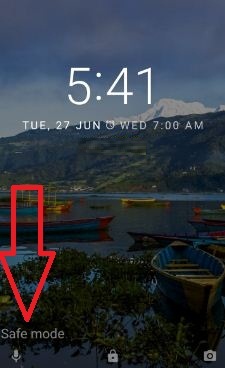
Step 4: View the “Safe modesymbol on the left side below the screen.

Check your Pixel imprint/Pixel fingerprint works. If working perfectly, it means the third-party app causing the issue, find that app, and remove it. Tp exit safe mode, restart your phone. If you still facing issues in safe mode, it means OS or hardware related issues.

If none of the above-given methods fix Google Pixel and Pixel XL fingerprint scanner not working issue, wipe cache partition on Pixel and Pixel XL.

That’s all. Did one of the solutions work for you? Do you know any other alternative methods? Don’t forget to mention which trick worked to fix fingerprint sensor not working on Google Pixel XL. Leave a comment in the below box.