How to Turn On Safe Mode on Google Pixel 9 Pro, 9 Pro XL, 9 Pro, 9

Do you want to enter your Pixel 9 into safe mode? Here’s how to turn on safe mode on Google Pixel 9 Pro, Pixel 9 Pro XL, and other Pixel devices running Android 15 or 16. You can boot your Pixel into safe mode using the power button. Google Pixel Safe mode is helpful for checking any third-party apps that may be causing issues, such as a slow Pixel, a frozen Pixel device, multiple app crashes or freezes, or even restarting your Pixel itself.

When you turn on safe mode on the Google Pixel 9 series, you can’t access the downloaded apps on your phone. Only access the system default apps on your Pixel device. If you know which app is causing the issue, you can try clearing the app cache, uninstalling app updates, or force-stopping the app to resolve the issue. If none of the solutions worked for you, try uninstalling and reinstalling the app.

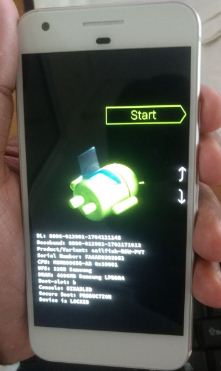
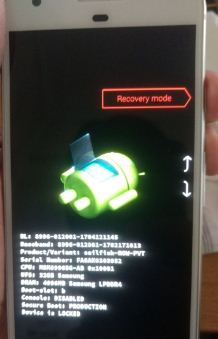
Read More: How to Enter Recovery Mode Google Pixel 

How to Enable Safe Mode on Pixel 9 Pro XL, Pixel 9 Pro, Pixel 9

You can check if any third-party app is causing the issue on your Google Pixel or Android device by using safe mode.

How to Turn On Safe Mode on Google Pixel 9 Pro When Phone Powered On

Step 1: Press and hold the power button on your Google Pixel and Pixel XL device.

How to Enable Safe Mode on Pixel 9 Pro XL


Step 2: Touch and hold the Power off button until you see “Reboot to safe mode”.

Reboot to safe mode on Google pixel and pixel XL phone

Step 3: Press “OK” to reboot into safe mode on your Google Pixel or Pixel XL.

It will take 30-50 seconds to reboot your Google Pixel device.

Enable safe mode Google Pixel phone

Step 4: You can see the “Safe mode” symbol at the bottom left corner.

Check your Google Pixel device facing the issue. If you don’t find any issue, you need to find the third-party app that is causing the problem. To exit safe mode on Pixel 9, restart your phone. Now all downloaded apps are available. Delete one app at a time that was recently installed, and identify the one that is causing the problem. After finding that app, install other applications on your device.

How to Enable Google Pixel Safe Mode When Powered Off

Step 1: Press the power button on your Pixel phone until it vibrates.

How to Turn On Safe Mode on Google Pixel 9 Pro

Step 2: When animation or G logo start, long-press the volume down until see the Safe mode icon at the bottom left of the screen.

How to Turn Off Safe Mode on Pixel 9 Pro or Android

Restart your Android or Samsung Galaxy devices to exit safe mode.

That’s all about the safe mode feature. We hope this clarifies how to enable safe mode on Google Pixel 9 Pro XL and other Pixel devices. Do let us know if you liked this tutorial or not. Please stay connected with us for the latest Google Pixel tips.
Read Also:

How to Extend Battery Life on Google Pixel and Pixel XL

Annoying by battery drain issue on Pixel and Pixel XL devices? Check out below methods to extend battery life on Google Pixel and Pixel XL. To improve battery life on Google Pixel, you need to close all running apps, reduce screen timeout time, minimize screen brightness, enable dark mode, and more. You can use battery saver mode, adaptive brightness, adaptive battery, Doze mode, and data saver mode on Android devices to increase battery life. If set auto-download photos, videos, or other media files on WhatsApp, Hike, or other apps, it will reduce battery life also. Set media auto-download when your Google Pixel connected on WiFi only.

Read Also:

7 Essential tricks to Extend Battery Life Google Pixel and Pixel XL

Apply the below-given ways to fix Google Pixel battery life issue.

Close Running Apps on Google Pixel and Pixel XL

Several apps running in the background even we don’t use it. You can close the app individually or remove all apps at once.

Close Running Apps on Google Pixel to extend battery life

Swipe up from the bottom middle of the screen to open recent apps in your Pixel > Swipe screen right side until view clear all > Tap on “Clear all

Turn Off Auto-Sync

It will regularly sync your data such as app data, contacts, Gmail, calendar, etc. So whenever an update or sync data it will take time and consume more battery. Disable auto-sync on Google Pixel using the below settings.

Turn Off Auto-Sync to save battery life on Pixel and Pixel XL

Settings > Accounts > Toggle off “Automatically sync data”

Disable App Background Data to Extend Battery Life Google Pixel

How to Extend Battery Life on Google Pixel and Pixel XL

Settings > Apps & notifications > See all apps > Select the app from the list > Mobile data & WiFi > Toggle off “Background data”

Enable Battery Saver Mode

It will improve battery life and reduce your device’s performance, background data, and limit vibration. Also, sync not update unless you open them in your device. To turn on battery saver mode on Google Pixel and Pixel XL, follow the below-given settings.

Enable Battery Saver Mode to extend battery life on Google Pixel XL

Settings > Battery > Battery saver > Tap on “Turn on now” button.

Turn On Adaptive Battery

Turn On Adaptive Battery to extend battery life Google Pixel

Settings > Battery > Adaptive battery > Toggle on “Adaptive battery”

Reduce Screen brightness & Set Screen Timeout to Improve Battery Life on Google Pixel XL

Reduce screen brightness to fix battery drain issue on Pixel and Pixel XL

Scroll down the Notification panel from the top of the screen and set the screen brightness. Minimize screen brightness if need.

Reduce the screen sleep time for 15 seconds/30 seconds to save battery on Google Pixel and other devices.

Set Screen Timeout to improve battery life on Google Pixel

Settings > Display > Advanced > Screen timeout > Select a 15 second or 30 second

Disable GPS, WiFi, Bluetooth, and other services

Make sure to turn off Wi-Fi, Bluetooth, GPS, and other location services while not in use.

While your Google Pixel and Pixel XL battery are low, revoke the below-given battery intensive tips:

  1. Watching or recording videos
  2. Playing games
  3. Live wallpaper or animated wallpaper
  4. Screen saver
  5. Download a large number of files

That’s it. Check out each one listed above given methods to extend battery life Google Pixel and Pixel XL devices. Do you know some other tricks to improve battery life on Google pixel phone? Let us know on below comment section.

How to Download YouTube Videos With Google Pixel to Watch Offline

If you love watching YouTube videos, this YouTube offline feature helps a lot to watch offline videos without an internet connection on your Google Pixel and Pixel XL. Here’s how to download and play YouTube videos offline on your Google Pixel and other devices. Your device needs a Wi-Fi or a mobile data connection when download the video. After downloaded YouTube videos, you can play YouTube videos offline on your Android devices. You can not download all YouTube videos for offline viewing.

You can change YouTube video quality when watching YouTube videos on your Android devices. Using this YouTube offline feature, you can watch your downloaded video anytime without an internet connection in your Android or iPhone devices.

Read Also:

How to Play YouTube Video Offline on Google Pixel & Pixel XL

Let see how to save YouTube videos and watch YouTube video offline in Android phone

Step 1: Open the “YouTube app” in your Google Pixel & Pixel XL (Android 7.1.2).

Step 2: Search & open the YouTube video want to download.

Play YouTube video offline Google Pixel phone

Step 3: Tap the “Save” button.

You can see the screen to set video quality for offline viewing.

How to save video offline on Google pixel phone

Step 4: Choose the YouTube video quality for offline viewing Tap “OK” to save video offline.

Stop saving video on YouTube in android

To stop saving YouTube video, tap the “Save” button while downloading running and after that tap on “Stop saving”.

Save YouTube video offline in android phone or tablet

Step 5: You can View the “Righticon on the save button when downloaded video offline.

It’s quite easy to save and play YouTube video offline Google Pixel and Pixel XL devices.

How to Find and Watch YouTube Video Offline Without Internet Connection on Android

Step 1: Open the YouTube app in your Android device.

Tap library to open offline save video on Google pixel

Step 2: Tap “Library” from below the right side corner on Google Pixel.

find and watch YouTube video offline in android

Step 3: Select “Offline videos”.

You can view a list of downloaded videos to watch offline.

Remove offline YouTube video Google pixel and pixel XL

To remove offline YouTube videos from your android device, open downloaded video and tap “More” and touch “Remove from offline videos”.

I hope you will enjoy viewing this trick to Play YouTube video offline Google Pixel & Pixel XL device. If you have any problem, just comment on the below box. Let us know your thoughts about YouTube offline video feature. Which is your favorite YouTube feature?

How to Fix a Battery Drain Problem on Google Pixel and Pixel XL

Annoying by Pixel and Pixel XL battery draining so fast issues? To fix a battery drain problem on Google Pixel and Pixel XL, you can enable adaptive battery & adaptive brightness, turn on battery saver mode, enable dark mode, use Doze mode, and more. There are several reasons for the Google Pixel battery life issue such as screen brightness, background running apps, live wallpaper, screen timeout, enabled auto-sync, and more. Also, use battery cases for Google Pixel and Pixel XL device to charge your device.

Read Also:

How to Fix Battery Drain Problem on Google Pixel & Pixel XL

Check out below given solutions to fix Google Pixel and Pixel XL battery life issues.

Disable App Background Data 

Fix Battery draing problem on Pixel XL

Settings > Apps & notifications > See all apps > Select the app from the list > Mobile data & WiFi > Toggle off “Background data”

Close Background Running Apps to Fix a Battery Drain Problem on Google Pixel and Pixel XL

How to Fix a Battery Drain Problem on Google Pixel and Pixel XL

Open the recent apps in your Google Pixel & Pixel XL > Swipe screen right side until see clear all > Tap on “Clear all”

Reduce Sleep Time on Google Pixel

Set sleep timeout on Google pixel

Set screen timeout time as 15 seconds/30 seconds to turn off screen display.

Settings > Display > Advanced > Screen timeout > Select a 15 second or 30 second

Decrease Screen Brightness

Decrease screen brightness to save battery life on Google Pixel and Pixel XL devices.

Reduce screen brightness on Google pixel phone

Swipe down from the notification bar > Adjust screen brightness

Turn Off Auto-Sync

Disable Auto-Sync to improve battery life on Pixel XL

Settings > Accounts > Toggle off “Automatically sync data”

Enable Dark Mode to fix Pixel XL Battery Draining So Fast

Pixel XL battery draining so fast issue

Swipe down the notification panel from the top of the screen > Dark theme

Settings > Display > Toggle on “Dark theme”

Enable Battery Saver Mode

Activate Battery Saver Mode to fix Google Pixel XL battery life problem

Settings > Battery > Battery saver > Tap on “Turn on now” button.

Turn On Adaptive Battery

Enable Adaptive Battery Google Pixel to fix battery life issue

Settings > Battery > Adaptive battery > Toggle on “Adaptive battery”

Disable GPS, WiFi, Bluetooth, and other services

Make sure to turn off Wi-Fi, Bluetooth, GPS, and other location services while not in use.

Remove Live Wallpaper to fix battery drain problem Google Pixel

If set live wallpaper on your Google Pixel phone, change it. It will consume more battery compare to simple wallpaper.

Turn on battery optimization on Google Pixel

If any app set as not optimization, it means that a particular app quickly drains the battery on your Google Pixel device. To turn on optimize for all apps.

Optimise app for bettery battery life on Google pixel

Settings > Battery > More (Three vertical dots at the top right corner) > Battery usage > All apps > Select any app > Battery optimization > Choose Optimise

Check system software update

Check system software updates are available for your device, it will fix critical bugs and improves the performance and stability of your Google Pixel phone. Also maybe solve your Google Pixel quickly drain battery issue.

Google Pixel battery life issue

Settings > System > Advanced > System update > Check for update

That’s all about how to fix the battery drain problem Google Pixel and Pixel XL phone. Do you know some other methods to fix this Google Pixel issue? Let us know on below comment box.

How to Fix Google Pixel Lens Blur Issues

Facing the issue of blurry pictures on Google Pixel and Pixel XL phone? Here’s how to fix Google pixel lens blur issue. A system software update is a way to solve the Google Pixel and Pixel XL lens flare problem. You can fix blurry videos on Google Pixel, to disable video stabilization on Google Pixel. You can see the lens blur option in your Google camera app. In blur photos or videos, you can’t view it correctly. A camera is one of the best features of Google Pixel and Pixel XL devices.

Read Also:

How to Fix Google Pixel Lens Blur Issues

fix Google Pixel lense blur issue

If your Google Pixel and Pixel XL device have taken photos or videos are blurry, try below given possible solutions.

Clean Camera’s Lens & Laser

If the issue of blurry pictures on Google Pixel and Pixel XL, using clean cloth, clean the Google pixel camera lens and a laser sensor. After a clean lens, try to capture photos and see fix camera issues or not. If not fix, try the below-given method.

Check Software Updates to Fix Google Pixel Lens Blur Issue

Check any system software updates available on your device. It may be fix your Pixel camera blurry picture issue. You can update system software on Google Pixel using below settings.

Check software update on Google pixel device

Settings > System > Advanced > System updates > Check for update

This software update fixes small critical bugs and improves Pixel performance.

Check For Apps Update

After update software on Google pixel, check any apps update available on Google play store using below settings in your Google Pixel devices.

Update apps and games on Google pixel phone

Open the Play Store > Menu at the top left corner > My apps & games > Update all

Disable Video Stabilization on Google Pixel and Pixel XL

Step 1: Open the camera app on your Google Pixel & Pixel XL.

Step 2: Swipe down on the camera screen to go to the camera settings.

Step 3: Tap on the Settings icon.

You can view enable video stabilization under the video section in camera settings of Google Pixel and Pixel XL phone.

Turn off video stabilisation on Google pixel and pixel XL

Step 3: Toggle off “Video stabilization” under the video section.

Now take photos or video and check fix Google Pixel and Pixel XL lens flare issue.

Did these solutions fix Google Pixel lens blur issue on your device? Do let us know which method worked for you? Please share the article if you found it helpful. Stay connected with us for latest Google Pixel and Pixel XL tips.

How to fix Google Play Store error 907

Want to fix error code 907 when downloading apps from Google play store. You can see this message: “App name” could not be downloaded due to an error. (907) or can’t download apps from play store in android phone. Most of these types of play store errors automatically fix while reboot your device. If not fix after reboot device, follow below mention methods to fix Google Play Store error 907 in android.

You can’t download apps from play store while this error code occurs in your device. To fix this error 907 in play store, clear the cache and clear data of Google play store, uninstall update of Google play store, unmounted SD card etc. Check out below given various methods to fix Google Play store error 907 in android device.

Related Tips: Fix Google play store error 941

How to fix Google Play Store error 907 in android phone or tablet

fix Google Play Store error 907 in android phone

1st Method: Clear cache of Google Play Store

Step 1: Go to “Settings

Step 2: Tap on “Apps” under device section

Step 3: Scroll down until see Google Play Store and tap on it

Step 4: Touch “Storage

Clear the cache of Play store to fix error 907 in android

Step 5: Touch “Clear cache” & “Clear data

Check app download or not form play store. If not fix error, try below method.

2nd Method: Unmounted SD card to fix Google play store error 907

Step 1: Go to “Settings”

Step 2: Tap “Storage”

Step 3: Select “Unmounted SD card”

If not solve error using above steps, format or remove your SD card and try to download and install app from play store.

3rd Method: Uninstall Google play store updates

Step 1: Go to “Settings

Step 2: Tap on “Apps” under device section

Step 3: Scroll down until see “Google play store” and tap on it

Step 4: Tap on “More

Uninstall Google Play store update to fix error 907 code

Step 5: Touch “Uninstall updates

Step 6: Touch “OK

4th Method: Remove your Google account

Step 1: Go to “Settings

Step 2: Tap on “Apps” under device section

Step 3: Tap on “Google” account

Step 4: Tap on “More

Remove google account to fix error 907 in play store

Step 5: Touch “Remove account

Step 6: Again touch “Remove account

After remove Google account, reboot your android phone and sign in again with your Google account and try to download apps from play store.

5th Method: Factory data reset android phone

Factory Reset android to fix error  907 in Google Play Store

Settings > Backup & reset > Factory data reset > Reset Phone > Erase everything

It will remove all your android phone data. Now Sign in with your Google account and try to downloading apps or games from play store.

End the list of possible solutions. What others fixes do you know to fix Google play store error 907 in android. Don’t forget to mention which method worked for you to fix issue.