How to Capture 4K Video in Google Pixel and Pixel XL

Record 4K video on Android or the latest Pixel devices? Here’s how to capture 4K videos in Google Pixel & Pixel XL. By default set HD 1080p as camera video resolution in Google Pixel. A good quality video or picture has a big size, so it takes more space to stored photos & videos including 4K videos. But in Google Pixel & Pixel XL has unlimited free storage for videos & photos. You can easily backup & restore videos and photos on Google Pixel.

Google Pixel & Pixel XL device has various awesome features, one of them is the camera. This camera app includes slow-motion video, Panorama, photosphere, lens blur, and other camera settings. You can change the front & back camera photo resolution and also change back & front camera video resolution in your Pixel device.

Relevant:

How to Capture 4K Video in Google Pixel and Pixel XL

Google Pixel camera is one of the highest-rated smartphone cameras in the world. Google Pixel and Pixel XL camera have 12.3 megapixels back and 8-megapixel front camera. It will take amazing photos in low light and bright light.

How to Record 4K video on Google Pixel Running Android 10

Record 4K video Google Pixel Running Latest Version

Open camera app > Swipe down from the camera screen > Settings gear icon > Toggle on “Ultra-high resolution video (4K)” under the video section

Jump to Camera

Jump to camera feature of Google Pixel

You can access the camera from any screen in Pixel. Press the power button twice to directly jump into the camera app in your Google Pixel phone. Now you can capture a photo or video even your pixel device screen is off.

Settings > System > Gestures > Jump to camera > Toggle on “Jump to camera”

Flip Camera

Flip Camera Feature of Google Pixel

While using a camera app, simply double twist your wrist to change between the front and rear-facing camera without touching the screen.

Settings > System > Gestures > Flip camera > Toggle on “Flip camera”

Older Pixel and Pixel XL OS Version

Step 1: Open the Camera app in your Google Pixel & Pixel XL.

Tap menu from top for the right side corner in pixel

Step 2: Tap “Three horizontal lines” at top of the left side corner.

Tap settings in camera app in Google pixel

Step 3: Tap “Settings”.

Backup camera video resolution in Google Pixel phone

Step 4: Select “Back camera video resolutions” under the video section.

Here you can show HD 720p/HD 1080p or UHD 4K options. By default camera video resolution set as HD 1080p.

capture 4k video in Google Pixel phone

Step 5: Choose UHD 4K to turn on 4K video capture.

Now capture 4K video on Pixel and Pixel XL phone.

Let see other useful cameras feature of Google Pixel and Pixel XL phone.

That’s all. Did you found the above process helpful to capture 4K video in Google Pixel and Pixel XL? Let us know your thoughts in the below comment box. For more latest tips visit wordpress-221392-673273.cloudwaysapps.com

How to Fix a Black Screen on Google Pixel and Pixel XL

Annoying by Google Pixel unresponsive black screen issue? Here are the possible methods to fix black screen problem on Google Pixel and Pixel XL. First of all check your Pixel phone screen isn’t damaged or cracked. Sometimes facing Pixel black screen issues during incoming calls. Other issues related to this problem are Pixel screen isn’t responding or flashing or dead pixel on the screen. While using your device and suddenly nothing to show on screen, it completely looks like a black screen. While appear this black screen, you can’t operate your device. Sometimes your Pixel and Pixel XL won’t turn on also.

Read Also:

How to Fix Black Screen Problem on Google Pixel and Pixel XL

fix black screen problem on Google Pixel phones

Try to Enable Safe Mode If the screen turns on sometimes

To find apps that causing issues, enable safe mode on Google Pixel & Pixel XL using the below steps.

Step 1: Press and hold the power button on your Pixel device.

Step 2: Touch and hold the “Power off” button until show “Reboot to safe mode”.

Step 3: Press “OK” to reboot safe mode on Google Pixel.

It will take 30-40 seconds to reboot your device.

Turn on safe mode Google Pixel to fix black screen problem

Step 4: View the “Safe modesymbol on the left side below the screen.

Check your Google Pixel is starting. If not found any problem, it means any third party apps causing the issue. Exit safe mode to restart your Pixel. Now delete the recently downloaded app one by one and check to fix the issue. After finding that app, re-install other apps. If you still found the issue in safe mode, the problem is hardware or OS related.

Factory Reset Google Pixel & Pixel XL If Screen isn’t responding

Make sure back up and restore your Pixel data before performing below given settings. It will delete your phone all data including Google account, photos, videos, music, and more.

Step 1: Turned off your Google Pixel and Pixel XL.

Step 2: Press & hold the volume down button and the power button at the same time until the phone vibrates.

You can view the Android system recovery screen on Google Pixel. By default start button show on your phone.

Google pixel Recovery mode

Step 3: Press the volume down button until view recovery mode.

Step 4: Press the power button to restart into recovery mode.

You can see the above screen of the Android robot exclamation mark with a red triangle symbol on your Pixel phone.

Factory reset pixel and pixel XL phone

Step 5: Press & hold the power button and volume up buttons same time to scroll to wipe data/factory reset, press the power button to select it.

This message show on your Google Pixel & Pixel XL screen: Wipe all user data?

wipe cache data on pixel & pixel XL phone

Step 6: To confirm, press volume down buttons to scroll to Yes and press the power button to select it.

Clearing the cache may take 3-5 minutes.

Step 7: Press the volume down buttons to scroll to reboot system now, press the power button to select it.

Factory Data Reset Pixel to Fix Black Screen on Google Pixel

It will remove all your Pixel data. So make sure to backup Pixel important data.

Step 1: Go to “Settings”.

Step 2: Tap “Backup & reset” under the personal section.

Step 3: Tap “Factory data reset”.

Step 4: Tap “Reset phone”.

If set Pattern lock or PIN or Password or Fingerprint in your device, confirm it to unlock your device.

Factory data reset your pixel and pixel XL device

Step 5: Tap “Erase everything”.

It will delete all your personal information, accounts, music, photos, downloaded apps, and other data from your device.

Alternative Way: Settings > System > Advanced > Reset options > Erase all data (Factory reset) > Erase all data > Erase all data

Did this solution fix the black screen problem on Google Pixel & Pixel XL? What other tricky methods do you know to fix this problem? We invite you to leave your feedback in below comment box.
How to Reset Google Pixel and Pixel XL Using Recovery Mode

Facing the issue of Google Pixel unresponsive or touch screen not working? You need to perform a hard reset or factory reset Google Pixel and Pixel XL. A factory reset using recovery mode is also called master reset. If none of the solutions worked for you to fix your Pixel issues, you will try this. It will reset all your device personal data, account, third party apps, music, photos, system & app data, and other settings from your Pixel device. Also, useful for another issue such as Pixel restarting itself, the poor sound quality on calls, and more. If specific app-related issues, enable safe mode on Google Pixel and find that app & remove it.

Related Tips:

How to Hard Reset Google Pixel and Pixel XL

Below you can see a complete guide to Google Pixel and Pixel XL hard reset or factory reset using power and volume button. Make sure to back up your important data before performing below given methods.

Step 1: Turn off your Google Pixel and Pixel XL.

Step 2: Press & hold the volume down button and the power button at the same time until the phone vibrates.

Android system recovery mode Google pixel phone

You can view the Android system recovery screen on your Google Pixel. By default start button show on Google Pixel.

Use Recovery mode on Google pixel

Step 3: Press the volume down button until view the Recovery mode.

Step 4: Press the power button to restart into recovery mode.

android robot exclamation mark with red triangle icon on screen

You can see the above screen of the Android robot exclamation mark with a red triangle symbol on your Pixel phone.

Factory reset Google pixel & pixel XL device

Step 5:  Press & hold the power button and press volume up button one time only and then release the volume up button only.

You can see the Google Pixel recovery mode screen that including reboot system now, reboot to bootloader, Apply update from ADB, Wipe data/factory reset, and other handy settings.

Step 6: Press the volume down button until Wipe data/factory reset.

This message show on your Google pixel & pixel XL screen: Wipe all user data?

Step 7: Press the Power button to continue the process.

how to hard reset Google pixel phone

Step 8: To confirm, press volume down buttons to scroll to Yes and press the power button to select it.

Clearing the cache may take 3-5 minutes.

Reboot system now on Google pixel phone

Step 9: Press the volume down buttons to scroll to reboot system now, press the power button to select it.

Factory Reset Google Pixel & Pixel XL

Factory data reset Google pixel device

Settings > Personal > backup & reset > Factory data reset > Reset phone > unlock your device > Erase everything

Alteranative Way: Settings > System > Advanced > Reset options > Erase all data > Erase all data > Confirm lock screen > Erase all data

Did you found the above steps helpful to hard reset Google Pixel device? If you found it helpful, don’t forget to share it with others. Stay connected with us for the latest Google Pixel tricks.

How to Turn On Night Light Mode on Google Pixel and Pixel XL

Here’s how to enable Night Light mode on Google Pixel and Pixel XL. By default disabled Night Light in your Pixel device. This Night Light mode makes your screen easier to look or you can easily read in dim light and useful to fall asleep more. When Night light mode is on, your Pixel screen will look like the orange color. You can turn on night mode using display settings and swipe down the notification panel from top of the screen in your Google Pixel and Pixel XL devices.

Read Also:

2 Ways to Enable Night Light Mode on Google Pixel and Pixel XL

Let see two methods to adjust Night Light settings on Google Pixel and Pixel XL devices.

How to Turn On Night Light on Google Pixel Automatically Using Phone Settings               

Step 1: Go to “Settings” in your Google Pixel & Pixel XL.

Tap display under device section in Google pixel

Step 2: Tap “Display” under the device section.

Tap Night Light under display settings

Step 3: Tap “Night Light”.

By default turned off Night light mode on your Pixel device.

Step 4: Toggle on “Night light” (Show the below-given screenshot) or Tap “Turn on now” button on the latest Google Pixel & Pixel XL running Android 10.

Enable Night Light mode on Google pixel and pixel XL


Step 5:Tap on “Schedule“.

Here you can set schedule to turn on automatically night light mode as customize schedule and sunset to sunrise.

Customized schedule: To use this schedule, set start time and end time to turn on automatically night mode on the Pixel. After a set time, the blue canceling filter tints on screen.

Sunset to sunrise: It will show a blue canceling screen filter to your device every night as sunset and slowly increase effect as a sunrise.

How to Enable Night Mode on Google Pixel & Pixel XL  (Android Nougat 7.1)

Step 1: Swipe down the notification bar from any screen in your Pixel.

Swipe down notification bar & tap pencil icon on pixel

Step 2: Tap the “Pencil” icon.

You can see various options to edit quick settings on Google Pixel and Pixel XL.

Tap & hold Night Light and move it above screen

Step 3: Tap & hold Night Light and move it to top of the screen.

Enable Night mode on Google pixel phone

Step 4: Swipe down notification bar & tap on Night Light to activate it.

That’s all about Google pixel new awesome feature Night Light mode. Do let us know you liked this tutorial or not. If you are facing any problem to Enable Night Light mode on Google pixel, let us know in below comment box.

How to Use Google Pixel Gestures

How to enable and use moves gestures on Google Pixel and Pixel XL devices. You can use Google Pixel gestures on your device including Swipe fingerprint for notifications, Jump to camera, gesture navigation, Flip camera, Raise to Wake, prevent ringing, and double-tap to wake. Using this Google gestures, you can easily show notifications on the lock screen and quickly open & switch camera in your Pixel devices. You can quickly access notification using the fingerprint sensor on Google Pixel and Pixel XL phone.

Read Also:

How to Enable and Use Moves Gestures on Google Pixel and Pixel XL

First of all show steps to turn on gestures on Google Pixel and Pixel XL devices.

How to Use Pixel Gestures (Android 10)

In the latest Google Pixel and Pixel XL running Android 10, you can see two new added gestures (Total 7), one is gesture navigation (Fully gesture navigation) and another is Prevent ringing. Click here to see enable gesture navigation in Google Pixel & Pixel XL running Android 10.

How to Use Google Pixel Gestures

Settings > System > Gestures

How to Enable Google Pixel Gesture Navigation (Android 10)

How to Enable Google Pixel Gesture Navigation

Settings > System > Gestures > System navigation > Choose from Gesture navigation (Fulls creen gesture)/2-button navigation/3-button navigation

Google Pixel and Pixel XL (Android Nougat 7.1)

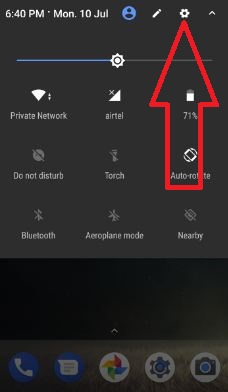
Step 1: Swipe down the notification panel from the top of the screen.

Tap settings gear icon on pixel to use gestures

Step 2: Tap “Settings gear icon”.

Tap moves to use gestures on Google pixel & pixel XL

Step 3: Under the device section, tap on “Moves”.

Here you can see below 5 quick gestures to control your Google Pixel and Pixel XL devices. You can enable gesture to want to use in your Pixel device.

Swipe For Notifications

enable Google pixel fingerprint swipe notifications gesture

This most useful gesture allows users to access notifications to just swipe down on the fingerprint sensor using any finger (Not only registered fingerprint sensor). To use this feature, enable Google pixel fingerprint swipe notifications gesture.

Jump to Camera

You can access camera from any screen using this gesture. Press the power button twice to directly jump into the camera app in your Google pixel device. Now you can capture a photo or video even your pixel device screen is off.

Flip Camera

how to use Flip camera gesture on Google pixel phone

While use camera app, simply double twist your wrist to change between the front and rear-facing camera without touching the screen. To use it, enable flip camera gesture on Google pixel phone.

Double-tap to Wake

Double-tap on your Google Pixel screen to quickly check your notifications without turn on your device.

Raise to Wake

use moves gestures on Google pixel and pixel XL

This gesture is also useful for notification. Just raise your Google Pixel device and you can show notification and time in screen.

That’s all about how to enable and use gestures on Google Pixel and Pixel XL. Which is your favorite Pixel gesture? Let us know your thoughts in the below comment box.

How to Use Google Assistant in Pixels – Customize Google Assistant

Have you ever use Google Assistant on Google Pixel & Pixel XL? To use it, make sure to enable Google Assistants on Pixel devices. You can set up and customize Google Assistant on Pixel and Pixel XL using this tutorial. Using Google assistant, you can set reminders, set alarms, play music, translations language, watch videos on Netflix, listen to happy birthday songs, weather updates, latest news, jokes, find nearby places or hotels, and more. Google Assistant helps the user to quickly find answers to asked questions. This feature is related to Apple’s Siri, Microsoft’s Cortana, etc. Also, adjust settings for the assistant on your Pixel device and block offensive words.

Read Also:

How to Enable and Use Google Assistant on Google Pixel and Pixel XL

First of all, let see how to enable Google Assistant on Google Pixel and Pixel XL devices if disable.

Step 1: Long press the home button to launch Google Assistant on a Pixel phone.

Meet your Google Assistant on pixel

Step 2: Touch “Continue” to give new assistant permission.

Here you can show settings of Web & app activity and your Pixel & Pixel XL device information.

WEb & app activity settings on pixel device

Step 3: Touch “Yes, I’M IN.

Now it’s time to say “OK Google” three times to talk your Google assistant at any time, even if your screen is off or using your favorite apps.

Teach assistant to recognise your voice in pixel

Step 4: Touch “Get started”.

Now say “OK Google” three times and you can see below screen on your device. You can unlock your Google Pixel & Pixel XL to just say “OK Google”.

Use Ok Google to unlock your pixel device

Step 5: Enable “Ok Google” to unlock your Pixel phone & Touch “Continue”.

use Google assistant on Google Pixel phone

You can use Google Assistant on your Google Pixel phone.

How to Customize Google Assistant on Google Pixel & Pixel XL

You can adjust Google Assistant settings using 2 methods:

Customize Google Assistant settings using the home screen

Step 1: Long press the home button on your device screen (From any screen) to launch the Assistant.

Step 2: Tap on the “More (Three vertical dots)at the top right.

Tap settings on Google assistant launch

Step 3: Select a “Settings

Here you can adjust Google assistant settings such as home control, news, my day, screen context, shopping list, and more.

Adjust Google Assistant Settings Using Google App

Step 1: Go to “Settings”.

Step 2: Under the personal section, tap on the “Google app“.

Step 3: Tap “Search” in the services section.

Change Google assistant settings using Google app

Step 4: Touch “Settings” in Google Assistant.

How to Use Google Assistant in Pixel and Pixel XL running Android 10

How to Use Google Assistant in Pixels

Tap on Google Assistant icon at the bottom search bar > Tap on bottom right corner icon > Tap Profil icon at the top right corner > Settings > Assistant tab 

Google Assistant Settings

You can use Google Assistant on Google Pixel and Pixel XL for the below-given topics information.

News:

Simple Launch the Google Assistant and say the latest news about your favorite topics, it will find the source related to your query. You can easily customize news, technology, sports, science, business, health, and other world level source such as WSJ, New York Times – The daily, CNN News, Bloomberg best, Time’s the brief, TechCrunch, Gizmodo, HuffPost, The Washington Post, BBC Global News, ESPN sports, etc.

My Day:

Simply launch the Google Assistant and say “tell me about my day”. Now the assistant will show you weather temperature in Fahrenheit/Celsius. Also, add your home and work address and set a reminder for office time, birthday, and other important work-related data. Also, change the settings of my day summary end with your favorite news channel.

Home control:

You can control your added device such as Nest, Philips Hue, Honeywell, WeMo, etc. Also, manage account settings using home control settings.

Shopping list:

Add a list of your favorite items, so whenever you are going shopping check the added list and buy it.

Change Google Assistant Settings on Pixel & Pixel XL

Adjsut Google assistant settings on Google pixel & pixel XL

Change Assistant language on Google Pixel & Pixel XL

By default set English (US) as assistant language.

Tap & hold home screen button > More > Settings > Pixel > Adjust settings for this device > Assistant language > Go to language preferences > Add a language

Change Assistant language on Google Pixel and Pixel XL

Alternative Way: Tap on Google Assistant icon at the bottom search bar > Tap on bottom right corner icon > Tap Profil icon at the top right corner > Settings > Assistant tab > Language > Add a language

OK Google Detection on Google Pixel

In this Google assistant setting, you can enable Ok Google any time that recognizes your voice even if the lock device or open any apps in your android device.

OK Google detection on Google pixel & pixel XL

Tap & hold home screen button > More > Settings > Pixel > Adjust settings for this device > OK Google detection

This Ok Google detection includes trusted voice and OK Google voice model.

Google Assistant Personal Info Settings

Google assistant personal information settings on pixel

Home & work locations

Add your home and work locations to ask your assistant about your address.

Change Assistant Name on Google Pixel & Pixel XL

Add the nickname that the assistant calls you.

Set weather preferences on Pixel & Pixel XL

Set weather temperature units as Fahrenheit/Celsius.

Add email updates

Stay connected with the latest news and features related to Google Assistant.

Web & app activity controls on Google Pixel & Pixel XL

Tap & hold home screen button > More > Settings > More > Google activity controls

That’s all about how to set up and use Google Assistant on Google Pixel and Pixel XL devices.

It’s quite easy to use Google Assistant on Google Pixel and Pixel XL devices. Do let us know you liked this tutorial or not. Let us know your thoughts in the below comment box.