How to Fix Sound Not Working on Google Pixel and Pixel XL

According to users, Google Pixel and Pixel XL phones have audio distortion problems occur. You can fix the sound not working on Google Pixel XL using the next patch update. Several users reported popping and explosive sounds when listening to songs in your Pixel device. This problem affected users are reporting that after installing the OTA security patch update in Feb 2017, audio problems solved.

Pixel owners on Reddit and Google+ Pixel User Community said Google Pixel and Pixel XL affected on the audio problem. Google has informed Pixel users that “this audio issue resolves in the upcoming update. Until getting update does not play your Pixel phone at maximum volume. Follow below given a complete guide to fix the audio issue on Google Pixel and Pixel XL.

Read Also: Ok Google voice command not working on Google Pixel and Pixel XL

How to Fix Audio Issue on Google Pixel and Pixel XL

fix audio issue on Google Pixel phone

If not fix the issue after tried OTA security patch update in your Google pixel, try below given possible solutions to fix Pixel XL audio issue.

Restart your Pixel phone

Tap & hold the power button until the screen appears and after that tap on “Restart”. Check Bluetooth works or not.

Turn Off Bluetooth

Settings > Connected devices > Connection preferences > Bluetooth > Toggle off “Off”

Remove screen protector & cases

Remove case to fix Pixel XL audio problem

Remove your Google Pixel cases, screen protector, or other accessories.

Use Safe Mode to Fix Audio Issue on Google Pixel and Pixel

Step 1: Press and hold the power button on your Google Pixel and Pixel XL device.

You can see the below screen on your device.

Step 2: Touch and hold the “Power off” button until view “Reboot to safe mode”.

Reboot to safe mode Google pixel to fix audio problem

Step 3: Press “OK” to reboot safe mode on Google Pixel.

It will take 30-50 seconds to reboot your device.

Turn on safe mode to fix Google Pixel audio issue

Step 4: View “Safe modesymbol on below of the left side screen

Check your Google Pixel XL device audio working perfectly If not any issue, it means any third party apps causing issues. Delete one by one recently downloaded app and find an app that causing a problem. To exit safe mode on Google Pixel devices, just restart your phone.

If none of the above-given solutions fix the audio issue on Pixel and Pixel XL, clear cache partition on Google Pixel and Pixel XL.

Is your Google Pixel phone affected? Did this solution fix audio issue on Google Pixel and Pixel XL phone? Tell us in the below comment box. For more great ideas visit wordpress-221392-673273.cloudwaysapps.com

How to Fix Bluetooth Problem on Google Pixel and Pixel XL

Here’s the list of solutions to fix Bluetooth problem on Google Pixel XL and Pixel. Some of the users reported Pixel and Pixel XL Bluetooth pairing or Bluetooth not finding devices issue. Due to this reason, you can’t connect your Bluetooth device when try to Bluetooth pairing with Car or other Bluetooth accessories and various cars including BMW, Audi, Tesla, Mercedes Benz, Volvo, etc.

Read Also:

How to Fix Google Pixel Bluetooth Pairing Issue

First of all turn Bluetooth off and then turn on again. After that search other device Bluetooth name and try to connect with your Pixel. If you still facing issue, apply below given troubleshooting methods.

Restart Your Pixel

Tap & hold the power button and tap on Restart. After restart, try to connect your Pixel to other device’s Bluetooth.

Check System Update

Check system software updates is available for your Pixel device, it will fixes critical bugs and improves the performance of your Google Pixel.

Settings > System > Advanced > System update > Check for update

Clear the Bluetooth Cache to Fix Bluetooth Problem on Google Pixel XL and Pixel

Step 1: Go to Settings.

Step 2: Tap Apps & notifications.

Step 3: Tap See all apps.

Find Bluetooth in Pixel to Fix Bluetooth issue

Step 4: Tap on More (Three vertical dots) at the top right corner.

Show system to find Bluetooth in Google Pixel XL

Step 5: Select Show system.

Google Pixel Bluetooth Issue

Step 6: Scroll down and tap on Bluetooth.

Clear Bluetooth cache to fix Google Pixel Bluetooth Pairing Issue

Step 7: Tap on Storage and cache.

How to Fix Bluetooth Problem on Google Pixel and Pixel XL

Step 8: Tap on Clear cache.

Remove All Bletooth Paired (Phone & Speaker) and Connect Again

Step 1: Go to Settings.

Step 2: Tap Connected devices.

Remove All Bletooth Paired to Fix Pixel Bluetooth Problem

Step 3: Tap Settings ger icon of connected device.

Fix Google Pixel Bluetooth Pairing

Step 4: Tap Forget.

Step 5: Tap Forget device.

Restart your phone and re-connect again to go Settings > Connected devices > Pair new device > Tap your device name

Google Pixel Can’t Pair With Car’s Bluetooth

Delete all paired devices from your car’s Bluetooth list. Now, search your Pixel’s Bluetooth and try to connect it.

End the list of troubleshooting methods. Did you find the above tricks helpful to fix Bluetooth problem on Pixel XL and Pixel phone? What other fixes do you know to fix this issue? Let us know in below comment box.

How to Fix Google Pixel Microphone Issue

Google has confirmed that some of the Pixel and Pixel XL phones are microphone problems. This Google Pixel microphone issue is hardware-related, so you can’t solve it using settings. Also, the Google Pixel audio issue & Bluetooth issue problem occurs. Some of the user facing microphones stopped working on Pixel after few days. Also, can’t recording video on Pixel phone. You can try to make a phone call to voicemail and turning speakerphone on or off to fix it. Wait until get the next software update that should fix microphone issue on Pixel XL. You can fix it to replace your Pixel device with a new one if none of the methods solved your issue.

Read: Fix Ok Google voice command not working on Pixel & Pixel XL

How to Fix Microphone Issue on Google Pixel and Pixel XL

Fix microphone issue on Google Pixel XL phone

Google employee Brain Rakowski already said the company is aware of this pixel microphone issue and not fix it to software updates your pixel device. Also says Google will replace any pixel device that facing this issue. Multiple users have reported loud volumes the speaker gets scratchy so audio problems in pixel phone also. Google confirmed this Android 7.1.2 update fix Google pixel audio issues.

The most common problem is a hairline crack in the solder connection on the audio codec,” said Google employee Brain Rakowski. That will affect all three mics and not record any voice using the main mic in your Pixel and Pixel XL phone. Also, a faulty microphone causing problem. For frustrated owners, the company is handling the problem. Google will replace your device and ship your phone immediately. You can also try to contact the phone dealer to replace your Google Pixel device.

Google said that those Pixel phones manufactured since January should be fine. It’s possible to some replacement phones not properly updated, so a chance to your replacement Google Pixel and Pixel XL phone will have the same microphone problem or other audio related issues. If found any problem, immediately replace your pixel devices.

Do let us know you liked this tutorial not. If you found it helpful to fix the microphone issue on Google Pixel and Pixel XL phone, don’t forget to share it with others. Stay connected with us for the latest Google Pixel tricks.

How to Fix GPS Issue on Google Pixel

Annoying by Pixel and Pixel XL GPS issues with tracking location? Due to signal loss, sometimes GPS not working on Google maps on Android devices. If this does not resolve this issue, try to clear the GPS app cache in your Pixel devices. To fix GPS issues on Google Pixel devices, ensure the location mode is set with high accuracy if you can’t find the proper place.

GPS helps find an accurate location in your Pixel phone while driving or traveling. Also, various users reported Google Maps issues like GPS not tracking location and GPS lost signal on the latest Pixel devices, including Pixel 7 Pro, Pixel 7, Pixel 6 Pro, Pixel 6, Pixel 6a, Pixel 5 5G, Pixel 5a, Pixel 4, Pixel 4 XL, Pixel 4a, Pixel 3a, Pixel 3 XL and Pixel 3. You can quickly fix GPS not working on Google Pixel and Pixel XL using the below-given possible solutions.

Read More:

How to Fix GPS Not Working on Google Pixel and Pixel XL

fix GPS not working on Google Pixel phone

Your Google Pixel and Pixel XL phone lost GPS signal, or Google maps not working perfectly in the latest Pixel devices. Check out the methods listed below to fix Google Pixel XL GPS not working.

Restart your Pixel

Long-press the power button and tap on Restart in the power menu to reboot your device. Sometimes it will fix minor bugs on your device.

Set Location Mode to High accuracy to Fix GPS Signal Lost issues

Step 1: Open Settings in your Pixel & Pixel XL.

Tap on location under personal section in your pixel device

Step 2: Scroll down and tap Location.

By default, turn off location on Google Pixel & Pixel XL. Turned on GPS in your Pixel device.

Turn on GPS service on your Pixel and pixel XL phone

Step 3: Tap on Mode.

Set location mode as high accuracy on Google pixel

Step 4: Set location mode as High accuracy.

If you have the latest Pixel devices, go to Settings > Location > Location services > Google Location Accuracy > Toggle on Improve location accuracy.

Clear Google Maps Cache & Data to Fix Pixel GPS Not Working

clear cache and clear data of Google Maps app in pixel

Settings > Apps > See all apps > Maps > Storage and cache > Clear cache

Clear Maps Data: Settings > Apps > See all apps > Maps > Storage and cache > Clear storage > Delete

Check Google Maps App Update

Step 1: Open the Play Store on your device.

Step 2: Tap the Profile icon at the top right.

Step 3: Tap Manage apps and device.

Step 4: Tap the Manage tab.

Step 5: Tap Updates available.

Check if Google maps app update available or not.

Use Safe Mode to Fix GPS Not Working on Google Pixel XL

Step 1: Press and hold the power button on your Pixel device.

Step 2: Touch and hold the Power off button until view Reboot to safe mode.

Step 3: Press OK to reboot the safe mode Pixel XL.

It will take 30-40 seconds to reboot your phone.

Use Safe mode on pixel to fix GPS issue

Step 4: View the Safe mode symbol at the bottom left corner.

Now check whether your Google Pixel & Pixel XL phone GPS is working. If not found any issue, it means any third-party apps are causing this issue. Remove one by one third-party app and find the app causing the problem. After removing it, reinstall other applications.

Factory Reset your Google Pixel XL

It will delete all your phone’s data, including Google accounts, third-party apps, photos, music, and other media files. Before resetting your Google Pixel device, back up & restore your Google pixel data.

Step 1: Go to Settings.

Step 2: Scroll down and tap System.

Step 3: Tap Reset options at the end of the screen.

Step 4: Tap Erase all data (Factory reset).

Step 5: Tap Erase all data at the bottom right corner.

Step 6: Confirm your screen lock.

Step 7: Tap Erase all data to reset Pixel device to factory default settings.


If you found the above-given methods did not fix Pixel XL GPS not working issue, wipe the cache partition on Google pixel and pixel XL.

That’s all. End the list of possible solutions to fix GPS not working on Google Pixel and Pixel XL. Let me know what you think about this solution. Please share the article if you found it helpful.

FAQs:

How do I Improve Location Accuracy in Pixel 6?

To improve Pixel 6 location accuracy, ensure to enable Google location accuracy settings. To turn on location accuracy in Pixel, go to Settings > Location > Location services > Google Location Accuracy > Toggle on Improve location accuracy.

How do I Turn on GPS on Pixel 6?

Two ways to enable GPS on your Google Pixel 6 series and other Pixels. Swipe down the notification panel at the top, tap Location in the quick settings tiles menu to activate it, or go to Settings > Location > Toggle on Use location.

Related:

How to Fix OK Google Voice Command Not Working on All Pixels (Stock Android)

How to fix Ok Google Voice not working on Google Pixel and other Android phone. Make sure to enable Google assistant on your all Pixel devices. Sometimes facing the issue of Ok Google command not working or Google voice search not working on the Pixel XL. While say Ok Google in your Pixel device, it will recognize your voice automatically if already set up. Using this Google voice command, you can tell anything related to your query to Google assistant and it will help to quickly find a solution. Compatible with all Pixel (Google Pixel, Pixel XL, Pixel 2, 2 XL, Pixel 3, 3 XL, Pixel 3a, 3a XL, Pixel 4, 4 XL, Pixel 4a) and latest stock Android devices.

Read Also:

How to Fix OK Google Voice Command Not Working on All Pixel Devices

Let see various below given methods to fix Ok Google is not working on Google Assistant in Pixel XL and Pixel phone.

Enable Hey Google on Pixels Running Android 10

How to Fix OK Google Voice Command Not Working on All Pixels

Open Google app > Three horizontal dots at the bottom right corner > Settings > Google Assistant > Voice match > Toggle on “Hey Google”

Open Google app > Three horizontal dots at the bottom right corner > Settings > Voice > Voice match > Toggle on “Hey Google”

Make sure Turn On Ok Google Detection or Hey Google (Older OS)

Step 1: Open the “Google app” in your Pixel and Pixel XL.

Step 2: Tap “Three horizontal lines” from the top of the left side corner.

Step 3: Select “Settings”.

Here you can view Google assistant and Search sections.

Tap on voice under search section in assistant settings

Step 4: Under the search section, tap on “Voice”.

Tap on Ok Google detection under voice feature in pixel

Step 5: Tap on ‘Ok Googledetection.

Make sure Turn on Ok Google detection in pixel phone

Make sure both say “Ok Google” any time and trusted voice feature is turned on. Now check to fix the Ok Google voice command issue on Pixel and Pixel XL device.

Check Google Assistant is Not Disable

Tap the Assistant icon at the bottom Google search bar, If disable Google Assistant on the Pixel phone, you can see the below screen in your device.

Turn on Google assistant in your Google pixel device

Tap on “Turn on” to enable Google assistant on Pixel XL and Pixel phone.

Alternative Way (Latest Pixel Android 10): Tap Assistant icon at the bottom Google search > Three horizontal lines at the bottom right corner > Profile icon at the top right corner > General under the all settings section > Toggle on “Google Assistant

Check Voice Language

Google app > Menu > Settings > Voice > Languages > English (US)

Alternative Way (Latest Pixel Android 10): Open Google app > Three horizontal dots at the bottom right corner > Settings > Voice > Languages

Check Google app update

Step 1: Open the “Play Store” app in your device.

Step 2: Tap on “Menu” from top of the left side corner.

Step 3: Touch on “My apps & games”.

Step 4: Tap on “Update all”.

If any Google app update is available, it will automatically update on your device.

Delete Voice model on All Pixel Running Android 10 Fix Ok Google Voice Command Not Working

Ok Google Voice Command Not Working Android

Open Google app > Three horizontal dots at the bottom right corner > Settings > Google Assistant > Voice match > Voice model > Delete voice model > OK

Retrain Voice Model on Pixel Running Android 10

Ok Google Voice not working on Google Pixel

Open Google app > Three horizontal dots at the bottom right corner > Settings > Google Assistant > Voice match > Voice model > Retrain voice model > Say “Ok Google” two times and “Hey Google” two times in your latest Pixel devices

For Google Pixel and Pixel XL (Android 8 Oreo and 9 Pie)

fix Ok Google voice command not working Pixel XL

Step 1: Launch the Google assistant to press & hold the home button.

Lauch Google assistant on pixel & open assistant settings

Step 2: Tap “More” & tap on “Settings”.

Tap pixel devices name under assistant settings

Step 3: Tap on “Pixel”.

OK Google detection under pixel devices settings

Step 4: Tap on ‘Ok Google’ detection.

Delete Voice model on Pixel and Pixel XL phone

Step 5: Touch “Delete voice model”.

You can view the below screen in your device.

Delete Voice model on Pixel and Pixel XL phone

Step 6: Tap “OK”.

Now Say “Ok Google” any time is disabling and hidden trusted voice options in Pixel devices.

Step 7: Enable say “Ok Google” any time

Do you know some other tricks to fix Ok Google voice command not working Pixel XL issue? Let us know in the below comment section. Don’t forget to share this article on your social network, if you found it helpful.

How to Fix Google Pixel 6 Not Sending Messages

Annoying by can’t send or receive text messages Google Pixels? Here’s how to fix Google Pixel 6 not sending messages. Google Pixel 6 Pro can’t send or receive text messages because of a poor network connection, Messages app problem, network settings issue, etc. You can also try to send an SMS to another number to check for any specific contact-related problems.

If you recently changed your mobile from iPhone to Google Pixel and forgot to deactivate iMessage, you’ll also face this Pixel can no longer send or receive text messages. You can switch texting from iMessage to Android. If you no longer use them, you just need to enter your phone number to deregister from iMessage. Try the below given possible solutions to fix Google Pixel can’t send or receive a message.

What to Do When SMS Not Sending on Google Pixel 6a/6 Pro/6?

Google Pixel can’t send or receive message

Let’s see various ways to fix can’t send or receive SMS on Pixels.

Restart your Google Pixel

Restart your Pixel to fix Google Pixel 6 Pro can't send or receive text messages

Long-press the power button and tap on Restart to reboot your Pixel device. Now, open the Google messages app and try to send a message.

Make sure to Toggle on Incoming Messages to Fix Google Messages Not Sending

Step 1: Open the Messages app on your Google Pixels.

Step 2: Tap on the Profile icon in the top right corner.

Step 3: Tap on Messages settings.

Step 4: Tap on Notifications.

Step 5: Tap on Behavior, sound & more.

Fix Google Pixel Cant send or receive message

Step 6: Make sure to toggle on Incoming messages in default settings.

Check Network Signal

Poor network signal is also why you cannot send or receive SMS on your device. If network signal problem, turn on Aeroplane mode for 5 seconds and turn it off. Now, check the network signal.

Swipe down the notification panel from the top > Tap on Aeroplane mode to turn it on & off

Clear Messages App Cache on Google Pixel 6 Pro/Pixel 6/Pixel 6a 5G

Step 1: Go to Settings.

Step 2: Tap on Apps.

Step 3: Tap on See all apps.

Open Google Messages app in your Pixels

Step 4: Scroll down and tap on Messages.

Google Messages Storage and Cache Settings on Pixels

Step 5: Tap on Storage & cache.

Clear Messages App Cache on Google Pixel 6 Pro, 6, 6a to Fix SMS issue

Step 6: Tap on Clear cache.

Clear Message Data on Pixels (Delete All App Data): Settings > Apps > See all apps > Messages > Storage & cache > Clear data > Delete

Remove and Reinsert SIM

Make sure the SIM card is inserted properly into your device. Remove the SIM card & restart your Pixel. After restarting the device, reinsert the SIM card again. Now, try to send messages or pictures to other Android devices.

Enable Safe Mode to Fix Google Pixel Can’t Send or Receive a Message

Step 1: Press and hold the power button on your Google Pixel until the power menu view.

Step 2: Touch and hold the Power off button until you see Reboot to safe mode.

Step 3: Press OK to enter into safe mode on your Pixels.

Use Safe mode on Google Pixel to Fix Text Message Not Send or Receive Issue


Step 4: View the Safe mode symbol below in the left corner.

Now check your Google Pixel phone to send or receive text messages in safe mode. If you can send or receive a text message, any third-party downloaded apps are causing this problem. Remove the recently installed messages and check to fix the SMS issue. To exit safe mode on Pixels, restart your phone.

Reset Network Settings to Fix Pixel Not Sending Texts

Reset network settings to Fix Google Pixel 6 Not Sending Messages

If any network settings changes, you can try this reset all network settings to fix Google Pixel SMS issues. It will delete all saved WiFi networks, unpair Bluetooth connections, mobile data settings reset to default, etc.

Contact your Carrier

If non of the solution worked for you, contact your nearby carrier service provider to check for carrier or SIM issues.

Factory Reset your Pixels using Recovery Mode

Step 1: Make sure your Pixel phone is powered off.

Step 2: Press & hold the volume down button and the power button at the same time until the phone vibrates.

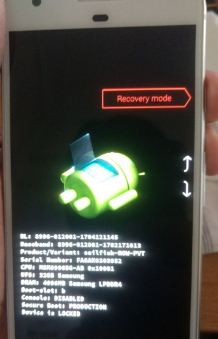
You can view the Android system recovery screen on Google Pixel. By default start button show on Google Pixel & Pixel XL.

Step 3: Press the volume down button until you view Recovery mode.

Step 4: Press the power button to restart into recovery mode.

You can see the Android robot exclamation mark with a red triangle symbol on your Pixel phone.

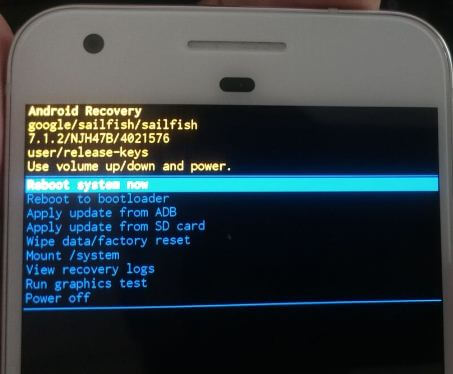
Step 5: Long-press the power button and press the volume up button at once to view the recovery menu.

Factory Reset your Pixel to Fix Google Messages Not Sending

Step 6: Press the volume down button to highlight the Wipe data/factory reset.

Step 7: Press the power button to apply.

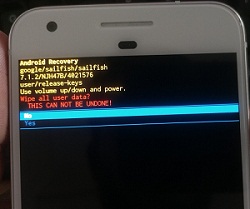
This message view: Wipe all user data?

Step 8: To confirm, press the volume down buttons to select Yes and press the power button to apply it.

Clearing the cache may take 3-5 minutes.

Step 9: Press the power button to reboot the system in your Pixels.

If none of the above-given solutions fix Google Pixel & Pixel XL can no longer send or receive text messages. Contact or call the service provider if none of the solutions worked for you.

Frequently Asked Question:

How do You Send MMS on Google Pixels?

Open the messages app to send MMS on Google Pixels (Running Android 12). Then, tap on the Start chat button at the bottom right and type the name, phone number you want to send MMS. Tap on the Square icon beside the chat box and choose a gallery. Select the picture you want to send and tap on Add at the top right. Now, tap on the Send button. You can also send GIFs, stickers, files, location, and contacts using the messages app.

How do I Enable SMS in Google Pixel 6a 5G?

To enable SMS in your Pixel 6a and other Pixels (Running Android 12), long-press the messages app and tap on i icon at the top right to view app info. Now, tap on notifications and make sure to toggle on incoming messages on your device. Also, go to Settings > Apps > See all apps > Messages > Notifications > Toggle on Incoming messages.

Related:

Don’t forget to mention which method worked for you to fix Google Pixel can’t send or receive a message. Do you know any alternative methods? Let us know in below comment section.