Fix Samsung galaxy S8 running slow: How to

Are you irritate of Samsung galaxy S8 and galaxy S8 plus running slow? There are various reason to slow your galaxy S8 and galaxy S8 plus devices such as unnecessary background apps, running more then one apps, app crashes or app freezing, Internal storage full, live wallpaper and other issues. Due to this effect, sometimes suddenly stopped apps or games. It’s quiet easy to fix Samsung galaxy S8 running slow.

Another factor of galaxy S8 and galaxy S8 plus running slow is lower processor and low RAM in your smartphone also. While your galaxy S8 phone speed is slow, it’s annoying to open any apps or other activities on smartphone. In this tutorial, I will show you some of the best tricks to fix Samsung galaxy S8 running slow or freezing.

Related Galaxy S8 & Galaxy S8 plus tips:

Fix Galaxy S8 not ringing during incoming phone calls

How to fix Samsung galaxy S8 running slow: 6 Troubleshooting Methods

fix Samsung galaxy S8 running slow

Try below given possible solutions to fix galaxy S8 and galaxy S8 plus running slow.

1st Way: Reboot your galaxy S8 and galaxy S8 plus device

This is the basic solutions to solve your any device issues. Just restart your galaxy S8 and galaxy S8 plus device and try to operate phone and check phone speed slow or not.

2nd Way: Check system software updates on galaxy S8

Check any update available for system software on your device. Some times update your device, fix small bugs from your device and make your galaxy S8 phone faster. You can check software update using below settings.

Settings > about phone > System updates

3rd Way: Check galaxy S8 internal storage not full

Check your Samsung galaxy S8 and galaxy S8 plus phone internal storage. If storage is almost full on your device, remove photos, videos or other documents that are not important or transfer it your PC or laptop and after remove to free space on your galaxy S8 device.

4th Way: Stop unnecessary background apps to fix Samsung galaxy S8 running slow

In our smartphone various apps downloaded but not use every app regular. So stop that unnecessary apps background process on Samsung galaxy S8 and galaxy S8 plus devices.

Settings > Apps > Tap any apps want to disable background process > Data usage > Disable background data

5th Way: Check any third party app causing issue

To find any third party apps causing this issue, first of enable safe mode on galaxy S8 and galaxy S8 plus devices.

Step 1: Press & hold the Power button on your galaxy S8

Step 2: Touch & hold the Power off button

You can see this message: Reboot to safe mode

Step 3: Tap OK

Your device will start in safe mode. You can see the “Safe mode” icon at the bottom of screen.

Now check your galaxy S8 and galaxy S8 plus phone speed. If your device running normally, it means any downloaded apps causing this slow phone issue. Remove third party apps one by one and find app that causing your galaxy S8 phone slow and remove that app from your device.

If none of the above given troubleshooting guide fix galaxy S8 and galaxy S8 phone slow issue, try below given method.

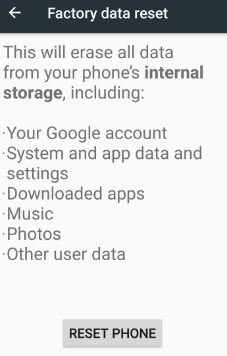
6th Way: Factory data reset to fix Samsung galaxy S8 running slow

Settings > Backup and reset > Factory data reset > Reset phone > Erase everything

This factory reset data on galaxy S8 and galaxy S8 plus deletes all phone data such as downloaded apps, photos, system & app data and settings, your Google and other account and more. Your galaxy S8 and galaxy S8 plus device looks like a new phone.

That’s all. Check out each one above listed methods to fix Samsung galaxy S8 running slow problem. Do let us know you liked this tutorial or not. What others fixes do you know for this galaxy S8 problem? Tell us in below comment box. Read more about Samsung galaxy S8 tricks and tips.

How to Fix WhatsApp Web Not Working on Chrome

What is WhatsApp Web?

You can access your WhatsApp from your PC or laptop device using the WhatsApp web. Scan the QR code of your Android device to Desktop to use WhatsApp web on PC.

WhatsApp adds valuable features like Send GIF in WhatsApp, WhatsApp two-step verification, group video calls with 8 people, WhatsApp Passcode, and more. You can send photos, videos, and other data using WhatsApp from your desktop or laptop device. But several users reported WhatsApp web not working on Chrome Android. Also, facing the WhatsApp web not showing QR code problem. To fix this WhatsApp web problem on the Android & PC, you should first check the latest WhatsApp version updated, check your internet connection, turn Airplane mode on & off, clear the browser cache, and reset the network settings, etc.

How to Fix WhatsApp Web Not Working on PC or Laptop

fix WhatsApp Web not working on android phone

Check if WhatsApp Server Down

If the web client’s server is down, you can’t access WhatsApp on your PC or Android device. Click here to check if WhatsApp is down or if there is any other WhatsApp problem.

Update WhatsApp App

Make sure WhatsApp is updated to the latest version.

Check WhatsApp update on Android to fix WhatsApp Web Problem

Open Play Store > Profile icon at the top right > Manage apps and device > See details > Tap on Update of WhatsApp Messenger or Tap on Update all if you want to update all apps at once

Now try to connect to WhatsApp on a PC and check to fix the issue.

Check your Mobile Data & WiFi Connection

Slow internet connection or poor network signal is also causing this WhatsApp web not showing or working problem. Check your internet connection (Mobile data & WiFi). If possible, use a WiFi network to use WhatsApp web.

Check WiFi and Mobile Data on your Android devices

For Android (Wi-Fi): Settings > Network & internet > Internet > Make sure Toggle on Wi-Fi

Check Mobile data Working on Android devices

For Android (Mobile data): Settings > Network & internet > Tap on SIM or Carrier > Toogle on Mobile data

WhatsApp Web Not Working on PC

For PC or Laptop in Windows 11/10: Windows icon (Start Menu) > Settings > Network & internet > Wi-Fi

Try using WhatsApp Web on Another PC/Laptop

Connect your Android device to another laptop or desktop and check whether WhatsApp web is working. If yes, the problem is related to your device.

Turn Airplane Mode On & Off

Check Internet Connection to fix WhatsApp web issue

Swipe down the notification panel from the top of the screen > Tap Airplane mode > Wait for 5-10 seconds > Tap on Airplane mode

Check Google Chrome Browser Update

Check Google Chrome update to fix WhatsApp Web Not Working

Open Google Chrome > Three vertical dots > Settings > About Chrome > Check for Chrome Update

Related: Fix WhatsApp media files not download Android phone

How to Clear the Google Chrome Cache to Fix WhatsApp Web Not Working on PC/Laptop

Make sure your Google chrome is updated to the latest version. Try to clear browsing data on your Chrome browser. You must remove the cache if you’re using Mozilla Firefox, Opera, Microsoft Edge (Internet Explorer), and Safari.

Step 1: Open the Google Chrome browser on your PC or laptop.

Step 2: Tap on Three vertical dots (More) at the top right corner.

Step 3: Tap on Settings.

Go to Privacy and security settings on Google Chrome Browser PC

Step 4: Tap on Privacy and security.

WhatsApp Web Not Working on Chrome

Step 5: Tap on Clear browsing data under the privacy section.

Select the time range you want to delete browsing data and check the box you wish to clear, like browsing history, download history, cookies, cached images & files, and more.

How to Fix WhatsApp Web Not Working on Chrome

Step 6: Tap on Clear data.

Now restart your Chrome browser and link a device with your PC to scan the QR code.

Reset Network Settings to fix WhatsApp Web Not Working on Android

Step 1: Go to Settings.

Step 2: Scroll down and tap on System.

Reset option on your Android to fix Network Issue

Step 3: Tap on the Reset options at the end of the list.

Reset Network Settings to fix WhatsApp Web Not Working on Android

Step 4: Tap on Reset Wi-Fi, mobile, and Bluetooth.

WhatsApp Web Not Working on Android

Step 5: Tap on Reset settings.

Download WhatsApp for Mac or Windows PC:

WhatsApp for Windows 8 and higher (64-bit) – Download Now

WhatsApp for Windows 8 and higher (32-bit) – Download Now

Mac OS X 10.9 and higher – Download Now

That’s all. Please let us know if you liked this trick to fix WhatsApp Web not working on Chrom. If you know other methods to fix this WhatsApp Web issue, let us know in the below comment box.

How to wipe cache partition on Galaxy S8

Annoying from Samsung galaxy S8 and galaxy S8 plus freezing or app crashes issues? You can try restarting your device or factory data reset galaxy S8 but sometimes not solved this problem. Using this wipe cache partition on galaxy S8 and galaxy S8 plus, all your device issues solved and it looks like a new device. This clear cache partition on Samsung galaxy S8 will delete all unnecessary files that may cause issue of app crashes or galxy S8 phone is very slow.

While this type of errors occurs on your galaxy S8 phone, first of all factory data reset Samsung galaxy S8 and galaxy S8 plus device. Most of all android device same settings but on galaxy S8 device, you have to use Bixby key also to open android recovery option on screen. Try below given step by step guide to wipe cache partition on Galaxy S8 and galaxy S8 plus.

Related Galaxy S8 and Galaxy S8 tips:

How to hide lock screen notifications on galaxy S8

Fix galaxy S8 and galaxy S8 plus charging issue


How to wipe cache partition on Galaxy S8 and Galaxy S8 plus

Step 1: Turn off your galaxy S8 and galaxy S8 plus device

Step 2: Press and hold the power button, volume up buttons and Bixby key at same time until phone turn on and see “android recovery screen

wipe cache partition on Galaxy S8 and galaxy S8 plus

You can see various options.

Step 3: Press volume down button until wipe data / factory reset view, after that press power button

Clear cache partition on galaxy S8

Step 4: Press volume down button until Yes select then press power button to start reset process on galaxy S8 and galaxy S8 plus

Reboot system now on Samsung galaxy S8 phone

Various options seen on screen.

Step 5: Press volume down button up to “reboot system now” and press power button

Now complete the process of wipe cache partition on galaxy S8 and your device restart. It will fix most of all your galaxy S8 and galaxy S8 plus problems. If you have any of the below given issue and not fix issue while already trying hard reset on galaxy S8 then try this wipe cache partition on galaxy S8 method. I hope it will definitely fix galaxy S8 issues.

  1. Wi-Fi issue
  2. Call dropping
  3. Battery drain quickly
  4. Galaxy S8 hot while charging
  5. blank screen problem

Also check this:

Master reset / Factory data reset Samsung galaxy S8 and galaxy S8 plus:

Settings > General Management > Reset > Factory date reset > Reset > Delete all

That’s all about how to reset Samsung galaxy S8 and galaxy S8 plus phone. Are you using wipe cache partition on galaxy S8 and galaxy S8 plus? Do let us know you liked this tutorial or not. For more great ideas visit wordpress-221392-673273.cloudwaysapps.com

How to customize Galaxy S8 home screen

Customize home screen and navigation bar on Samsung galaxy S8 and galaxy S8 plus devices. You can change theme and wallpaper on galaxy S8. Also add home screen panel, add or remove app and widgets on home screen, change screen GRID, hide content and more. To show or hide content on galaxy S8, customize always on display so you can set the content that will shown on your lock screen. It’s simple to customize galaxy S8 home screen.

In your Samsung galaxy S8 & galaxy S8 plus device home screen, you can see wallpaper & themes, Widgets and home screen settings options. Also use standard mode or easy mode on your galaxy S8 phone. Follow below given step by step guides to customize galaxy S8 home screen.

Related Galaxy S8 & Galaxy S8 plus tips:

How to change home screen launcher on Samsung galaxy S8

Enable voice control on Samsung Galaxy S8 camera

How to customize galaxy S8 home screen

Let’s learn one by one tips of how to customize galaxy S8 and galaxy S8 plus home screen.

1st Trick: How to change wallpaper and theme on Samsung galaxy S8 & galaxy S8 plus:

Step 1: Select and hold any free space on the home screen

You can see below screen on your device.

How to customize galaxy S8 home screen

Step 2: Tap “Wallpapers and themes

First time you need to allow permission to access it. Tap allow to next step. You can view my wallpapers options from top of the screen. Tap view all to see installed wallpapers. And tap more to view and download more wallpaper.

Set wallpaper on Samsung galaxy S8 & galaxy S8 plus

Step 3: Select your favorite wallpaper and set as wallpaper on galaxy S8 & galaxy S8 plus.

Live wallpaper can speedy increase battery consumption.

Step 4: Select your favorite theme and set theme on galaxy S8 & galaxy S8 plus

How to set default home screen panel on Samsung galaxy S8 & galaxy S8 plus

Step 1: Select and hold any free space on the home screen

Step 2: Tap “Home icon” from top middle of screen

Now select & hold panel want to move and release it. You can add or remove panel usin this settings.

How to change screen Grid on galaxy S8 & galaxy S8 plus:

To customize home screen Grid on galaxy S8, you can adjust number of icons that can display on your home screen.

Step 1: Select and hold any free space on the home screen

Step 2: Select “Home screen settings

This galaxy S8 and galaxy S8 plus home screen settings includes home screen layout, home screen grid, apps screen grid, apps button, hide apps and hello bixy settings on Samsung galaxy S8 phone. You can customize galaxy S8 home screen any time using this settings.

change screen Grid on galaxy S8 & galaxy S8 plus

Step 3: Tap “home screen grid

Step 4: Set layout and tap Apply to change screen grid on galaxy S8

How to add app to home screen on Samsung galaxy S8 & galaxy S8 plus

Step 1: Open apps list

Step 2: Select & hold the app want to add home screen

Add app to home screen on Samsung galaxy S8

Step 3: Tap “Add shortcut to home

How to create folder on galaxy S8 & galaxy S8 plus

Step 1: Select & hold the app

Step 2: Drag and hold the app over another app & release app

That’s all. All home screen settings of Samsung galaxy S8 and galaxy S8 plus given above.

Do let us know you liked this tutorial of how to customize galaxy S8 home screen. Let us know your thoughts related to galaxy S8 and galaxy S8 plus home screen customization in below comment box. Feel free to share this article with your friends.

Fix Google Play Store error 963: How to

Fix error 963 in Google play store while download or update apps in your android phone. You can see this type of message on your device: “App” could not be downloaded due to an error. (963) or can’t install apps from play store in android phone or tablet devices. That’s easy to fix Google Play Store error 963 in android device.

While error code 963 occurs in your device, you can’t update apps or download apps from play store. To fix this error 963, clear the cache of play store, uninstall Google play store updates, delete your Google account and other possible solutions. Follow below given troubleshooting steps to fix Google Play store error 963 in android phone.

Related Tips:

Fix Play store error code 194 while downloading apps on android

How to fix play store error 504

Fix SSL connection error on Google Chrome browser

How to fix Google Play Store error 963 in android phone or tablet

Fix Google Play Store error 963 in android

1st Method: Clear cache & data of Google Play Store

Step 1: Go to “Settings

Step 2: Under device section, tap on “Apps

Step 3: Scroll down until see Google Play Store and tap on it

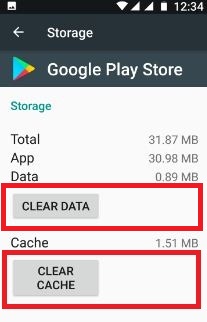
Step 4: Tap “Storage

Clear the cache of Play store to fix error 963 in android

Step 5: Touch “Clear cache” & “Clear Data

2nd Method: Uninstall updates of Google play store to fix Google play store error 963

Step 1: Go to “Settings

Step 2: Under device section, Tap on “Apps

Step 3: Scroll down until see “Google play store” and tap on it

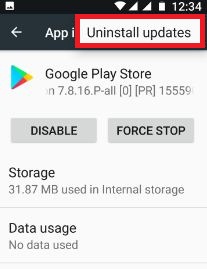
Step 4: Touch “More

Uninstall Google Play store update to fix error 963

Step 5: Touch “Uninstall updates

Step 6: Tap on “OK

3rd Method: Remove Google account to fix Google Play store error 963

Step 1: Go to “Settings

Step 2: Under Personal section, tap on “Accounts

Step 3: Tap “Google” account

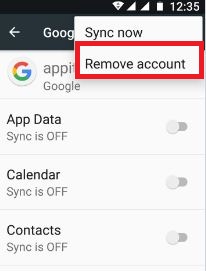
Step 4: Touch “More

Delete your google account to fix error 963 in play store

Step 5: Touch “Remove account

Step 6: Again touch “Remove account

After remove Google account, restart your device and again sign in with your Google account and try to download or install apps from Google play store.

4th Method: Reset app preference on android

Step 1: Go to “Settings

Step 2: Under device section, tap on “Apps

Step 3: Tap “More

Reset app preference to fix error 963 in play store

Step 4: Tap “Reset app preferences

Step 5: Tap “Reset apps

If none of the above given method working to fix Play store error 963 in your android device, try below given method.

5th Method: Factory data reset on your android device

Factory Reset android to fix error 963 in Google Play Store

Settings > Backup & reset > Factory data reset > Reset Phone > Erase everything

It will remove all your android device data and its look like a new device. Now log in with your Google account and try to downloading apps or games from play store. I hope this method fix your play store issue.

End the list of solutions. This little tip helps to fix Google play store error 963 in android devices. Do you know any alternative methods to fix this issue? Let me know in below comment box.

How to enable developer mode on galaxy S8

By default hidden developer options on galaxy S8 and other android device. So without enable developer mode on galaxy S8 & galaxy S8 plus, you can not access important hidden features. This hidden developer mode includes various useful features such as USB debugging, Logger buffer sizes, USB configuration, Window animation scale, CPU usage, background process limit and more. These all options help us to improve phone competency.

After enable developer option on galaxy S8, you can enable USB debugging on Samsung galaxy S8 and other great features. Follow below given step by step guide to enable developer mode on galaxy S8 and galaxy s8 plus phone.

Related Galaxy S8 & Galaxy S8 plus tips:

How to enable voice control on Samsung galaxy S8 camera

Complete guide of how to enable developer mode on galaxy S8 and galaxy S8 plus

Step 1: Go to settings in your galaxy S8 & galaxy S8 plus devices

Step 2: Tap “About phone

Step 3: Tap on “build number7 times until see developer mode is enable text

Step 4: Again go to phone settings and you can view developer options

By default disable developer options on Samsung galaxy S8 & galaxy S8 plus devices.

Step 5: Turn on developer mode on galaxy S8

enable developer mode on galaxy S8 and galaxy S8 plus

Step 6: Tap “OK” to enable it

Now it’s time to access all hidden features of your galaxy S8 and galaxy S8 plus devices. You can see below important features of developer options and it’s settings.

You can also disable developer options on galaxy S8 and galaxy S8 plus device using below settings.

Disable developer mode on Samsung galaxy S8 and galaxy S8 plus:

Settings > Device > Apps > Settings > Storage > Clear data > OK

Now go to settings and check disable developer mode on Samsung galaxy S8 and galaxy S8 plus devices.

Enable USB debugging on Samsung galaxy S8 & galaxy S8 plus:

To enable USB debugging on galaxy S8, first of all enable developer mode on Samsung galaxy S8 using above given steps. USB debugging is use to copy and paste data between your desktop PC and your smart device, install apps without any notification and read blog data also.

Enable USB debugging on Samsung galaxy S8

Settings > Developer options > turn on developer options > OK > Debugging > Enable USB debugging > OK

Change logger buffer size on Samsung galaxy S8 & galaxy S8 plus:

Change logger buffer size on Samsung galaxy S8

Settings > Developer options > turn on developer options > OK > Logger buffer sizes > Off / 64K / 256K / 1M / 4M / 16M

Change Windows animation scale on Samsung galaxy S8 & galaxy S8 plus:

Settings > Developer options > turn on developer options > OK > Drawing > Window animation scale > Animation off / Animation scale 5X / 1X / 1.5X / 2X / 5X / 10X

That’s end of all details of hidden developer options on Samsung galaxy S8 and its great hidden features.

If you found above given steps helpful to enable developer mode on galaxy S8 and galaxy S8 plus, share it with others. Let me know on below comment box, if you have any trouble. Stay connected with us for latest Samsung galaxy S8 & galaxy S8 plus tips.