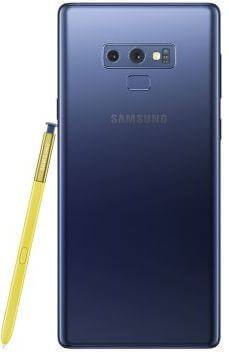
How to Use Overview Selection in Android 9 Pie

By default turned on app actions and overview selection in your Android Pie 9.0 devices. Here’s how to use overview selection in Android 9 Pie. This feature is useful to select text from any screen/recent apps and copy & paste it to your device. Several users facing overview selection not working issue. If you’ve faced this issue, just disable it and restart your phone. Again enable it again and check to fix the overview issue.

Android 9 Pie has several new features added such as Navigation gestures, App actions, Overview selection, Display cutout (Notch), Adaptive battery & adaptive brightness, lockdown mode, Digital wellbeing, and more.

Read Also:

How to Enable and Use Overview Selection in Android Pie 9.0

Let see how to use Android Pie overview selection features to copy and paste the text from images or webpage.

Step 1: Long press on the blank space in your Android Pie home screen.

Step 2: Tap Home settings

In android Pie home screen settings, you can see notification dots, at a glance, add a new app icon to the home screen, display Google app, suggestion, home screen rotation, and change icon shape options.

Home screen settings on android 9 Pie OS

Step 3: Tap Suggestion

Here you can see below given three options.

Apps:

A list of apps appears on your app drawer top of the list. Just toggle off this if you don’t want to see apps list at top of the app drawer.

Actions:

You can see the shortcut of a contact name or chat message or apps you most use recently in the app drawer. Turn off app actions on Android Pie 9 if you don’t want to use it.

Overview selection:

This is the most useful feature of Android 9 Pie. You can copy text & images using recent apps in your device. When switching apps on Android Pie 9, touch & hold text and images to see actions in your Pixel and other supported devices.

Use android Pie overview selection features

Step 4: Make sure toggle on “Overview selection“.

How to Use Overview Selection in Android 9 Pie

Turn on overview selection in android 9 Pie

Step 1: Tap Any screen or Recent apps button on your Android Pie 9.0.

How to use overview selection in android Pie 9

Step 2: Tap & hold on the screen and you can see copy, search & share option.

You can copy text and paste it to other apps or activities. Also, search instantly about copy words in your Android Pie 9.0 devices.

How to Turn Off Overview Selection in Android 9 Pie

Long press on the blank area of the home screen > Home settings > Suggestions > Toggl off Overview selection

And that’s all. I hope this tutorial helpful to use overview selection in Android Pie 9.0. If you have any questions, tell us in below comment box. Stay and connect with us for the latest updates.

How to Write and Save Notes on Galaxy Note 9

Here’s how to create and save notes on Galaxy Note 9 without unlocking the screen. If you want to write notes on galaxy Note 9 without unlocking the phone, make sure to turn on screen off memo on your phone. When your device screen is off, by default use S Pen signature color when making notes.

S Pen is one of the best features of Samsung Galaxy Note 9. S Pen supports Bluetooth connectivity so you can take a selfie, swipe camera modes, write notes, and more function using Note 9 S Pen. Let see step by step process to create and save notes on Galaxy Note 9.

Relevant:

How to Create and Save Notes on Samsung Galaxy Note 9

How to create and save notes on Galaxy Note 9

To write notes on the Galaxy Note 9 screen without unlocking your device, make sure to enable the screen off memo on your phone. You can activate using the below settings.

Step 1: Swipe down the notification shade and tap the Settings gear icon.

Step 2: Tap Advanced.

Step 3: Tap S Pen.

In Galaxy Note 9 S Pen settings, you can see S Pen remote, unlock with S Pen remote, screen off memo, Air view, Air command, and more settings.

Step 4: Tap Screen off memo.

Step 5: Turn on toggle to use screen off memo on galaxy Note 9.

Now lock your galaxy Note 9 device.

Step 7: Just remove the S Pen and start writing.

Tap the screen while pressing the S Pen button to create screen off memos when the screen is off.

Step 8: Now Write a memo on the screen.

Step 9: Tap Save in notes at the upper right corner.

A screen of memo saved in Samsung Notes.

Step 10: Go to the home screen and Open S Pen Air command.

Step 11: Tap View all notes.

You can see a list of created memos in your device. Tap screen of the memo you want to edit on memos. Also, edit and delete notes using this setting. It’s quite easy to use a screen off memo on galaxy Note 9 to create notes.

How to Use S Pen Signature Color

You can enable/disable the S Pen signature color of your S Pen to change color when write memos. When turned off S Pen signature color, the color of your written note is the color of your galaxy Note 9 S Pen.

Settings > Advanced > S Pen > Screen of memo > Use S Pen signature color

And that’s all. We hope this tutorial helpful to create and save notes on Galaxy Note 9. If you have any kind of trouble, tell us in below comment box. Stay and connect with us for the latest updates.

How to Change the Lock Screen Settings on Galaxy Note 9

Here’s how to customize the lock screen on Galaxy Note 9. In galaxy Note 9 lock screen settings, you can see screen lock type, Always-on display, Clock style, roaming clock, FaceWidgets, lock screen notification, app shortcuts, lock screen name, and more. Also, change lock screen wallpaper on galaxy Note 9 using wallpaper and theme settings.

Read Also:

How to Customize Lock Screen on Galaxy Note 9

How to customize lock screen on Galaxy Note 9

There are several lock screen settings available for your Note 9 you can change or customize. Let see important settings.

Change the Lock Screen Wallpaper on Samsung Note 9

Step 1: Long press on the blank area of the home screen in your Note 9.

Step 2: Tap Wallpaper.

Step 3: Select the Wallpapers from the phone gallery or default pictures.

Step 4: Tap Apply wallpaper.

Step 5: Choose Lock Screen.

Change the Galaxy Note 9 Lock Screen

Step 1: Go to Settings.

Step 2: Tap Lock screen and security.

Step 3: Choose from Swipe/PIN/Password/Pattern lock.

Customize Always-on Display

Step 1: Go to Settings in your Note 9.

Step 2: Tap Lock screen.

Step 3: Tap Always-on display

Step 4: Turn on toggle “Always on display”.

Step 5: Choose from the home button & back/clock or information/home button.

Also manually adjust the brightness by double tapping the AOD clock when disabling auto-brightness in your Smartphone.

Change the Lock Screen Clock on Note 9

Step 1: Go to Settings in your device.

Step 2: Tap Lock screen.

Step 3: Tap Clock style.

You can see the always-on display and lock screen options. Now change Note 9 clock type & color on your phone. Choose from Digital clock/Analog clock/Calendar/Image/World clock/Edge clock.

Step 4: Tap Lock screen.

Step 5: Select clock type & color and tap Apply to change lock screen clock on Note 9.

Enable/Disable Lock Screen Notifications

By default, you can see notifications on the lock screen in your galaxy Note 9. If you hide lock screen notifications on Note 9, turn off toggle notifications.

Settings > Lock screen > Clock and information > Notifications

And that’s all. We hope this tutorial helpful to customize the lock screen on Galaxy Note 9. Is there another handy Note 9 lock screen settings we missed above? Let us know in the comments below!

How to Enable Galaxy Note 9 Power Saving Mode

Want to improve battery life on Galaxy Note 9? You need to enable Power saving mode on Galaxy Note 9 to save battery life in your device. Using power saver mode, you can save power to stop apps that using battery while you are not using them in your Note 9. You can find power-saving mode in battery settings. Turn on or off Max power saving mode/Medium power saving mode you want in your device.

You can check battery usage by individual apps and estimated battery life in your Samsung Note 9. Use an app power monitor to save power in your device. Follow the below-given step by step process to enable Power saving mode on Galaxy Note 9.

Relevant:

How to Turn On/Turn Off Power Saving Mode on Galaxy Note 9

How to enable Power saving mode on Galaxy Note 9

If you have the latest updated Samsung Note 9 One UI 2.0 (Android 10), apply below settings.

Step 1: Go to Settings.

Step 2: Scroll down and tap Device care.

Step 3: Tap Battery.

Step 4: Tap Power Mode under the power management section.

Step 5: Select from High performance mode/Optimized/Medium Power Saving Mode/Maximum Power Saving Mode.

Turn On Adaptive Power Saving Mode on Galaxy Note 9 One UI 2.0 Android 10

Settings > Device care > Battery > Power Mode > Toggle on Adaptive Power Saving

For Older Version Note 9:

Let see how to use power saving mode on galaxy Note 9 and other devices.

Step 1: Swipe down the notification panel and tap the Settings gear icon.

Step 2: Tap Device maintenance.

Here you can see battery, performance mode, storage, memory, and device security settings.

Step 3: Tap Battery.

You can view battery usage, power saving mode, app power monitor, unmonitored apps and always sleeping apps settings.

Step 4: Choose from MID/MAX in Power saving mode.

Turn On Maximum Power Saving Mode Note 9

When activate Maximum power saving mode on galaxy note 9, some of the functions not working correctly but you can still send messages, make phone calls, and use certain apps in your Samsung Galaxy devices.

Settings > Device maintenance > Battery > MAX

Turn On Medium Power Saving Mode Note 9

You can use Samsung Galaxy Note 9 Medium power saving mode to use your Note 9 whole day. When activating medium power saving mode on galaxy note 9, turned off always-on display & lower brightness. Also turn background network usage on or off, AOD, speed limiter, and decrease the brightness in your phone.

Settings > Device maintenance > Battery > MID

How to Save Power Using App Power Monitor

In this setting, you can see a list of applications that using your phone battery while you are not using it. So stop these apps to save battery life on Galaxy Note 9.

Settings > Device maintenance > Battery > Save power

And that’s all. We hope this makes it clear how to enable Power saving mode on Galaxy Note 9. Do you have any questions? Tell us in below comment box. Stay and connect with us for the latest updates.

How to Enable Dual Messenger on Galaxy Note 9

Here’s how to enable and use dual messenger on galaxy Note 9. You can set up and use dual apps on Samsung Note 9 to use two separate accounts of the same app. Use the dual account for WhatsApp and Facebook apps. Not all apps support this dual messenger features. Supported apps will automatically add after you install them in your device.

If you have more than one Facebook or WhatsApp account, you’ll use dual messenger WhatsApp on Note 9 using this feature. By default turn off toggle of available apps on your phone. You can also select separate contacts for your second apps. Follow the below-given step by step process to use Samsung dual apps on galaxy Note 9.

Read Also:

How to Activate Dual Messenger on Samsung Galaxy Note 9

How to enable dual messenger on Galaxy Note 9

First of all turn on toggle of apps you want to use dual messenger on galaxy Note 9. If you can’t found the app on list, download from the play store and install it. Let see settings to use dual messenger WhatsApp on galaxy Note 9.

Step 1: Swipe down the notification panel and tap the settings gear icon in your galaxy note 9.

Step 2: Tap Advanced features.

In galaxy Note 9 advanced feature settings, you can see S Pen, Smart stay, Multi-window, One-handed mode, Finger sensor gestures, Smart capture, Dual messenger, Send SOS messages, Direct call, Smart alert, Easy mute, and more.

Step 3: Tap Dual messenger.

Here you can see dual messenger supported apps list that already installed in your Samsung galaxy note 9 devices such as WhatsApp, Snapchat, Facebook, etc.

Step 4: Turn on toggle of app you want to use as a dual messenger.

This pop-up screen appears on the screen: Install a second WhatsApp app? You’ll be able to use a different account in the second app.

Step 5: Tap Install.

Now follow the on-screen instruction to activate dual messenger on galaxy Note 9.

Step 6: Turn on toggle contact selection if select specific contacts for your second apps.

To keep using the same contacts between the main and second apps, turn off contact selection.

Step 7: Now, turn on dual messenger on Note 9.

You can enable/disable app dual messenger any time using the above-given settings in your Samsung Galaxy Note 9 and other devices.

And that’s it. We hope this little tip useful to enable dual messenger on galaxy Note 9. If you have any questions, tell us in below comment box. Stay and connect with us for the latest updates.

How to Write a Screen Off Memo on Samsung Galaxy Note 9

Here’s how to use a screen off memo on your Samsung Galaxy Note 9. You can create the screen off memo and S Pen signature color settings on your Samsung Note 9 using S Pen. To enable/disable screen off memo on Note 9, go to S Pen subheading under advanced settings. Also, use S Pen remote to remotely control apps with S Pen.

Galaxy Note 9 has an S Pen stylus that supports Bluetooth connectivity features. So you can easily capture photo or selfie and switch camera modes using S Pen on Samsung Galaxy Note 9. Follow the below-given step by step process to enable and use the screen off memo on Samsung Note 9.

Read Also:

How to Use Screen Off Memo on Galaxy Note 9

How to use screen of memo on Galaxy Note 9

Let see steps to turn the screen off a memo on or off in your Samsung Galaxy Note 9 devices.

Step 1: Swipe down the notification panel and tap the Settings gear icon.

Step 2: Tap Advanced.

Step 3: Tap S Pen.

In Galaxy Note 9 S Pen settings, you can see S Pen remote, unlock with S Pen remote, screen off the memo, Air view, Air command covers app shortcuts & Floating icon and more settings.

Step 4: Tap Screen off memo.

Step 5: Turn the toggle on or off you want to use a screen off memo.

When turning on the screen off the memo, you’ll write notes while the screen is off. Just remove the S Pen and start writing on the screen.

Step 6: Enable/Disable “Use S Pen signature color”.

Write screen off memos in the signature color of your S Pen. It’s quite easy to use the S Pen screen off the memo to write notes.

How to Add App Shortcuts to S Pen’s Air Command

In Samsung Note 9 S Pen Air command, you can add shortcuts of S Pen you want to use directly from the home screen without open S Pen settings.

Step 1: Tap S Pen floating icon in your Galaxy Note 9.

Step 2: Tap + Add shortcuts icon.

Now you can see S Pen features and apps list on the screen.

Step 3: Select functions or apps from a list you want to add S Pen Air command.

Step 4: Tap back button and you can see the added function on the Air command list.

How to Show or Hide Floating Air Command Icon on Galaxy Note 9

You can turn on or turn off Note 9 Air command of S Pen. When activating the floating icon of Air command on galaxy Note 9, you can easily move the Air command icon on the screen. Turn off the floating icon to turn off air command on Note 9.

Settings > Advanced > S Pen > Air command > Floating icon

And that’s all. We hope this makes it clear how to enable and use a screen off memo on Galaxy Note 9. Do you have any other Note 9 S Pen tips you want to share? Let us know, in the comment section below.