How to Hide Lock Screen Pattern When Unlocking Galaxy Note 9

Here’s how to set up a pattern lock and hide screen lock pattern on Note 9. You can find pattern lock option under lock screen settings in your galaxy Note 9. By default show pattern when unlocking your Samsung or Android devices. Also, change the lock screen or disable lock screen if you don’t want to use any lock screen. Pattern, PIN number, or Password is one of the strongest lock screen security compare to others. You can use Lockdown mode on Samsung or Android devices to temporarily disable Biometric security or Smart lock to unlock your phone.

There are several lock screen security available on galaxy Note 9 such as Fingerprint, Iris Scanner, Face Unlock, Pattern lock, PIN number, and more. Check out the below-given step by step process to hide the lock screen pattern on Samsung Galaxy Note 9.

Relevant:

How to Show or Hide Screen Lock Pattern on Note 9

How to hide screen lock pattern on Note 9

First of all, let see how to set up pattern lock on Galaxy Note 9 device. You can set a screen lock to secure your phone data.

Step 1: Swipe down the notification panel and tap the Settings gear icon.

Step 2: Tap Lock screen.

Step 3: Tap Lock screen type.

Here you can see none, swipe, pattern, PIN, and Password.

Step 4: Tap Pattern.

Step 5: Draw an unlock pattern you want to use in your device & tap Next.

Step 6: Draw the pattern again to confirm & tap Confirm.

Now, Samsung Galaxy Note 9 screen lock is set a pattern lock. By default, you can see pattern lock when draw pattern to unlock your device. But you can hide pattern lock on Note 9 using this setting in your device. If you forget pattern lock, you’ll need to reset your phone and all data will be erased.

How to Hide Pattern Lock on Galaxy Note 9

By default show pattern lock in your Note 9 when draw it. You’ll hide pattern lock using below given settings.

Step 1: Go to Settings in your Samsung Note 9.

Step 2: Tap Lock screen.

Step 3: Tap Secure lock settings.

Step 4: Toggle off “Make pattern visible”.

Now, lock your device and draw pattern lock, you can’t see patter lock dots in your galaxy Note 9 and other Android phones.

More:

Disable Lock Screen on Galaxy Note 9

Step 1: Go to Settings.

Step 2: Tap Lock screen.

Step 3: Tap Lock screen type.

Step 4: Tap None.

And that’s all. Do you still have a question about hiding the screen lock pattern on Note 9? If you have any kind of trouble, tell us in below comment box. Stay and connect with us for latest updates

How to Turn On Flash Notifications on Samsung Galaxy Note 9

Want to enable flash alert and screen flash notification on galaxy Note 9? Here’s how to turn on flash notifications on Samsung Galaxy Note 9. When turning flash on Note 9, flash the camera light or the screen when you receive notifications or when the alarm sounds in your android phone. You can find camera flash notifications under accessibility settings. It includes camera light and screen options. By default turned off settings.

This Note 9 feature may change some phone settings or affect the way you interact with the device. Follow the below-given step by step process to turning flash on Galaxy Note 9.

Read Also:

How to Turn Camera Flash on Galaxy Note 9

How to turning flash on Galaxy Note 9

You can turn flash notification on or off on Samsung Note 9 using below given process.

Step 1: Swipe down the notification shade and tap the Settings gear icon.

Step 2: Scroll down and tap Accessibility.

Step 3: Tap Hearing under a categories section.

Here you can see Sound detectors (Baby crying, doorbell), Flash notification, Mute all sounds, Hearing aids, Samsung subtitles, Mono audio, and more settings.

Step 4: Tap Flash notification.

Step 5: By default turned off the camera light and screen.

Step 6: Turn on toggle camera light to flash the camera light when receiving notification.

You’ll see the pop-up screen: Turn on Flash notification?

Step 7: Tap Turn on.

Step 8: Turn on the toggle screen to flash the screen or alarm sound.

Now, when you receive notifications, you can see automatically flash camera light or screen on your Samsung Galaxy Note 9 phone.

Related:

How to Enable Blue Light Filter on Galaxy Note 9

When turning on a blue light filter on Note 9, it’ll reduce eye strain by limiting the amount of blue light emitted by device screen, so easily look at your screen.

Step 1: Go to Settings in your galaxy Note 9.

Step 2: Tap Display.

Step 3: Toggle on “Blue light filter”.

And that’s all. I hope this little tip useful to turning flash on Galaxy Note 9. If you have any kind of trouble, tell us in below comment box. Stay and connect with us for the latest updates.
How to Change the Wallpaper on Galaxy Note 9 Lock Screen

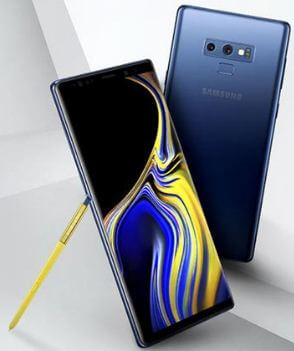
Want to change the wallpaper on Galaxy Note 9? Here’s how to change the lock screen wallpaper on Samsung Galaxy Note 9. You can individually set lock screen and home screen wallpaper using home settings. Choose photos from the phone gallery or capture using your camera. By default set home screen and lock screen wallpaper

You can customize the lock screen clock style using always-on display settings. Also, auto adapt the color to the background on the lock screen clock style on Note 9. Follow the below-given step by step process to change Galaxy Note 9 lock screen wallpaper.

Relevant:

How to Set or Change Galaxy Note 9 Lock Screen Wallpaper

How to change Galaxy Note 9 lock screen wallpaper

First of all, let see how to change lock screen wallpaper on the Galaxy Note 9 device.

Step 1: Touch & hold the blank space on your Note 9 home screen.

Here you can see wallpapers, themes, widgets, and home screen settings.

Step 2: Tap Wallpapers.

Step 3: Select wallpaper you want to set from a list.

Three options appear on the bottom of the screen to set wallpaper on Note 9 lock screen including home screen, lock screen, and home and lock screen.

Step 4: Tap Lock screen.

Step 5: Tap Set as wallpaper.

Now, wallpaper applied to the lock screen in your Samsung galaxy note 9 devices. Select the home screen to change the home screen wallpaper on Note 9. After you’ve used a music player, you’ll be able to control your music from the lock screen. Also change lock screen clock style on Note 9. Check out below given settings.

Read More:

How to Change Lock Screen Clock Style on Galaxy Note 9

You can change the Note 9 lock screen clock style to change lock screen looks.

Step 1: Swipe down the notification panel and tap the Settings gear icon.

Step 2: Tap Lock screen.

Step 3: Tap Clock style under the clock and information

Here you can see the Always-on display and lock screen tab. Now, set the type and color for the clock on the lock screen and always-on display on galaxy Note 9.

Step 4: Tap Lock screen.

Step 5: Select clock style and color from the list and tap Done.

Now, lock your galaxy Note 9 screen and you can see set clock style on screen.

And that’s all. We hope this makes it clear, how to change Galaxy Note 9 lock screen wallpaper. If you have any questions, tell us in below comment box. Stay and connect with us for the latest updates.

How to Hide Air Command on S Pen Galaxy Note 9

Here’s how to hide or disable air command on S Pen Samsung Galaxy Note 9. You can see shortcuts and floating icons in the Note 9 S Pen Air command settings. When turn on floating icon, show the air command icon on your device screen and also move around the screen. You’ll quickly open apps or S Pen functions from the home screen directly using Air command on Note 9.

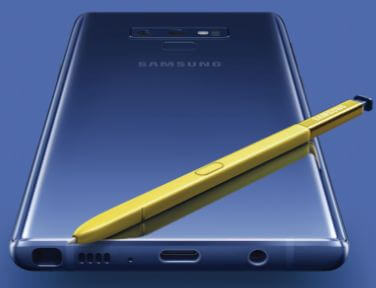
Samsung Galaxy Note 9 comes with Bluetooth supported S Pen. You’ll use S Pen on Galaxy Note 9 to Write notes, Take pictures, presentation, play or pause music, and more settings. In Samsung Note 9 S Pen settings, you can see S Pen remote, unlock S Pen with remote, Air command, Screen off memo, Air view, and other settings. Let see the guide to show or hide air command on S Pen Note 9.

Read Also:

How to Show or Hide Air Command on S Pen Samsung Note 9

How to hide Air command on S Pen Note 9

By default enable floating icon in your device. You can directly access the S Pen function from the home screen without open S Pen settings. To turn off Air command on S Pen Galaxy Note 9, disable floating icon using below given settings.

Step 1: Swipe down the notification shade and tap the Settings gear icon.

Step 2: Tap Advanced features.

Step 3: Tap S Pen.

Here you can see the floating icon option under the Air command section. By default enable floating icon in your Note 9.

Step 4: Toggle off “Floating icon”.

Now, you can see hide Air command icon from your galaxy Note 9 screens. You can’t access S Pen features without open S Pen settings. To show again air command on screen, turn on the toggle on your phone.

You can also add S Pen functions or app to Air command shortcut to direct access from any screen. Let see step to add shortcuts to Air command on S Pen.

How to Add Shortcuts to S Pen Air Command on Galaxy Note 9

If you enable a floating icon in your device, you can easily add shortcuts in your Air command using below given settings.

Step 1: Open Air command icon in your Note 9.

Here you can see the Air command shortcut features list. Move the menu up to end of the list.

Step 2: Tap Add shortcuts.

Step 3: Choose from S Pen features or app and functions you want to add on shortcuts.

Now open S Pen features or app directly without open S Pen settings.

If turned off the floating icon in your device, you can add shortcut using below given settings.      

Settings > Advanced > S Pen > Air command > Shortcuts > Select from S Pen features or apps & functions

And that’s all. We hope this makes it clear how to hide Air command on S Pen Note 9. If you have any kind of trouble, tell us in below comment box. Stay and connect with us for the latest updates.

S Pen Features For Galaxy Note 9

Here’s a list of top best tips and tricks for your Samsung Galaxy Note 9 S Pen. You can unlock your Galaxy Note 9 without touching the device if you turn on unlocking with S Pen remote in your device. Also, use S Pen Air command to quickly access functions such as create notes, view all notes, live messages, translate, assistant, and more. Galaxy Note 9 S Pen is a Bluetooth supported so you can use it to capture photos & videos, write screen of memos without unlocking the phone, play or pause music, translate words, and other apps functions.

This S Pen tips and tricks will use to quickly access app functions and use phone cameras or switch camera modes. Check out below given Samsung Galaxy Note 9 S Pen tips and tricks.

Read Also:

Samsung Galaxy Note 9 S Pen Tips and Tricks

Samsung Galaxy Note 9 S Pen tips and tricks

First of all, let see how to enable the screen off memo and write notes on the Galaxy Note 9. This is my favorite best Galaxy Note 9 S Pen tips and tricks.

How to Write Screen Off Memo on Note 9

You can write notes on the Galaxy Note 9 screen without unlocking your device using S Pen. To create a memo on Note 9, make sure to enable the screen off memo in your device.

Step 1: Swipe down the notification panel and tap the Settings gear icon.

Step 2: Tap Advanced.

Step 3: Tap S Pen.

In Galaxy Note 9’s S Pen settings, you can see S Pen remote, unlock with S Pen remote, screen off memo, Air view, Air command, and other settings.

Step 4: Tap Screen of memo.

Step 5: Turn on toggle “Screen off memo” to write a memo.

When turning on the screen off the memo, you’ll write notes while the screen is off. Just remove the S Pen and start writing on the screen.

Step 6: After writing a memo, tap Save in notes at the upper right corner.

Now created memo saved in Samsung Notes.

Step 7: Go to Note 9 home screen and Open S Pen Air command.

Step 8: Tap View all notes.

You can see created memos in your device. Also, edit, share, and delete notes on your phone.

How to Take a Selfie on Galaxy Note 9 using S Pen

Step 1: Swipe down the notification panel and tap the Settings gear icon.

Step 2: Tap Advanced features.

Step 3: Tap S Pen.

Step 4: Tap Hold down the PEN button to.

Now, here you can select what happens when you hold down the S Pen button in your galaxy Note 9. Press and hold the Bluetooth button to launch S Pen on your Note 9 device.

Step 5: Turn on toggle camera under app actions in S Pen remote settings.

In Note 9 S Pen for the camera app, you’ll choose from taking picture/Switch camera/record video or Do nothing. Here. we set a single press to take a photo and double press for the switch camera app. To capture pictures, just single press S Pen button and double press Pen button for switch camera modes.

Step 6: Long press the Bluetooth button to launch the camera, after launch camera app, just press the Pen button to take a photo on Note 9 using S Pen.

Step 7: Double press the Pen button to switch camera modes.

Now you can easily take a selfie on Samsung Galaxy Note 9 using S Pen. This is one of the best Galaxy Note 9 S Pen tips and tricks for photo or selfie lovers to take a photo without touch phone.

How to Customize S Pen Remote on Galaxy Note 9

In galaxy Note 9 S Pen remote, you can set app actions for individual apps. You can play or pause music, quickly change gallery next or previous photos, record or pause a video, scroll down or forward on chrome Beta, and more settings using this new S Pen that supported Bluetooth connectivity.

Step 1: Go to Settings in your Note 9.

Step 2: Tap Advanced features.

Step 3: Tap S Pen to manage S Pen futures.

Step 4: Tap S Pen remote.

At top of the page, you can turn S Pen toggle on or off in your device. Also, see Hold down Pen button to and App action settings for Note 9 S Pen remote.

Step 5: Tap Hold down Pen button to.

Here you can see apps list for select apps and several S Pen features including Create a note, Smart select, Live message, Bixby vision, Translate, Magnify, PENUP, and more.

Step 6: Choose S Pen features or apps for quick access or change app activity in your galaxy Note 9 device.

How to Add Shortcuts to S Pen Air Command

You can quickly access S Pen features and apps from the home screen without an open app drawer or other pages using S Pen Air command. Add your favorite S Pen features or app to directly access from the home screen. Make sure to enable the floating icon (Settings > Advanced > S Pen > Air command > Floating icon) in your S Pen settings. Disable it to hide floating air command on galaxy Note 9.

Go to home screen > Tap floating icon > Add shortcuts > choose S Pen features or apps

Now you’ll quickly open apps or S Pen features in your Samsung Galaxy Note 9.

What Happens When S Pen is Removed From Galaxy Note 9

You can choose from Open air command/Create note/Do nothing.

And that’s all. End the list of top best Galaxy Note 9 S Pen tips and tricks. We shall update you with more tips and tricks for the Galaxy Note 9’s S Pen. What are your favorite Note 9 S Pen features? Let us know, in the comment section below.

How to Set the S Pen Remote on Galaxy Note 9

Samsung Galaxy Note 9 has Bluetooth supported S Pen. Here’s how to use your S Pen as a remote on Galaxy Note 9. To use S Pen on Note 9, you can customize S Pen remote in your device. Using galaxy Note 9 S Pen, you’ll take a selfie, switch camera modes, write screen off memo, translate text, and other app action settings in your device.

By default open the camera app when you hold down the Pen button in your Samsung Galaxy Note 9. You can individually set apps function when you press the Pen button in various apps. Let see step by step process to set S Pen remote on Galaxy Note 9.

Read Also:

How to Use the S Pen Remote on Samsung Galaxy Note 9

How to use S Pen remote on Galaxy Note 9

You can enable/disable S Pen remote on galaxy Note 9 under advanced feature settings. Check out below given settings.

Step 1: Swipe down the notification panel and tap the Settings gear icon.

Step 2: Tap Advanced features.

Step 3: Tap S Pen to manage S Pen futures.

Step 4: Tap S Pen remote.

At top of the page, you can turn S Pen toggle on or off in your device. Also, see Hold down Pen button to and App action settings for Note 9 S Pen remote.

Step 5: Tap Hold down Pen button to.

Here you can see suggest apps list for select apps and several S Pen features including Create a note, Smart select, live message, Bixby vision, translate text, and more.

Step 6: Choose Apps or S Pen features for what happens when you hold down the S Pen button.

Let see app action settings for S Pen remote on galaxy Note 9 device. You’ll use S Pen remote on Galaxy Note 9 device for below-given apps settings.

Camera App

You can individually choose what happens when a single press and double press S Pen button on your galaxy Note 9. Choose from take picture/Switch camera/record video or Do nothing.

Gallery

Single press or Double press Pen button to automatically open next items or previous items on Note 9 gallery.

Voice Recorder

You can Do noting or record or pause voice in your Samsung Galaxy Note 9 to single press or double press S Pen button.

Shutter

Single Press S pen button to take a picture on your galaxy Note 9.

Media

Single or Double press Pen button to Play or Pause or Skip or Do nothing.

Chrome

Open Google chrome in your device when a single press Pen button.

Chrome Beta

If you want to use Chrome Beta in your device, you can back or scroll down or forward or scroll up or do nothing when a single press or double press Pen button in your Note 9.

How to Unlock Galaxy Note 9 Using S Pen Remote

If you want to unlock Galaxy Note 9 without touching your device, turn on unlock with S Pen remote in your device.

Settings > Advanced features > S Pen > Unlock with S Pen remote

And that’s all. Do you still have questions about use S Pen remote on Galaxy Note 9? Is there another galaxy Note 9 S Pen feature you want us to explain? Let us know in the comments below!