How to Turn on Night Scene Detection on OnePlus 6T

Here’s how to turn on Night scene detection on OnePlus 6T. This OnePlus 6T camera feature is useful to capture the photo in low light. By default disabled night scene in OnePlus 6T. You can find an auto Night scene detection feature under the OnePlus 6T camera settings. When enabling night scene detection, night scene camera will be turned on automatically when the night scene is detected. Google’s flagship Pixel 3 and Pixel 3 XL added new Night sight features to take better shot in low light conditions.

Read Also:

How to Turn On Night Scene Detection on OnePlus 6T Oxygen OS

This OnePlus 6T Night scene detection feature is the best for Night mode shot. You can enable Night scene in OnePlus 6T using below given settings.

Step 1: Open the Camera app in your OnePlus 6T.

Step 2: Swipe up the screen to view Camera settings or swipe the screen right side up to Night mode.

Step 3: Tap the Settings gear icon.

In OnePlus 6T camera settings, you can see shutter sound, quick capture, Manual HDR control, Auto night scene detection, shot on OnePlus watermark, smile capture, Histogram, and more.

Step 4: Toggle on Auto night scene detection toggle under the general section.

Now when night scene detected, automatically enable Night scene in OnePlus 6T Oxygen OS device.

How to Enable Shot on OnePlus Watermark in OnePlus 6T

Watermark will be applied to photos taken by the rear camera, Portrait, and Pro mode. If you want to add a name to the photo you took, turn on shot on OnePlus watermark on your device using camera settings.

Step 1: Open Camera app.

Step 2: Tap the Settings gear icon at the bottom right.

Step 3: Tap Shot on OnePlus watermark.

Step 4: Toggle on Watermark.

Step 5: Enter the name and toggle on.

Now you can see automatically enable name toggle in your OnePlus 6T Pie and other OnePlus 6/5T/5 devices.

And that’s all. I hope this little tip useful to turn on Night scene detection on OnePlus 6T. If you have any questions, tell us in the below comment box. Stay and connect with us for the latest updates.

How to Customize Status Bar on OnePlus 6T

The status bar is one of the important parts of any device that helps to show battery percentage, time, app icons, battery icon & style, and other useful info. OnePlus 6T device allows users to change the status bar settings they want. Let see how to customize the status bar on OnePlus 6T. You can see battery style, show battery percentage, display network speed, time, and icon manager. Adjust status bar settings in your OnePlus you want.

Read Also:

How to Customize Status Bar on OnePlus 6T

How to customize status bar on OnePlus 6T

One of the important settings for the OnePlus 6T status bar is to show battery percentage and display network speed. By default turned off the toggle in your device. You can customize the OnePlus 6T status bar using the below settings.

Step 1: Swipe down the notification shade and tap the Settings gear icon.

Step 2: Tap Display.

In OnePlus 6T display settings, you can see adaptive brightness, sleep time, ambient display, font style & size, wallpapers, status bar, auto-rotate, screen saver, and more.

Step 3: Scroll down and tap on the Status bar.

You can see below the given a list of settings you customize in your OnePlus 6T.

Battery style

By default set OnePlus 6T battery style as battery bar. Change battery style in OnePlus 6T status bar to choose from Battery bar/Battery circle (Round icon)/Battery hidden.

Show battery percentage

Disable battery percentage in your OnePlus 6T. To show battery percentage in the status bar OnePlus 6T, turn on the show battery percentage toggle.

Display network speed

If you want to show network speed in the OnePlus 6T status bar when activating mobile data in your device, turn on display network speed.

Time

By default time set as hours and minutes in the status bar. You can choose from show hours, minutes, and seconds or Don’t show this icon.

Icon manager

By default show all icons on the status bar on your device. To hide the app icon from the status bar in your OnePlus 6T, toggle off the button you don’t want to show in the status bar.

And that’s it. We hope this makes it clear how to customize the status bar on OnePlus 6T. Do you still have a question about this tutorial? Tell us in below comment box.

How to Take a Screenshot on the OnePlus 6T

Want to capture screenshots in OnePlus 6T? In this tutorial, I’ll show you three different ways to take a screenshot on OnePlus 6T Oxygen OS. One of the best way to capture a screenshot is the three-finger screenshot. Using screenshot, you can capture photo of important data or web page you search for information without download. You can also take scrolling screenshot OnePlus 6T device as same as OnePlus 6. And directly edit and share screenshots on OnePlus 6T without open it in your device.

Read Also:

How to Screenshot on OnePlus 6T Oxygen OS

How to take a screenshot on OnePlus 6T

You can capture screenshot in OnePlus 6T using physical button, three-finger gestures and Google assistant. Let see one by one.

Using Hardware buttons take screenshot

Press and hold the power button and volume down button at the same time in your OnePlus 6T to take a screenshot. This is the common methods for most of all android devices.

Take a Screenshot on OnePlus 6T using a three-finger screenshot gesture

This is the quickly method to capture screenshots using a three-finger. By default turned off this gesture. First of all enable three-finger screenshot Gesture on OnePlus 6T. Now quickly capture a screenshot on OnePlus 6T to swipe with three fingers on the screen.

Settings > Buttons & gestures > Quick gestures > System gestures > Turn on toggle “Three-finger screenshot”

Capture Screenshot in OnePlus 6T Using Google Assistant

First of all enable quick active the assistant app in OnePlus 6T (Settings > Buttons & gestures > Quick active the assistant app) to quickly access Google assistant when long press power button.

Step 1: Open the screen you want to capture a screenshot.

Step 2: Long press the power button to quickly launch Google Assistant in OnePlus 6T.

Step 3: Say Take a screenshot.

Now your assistant will take a screenshot in your device. If you want to capture a long screenshot, apply below given settings in your device.

How to Take a Long Screenshot in OnePlus 6T

Step 1: Open a web page or image you want to take long screenshot.

Step 2: Swipe with three fingers on the screen.

You can see screenshot taken in your device.

Step 3: Tap the Rectangular icon from the bottom of the screen.

Step 4: Tap the screen to stop scrolling.

Now you can see take a multiple screenshot in OnePlus 6T Oxygen OS device.

We hope the above-given methods useful to take a screenshot on OnePlus 6T. Do you have any other methods? Share with us in below comment box. Don’t forget to share with others if you found it helpful.

How to Disable Navigation Gestures in OnePlus 6T

Want to change the navigation bar to navigation gestures on your OnePlus 6T/6? Here’s how to enable or disable navigation gestures in OnePlus 6T. If you have the latest updated OnePlus devices, you can see the full-screen gesture on your device. You can change the navigation bar button and choose from a back, home, recents, and navigation gestures (Left and right). Also, switch back and recent button order in your navigation bar button and hide the bottom bar.

Read Also:

How to Enable or Disable Gestures Navigation in OnePlus 6T

How to disable navigation gestures in OnePlus 6T

When enabling navigation gestures in OnePlus 6T Oxygen OS, you can use the full-screen gesture using the below-given settings in your OnePlus devices.

Home: Swipe up from the bottom center edge of the screen.

Recent apps: Swipe up from the bottom center edge of the screen and pause.

Back: Swipe up from the left or right side of the bottom of the screen.

Switch to the previous app: Swipe up from the bottom center edge of the screen to the right then release your finger.

Landscape: Same as portrait, navigation gestures are still from the bottom of the device

How to Turn Off Navigation Gestures on OnePlus 6T

Step 1: Swipe down the notification shade from the top of the screen and tap the Settings gear icon.

Step 2: Touch Buttons & gestures.

Here you can see the Alert slider, navigation bar & gestures, quick gestures, quick turn on camera, and quick active the assistant app that helps to launch the Google assistant when holding the power button 3-5 second.

Step 3: Tap Navigation bar & gestures.

Step 4: Choose the navigation bar style from Back, home, recents, or Navigation gestures (Left and right).

You can see the hide navigation gestures on OnePlus 6T screen. Instead of the Pill icon, you can see the back, home, and recent button.

And that’s it. We hope this makes it clear how to disable navigation gestures in OnePlus 6T. Do you still have a question? Tell us in below comment box.

How to Lock Apps Using Fingerprint in OnePlus 6T

Want to secure important apps data on OnePlus 6T? Here’s how to lock apps using a fingerprint scanner on OnePlus 6T. You can use the OnePlus app locker feature to lock apps and hide notification contents of the app you add on the app locker. After adding the app to the app locker list, you’ll need to enter PIN or fingerprint to unlock apps.

You can lock individual apps on OnePlus 6T using an app locker that useful to prevent important data from other people when operating your device. Also, use third party launcher to lock or hide apps in OnePlus 6T Pie. Follow the below-given step by step process to lock apps in OnePlus 6T using a fingerprint scanner.

Don’t Miss This:

How to Lock or Unlock Apps in OnePlus 6T

How to lock apps in OnePlus 6T using fingerprint

You can find the OnePlus 6T app locker feature under utility settings.

Step 1: Swipe down the notification shade from the top of the screen.

Step 2: Tap Settings gear icon.

Step 3: Scroll down and tap utilities.

Step 4: Tap the app locker.

You can see hide notification contents and add apps options.

Step 5: Tap + add apps.

Step 6: Select apps from a list you want to lock.

Step 7: Open any app that added the app locker.

Step 8: Enter Pin or use fingerprint to unlock apps in OnePlus 6T.

You can also hide the notification contents of the app that selected from the app locker on your phone. So all your important data and notifications secure from another contact.

Settings > Utilities > App locker > Hide notification contents

Read Also:

How to enable OnePlus laboratory on OnePlus 5

How to transfer data from Android to OnePlus 6T

How to unlock apps on OnePlus 6T

Settings > Utilities > App locker > Add apps > uncheck the selected apps box

If you want to hide apps on OnePlus 6T, use Nova launcher or other third-party apps to lock or hide app in your device.

And that’s all. Do you still have a question about lock apps in OnePlus 6T using fingerprint? If you have any kind of trouble, tell us in below comment box. Stay and connect with us for the latest updates.

How to Turn On/Off the Ambient Display in OnePlus 6T

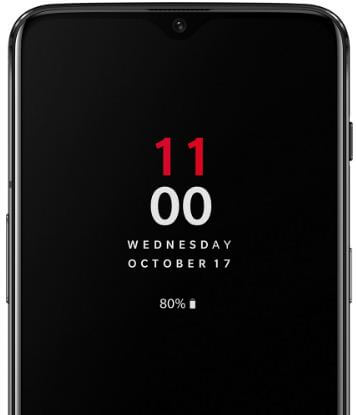
Ambient display feature is useful to show information on lock screens such as time, temperature, battery percentage, and message notifications with icons. You can easily turn on/off the Ambient display in OnePlus 6T using display settings. Also, customize ambient display in the OnePlus 6T Oxygen OS such as change clock style in the ambient display, wake up the screen when receiving notification, and also pick up your phone to show notifications.

Read Also:

How to Turn On OnePlus 6T Ambient Display

How to turn on OnePlus 6T Ambient display

You can enable ambient display in the OnePlus 6T using the below-given display settings.

Step 1: Swipe down the notification shade from the top of the screen and tap the Settings gear icon.

Step 2: Tap Display.

In OnePlus 6T display settings, you can see Adaptive brightness, sleep, screen calibration, Notch display, apps to display in full-screen, night mode, reading mode, video enhancer, ambient display, font style, font size, wallpapers, theme, and more.

Step 4: Scroll down and tap on Ambient display under the customization section.

Here you can see below given two sections in your OnePlus 6T.

When to show

Enable or disable lift up display to quickly show notifications on display when you lift up your OnePlus.

What to show

You can see contextual info (Show music and upcoming event), Display message (show the enter message on the lock screen), and new notifications toggle to show notifications on the Ambient display when you receive a new one.

How to Automatically Wake Up the Screen in OnePlus 6T When Receiving Messages

Settings > Display > Ambient display in Customization section > Toggle on New notifications

How to Change Clock Style in OnePlus 6T

By default select clock style in your OnePlus 6T. If you don’t want to use the default OnePlus 6T clock style, change it using the below-given settings.

Settings > Customization > Clock style > Select the style

And that’s all. We hope this makes it clear how to turn on OnePlus 6T Ambient display. If you have any kind of trouble, tell us in the below comment box. Stay and connect with us for the latest updates.