How to Turn On Adaptive Battery on Pixel 3, 3 XL, 3a, 3a XL

Google Pixel 3, Pixel 3 XL added a new adaptive battery feature for limit battery usage for apps that you don’t use often. By default several apps running in the background even we don’t use, that consuming battery. Just turn on adaptive battery Pixel 3 and Pixel 3 XL settings to extend battery life in your Android devices. This feature is available on Google Pixel 3a, Pixel 3a XL, Pixel 2, Pixel 2 XL, Pixel 4, and Pixel 4 XL.

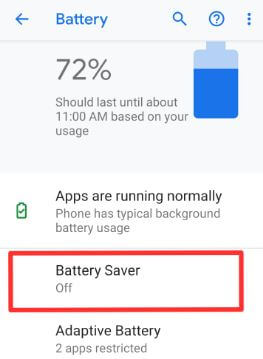
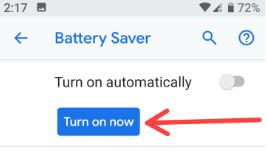
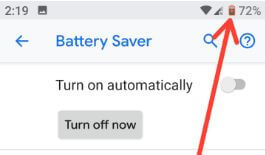
Several Pixel users reported battery drain issues after updating android Pie 9.0. If facing this type of problem, turn off the adaptive battery and check the fix issue. You can always turn on Pixel battery saver mode if you’re running low on battery. Follow the below-given step by step process to turn on or turn off Adaptive battery Pixel 3.

Read Also:
How to Enable and Turn Off Adaptive Battery Pixel 3 and Pixel 3 XL

You can enable/disable adaptive battery on Google Pixel 3 XL and Pixel 3 using below given settings.

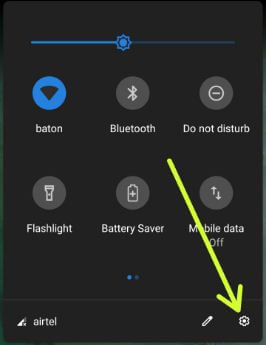
Step 1: Swipe down notification shade and tap the Settings gear icon.

Step 2: Tap Battery.

Turn on adaptive battery Pixel 3 XL Pie

Step 3: Tap on adaptive battery.

How to turn on adaptive battery Pixel 3 Pie

Step 4: Toggle on “Use adaptive battery”.

If you have facing battery drain problem on Pixel 2, Google Pixel and other android device after android 9 Pie update, turn off adaptive battery and check battery life problem solve. To extend battery life on Pixel 3, it will limit battery for infrequently used apps. This Google Pixel 3 & Pixel 3 XL adaptive battery feature also sends a notification if any apps using more battery in the background, so you can restrict apps on your phone.

Step 5: Toggle off Use Adaptive battery to disable adaptive battery Pixel 3 XL.

How to optimize app battery life on Pixel 3 & Pixel 3 XL

Optimize is recommended for better battery life on Google Pixel 3 and Pixel 3 XL. You can optimize battery life on Pixel 3 using below given settings.

Step 1: Go to settings in your Pixel 3 & Pixel 3 XL.

Step 2: Tap Apps & notifications.

Step 3: Tap Advanced.

Step 4: Tap Special app access at the end of the page.

Step 5: Tap battery optimization.

Pixel 3 battery optimization

Step 6: Select all apps.

Step 7: Tap app you want to optimize.

How to optimize app battery life on Pixel 3 Pie

Step 8: Choose Optimize and tap Done.

And that’s all. We hope this makes it clear how to turn on adaptive battery Pixel 3 XL and Pixel 3. If you have any kind of trouble, tell us in below comment box. Stay and connect with us for the latest updates.

Google Pixel 3 Camera Settings

Here’s all about Google Pixel 3 camera settings. Google Pixel 3 has a dual 8 MP front camera with a f/2.2 wide-angle (97 degrees) fixed focus, f/1.8 regular angle (75 degrees) autofocus, and 12.2 MP rear camera. Google Pixel 3 uses Pixel visual core and AI to capture marvelous photos or videos in any conditions. Google Pixel 3 camera features include Top Shot, Night sight, Group selfie, Super res zoom and more. In Google Pixel 3 camera modes, you can see splendid Portrait mode, Panorama, Lens, Photobooth, Playground or Playmoji, Photosphere, and other settings.

Read Also:
Best Google Pixel 3 Camera Manual Mode

First of all, let see Google Pixel 3 camera mode settings.

Step 1: Open the camera app in your Google Pixel 3.

By default camera mode selected.

Step 2: Swipe screen right or left to change camera mode.

You can see below given Google Pixel 3 camera modes in your device.

Camera

Best Google Pixel 3 camera settings

Pixel 3 camera mode includes HDR+, JPEG/RAW+JPED, face retouching for a selfie, flash and other settings.

Portrait

In Pixel 3 XL and Pixel 3 portrait mode, you can easily change the photo part you want to focus on and also change the background blurriness. One of the best Google Pixel 3 camera settings.

Panorama

To take panorama video on Pixel 3, make sure your device is straight. First of all tap the shutter button and after that slowly move your device to the arrow side to capture a photo.

Playground

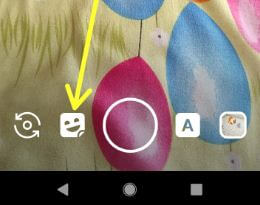
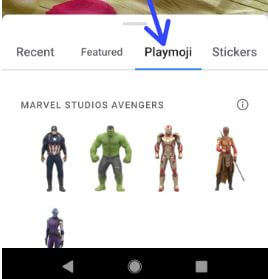
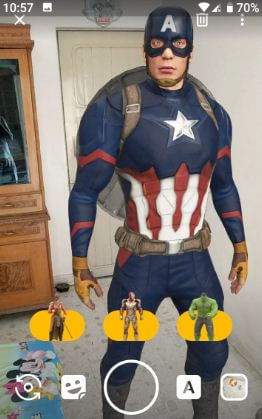
This is the same as Google’s AR stickers. But the latest Google Pixel 3 and Pixel 3 device, you can add marvel stickers such as Iron man, hulk, etc. Also add new stickers including Pets, weather, sports, etc. It will use advanced computer vision and machine learning that helps to playmoji react the same as you react.

Read Also: How to use Playground on Pixel 3 and Pixel 3 XL
Video

Make stunning UHD 4K video @30 fps in your Google Pixel 3 and Pixel 3 XL. In 1080p video, you can choose from 30 frame/sec or 60 frame/sec.

Slow-motion

You’ll capture slow-motion video in your Pixel 3 device using this mode.

Photobooth

This Google Pixel 3 photobooth mode is useful to automatically capture a photo when you smile or make your face expression funny. Best Google Pixel 3 camera settings.

Read Also: How to use Photobooth on Pixel 3 and Pixel 3 XL
Google Lens

Google Lens use AI to male your life easier. Google lens is useful to copy text, add a number, search similar products, scan codes, identify animals, plants and more. Just point the camera at product or page you want to use Google Lens.

How to change camera settings on Pixel 3

Let see the best camera settings for Google Pixel 3 device.

Step 1: Open the camera app in your Google Pixel 3.

Google Pixel 3 camera settings

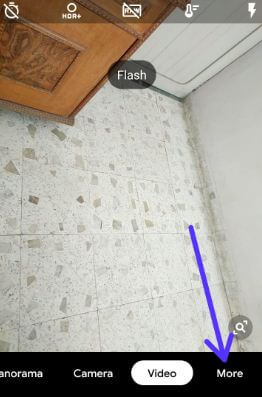
Step 2: Swipe screen right side and tap More.

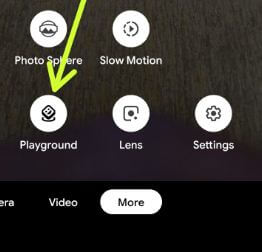
Here you can see Photosphere, Slow motion, Photobooth, Playground, Lens and settings options.

Step 3: Tap Settings.

You can see below given three sections in your Google Pixel 3 device.

Best camera settings for Google Pixel 3

General

You can see save location, camera sounds, Google Lens suggestion, Gestures for camera Grid type and advanced settings. In Pixel 3 camera advanced settings, you can see show dirty lens warning, HDR+ control, RAW+JPEG control and store video efficiency options.

Photo

Set Google Pixel 3 back camera photo resolution and front camera resolution. Choose from the options you want to set.

Video

4K video Pixel 3

Set Google Pixel 3 back camera video resolution up to UHD 4K (30 fps) and front camera video resolution up to 1080p.

End the list of best Google Pixel 3 camera settings. Are you excited about Google Pixel 3? Do let us know what you think about the Pixel 3 and Pixel 3 XL camera in the below comments.

How to Set Up and Use Call Screen on Pixel 3 and Pixel 3 XL

Let see how to turn on call screening in Pixel 3 XL and Pixel 3. This Google Pixel 3 call screen is a Google Assistant feature that automatically answers your spam calls on your phone. When you are using the Google call screen, you can see Google assistant real-time screening service with a private number or spam call on the Pixel 3 device. It will ask to private number about who’s calling and why. After Google Assistant gives choice from pick up calls or report as spam.

Google Pixel 3 and Pixel 3 XL come with several new features and one of them we discuss here’s the call screen. Let see how to use call screen feature on Pixel 3.

Read Also:

How to Turn On Call Screening feature on Pixel 3 XL and Pixel 3

Step 1: When you receive a call from spam number or private number, you can see the screen call option on your device.

How to use call screen feature on Pixel 3

Step 2: Tap screen call button.

Google Pixel 3 call screen

Step 3: Now Google Assistant will tell the caller that you are calling is using a screening service from Google.

Step 4: You can see the caller is replying.

Step 5: Choose from Resort as spam/Tell me more/who is this?/call me back and more.

Step 6: Tap the Red call icon button if you can’t take the call right now.

Currently, this Google call screen feature is only available for Google Pixel 3 devices. Other Pixel devices get this new feature soon. Wait for the next update, it maybe adds this screen call, Google Duplex, powerful camera or other latest launched Pixel 3 and Pixel 3 XL features.

Turn on Pixel 3 Call Screening Automatically

Step 1: Open the Phone app in your Pixel device.

Step 2: Tap on Three vertical dots (More) at the top right corner.

Step 3: Select Settings.

Step 4: Tap on Spam and Caller Screen.

Make sure turned on caller & spam ID.

Step 5: Tap on Call Screen.

Here, you can see unknown call settings for Spam calls, Possible fake numbers, First-time callers, and Private hidden.

Step 6: Tap on Spam or other option you want to set.

Step 7: Choose from Ring phone (default)/Automatically screen. Decline robocalls/Silently decline.

And that’s all. We hope the above-given tutorial helpful to use call screen feature on Pixel 3. If you have any question related above tip, feel free to share with us. Stay and connect with us for the latest updates.

How to Hide the Notch on Pixel 3 XL

Google Pixel 3 XL Smartphone has a 6.3-inch big screen with Notch. Not all users like this top of the Notch, some users disrupt because of Notch or others don’t care about it. Here’s how to hide the notch on Pixel 3 XL. You can use a black bar feature on your Google Pixel 3 XL to hiding the Notch. But you can see Pixel 3 XL status bar more display that looks large bezel. Also, download a third-party app like Nacho notch to remove the notch from Pixel 3 XL.

If you hate the notch, Google Pixel 3 is the best for you. You can get Google Pixel 3 details here. Follow the below-given phone settings to show/hide the notch on Pixel 3 XL.

Read Also:

How to Turn Off Pixel 3 XL Notch

To hide Pixel 3 XL Notch, make sure to turn on developer options in your device. First of all, activate developer mode using below given settings.

Step 1: Swipe down the notification panel and tap Settings gear icon.

Step 2: Tap System.

Step 3: Tap about phone.

Hide Notch on Pixel 3 XL Pie

Step 4: Scroll down up to the end of the page and tap Build number 7 times or tap until appear “you are now developer! message on your Google Pixel 3 XL.

Step 5: Now enable developer mode in your Pixel 3 XL.

Step 6: Go to settings > System > Advanced > Developer options.

You’ll hide the notch on Google Pixel 3 XL using simulate a display with a cutout option under developer mode.

Step 1: Swipe down notification shade and tap the Settings icon.

Step 2: Tap the System at the end of the page.

Step 3: Tap Advanced.

Remove notch Pixel 3 XL

Step 4: Tap Developer options.

How to hide Notch on Pixel 3 XL Pie

Step 5: Scroll down up to the drawing section and tap Simulate a display with a cutout/Notch.

Here you can see several options in your Google Pixel 3 XL devices including Hide/Corner Display cutout/Double display cutout/Tall Display Cutout.

Hide

Hide Notch from your Google Pixel 3 XL

Corner Display cutout

Notch appears on upper-right corner side.

Double display cutout

You can see Notch on the upper and lower middle of the screen in your Pixel 3 XL.

Tall Display Cutout

This Android Pie Notch is tall compare to others and you can see it top middle of the screen.

Step 6: Choose Hide from the list to remove notch Pixel 3 XL

And that’s it. Do you still have question about hiding Notch on Pixel 3 XL? If you have any kind of trouble, tell us in below comment box. Stay and connect with us for the latest updates.

How to Turn On Now Playing on Pixel 3 and Pixel 3 XL

Here’s how to turn on and use Now playing Pixel 3 and Pixel 3 XL. This Google Pixel 3 now playing feature is useful to identify music is playing near you using your phone’s microphone. You can find Now playing settings under sound settings in your Pixel 3 & Pixel 3 XL. When music is playing nearby, you can see the song name and artist info on the Always-on display or Ambient display. In Google Pixel 3 Now playing settings, you can see Now playing music history option to view songs list that already identifies. Also, add a Now playing history shortcut to your home screen if you want. Now playing feature first introduced on Google Pixel 2 device.

Google Pixel 3 and Pixel 3 XL included several new features such as Pixel visual core, record 4K video, Automatic FPS switching, true stereo audio recording, Google duplex, Tops Shot, Super Res zoom, Call Screening, and more. Follow the below-given step by step process to use Now playing on Pixel 3 XL and Pixel 3.

Read Also:

How to Enable And Turn Off Now Playing Pixel 3 and Pixel 3 XL

To use Now playing on Google Pixel 3, make sure turn on show songs on lock screen in your device.

Step 1: Swipe down the notification panel twice and tap the Settings gear icon.

Step 2: Tap Sound.

Step 3: Tap Now Playing.

How to turn on Now playing Pixel 3 Pie

Step 4: Turn on show songs on lock screen toggle.

How to Turn On Now Playing on Pixel 3 and Pixel 3 XL

You can see the nearby playing song name on the status bar (Show above screenshot). Also, customize Now playing to enable or disable notifications from top of the screen and newly added Now playing history option. Now playing works offline and never send songs or conversations to Google.

Step 5: Toggle off Show songs on lock screen to turn off Now playing Pixel 3 XL & Pixel 3.

Alternative Way (Android 10):

Settings > Display > Advanced >  Lock screen display > Now Playing

View Now Playing History on Pixel 3 and Pixel 3 XL

View Pixel 3 Now Playing history

Settings > Sound > Now playing > Now playing history > List of songs listened

Remove Now Playing History on Pixel 3 and Pixel 3 XL

Settings > Sound > Now playing > Now playing history > Three vertical dots at the top right corner > Remove all > Remove

How to Enable Active Edge on Google Pixel 3 and 3 XL

Settings > System > Gestures > Activate edge

You can find activate edge settings under Pixel 3 gestures settings. In latest Google Pixel 3 and Pixel 3 XL, you can’t disable navigation gesture. By default hidden back, home and recent button and instead of you can see Pill (Horizontal) icon in your Pixel 3 & Pixel 3 XL.

And that’s all. We hope this makes it clear how to turn on Now playing Pixel 3. If you have any questions, tell us in below comment box. Stay and connect with us for latest updates.

How to Turn On Driving Mode On Pixel 3 and Pixel 3 XL

Here’s how to turn on driving mode Pixel 3.Google Pixel 3 can automatically activate driving mode when you are driving. You can find android driving mode on Pixel 3 under connected devices settings. When activating driving mode on Pixel 3, it will automatically activate Do Not Disturb mode or Android auto in your device. If you want to use your Pixel 3 while driving, use driving mode with android auto.

You’ll set up driving mode on Google Pixel 3 if first-time pair with a car or other accessories. In the Pixel 2 device, when you drive a vehicle, automatically enable DND mode. Follow the below-given step by step process to turn on driving mode Pixel 3.

Read Also:

How to Turn Off Driving Mode Pixel 3 XL and Pixel 3

In the latest Google Pixel 3 device, when you’re driving a car or other vehicles, it’ll automatically activate android auto and Do not disturb mode also. Check out below given settings.

Step 1: Swipe down the notification panel from the top of the screen.

Step 2: Tap Settings gear icon.

Set up driving mode on Google Pixel 3

Step 3: Tap Connected devices.

Turn on driving mode Pixel 3

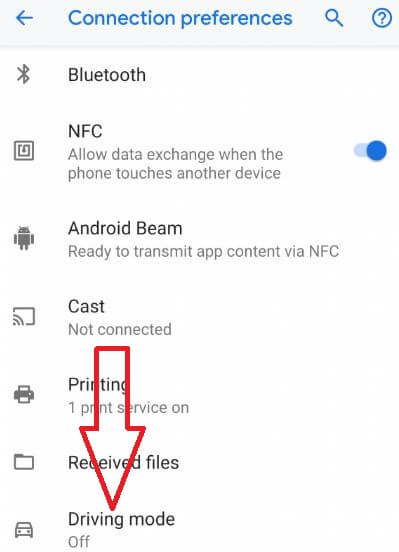
Step 4: Tap Connection preferences.

Here you can see Bluetooth, NFC, Android Beam, Cast, Printing, received files and Driving mode options.

How to turn on Driving mode Pixel 3


Step 5: Tap Driving mode.

By default turn off driving mode on Pixel 3.

Step 6: Tap Behavior.

How to Turn On Driving Mode On Pixel 3 and Pixel 3 XL

Step 7: Choose from Open Android auto/Turn on Do Not Disturb.

Step 8: Tap Turn on automatically.

Step 9: For car Choose from when connected to Bluetooth/when driving is detected (Can’t pair with Bluetooth).

You can enable/disable driving mode Pixel 3 using the above settings anytime you want within a minute.

Different android device has slightly different settings to turn on driving mode or android driving mode.

How to Turn On Driving Mode on Google Pixel 2 and Pixel 2 XL

Google Pixel 2 automatically turns on Do Not Disturb mode when you drive a car or other vehicle. But not activate android auto like as latest Google Pixel 3.

Settings > Sound > Do not disturb > Turn on automatically > Add rule > Driving

After set rule, don’t forget to check turned on the rule in your Google Pixel 2 device.

And that’s all. Let me know what you think about this tip to turn on driving mode Pixel 3. Let us know your thoughts in the comments section below. Please share the article if you found it helpful.