How to change LED notification color OnePlus 5

OnePlus 5 has several great features and one of them is LED notifications light. Here’s how to change LED notification color OnePlus 5/OnePlus 5T device. You will customize LED notifications color on OnePlus 5 using display settings. This OnePlus 5 LED notification setting includes battery full, battery charging, battery low and per app notification LED on OnePlus 5/5T device.

By default set LED color notification for all settings. Also change LED notification color per app in OnePlus 5/5T devices. Follow below given step by step process to change LED notification color OnePlus 5 device.

See Also:

How to enable on screen navigation buttons on OnePlus 5T

How to customize shelf widgets on OnePlus 5/5T  

How to change LED notification color OnePlus 5/OnePlus 5T

You can see notification LED light on top left corner of your OnePlus 5/5T device. You can change LED light color using below settings.

Step 1: Go to settings in your OnePlus 5/5T

Step 2: Tap display under device section

Step 3: Scroll down at the end of page and tap on LED notifications

Here you’ll see list of below given option to customize LED notifications in your OnePlus 5 device.

Change LED notification color OnePlus 5

Default notification: By default set color in your device. Tap on default notification and you can see 8 different colors. Choose from list to change LED light color when receive notification in your device.

Battery full: When your device battery is full, LED light blinking in your device.

Battery charging: When battery is charging, you can see LED light.

Battery low: When battery is lower than 15%, LED light blinking start.

And last option is per app notification LED.

Enable/disable per app notification LED on OnePlus 5/OnePlus 5T

Settings > Device > Display > LED notifications > Per app notification LED

Several users reported OnePlus 3/OnePlus 5 notification light not working or LED color not change. Have you been experiencing this issue in your device?  If you find any handy tips to fix notifications LED color not change on OnePlus 5/5T/3/3T, share with us in below comment box.

And that’s all. I hope this tutorial helpful to change LED notification color OnePlus 5/5T. If you have any kind of trouble, tell us in below comment box. We will respond as soon as possible. Stay connected with us for latest android 8.0 Oreo tips and tricks. If you found it helpful, don’t forget to share with others.

How to use shelf widgets on OnePlus 5

One of the unique features of OnePlus 5 device is Shelf. You can access this shelf feature on your device by swiping right side from home screen. Here’s how to enable and use shelf widgets on OnePlus 5/OnePlus 5T device. In OnePlus 5 shelf widgets, you can see weather, recent app etc. You’ll customize shelf widgets on OnePlus 5 and add any other widgets you want to use.

To add new widgets to tap on floating action button in the bottom right side corner of the screen and choose your favorite widget from list. Also change the text displayed to press & hold the top widget of screen. If you don’t want to see weather info on screen, disable it in your device. Follow below given step by step guide to use shelf widgets on OnePlus 5 devices.

See Also:

How to hide navigation bar on OnePlus 5T

How to enable gestures on OnePlus 5/5T

How to enable and use shelf widgets on OnePlus 5/OnePlus 5T

Use shelf widgets on OnePlus 5

Let see first of all steps to enable/disable shelf on OnePlus 5/5T device. By default enable shelf in your device.

Enable/Disable shelf widgets on OnePlus 5/5T

Step 1: Tap & hold the blank screen on your home screen wallpaper

Step 2: Tap settings

Here you’ll see shelf, swipe down, app shortcuts and icon pack options.

Step 3: Enable/disable shelf in your OnePlus 5

Disable widgets on OnePlus 5

Step 1: Tap & hold the blank screen on your home screen wallpaper

Step 2: Tap widgets

Step 3: Press & hold the widgets you want to delete

Step 4: Drag widget to × remove icon at top of the screen

Let see other useful OnePlus 5/OnePlus 5T home screen tips.

How to disable app shortcuts on OnePlus 5/OnePlus 5T

Just press & hold the app and drag it to your screen to create app shortcut in your device. You can directly reply from this app shortcut from home screen.

Step 1: Tap & hold the blank screen on your home screen wallpaper

Step 2: Tap settings

Step 3: Tap app shortcuts

Step 4: Turn off toggle button of app shortcuts                                                                                                                 

And that’s all. I hope this tutorial helpful to enable and use shelf widgets on OnePlus 5 device. Did you find above tips helpful? Tell us in below comment box, if you have any kind of problem. We will respond as soon as possible. If you found it helpful, don’t forget to share with others.

How to Hide Navigation Bar in OnePlus 5T

OnePlus 5T has several buttons tips and today I will show you how to disable or hide navigation bar buttons in OnePlus 5T Oxygen OS. You can see the home button, recent button, and back button. Choose full gesture navigation to remove navigation bar buttons on OnePlus 5T using buttons & gestures settings. Also, change the recent and back button order on the navigation bar in your OnePlus.

Read Also:

How to Hide Navigation Bar in OnePlus 5T/OnePlus 5

In OnePlus 5T buttons section, you can see the home button, recants button, and back button. You can enable on-screen navigation buttons on OnePlus 5T using the below settings.

Step 1: Swipe down the notification panel from the top and tap on the Settings icon.

Step 2: Scroll and tap on Buttons & gestures.

Hide navigation bar in OnePlus 5T

Step 3: Tap on the Navigation bar & gestures.

Step 4: Choose from Navigation gestures (Left & right) or Navigation gestures (bottom).

Now hide the navigation bar in OnePlus 5T/OnePlus 5 devices. In the below OnePlus 5T on-screen navigation buttons, you can customize the home button, recent button, and back button. In this Oxygen OS device onscreen buttons, you can see several options for setting on navigation buttons such as turn off the screen, voice search, open recent apps, last used apps and more.

How to Swap Recent & Back Buttons on OnePlus 5T Navigation Bar

By default, the right button is set for recent apps and the left button is the back button. You can switch the recent button to the back button in your OnePlus 5T device using the below settings.

Step 1: Go to Settings in your OnePlus 5T/5.

Step 2: Tap on Buttons & gestures.

Step 3: Tap on the Navigation bar & gestures.

Step 4: Make sure selected Back, Home, Recents.

Step 5: Tap on Navigation bar customization under the custom settings section.

Step 6: Choose the option you want to set.

And that’s all. We hope this makes clear how to hide the navigation bar in OnePlus 5T device. If you have any kind of trouble, tell us in below comment box. Stay connected with us for daily latest OnePlus 5 and OnePlus 5T tips.

How to Enable Android 10 Gestures on OnePlus 5

Here’s how to enable and use full-screen gestures on OnePlus 5/5T running Android 10 OS. You can see quick gestures under the buttons and gestures settings in your latest updated OnePlus 5/5T. OnePlus 5 gestures including flip to mute a call, three-finger screenshots, raise to answer/switch, double-tap to wake, music control, and also directly launch apps by drawing an O, V, S, M, or W on the lock screen. Step by step complete guide to enable Android 10 Gestures on OnePlus 5/One Plus 5T device.

Read Also:

How to Enable Gestures on OnePlus 5/OnePlus 5T Oxygen OS

Enable Gestures on OnePlus 5

Let see one by one complete details of each OnePlus 5 gesture.

Step 1: Go to Settings in your OnePlus 5T/5.

Step 2: Tap on Buttons & gestures.

Step 3: Tap on Quick gestures.

You can see below the given list of gestures in your OnePlus 5 device. Enable/disable gestures on your device.

System Gestures           

Flip to mute

This Gesture is useful to mute a call when your device is flip.

Three-finger screenshot

Open the screen or web page and swipe with three fingers on the screen to take a screenshot in your OnePlus 5. One of the most useful gestures to quickly take screenshots. In most of all devices, press the power and volume down button at the same time to capture a screenshot.

Screen off Gestures

Double-tap to wake

Tap the screen twice to wake up your device and you can see receive notifications.

Music control                                                                                                                                                                       

This is the new introduce Gestures which is useful for music lovers. Draw II with two fingers to play or pause music. Draw < or > for previous or next track.

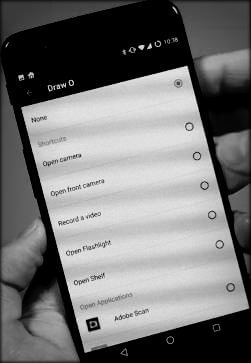
Now you can see several customization gestures including Draw O, Draw V, Draw S, Draw M, and Draw W. You’ll use all this OnePlus 5 gestures as open YouTube or Instagram app, Open the camera or turn on Selfi camera, make a call, turn on GPS and more useful daily routine settings. In the OnePlus 5 device, you can also take a long screenshot to press the power and volume down button, now you’ll see a raw of four pages on the bottom of the screen.

How to Enable Full-Screen Gestures on OnePlus 5/5T Running Android 10

Step 1: Swipe down the notification panel at the top and tap the Settings gear icon.

Step 2: Scroll down and tap Buttons & gestures.

Step 3: Tap the Navigation bar & gestures.

Step 4: Choose Navigation gestures (Left & right) or Navigation gestures (bottom).

Step 5: You can see a Horizontal line at the bottom when activating full gesture navigation on your OnePlus 5/5T.

And that’s it. Do let us know whether you liked this tutorial or not. We are waiting for your feedback on this enable Gestures on OnePlus 5 device. Stay and connected with us for the latest OnePlus tips and tricks.

How to show battery percentage on OnePlus 5

By default hidden battery percentage on OnePlus 5 device. Here’s how to show battery percentage on OnePlus 5 device. You can see only battery icon on your OnePlus 5 device status bar. Different android device has slightly different settings to enable battery percentage. You can also change battery icon style in OnePlus 5 device.

You can easily enable battery percentage inside the battery icon in OnePlus 5 using status bar settings. Also see more battery related information to add it your device status bar. After enable hidden battery percentage icon on status bar, you can see percentage of remaining battery near battery symbol. Follow below given step by step process to show battery percentage on OnePlus 5/One Plus 5T/One Plus 3T/3.

See Also:

How to enable reading mode on OnePlus 5

How to change app icon shape on OnePlus 5

How to enable/show battery percentage on OnePlus 5/One Plus 5T

Show battery percentage on OnePlus 5

Step 1: Go to settings in your OnePlus 5 device

Step 2: Select status bar under customization

Here you can see several options such as battery style, auto-rotate screen, hotspot, Bluetooth, headset and more.

Step 3: Tap show battery percentage

By default disable battery percentage in your device.

Step 4: Turn on toggle button of battery percentage

Now display battery percentage in OnePlus 5 status bar. If you don’t want to show battery percentage on status bar, disable toggle button in your device.

You can also choose what battery related information you want to see in your OnePlus 5 status bar. Also change battery style icon on OnePlus 5 you want using below settings.

Step 1: Go to settings in your OnePlus 5

Step 2: Select status bar under customization

Step 3: Tap Battery style

Step 4: Choose battery icon style you would like to see

Now let see other android OS settings to show battery percentage in status bar.

How to enable battery percentage on android Oreo 8.0

How to display battery percentage on Android lollipop 5.1.1

Settings > system > Battery > show power on status bar

How to show battery percentage on status bar in android marshmallow 6.0

Settings > system > system UI tuner > Show embedded battery percentage

How to enable battery percentage on Google Pixel and Pixel XL 7.1 Nougat

Settings > System > System UI tuner > status bar > battery > always show percentage

Turn on battery percentage on android 8.0 Oreo: Google Pixel

1st Method:

Settings > battery> power management > battery percentage

 2nd Method:

Settings > System > System UI tuner > status bar > battery > always show percentage

And that’s all about display battery percentage on status bar in any android devices.

Do you still have questions about show battery percentage on OnePlus 5 and other devices? Have you turned on the battery percentage on your OnePlus 5 already? Let us know in below comment section.

How to Turn On Reading Mode On OnePlus 5T/OnePlus 5

OnePlus 5 has introduced a new feature called Reading mode. This OxygenOS feature is best for reading eBooks with more enjoy, effective screen and without eye strain. By default turned off reading mode on OnePlus 5T/5. Here’s how to enable reading mode on OnePlus 5T or OnePlus 5 device. You can manually turn on reading mode on your device. Also, choose specific apps to use reading mode automatically if you don’t want to manually enable it. Reading mode will automatically adjust the screen color temperature and calibration optimized for text reading. It can use to improve the reading experience.

Read Also:

How to Enable Reading Mode on OnePlus 5/5T

Enable reading mode on OnePlus 5

You can easily activate reading mode on OnePlus 5/5T using the below settings.

How to Turn on Reading Mode on OnePlus 5/5T

Step 1: Swipe down the notification panel from the top and tap on the Settings gear icon.

Step 2: Tap on Display.

OnePlus display settings include Adaptive brightness, sleep, screen calibration, notch display, apps to display in full-screen mode, Night mode, Reading mode, video enhancer, Ambient display, and more.

Step 3: Tap on Reading mode under the scenes section.

Step 4: Toggle on Turn on reading mode.

Step 5: Choose from the Chromatic effect or Mono effect.

You can enable the block peek notifications to block notifications when you use reading mode.

How to Add Apps to Reading Mode on OnePlus 5T/5 Oxygen OS

Step 1: Go to Settings on your device.

Step 2: Tap on Display.

Step 3: Scroll and tap on Reading mode.

Step 4: Tap on + Add apps for reading mode.

You’ll see a list of supported reading mode apps.

Step 5: Tap on App from the list want to use.

Step 6: Select effect from Chromatic effect or Mono effect.

Now, add the selected app to the reading mode list. Reading mode will turn on automatically when these apps are opened and turn off when they are closed.

Step 7: Tap on the Cross icon to remove the app from the list.

How to Turn Off Reading Mode on OnePlus 5/5T

Settings > Display > Reading mode > Toggle off Turn on reading mode

How to Enable Video Enhancer on OnePlus 5/5T

Settings > Display > Video enhancer > Toggle on Video enhancer

And that’s all. I hope this tutorial helpful to enable reading mode on OnePlus 5. If you have any kind of trouble, tell us in below comment box. We will respond as soon as possible. Stay connected with us for the latest OnePlus 5 tips and tricks.