How to Fix Google Pixel 3 XL and Pixel 3 Keeps Shutting Off

Annoying that Google Pixel turn off randomly? Here’s how to fix Google Pixel 3 XL and Pixel 3 keeps shutting off randomly or won’t power on. This Pixel 3 randomly turns off problems in different conditions, such as while browsing, charging a phone, or sometimes restarting on its own. You need to check for battery or hardware related issues. Several Pixel users face other screen issues such as a black screen of death, an unresponsive touch screen, a phone that won’t charge, Pixel stuck at the Google logo, or more. You can use below given two methods to fix the Google Pixel 3 turn off randomly issue.

How to Fix Pixel 3 Shutting Down

If you’re Google Pixel keeps shutting off, you’ll try the below-given methods to fix this problem.

Restart your Pixel

Long-press the power button and tap on Restart in the power menu to reboot your Pixels, or long-press the power button (10-15 seconds) until the Google logo appears on the screen and automatically reboots your Pixel device.

Check for System Update

Step 1: Go to Settings.

Step 2: Scroll down and tap on System.

Step 3: Tap on System update.

Step 4: Tap on Check for update.

Factory Reset Google Pixel 3/3 XL using Phone Settings

Before factory reset, back up & restore critical data to another device or PC. It will remove all your phone data. I hope this tip fixes Google Pixel 3 randomly turns off or keeps rebooting itself problem.

Step 1: Go to Settings in your Pixel.

Step 2: Scroll down up to the end of the page and Tap on System.

Step 3: Scroll down and tap on the Reset options.

Factory data reset Pixel 3 Pie

Step 4: Tap Erase all data (Factory reset).

Step 5: Tap on Erase all data.

Step 6: Confirm your Password or PIN or Pattern lock to continue.

Fix Pixel 3 keep shutting off randomly

Step 7: Tap on Erase all data or Erase everything.

How to Hard Reset Google Pixel 3 using Recovery Mode to Fix Pixel 3 Keep Shutting Off Randomly

This Pixel 3 hard reset or master reset will fix all your Google Pixel 3 problems. It will reset all phone settings that look when you buy a new device. To perform this action, boot Pixel 3 into recovery mode and wipe data or factory reset data. Make sure to back up your necessary data safely.

Step 1: Switch off your Pixel.

Step 2: Press & hold the volume down button and the power button simultaneously until your device vibrates.

Pixel 3 randomly turns off

Now, the Android system recovery screen is viewed on your Pixel. By default, the start button appears on your device screen.

Step 3: Press the volume down button until view recovery mode.

Step 4: Press the power button to restart into recovery mode.

How to fix Pixel 3 keep shutting off randomly

You can see the screen of the Android robot exclamation mark with a red triangle icon on the Pixel screen.

Step 5: Press & hold the power button and press the volume up button only once.

You can see the Pixel 3 recovery mode screen that includes reboot system now, reboot to bootloader, Apply update from ADB, Wipe data/factory reset, and other handy settings.

Step 6: Press the volume down button until you select the Wipe data/factory reset.

This message appears on the screen: Wipe all user data? By default, selected No.

Step 7: Press the volume down button to select Yes.

Step 8: Press the power button to perform wipe cache Pixel 3.

When completing the process, automatically set the Reboot system now.

Step 9: Press the power button to reboot your Pixel.

Wait until wipe cache Pixel 3 and Pixel 3 XL. After a restart of your device, check whether your Pixel 3 randomly turns off the problem solve or not.

Frequently Asked Question:

How do I Fix Boot Loop in Pixel 3?

To fix the boot loop issue on Pixel 3 or other Pixels, you need to smash the power button a few times or tap on the back & front screen of your Pixel several times. Also, try to reboot the system using recovery mode if working.

How do I Clear the Cache in Pixel 3?

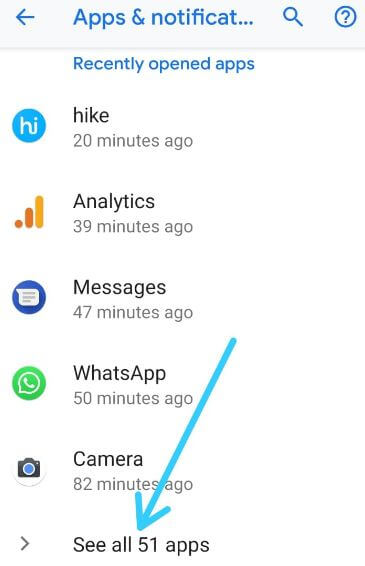
To clear the cache in Pixel 3, go to Settings and tap Apps. Tap on see all apps and select the app you want to clear the cache. Tap on storage & cache and click on clear cache. It will remove that app’s temporary files from your phone. To clear all app’s data, you need to clear data or clear storage on Pixels.

Read Also:

We hope one of the above-given listed methods helps fix Pixel 3 keeps shutting off random problems. If you have any handy tricks to fix this Pixel issue, don’t hesitate to tell us in the below comment box.

How to Fix Pixel 3 XL Black Screen Issues

Annoying by a dead screen or Google Pixel unresponsive blank screen during a phone call? Several Google Pixel users reported the issue of Pixel being stuck on a black screen during phone calls. Also, different types of screen issues include a phone screen is blank, an unresponsive touchscreen, Proximity sensor problems, and more. Here’s the list of possible solutions to fix the Pixel 3 and Pixel 3 XL black screen during the call.

When making phone calls on Google Pixel or other pixel devices, the phone screen is disabled, or a blank screen appears on your device. Sometimes irritate this black screen because you can’t end calls or other activity. Check out the below given different methods to fix Pixel 3 XL black screen when I make a phone call.

Read More:

How to Fix Google Pixel 3 and Pixel 3 XL Un-Responsive Black Screen Problem

First, restart your Google Pixel device to long-press the power button and tap the restart icon to restart your phone automatically. Now call another contact to check to fix the black screen problem on the Google Pixel device.

Remove the Case, Cover, or Screen Protector

Remove the Google Pixel case, cover, or screen protector you have used. Check your device sensors screen is clean.

Force Restart

Long-press the power button for up to 40-45 seconds until the Google Pixel logo views on your Pixel phone. If your phone won’t turn on, follow the below method.

Charge your Google Pixel

Put your Google Pixel device to charging for 25-30 minutes. Now, long-press the power button until it turns on your phone.

Clen the Proximity Sensor

Take a toothbrush and softly clean the proximity sensor at the top middle of the screen, speaker, and other ports if any dust or dirt. Now, power off or restart your phone and check to fix the Google Pixel 3 Black screen of death issue.

Read More: How to Restart Pixel 6

Restart your Google Pixel in Safe Mode

Safe mode helps check if any third-party app is causing problems on your Google Pixel devices. If your phone starts in safe mode, any downloaded app is causing the black screen problem on your Google Pixel. Remove the recently installed apps one by one until fixing the issue. Follow this guide to enable safe mode on your Google Pixel devices.

Factory Reset to Fix Pixel 3 XL Black Screen during Phone Calls

This Pixel 3 factory reset will reset all phone settings, including internal storage, Google account, photos & videos, music, and other information from your device. So back up essential data safely before performing this.

Step 1: Go to Settings in your Pixel

Step 2: Scroll down and tap on System.

Step 3: Scroll down to the end and tap Reset options.

Step 4: Tap Erase all data (Factory reset).

Step 5: Tap Erase all data.

Step 6: Confirm your Password/PIN or pattern lock to continue.

Step 7: Tap Erase everything or Erase all data.

If none of the above methods fix issues, try the below-given ways to fix the black screen problem on Google Pixel 3 and Pixel 3 XL.

Related:

Factory Reset using Recovery Mod if your Pixel Won’t Turn On or the Touch Screen Unresponsive

This wipe cache partition or clear cache partition will be helpful to fix Pixel 3 black screen during phone calls and other several issues such as Google Pixel 3 dead screen, blank screen, Google Pixel won’t turn on, unresponsive screen or touch screen unresponsive and other problems. Back up your data before factory resetting your Pixel device.

Step 1: Power off your Pixel 3 and Pixel 3 XL.

Step 2: Press & hold the volume down button and the power button at the same time until your device vibrates.

The Android system recovery screen appears on your Google Pixel 3 & Pixel 3 XL. By default, the start button appears on your device screen.

How to fix Pixel 3 black screen during phone calls

Step 3: Press the volume down button until you view recovery mode.

Step 4: Press the power button to restart into recovery mode.

You can see the screen of the Android robot exclamation mark with a red triangle symbol on the Pixel 3 screen.

Step 5: Press & hold the power button and press the volume up button once only, then release both the power & volume up buttons.

Here you can see the reboot system now, reboot to bootloader, Apply update from ADB, Wipe data/factory reset, and other Pixel 3 recovery mode settings.

Step 6: Press the volume down button until Wipe data/factory reset.

This message appears on the screen: Wipe all user data? By default, No selected.

Step 7: Press the volume down button to select Yes.

Step 8: Press the power button to perform wipe cache data on Pixel 3.

Wait until wipe the cache data on your Google Pixel 3 and Pixel 3 XL. Now check whether your Pixel 3 black screen problem solve or not.

End the list of methods to fix Pixel 3 black screen during phone calls issues. Have you been experiencing this issue on your Pixel device? Do you have any other tips you want to share? Tell us in below comment box.

FAQs:

How do I Fix Calls end Immediately after Dialing Android?

Check your network connection if your calls end immediately after dialing an Android phone. A poor network signal can cause a call dropping issue immediately after a phone call. Also, check if the SIM card error (Faulted SIM or SIM not inserted properly), software glitch, or hardware issues.

Why my Phone Screen is Blank?

If your Android phone screen is blank, ensure your phone battery is enough to power on. Put your phone charging for at least 25-30 minutes and try to power it on. If your phone’s screen is damaged or broken, it may be causing the blank screen issues. Force restart your phone to long-press the power and volume buttons (Depending on your phone model) and check to turn on your phone. Also, check for hardware or software glitch problems. Make sure your phone is updated with the latest software update.

How to Fix Pixel 3 XL Stuck on Black Screen of Death

Irritate by Google Pixel 3 XL screen isn’t responding? There are several different screen problems such as blank screen, dead pixels, screen burn and more. Here are the possible solutions to fix the Pixel 3 XL black screen of death or screen unresponsive problems. Sometimes third-party apps causing screen issues on Pixel 3 XL, Pixel 3 and other devices. Have you been ever experiencing this problem on your Pixel devices? Check out a list of below-given possible solutions to fix the Pixel 3 XL screen not responding issue.

Read Also:

How to Fix Pixel 3 XL Unresponsive Black Screen

First of all, restart your Pixel 3 XL to the long press power button and tap restart to reboot your device. After restart device, check touchscreen working or not. If not, then apply below ways to fix Google Pixel 3 XL screen issues.

Remove the case, cover or screen protector

If you have to use Pixel 3 accessories such as case, cover or screen protector, then remove it from your device. Make sure your device sensors screens completely see & your Pixel 3 and Pixel 3 XL screen is clean.

Check Pixel 3 XL screen to fix Pixel 3 Stuck on Black Screen of Death

Check your Google Pixel 3 and Pixel 3 XL screen isn’t damaged or cracked. If found this type of issue, replace your device with new if in warranty.

Check third party apps causing the issue

Sometimes downloaded apps are causing a problem of screen unresponsive or Pixel 3 to slow down or more issues. First of all, enable safe mode on Pixel 3 XL and Pixel 3 to check third party apps causing a problem.

Step 1: Long press the power button on your Google Pixel 3 XL.

Step 2: Touch & hold Power off button until view Reboot to safe mode.

Step 3: Press OK to boot Pixel 3 XL into safe mode.

Now, wait until restarting your Google Pixel 3 XL device.

Fix Pixel 3 XL screen issues

Step 4: Now Safe mode icon appears on the bottom left corner of the screen.

Now all third party apps disable from your device. Check your Google Pixel 3 XL running normally without any problems. If you can’t found any problems, it means third party apps causing a problem in your device. Now exit safe mode on Pixel 3 XL to restart your device. After a restart, remove a third-party app one by one, and check fix Pixel 3 XL screen unresponsive problem or not.

If none of the above methods fix Google Pixel 3 XL and Pixel 3 screen issues, factory reset Pixel 3 XL using phone settings.

Read Also:

Factory Reset Pixel 3 XL

Before performing Pixel 3 XL factory reset, back up & restore important data safely. It will remove all your phone data including internal storage, Google account and all other.

Step 1: Go to Settings in your Pixel 3 XL.

Step 2: Scroll down up to the end of the page, Tap System.

Step 3: Tap Advanced.

Step 4: Tap Reset options.

How to fix Pixel 3 XL screen not working issues

Step 5: Tap Erase all data (Factory reset).

Reset Pixel 3 XL settings to fix screen problem

Step 6: Tap Reset phone.

Step 7: Confirm the PIN number or pattern lock to continue.

Step 8: Tap Erase everything.

If your Pixel device won’t turn on or touch screen completely disabled, apply hard reset Pixel 3 using the power button and volume button.

Are you satisfied with our solutions? If you have any other idea to fix the Pixel 3 XL screen not working issues, you can share us in the comments section below. Hope these solutions worked for you.
How to Fix Pixel 3 and Pixel 3 XL Won’t Turn On

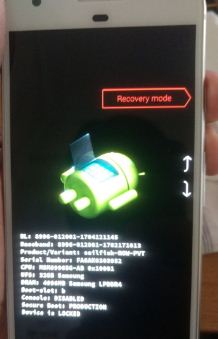
Annoying by Google Pixel 3 and Pixel 3 XL won’t turn on or respond? Here’s how to fix Pixel 3 XL won’t turn on or respond issue. You’ll try forces reboot your device. If you still have facing issues, perform a factory reset or hard reset using recovery mode. This wipe data/factory reset Pixel 3 XL will use to solve several issues such as Pixel 3 black screen, screen won’t turn on, unresponsive touchscreen, and more.

Before performing wipe cache data on Pixel 3 XL and Pixel 3, make sure backup your important data safely in other devices or PC. It will remove all your Pixel 3 personal data, internal storage, photos, videos, music, Google account, and other info. Follow the below-given step by step process to fix Pixel 3 XL won’t turn on problems.

Read Also:

How to Fix Pixel 3 XL Won’t Turn On Or Respond

Apply below given possible solutions to fix Pixel 3 won’t respond issue.

Forced restart

Long press the power button (40-45 seconds) until Google logo appears on the screen and reboot your phone.

Charge your phone for 30-40 Minutes

Wait until your Pixel complete discharge. Now, put your phone in charging up to 30-40 minutes. After that power on your device and check to fix the issue.

Factory Reset using Recovery Mode

You can wipe data/factory reset Google Pixel 3 XL and Pixel 3 using recovery mode. Let see step by step complete guide to fix Google Pixel 3 XL won’t charge or turn on.

Step 1: Power off your Google Pixel 3 XL and Pixel 3.

Step 2: Press & hold the volume down button and the power button at the same time until your phone vibrates.

You can see the Android system recovery screen appears on your Google Pixel 3 XL & Pixel 3 device. By default start button view on your Pixel 3 XL & Pixel 3 Pie device.

How to fix Pixel 3 XL won't turn on

Step 3: Press the volume down button until view recovery mode.

Step 4: Press the power button to restart into recovery mode.

You can see the screen of android robot exclamation mark with a red triangle symbol on your Pixel 3 XL phone.

Step 5: Press & hold the power button and press volume up button one time only and then release the volume up button only.

Here you can see reboot system now, reboot to bootloader, Apply update from ADB, Wipe data/factory reset, view recovery logs, and more settings. Use volume up and down button to select mode and press power button to apply mode in your Pixel 3 XL, Pixel 3, and other devices.

Step 6: Press the volume down button until Wipe data/factory reset.

You can see this message on recovery mode screen: Wipe all user data? By default No selected.

Step 7: Press the volume down button to move Yes.

Step 8: Press the power button to perform wipe data on Pixel 3 XL & Pixel 3.

Wait until your Google Pixel 3 XL and Pixel 3 restart. All your device data removed.

And that’s it. I hope this little tutorial useful to fix Pixel 3 XL won’t turn on or charging. If you have any question, tell us in below comment box. Don’t forget to share with others if you found it helpful.

How to Enter Recovery Mode on Google Pixel 3 and Pixel 3 XL

Want to boot Google Pixel 3 and Pixel 3 XL into recovery mode? In Google Pixel 3 recovery mode settings, you can see several options such as reboot to bootloader, apply update from ADB, wipe data/factory reset, Mount/system, view recovery logs, power off and more. Let see how to boot Pixel 3 into recovery mode. This android recovery mode setting is useful to solve several problems such as Pixel 3 stuck on the screen, black screen issues, touch screen not working, phone won’t turn on and more.

Read Also:

How to Boot Pixel 3 Into Recovery Mode

To enter your Google Pixel 3 into recovery mode, make sure to turn off your device. Let see the process to boot into Pixel 3 in the recovery mode using the hardware button.

Step 1: Switch off your Pixel 3 and Pixel 3 XL.

Step 2: Press & hold the volume down button and the power button at the same time until your device vibrates.

Boot Pixel 3 into recovery mode

On the Google Pixel 3 screen, you can see the Android system recovery screen. By default start button appear on your Pixel 3 & Pixel 3 XL device.

Step 3: Press the volume down button until view recovery mode.

Step 4: Press the power button to restart into recovery mode.

You can see the screen of the android robot exclamation mark with a red triangle icon on your Pixel 3 device.

Step 5: Long press power button and press volume up button one time and then release the only volume up button.

Here you can see reboot system now, reboot to bootloader, Apply update from ADB, Wipe data/factory reset, view recovery logs, and more settings. Use volume up and down button to select options and press the power button to enter that mode in your Google Pixel 3, Pixel 3 XL and other devices.

You can use this android recovery mode options for clear cache partition or wipe cache data on Pixel 3, factory reset, reboot system, run graphics test, run local test and other useful recover mode settings.

How to Enable Safe Mode on Pixel 3 and Pixel 3 XL

When enable safe mode on your Google Pixel 3 or any other devices, all third party downloaded apps hidden from your device. It will use to find app that causing the issue on your Pixel 3 app crashing or freezing issue or slow down your Pixel 3 or Pixel 3 XL problem.

Step 1: Long press and hold the power button in your Google Pixel 3 & Pixel 3 XL.

You can see power off, restart, screenshot and emergency options under power menu.

Step 2: Touch and hold “Power off” button until view “Reboot to safe mode

Step 3: Press “OK” to boot into safe mode on Google Pixel 3 & Pixel 3 XL.

Now wait until your Pixel 3 device restarting.

Step 4: Appear “Safe mode” icon on bottom left corner of the screen.

Check your Pixel 3 device running without any issue, if you can’t found any problem, it means any third-party app causing a problem in your phone. Now exit safe mode on Pixel 3 to restart your device. Remove one by one recently installed app and check to solve the problem or not.

And that’s all. We hope this makes it clear how to boot Pixel 3 into recovery mode. If you have any kind of trouble, tell us in below comment box. We’ll respond as soon as possible. Stay and connect with us for the latest updates.

How to Turn Off Keyboard Sound on Samsung Galaxy Note 20 Ultra/Note 20+/Note 10 Plus/Note 10/Note 9

By default, turn on all sounds on your Samsung Galaxy Note series. Enable keyboard sound on your Samsung Galaxy Note. You can find keyboard sound under sound and vibration settings. Here’s how to disable or turn off keyboard sound Samsung Galaxy Note 20 Ultra/Galaxy Note 20 5G/Galaxy Note 10 Plus/Galaxy Note 10/Galaxy Note 9. You can see different sounds & vibration settings on Samsung One UI, such as notification sound, touch sound, screen lock sound, vibration pattern, keyboard sound, Dialing keypad tones, keyboard vibration, and more. Also, change the vibration pattern on Samsung using this setting. Follow the below-given step-by-step process to change the keyboard sound on Samsung Galaxy Note series.

How Do I Turn Off the Keyboard Sound on my Samsung Galaxy Note?

How to disable keyboard sound on Galaxy Note 9

When turning the keyboard sound on your Samsung Note, play sounds when you tap on keys on the Samsung keyboard.

How do I Turn Off Keyboard Sounds on Note 20 Ultra/Note 20+/Note 10 Plus/Note 10?

Step 1: Swipe down the notification panel and tap on the Settings icon.

Step 2: Tap on Sounds and vibration.

Step 3: Tap on System sounds and vibration.

These Samsung sounds and vibration settings include touch sound, screen lock sound, charging sound, dialing keypad tone, keyboard sound, keyboard vibration, and more.

Step 4: Toggle off the Keyboard sound in the system sounds section.

How to Turn Off Keyboard Vibration on Samsung Galaxy Note

Step 1: Swipe down the notification shade and tap on the Settings gear icon.

Step 2: Tap on Sounds and vibration.

Step 3: Tap on System sounds and vibration.

Step 4: Toggle off Keyboard vibration.

How to Turn Off Touch Vibration on Samsung One UI

Settings > Sounds and vibration > System sounds and vibration > Toggle off Touch vibration

For Galaxy Note 9 (Older Android Version)

Step 1: Swipe down the notification panel and tap on the Settings gear icon.

Step 2: Tap Sounds and vibration.

Step 3: Scroll down up to the key-tap feedback section.

You can see dialing keypad tones, keyboard sound, and keyboard vibration settings. By default, turn on all keypad sounds in your Samsung Note.

Dialing keypad tones: Play tones when you tap keys on the dialing keypad.

Keyboard Sound: When typing on your Samsung keyboard or other keyboards you use on your device, play sound automatically.

Keyboard Vibration: Vibrate when the Samsung keyboard is tapped.

Step 4: Toggle off the Keyboard sound.

You can also change vibration intensity, use volume keys for media, vibrate while ringing, set custom ringtone, notification sound, and other settings using this galaxy Note sounds & vibration settings.

Frequently Asked Questions:

How do I Change the Keyboard Sounds on Note 20?

By default, enable keyboard sound when you touch the keyboard. You can’t change the keyboard sounds using settings. Only turn off keyboard sound by going to Settings > Sounds and vibration > System sounds and vibration > Toggle off Keyboard sound.

How do I Make my Samsung Keyboard Silent?

To silence your Samsung keyboard, toggle off the keyboard sound in your phone. Go to Settings > Sounds and vibration > System sounds and vibration > Toggle off Keyboard sound.

Read Also:

Do you still have a question about disabling keyboard sound on Galaxy Note series? If you have any questions, let us know in below comment box. Stay and connect with us for the latest updates.