Google Pixel 3 and Pixel 3 XL Camera Features

The camera is one of the most important features for Pixel 3 and Pixel 3 XL device. Here’s all about Google Pixel 3 camera features. Google Pixel 3 and Pixel 3 XL camera features including Top shot for capture better photo in HDR plus, group selfie, Night sight for low-light shoot photo, add animated stickers to photos & videos, Portrait mode, bokeh control, photobooth mode and more. Google unveiled new products including Google Pixel slate and Google home hub. But

You can see Google Pixel 3 camera settings and Pixel 3 camera manual mode also. Google Pixel 3 has a dual front camera and a 12.2 mp rear camera. Check out below given top best Google Pixel 3 and Pixel 3 XL camera features.

Read Also:

Google Pixel 3 Camera Settings and Features: Top shot, Group selfie, Night sight

Google Pixel 3 camera features


Google Pixel 3 and Pixel 3 XL start at $799. These two devices have Google’s best camera yet. Check out newly added camera features on Google Pixel 3 and Pixel 3 XL.

Top Shot

This Google Pixel 3 top shot camera feature use HDR plus + AI to take the perfect shot. When you capture any moments in your device, it will automatically find the best one photo from the moment. You’ll see a sequence of photos before or after you press the shutter button to capture a photo in your Pixel 3 and Pixel 3 XL.

Read More: How to use Top Shot on Pixel 3 and 3 XL

Group Selfie camera: Best Google Pixel 3 camera features

Best Google Pixel 3 camera features

You can easily capture group selfie on Google Pixel 3 and Pixel 3 XL compare to other smartphones. In Group selfie features, you can wider the screen up to 184 percent.

How to take a group selfie on Pixel 3

Double-tap power button to quickly access camera > Double twist your wrist to switch selfie mode > zoom out screen you want

You can also ask the Google assistant to take a group selfie or capture a photo in your devices.

Night Sight

This is one of the important camera’s features to capture a photo to the low light or night in your Google Pixel 3 and Pixel 3 XL device. In most of devices, we use the flash to take photo on low light.

Read More:

Photobooth mode

It will use AI to take photos automatically when you smile or make face funny. You don’t have to press shutter button.

Add characters to playground         

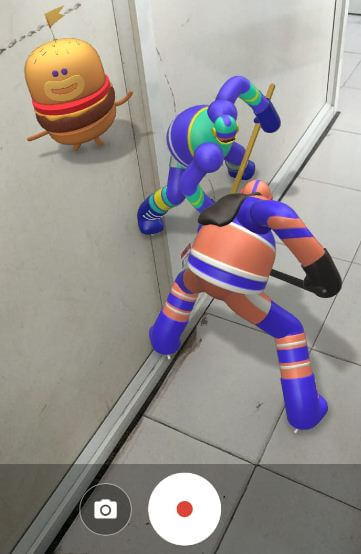
You can add animated stickers into your photos, selfies or videos playground. Add characters such as Iron man, hulk and other Marvel studios. Also, the latest you’ll see a childish Gambino character to dance on playground.

Read More:

Google Pixel 3 Specs & Price

Google Pixel 3 release date: 9th October 2018.

OS: Android 9 Pie.

Processor: Qualcomm Snapdragon 845, Adreno 630.

RAM & Memory: 4GB RAM and 64/128GB internal storage.

Display: 5.5 inch OLED display.

Resolution: 1080×2160pixels.

Camera: Dual selfie camera, 8 MP + 8MP dual front camera.

Battery capacity: 2915mAh.

Color: Just Black, Clearly White and Not Pink.

Google Pixel 3 Price: $799 US, 71000 India

And that’s all. End the list of Google Pixel 3 camera features. Is there another important Google Pixel 3 camera feature you want us to explain we missed above? Stay and connect with us to get the latest update.

Google Pixel 3 XL Specs, Price and Release date

Google’s next flagship Google Pixel 3 and Pixel 3 XL event (just 3 hours remaining) held at New York City on 9th October at 11 am EST (8:30 pm IST). You can watch the live streams on YouTube Google’s official channel. Here you can see details about Google Pixel 3 XL Specs, price, and release date.

Rumored about Google Pixel 3 XL has Notch with a 6.3-inch QHD+ display. Recently leaked Google Pixel 3 and Pixel 3 XL screen with specs and colors. Check out below the given list that covers Google Pixel 3 XL Specs, price, and release date.

Read Also:

Google Pixel 3 XL Specs, Price and Release date

Google Pixel 3 XL Specs, price and release date

Rumors about Google Pixel 3 and Pixel 3 XL have exclusive camera features such as top shot, group selfie, Notch, Gesture control, Wireless charging and more. All rumors ended after today’s Google events 2018 in New York. Both devices come with the latest android version android 9.0 Pie OS.

Google Pixel 3 XL Price and specs    

Google Pixel 3 XL release date: 9th October 2018.

OS: Android 9 Pie.

Processor: Qualcomm Snapdragon 845 SoC.

RAM & Memory: 4GB RAM and 64/128GB internal storage.

Display: 6.3 inch QHD+ display.

Resolution: 2960×1440pixels.

Camera: Dual selfie camera, 8 mp front camera, and 12 mp rear camera

Battery capacity: 3430mAh.

Color: Just Black, Clearly White and Not Pink.

Other Rumors: Top shot, Group selfie, Notch, Water & dust resistant, Wireless charging.

Google Pixel 3 XL Price:

Google Pixel 3 Specification & Price

Google Pixel 3 release date: 9th October 2018.

OS: Android 9 Pie.

Processor: Qualcomm Snapdragon 845 SoC.

RAM & Memory: 4GB RAM and 64/128GB internal storage.

Display: 5.5 inches full HD Plus display.

Resolution: 1080×2160pixels.

Camera: Dual selfie camera, 8 MP front camera & 8 MP ream camera.

Battery capacity: 2915mAh.

Color: Black, White, and Pink (Sand).

Other Rumors: Notch-less, Top shot, Group selfie, Active edge, Dust & water-resistant.

End the list of Google Pixel 3 XL Specs, price and release date. What to expect to see in the upcoming Google event 2018 about Google Pixel 3 and Pixel 3 XL? We shall update you with more as the Google event live.

How to Clear Call History on Android 9 Pie

Want to delete call history permanently from your mobile number? Here’s how to delete or clear call history on Android 9 Pie devices. You can clear the call log or delete recent call history on Android Pie. A call log is one type of call history app. You can easily clear all call logs at once using the phone app settings. In the call history page, you can view call history of all time calls or missed call list.

Read Also:

How to Clear Call History Android 9 Pie

You can delete individual call numbers from a log or delete call history from Android Pie 9.0 devices.

Individual Remove Number or Name From Call History Android 9 Pie

Open call history android 9 Pie

Step 1: Open the Phone app in your android 9 Pie.

Step 2: Tap Three vertical dots (Menu) from the upper right corner side.

View call history android 9 Pie

Step 3: Tap Call history.

Delete individual call number from log on android Pie

Here you can view the call history list. All and Missed tabs call history of mobile number or name.

Step 4: Tap & hold any name or mobile number you want to delete (Show below given screenshot).

Clear call history Android 9 Pie

Step 5: Select delete.

Now remove a name or number from the call history list in your Android 9 Pie devices.

How to Delete the Call History Android Pie 9.0

It will remove call log history from your Android device at once. All missed and recent phone number or name remove from your android device.

Step 1: Open the Phone app in your Android Pie 9.0.

Step 2: Tap Three vertical dots from the upper right corner.

Step 3: Tap Call history.

Now open the call history list in your Android device.

Step 4: Tap Three vertical dots (Menu) from the top right corner.

Clear call history Android Pie

Step 5: Tap Clear call history.

You can see a pop-up screen with this message: Clear call history?

How to clear call history Android 9 Pie

Step 6: Tap OK.

Clear history of mobile number on android 9 Pie

This will delete all calls from your history. You can see “Your call history is empty” message on the screen.

And that’s it. Do you still have a question about clear call history Android 9 Pie? If you have any kind of trouble, tell us in below comment box. Stay and connect with us for the latest updates.

Google Pixel 3 Release Date and Specifications

Here’s all about Google Pixel 3 release date and specifications list. Just a few hours away to Google has officially launched the upcoming Google Pixel 3 and Pixel 3 XL Pie devices at New York City on 9th October at 11 am EST (8:30 pm IST). After the completed event, pre-orders will start immediately. You can watch Google Pixel 3 and Pixel 3 XL event live stream on YouTube made by Google.

Rumors are also expected to Google introduces new gadgets such as a home hub, Pixel slate chrome OS tablet, Pixel Stand, and Chromecast dongle. Google Pixel 3 and Pixel 3 XL are expected to run the latest Android 9 Pie OS. Check out below given complete details about Google Pixel 3 specifications and release date.

You May Like This:

Google Pixel 3 Specifications and Release Date

Google Pixel 3 release date and specifications

Google has confirmed the Pixel 3 and Pixel 3 XL event to a 9 October event in New York City. Also, unveil other devices during the event. Stay and tuned with us for the latest updates. Check out rumors, release dates, and specifications.

Google Pixel 3 Specs

Google Pixel 3 release date: 9th October 2018.

OS: Android 9 Pie.

Processor: Qualcomm Snapdragon 845 SoC.

RAM & Memory: 4GB RAM and 64/128GB internal storage (Not expandable).

Display: 5.5 inches full HD Plus display.

Resolution: 1080×2160pixels.

Camera: Dual selfie camera, 8 MP front camera.

Battery capacity: 2915mAh.

Color: Black, White, and Pink (Sand).

Other Rumors: Top shot for the perfect photo, Group selfie, Active edge, Notch-less, Dust & water-resistant.

Google Pixel 3 XL Price and Specs    

Google Pixel 3 XL release date: 9th October 2018.

OS: Android 9 Pie.

Processor: Qualcomm Snapdragon 845 SoC.

RAM & Memory: 4GB RAM and 64/128GB internal storage (Not expandable).

Display: 6.3 inch QHD+ display.

Resolution: 2960×1440pixels.

Camera: Dual selfie camera, 8 mp front & 12 mp rear camera.

Battery capacity: 3430mAh.

Color: Black, White, and Pink (Sand).

Other Rumors: Notch, Top shot for the perfect photo, Group selfie, Dust & water-resistant

We hope this tutorial useful to get details about Pixel 3 XL and Google Pixel 3 release date and specifications. Are you excited about the Google Pixel 3 and Pixel 3 XL event? Do let us know what you think of the upcoming Google Pixel 3 and Pixel 3 XL phone in the below comments.

How to Set Notification Sound in Android 9 Pie

By default set ringtone and notification sound in your Android 9 Pie and other devices. Here’s how to change notification sound in Android 9 Pie using sound settings. You can set custom notification tone or custom ringtone as a default notification sound using a third-party app or my files. Also, set media volume, change the ringtone, Enable Do not disturb, Touch vibration (Haptic feedback), and other sounds & vibrations. Different android device has different settings to set or change the notification sound. Using media volume, you can quickly change sound settings on your Pie devices.

Read Also:

How to Change Notification Sound in Android 9 Pie

Check out below given two ways to change default notification sound on Android 9 Pie devices such as Pixel 3, Pixel 3 XL, Google Pixel, Pixel 2, and other supported devices.

1st Method: Quickly change default notification sound Android Pie

Change notification sound android 9


Step 1: Unlock your Android Pie device, Press volume up or volume down button & tap settings gear icon.

You can see sound settings.

Change default notification sound android Pie 9


Step 2: Scroll down and tap the Default notification sound.

By default notification sound set in your Android Pie device.

How to change notification sound android 9.0 Pie


Step 3: Choose from the list and tap Save from the top right corner.

2nd Method: Change default notification sound Android 9 Pie

Step 1: Swipe down the notification panel from the top of the screen.

Step 2: Tap Settings gear icon.

Android 9.0 Pie sound settings


Step 3: Tap Sound.

Step 4: Scroll down up to the default notification sound and tap on it.

Step 5: Choose a notification sound from the list and tap Save.

Other sound settings, you can see a shortcut to prevent ringing, default alarm sound, screen locking sound, touch sounds, Haptic feedback for tap, dial pad tones, and more settings.

How to Add Custom Ringtone and Notification Sound on Android 10 (Pixel devices)

How to Set Notification Sound in Android 9 Pie

Settings > Sound > Advanced > Default notification sound > My sounds > + Icon at the bottom right corner > Choose music or audio file from your phone > Choose ringtone > Save at the top right corner

And that’s all. I hope this little tip useful to change notification sound Android 9 Pie. If you have any questions, tell us in below comment box. Stay and connect with us for the latest updates.
How to check system software update Android 9

Here’s how to check system software update android 9 Pie devices. In latest android 9 Pie version, you can manually check android version update and if available then android update download. In some of the previous versions android device, you can set schedule to automatically software updater if available.

Before android update download in your android 9 Pie device, Check the update is available or not. You can check for update in android 9 Pie using system settings. If updates available then make sure battery percentages are more than 50% and enough memory space (Minimum 1 GB). Follow below given step by step process to check system software update Android 9 Pie.

Don’t Miss This:

How to clear all apps in Android 9 Pie

How to enter recovery mode Android 9

How to check system software update Android 9 Pie

First of all check for update and download android OS if available in your android 9 Pie devices such as Google Pixel 3, Pixel 3 XL, Pixel 2, Pixel 2 XL, Google Pixel and other supported devices.

Step 1: Swipe down notification panel and tap settings gear icon

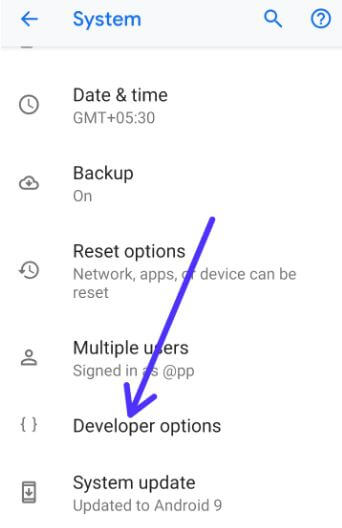
Step 2: Scroll down up to end of the page and tap System

Step 3: Tap Advanced

How to check system software update Android 9

Step 4: Tap System update

Check system software update Android 9 Pie

Step 5: Tap Check for update

If possible, then android update download using Wi-Fi network. So you can easily update android or Samsung update software in your phone without any connectivity problems. Also quickly android version update download compare to mobile data.

Step 6: If Android system update available, tap download and install

Wait for finishing system update. After completed update, tap restart to reboot your android or Samsung devices.

How to auto-update apps on Android 9 Pie

You can automatically update apps on android 9 Pie and other devices using below given settings.

Step 1: Open play store app in your android Pie

Step 2: Tap Three horizontal lines at upper right corner

Step 3: Select settings

Step 4: Tap Auto-update apps under General section

Step 5: Choose Over Wi-Fi only

Now automatically update apps on your device when available.

And that’s all. We hope this little tip useful to check system software update Android 9 Pie. If you have any question, tell us in below comment box. Stay and connect with us for latest updates.