How to Use Photobooth on Pixel 3 and Pixel 3 XL

How to use Photobooth on Google Pixel 3 camera. This Google Pixel 3 photobooth mode is useful to automatically take a photo when you smile or make your face funny. No need to press the shutter button on your phone to capture the photo. You’ll find this Google Pixel 3 feature under camera settings.

Google Pixel 3 and Pixel 3 XL camera uses AI to take marvelous photos with several new features including Group selfie, Top Shot, Photobooth, Night sight, Super res zoom, Playground or Playmoji and more. But in this tutorial, I’ll show you step by step process to use Pixel 3 Photobooth.

Read Also:

How to Use Google Pixel 3 Photobooth Mode

How to use Photobooth on Pixel 3 XL camera

Want to capture a photo without a press shutter button on your Pixel 3 and Pixel 3 XL? Photobooth mode is the option for you to automatically take a picture when you smile or funny expression.

1st Way: Capture photo automatically using Pixel 3 camera Photobooth mode

Step 1: Open the camera app in your Pixel 3 & Pixel 3 XL.

By default camera mode selected in your device.

Use Photobooth on Pixel 3 camera

Step 2: Swipe screen right side up to More.

Here you can see Photosphere, Slow motion, Photobooth, Playground, Lend and Pixel 3 camera settings.

Step 3: Tap Photobooth & press the blue button to activate this mode.

Step 4: Now, Smiles or make funny faces to automatically take shots.

2nd Way: Take a picture using Google Assistant

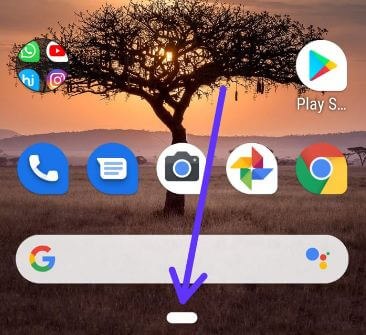
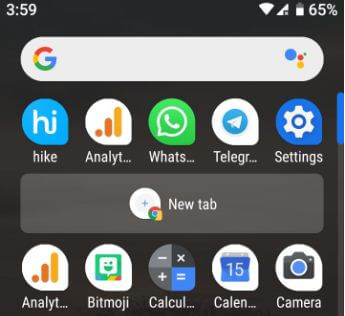
In the latest Pixel 3 and Pixel 3 XL device, you can see Google assistant icon on the Google search bar icon.

Step 1: Tap the Google Assistant icon on the search bar on the home screen in your Pixel 3 & Pixel 3 XL.

Step 2: Now say take a photobooth mode.

Now open your Pixel 3 and Pixel 3 XL camera in your device.

Step 3: Just smile or make funny expressions and automatically capture photo.

And that’s all. Do you still have question about use Photobooth on the Pixel 3 camera? If you have any question, tell us in below comment box. Don’t forget to share with others, if you found it helpful.

How to Get Google Pixel 3 Features on Any Android Phone

Here’s how to get Google Pixel 3 features on any android phone. Google Pixel 3 and Pixel 3 XL are all about the camera. Using Pixel launcher and other apk files, you’ll get Pixel 3 camera, wallpapers, and Playground features. Google Pixel 3 and Pixel 3 XL camera added several awesome features including Top shot, Group selfie, Night sight, Playground or Playmoji, Photobooth and more. You can’t get all camera features after install the Pixel 3 launcher apk file for camera feature in your android Smartphone.

I have Google Pixel first generation with running the Android 9 Pie devices. After install files, you can see the Google Assistant icon on the Google search button, camera setting change, and other settings. Let see a complete guide to get the Pixel 3 features on any android phone.

Read Also:

How to Get the Pixel 3 Camera Features on Any Android Phone

Pixel 3 launcher apk files work on my first-generation Google Pixel Pie devices. First of all download and install these apk files and check your android device to get Pixel 3 XL features.

Download Pixel 3 launcher for Pixel devices.

Download apk – Pixel 3 launcher for any android phone (Without Pixel devices).

Download – Get Pixel 3 camera features to Any Android device running Android 9 Pie OS.

Download Google Pixel 3 wallpaper for Pixel & other android devices.

After download the Pixel 3 launcher APK files, install in your Google Pixel, Pixel 2 and other android devices. You can see several changes in your Pixel, Samsung and other android devices. Not all android devices supported this launcher. So you’ll need to install apk file in your android device and check your device support.

Get Pixel 3 and Pixel 3 XL features on any android smartphone using the launcher

I have found below given changes on my Google Pixel (9.0 Pie) devices.

How to get Google Pixel 3 features on any android phone

Google Assistant icon added to Google search bar

Get Google Pixel 3 features on any android phone

Camera settings change

Get Pixel 3 look on any android devices

AR Sticker or Playground or Playmoji

Pixel 3 launcher for any android phone

Split-screen view change

I hope using this Google Pixel 3 launcher apk files for the camera, wallpaper and other phone settings will use to get Pixel 3 features on android phone. Download and install files and get Pixel 3 look on any android devices.

Do you still have a question about how to get Google Pixel 3 features on any android phone? Have you been applying them already? If you have any kind of trouble, tell us in below comment box.

How to Use Google Playground Mode on Pixel 3, 3 XL, 3a, 3a XL

Here’s how to use the Pixel 3 camera playground mode feature. Using this Google playground Pixel 3 XL camera, you can add characters to your photo & video background and that react to each other. Put your favorite Google Pixel 3 Playmoji to the background and enjoy it in your latest Pixel devices. You can see the latest added playmoji includes Weather, Childish Gambino, Pets, Sports, Travel, Food, animated stickers or Marvel characters (Iron man, Hulk, etc.) added to your latest Pixel devices. Also, use live Pokemon wallpaper on the latest Google Pixel 4 and Pixel 4 XL.

Google Pixel 3 and Pixel 3 XL added several new cameras features such as Top shot, Group selfie, Night Sight, Playground mode (AR Stickers), Photobooth and more. In previous Pixel devices, we use AR Stickers. Now this Google AR Sticker called a playground on Pixel 3 and Pixel 3 XL.  Let see how to use the Pixel 3 playground mode.

Read Also:

How to Use Pixel 3 Playground Mode: Playmoji Fun

You can find playground mode under camera settings in your Google Pixel 3 and Pixel 3 XL.

Step 1: Open the camera app in your Pixel 3 & Pixel 3 XL.

Use Pixel 3 camera playground mode

Step 2: Swipe right side up to More and tap on it.

Here you can see Photosphere, Slow motion, Photobooth, Playground, Lend and Pixel 3 camera settings. If you can’t find Playground option on your older Pixel devices, check this to get the Pixel 3 playground feature on older Pixel devices.

Use Pixel 3 camera Playground mode on older Pixel phone

Step 3: Tap Playground or Say Open playground on Google Assistant.

Pixel 3 playmoji stickers

Step 4: Tap Sticker symbol next to the shutter button.

Pixel 3 Playground feature on older Pixel 2 phone


Step 5: Select Playmoji.

How to use Pixel 3 camera playground mode on older Google Pixel 2 XL

Here you can capture a selfie with Marvel studio avengers, Pets, Sports, animated stickers, change your facial expression will react Marvel Playmoji and more activity.

Step 6: Tap the Shutter button to take a photo on Pixel 3 & Pixel 3 XL.

Step 7: Long press the shutter button to capture a video.

After taken photos or videos on your Google Pixel 3 XL using this new playground mode feature, you can directly share from Google photo to your friends or family members.

How to use AR Stickers on Google Pixel, Pixel XL, Pixel 2 and Pixel 2 XL

Step 1: Open the camera app in your Google Pixel devices.

Step 2: Tap three horizontal lines from upper left corner.

Here you can see slow motion, panorama, photosphere, AR stickers, Lens blur, and other Pixel camera settings.

Step 3: Select AR Stickers.

Now appear AR stickers on the top side in your Pixel and Pixel 2.

How to use Pixel 3 camera playground mode

Step 4: Drag the AR sticker to the flat surface you want to use.

Also, resize and re-position stickers in your Google Pixel devices.

Step 5: Now start taking photos or videos with AR Stickers on Google Pixel 2 and Pixel.

Step 6: To remove stickers, drag stickers to the trash icon.

And that’s it. We hope this makes it clear how to use the Pixel 3 camera playground mode. If you have any questions, tell us in below comment box. Stay and connect with us for the latest updates.

How to Record 4K Video on Google Pixel 3 and Pixel 3 XL

Are you shoot 4K video on Pixel 3 XL and Pixel 3? Here’s how to record 4K videos on Google Pixel 3 and Pixel 3 XL. Using this marvelous Pixel 3 and Pixel 3 XL camera, you’ll be shooting a professional video, cinematic 4K video on 30 fps and other video recordings with UHD resolutions. You can easily change front camera & back camera video resolution on Pixel 3 and Pixel 3 XL using camera settings. There are three options available for Pixel 3 & Pixel 3 Xl camera video resolution including UHD 4K (30fps), HD 1080p, HD 720p and SD 480p. You don’t need to use a DSLR camera.

Google Pixel 3 and Pixel 3 XL is one of the top best camera Smartphones in the world. In this latest Google flagship device introduced new camera features including Top shot, Group selfie (up to 184 percent wider), Photobooth, Playground (animated stickers), Night sight and more. Follow the below-given step by step process to record 4K video on Google Pixel 3 and Pixel 3.

Read Also:

How to Capture Google Pixel 3 XL 4K Video Recording

By default set back camera video resolution HD 1020p in your Google Pixel 3 and Pixel 3 XL. If you want to shoot or capture 4K videos on Pixel 3 and Pixel 3 XL, apply below-given settings in your device.

Step 1: Open the camera app in your Google Pixel 3 & Pixel 3 XL.

By default set camera mode.

More settings camera Pixel 3 XL

Step 2: Swipe mode right side up to end and tap More.

Pixel 3 camera settings

Step 3: Tap Settings.

You can see Google Pixel 3 camera settings.

How to record 4K video on Google Pixel 3

Step 4: Scroll down up to video section and tap Back camera video resolution.

Capture 4K video on Google Pixel 3 XL

Step 5: Choose UHD 4K (30 fps).

Step 6: Tap the back button.

Record 4K video Pixel 3 XL

Step 7: Now tap Video.

You can also turn flash on or off and set color temperature from cloudy, sunny, fluorescent and tungsten.

Step 8: Tap the Shutter button to start shooting 4K video on Pixel 3 XL & Pixel 3.

Step 9: Tap the shutter button again to stop the video.

And that’s all. We hope this makes it clear how to record 4K videos on Google Pixel 3 and Pixel 3 XL. If you have any kind of trouble, tell us in below comment box. Stay and connect with us for the latest updates.

How to Enable Flip to Shhh on Google Pixel [Pixel 7 Pro, 7, 7a, 6 Pro, 6, 6a, 5, 5a, 4 XL, 4a, 3 XL]

Here’s how to enable Flip to Shhh on Google Pixel devices, including Pixel 7, Pixel 7 Pro, Pixel 7a, Pixel 6 Pro, Pixel 6, Pixel 6a 5G, Pixel 5, Pixel 5a, Pixel 4 XL, Pixel 4, Pixel 3 XL, Pixel 3a, and Pixel 3a XL. You can activate the Flip to Shhh feature using your Pixel phone’s Digital Wellbeing and Gestures settings. After enabling Flip to Shhh on Google Pixel, place your phone face down on a flat surface to activate the Do Not Disturb mode automatically. By default, turn off this feature in your Google Pixel devices. This feature is useful when you attend important meetings or business-related work and forget to mute or silent notifications. Just turn on Flip to Shhh on Android to enable DND mode.

Annoying by notifications or phone calls during working time? You can use DND mode to reduce interruptions in your Android devices. Google Pixel’s Flip to Shhh feature automatically activates DND mode. Follow the below-given step-by-step process to turn Flip to Shhh On or Off on Google Pixel devices.

Read More: How to Customize Lock Screen on Google Pixel

How to Enable Flip to Shhh on Google Pixel 7 Pro, 7, 7a, 6 Pro, 6, 6a, 5, 5a 5G

Step 1: Swipe down the notification shade at the top and tap the Settings gear icon.

Go to Digital Wellbeing and Parental control settings to enable Flip to Shhh on Pixel

Step 2: Scroll down and tap on Digital Wellbeing & Parental Controls.

Turn on Flip to Shhh on Android devices

Step 3: Tap Flip to Shhh under Reduce interruptions.

By default, turn off this feature.

How to Enable Flip to Shhh on Google Pixel 7 Pro, 7, 6 Pro, 6, 6a


Step 4: Toggle on Use Flip to Shhh.

Step 5: Face down your Google Pixel phone to a flat surface to turn on the Do Not Disturb feature.

You’ll feel a slide vibration when DND turns on in your Pixel.

How to Turn Flip to Shhh On or Off using Gestures on Pixel Phone

Step 1: Go to Settings.

Step 2: Scroll down and tap on System.

Step 3: Tap Gestures.

How to Turn Flip to Shhh On or Off using Gestures on Pixel Phone

Step 4: Tap Flipp to Shhh.

Step 5: Toggle on Use Flip to Shhh.

How to Turn Off Flip To Shhh on Google Pixel

How to Turn Off Flip To Shhh on Google Pixel

Settings > Digital Wellbeing & Parental controls > Toggle off Use Flip to Shhh.

Read Also: How to Use Gestures in Pixel

How to Turn On Do Not Disturb on Google Pixel (Android 13)

You can activate DND mode on your Pixel phone using sound & vibration settings. When Do not disturb is turned on, your phone won’t show new or existing notifications or make a sound or vibrate.

Step 1: Go to Settings in your Google Pixel.

Step 2: Tap Sound & Vibration.

Step 3: Tap Do Not Disturb.

How to Turn On Do Not Disturb on Google Pixel Phones


Step 4: Tap the Turn On Now button at the top to activate it.

Alternative Ways:

Swipe down the Notification Panel at the top > Tap Do Not Disturn to turn it On/Off.

OR

Settings > Digital Wellbeing & Parental controls > Do Not Disturb under Reduce interruptions section > Turn On Now.

And that’s all. We hope this makes it clear how to enable Flip to Shhh on Pixel phones. Stay and connect with us for the latest updates. If you have any trouble, please tell us in below comment box.

Read Also:

How to Take a Group selfie in Pixel 3 and Pixel 3 XL

It’s quite easy to capture a group selfie on android devices. Sometimes users take time to adjust the settings to take the perfect selfies. But using this new Pixel 3 group selfie camera setting, you can zoom out the screen so easily capture group selfie. Here’s how to take a group selfie in Google Pixel 3 and Pixel 3 XL.

Google Pixel 3 camera features including Top shot, Group selfie, Night sight, Photobooth, Super Res Zoom, Face retouching in portrait mode, Motion autofocus, Live lens and more. Follow the below-given step by step process to take a group selfie on Google Pixel 3 and Pixel 3 XL.

Read Also:

How to Capture Group Selfies With Pixel 3 and Pixel 3 XL

Check out below given two ways to capture a group selfie on Pixel 3 XL and Pixel 3.

1st Method: Capture a group selfie on Pixel 3 and Pixel 3 XL using the camera

Capture a group selfie on Pixel 3 XL and Pixel 3

Step 1: Open the camera app in your Google Pixel 3 & Pixel 3 XL.

By default set camera mode in your android device.

Step 2: Switch camera mode to selfie mode or double twist your wrist to switch into selfie mode.

Take a group selfie on Google Pixel 3

Step 3: Tap Icon from bottom left to zoom out or zoom in screen (Show above screenshot).

How to take a group selfie on Google Pixel 3

Here you can adjust the screen size you want in your Pixel 3 and Pixel 3 XL to capture group selfie.

Step 4: After adjusting the size, tap the Shutter button to take a group selfie Pixel 3 XL & Pixel 3.

2nd Method: Quickly take a group selfie on Google Pixel 3 using Google Assistant

Step 1: Long press power button or say OK Google to launch Google assistant.

Step 2: Now say “Take a group selfie”.

Step 3: Google Assistant will open the camera app and after the countdown, it will automatically capture a group selfie.

You can also zoom in or zoom out the screen when the available screen in our Google Pixel 3 and Pixel 3 XL devices.
And that’s all. We hope this makes it clear how to take a group selfie on Google Pixel 3 and Pixel 3 XL Pie. If you have any kind of trouble, tell us in below comment box.