How to Uninstall/Delete Apps on Galaxy Note 9

By default several apps installed and we installed third-party apps in our Samsung Galaxy Note 9. Not all apps are useful for us. So here I’ll show you how to delete apps on galaxy Note 9. You can uninstall unwanted apps or disable apps on Note 9 if you want to use it later. This removes the app is free up storage in your device. Uninstall or deleting apps will remove all app data from your Samsung Note 9.

You can’t remove pre-installed apps on Galaxy Note 9 but disable it (System apps) if you don’t want to show on app drawer or home screen. Follow the below-given step by step process to remove apps on Galaxy Note 9.

Read Also:

How to Remove Apps From Samsung Galaxy Note 9

How to delete apps on Galaxy Note 9

You can disable or delete individual apps in your Samsung Galaxy Note 9 using below given settings.

Delete or Uninstall Apps on Samsung Note 9

Step 1: Open app drawer in your Samsung Note 9.

Step 2: Long press app icon you want to uninstall or delete the app.

Step 3: Select apps from the list you want to uninstall.

Step 4: Tap Uninstall at the upper left side.

Now delete those apps from your Galaxy Note 9 app drawer list. You can change default apps also in your devices.

Delete Unwanted Apps on Samsung Galaxy Note 9

Step 1: Open the Play Store in your device.

Step 2: Tap on Three Horizontal Lines at the top left corner.

Step 3: Tap on My Apps & Games.

Step 4: Tap on Installed.

Step 5: Tap on App.

Step 6: Tap Uninstall and tap OK.

How to Disable Apps on Galaxy Note 9

If you want to temporarily hide apps in your Note 9, disable pre-installed apps (Bloatware) in your device using apps settings.

Step 1: Swipe down the notification panel and tap the Settings gear icon.

Step 2: Scroll down up to apps & tap on it.

A list of installed apps appears on the screen in your Samsung Galaxy Note 9.

Step 3: Select the app you want to disable.

Step 4: Tap Disable

Step 5: To confirm, tap again disable.

Now, hide or disable the app from your Samsung Note 9.

And that’s all. Do you still have a question about delete apps on Galaxy Note 9? If you have any kind of trouble, tell us in below comment box. Don’t forget to share with others if you found it helpful. Stay and connect with us for the latest updates.

How to Fix Samsung Galaxy Note 9 Home Button Not Working

Annoying by side button not working on Galaxy Note 9? Here’s how to fix Galaxy Note 9 home button not working. We use home, recent, and back buttons on our Samsung devices. Several users facing problems when press home or recent buttons to take time to open apps or back to the home screen on Note 9/Note 8. If you have facing Galaxy Note 9 navigation keys problem, you’ll try to change or hide the navigation bar button from your device and use it. Samsung pay app is also causing this galaxy Note 9 navigation keys issues.

You can also use a third-party launcher to show or hide navigation bar buttons from your Samsung Galaxy Note 9 such as Nova launcher – One of the most highly recommended launchers for android devices. Check out below possible methods to fix the home button not working on Samsung Note 9.

Read Also:

How to Fix Home Button Note Working on Samsung Galaxy Note 9/Note 8

How to fix Galaxy Note 9 home button not working

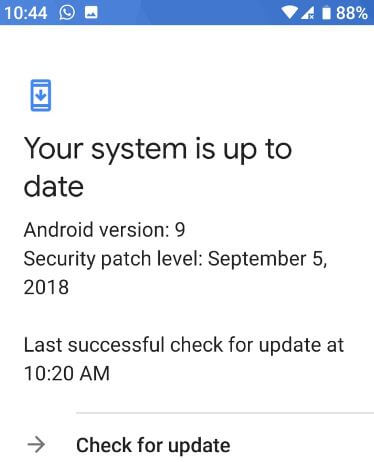
One of the best solutions to fix Samsung Note 9 buttons unresponsive is a system software update.

Check System Software Update

It will fix small bugs and improve the performance of your Samsung Note 9. You can check the system update available in your Note 9 using the below settings.

Apps > Settings > Software update > Download update manually

Add Button to the Navigation Bar to Fix Galaxy Note 9 Home Button Not Working

It will add a new button to the left side of the navigation bar. So you can show/hide Navbar easily using this setting.

Settings > Display > Navigation bar > Tick marked Show & hide button box

Samsung Pay App Uninstall

This is rare of the case when user facing problems because of the Samsung pay app. If you are facing issues while using the Samsung Pay app in your Note 9, uninstall it from your device and check the fix issue.

If none of the above methods fix Samsung Note 9 issue, wait until the next system software update.

And that’s all. If you know any other ways to fix Galaxy Note 9 home button not working issues. Let me know in the comment section. I’ll add it to the list. Stay and connect with us for the latest Note 9 updates.

How to Fix Samsung Note 9 Overheating Issue

Several users reported Samsung Note 9 camera overheating issues when using a camera to shoot videos on their devices. There are several reasons for Samsung Galaxy Note 9 overheating, such as continuous playing games, background running unused apps, Shooting FHD video, high-temperature places or direct sunlight, and more. Here’s how to fix Samsung Note 9 overheating while charging.

Samsung says they improve the water carbon cooling system that prevents Note 9 from overheat. But users face problems such as battery overheats, temperature too high to use a camera, and more. Below are possible methods to fix the Samsung Galaxy Note 9 overheating problems.

Read More: How to Fix Low Call Volume on Samsung Galaxy Note

How to Fix Samsung Note 9 Overheating Issues

How to fix Galaxy Note 9 overheating problems

Check out the below solutions to keep away Samsung Galaxy Note 9 warm or overheat issues.

Remove the Case & Cover

Remove the Galaxy Note 9 case or cover that warms your device while charging. Keep away your Galaxy Note 9 from excessive heat also.

Soft Reset your Samsung

Long-press the volume down and power buttons together for 10-15 seconds until your phone turns on. Check if the problem solve.

Close Unnecessary Background Running Apps or Adding Apps to Sleeping Apps

Check apps that use more battery in the background even if we don’t use them more. Toggle off the background data or disable it if you don’t use it.

Stop App using Background Data: Settings > Apps > See all apps > Select app > Mobile data & wifi > Toggle off background data. 

Close All Running Apps/Recent Apps: Open the Recent apps > Tap Close all at the bottom to stop all recent apps.

Sleeping Apps: Settings > Device maintenance > Battery > Always sleeping apps > Add apps > Select the apps > Done at the top right.

Avoid Playing Continuous Games

This is one of the most common reasons for your device overheating or warm. To fix it, stop playing games to continue in your Samsung or Android devices.

Use the Original Charger to Charge the Battery

Always use the original charger to charge your Samsung Note 9 device. Avoid your devices with faulty chargers or cables. Make sure the battery is not defective.

Check Battery Usage

Settings > Apps > Battery usage.

Find the app using more battery even if you don’t use them. Uninstall that app from your Samsung phone.

Check Software Update

A check system software update is available to update your Samsung Note devices.

Settings > Software update > Download and install.

Remove the Unnecessary Apps

Find the app you don’t use for a long time and uninstall it from your device.

Tap & hold the app from the app drawer and move it to uninstall at the top of the home screen > OK. 

Turn On Safe Mode to Fix Samsung Galaxy Note 9 Overheating Problems

Step 1: Long press the Power button on your Samsung Note 9.

Step 2: Touch & hold the Power off button.

You’ll see this message: Reboot to safe mode?

Step 3: Tap OK.

You can see a safe mode symbol at the bottom left of the screen on your device. Now, all downloaded third-party apps are disabled on your device.

Now continuously play games or capture videos and check Galaxy Note 9 warm.  If you can’t find any issues, it means any third-party apps occur this overheating Note 9 issues in your phone. Remove one by one recently installed apps from your device and check to fix the overheating problems on Galaxy Note 9. Just restart your device to remove safe mode.

Disable GPS, Wi-Fi, Bluetooth, and Mobile data

Turn off the GPS, Wi-Fi, Bluetooth, and other unnecessary data when not used in your Samsung Galaxy devices.

Clear Cache Partition on Samsung Note 9

Step 1: Make sure to Power off your Samsung phone.

Step 2: Press & hold power and volume up buttons simultaneously until the recovery mode appears.

Step 3: Press the volume down key until highlighting the Wipe cache partition.

Step 4: Press the Power button.

Step 5: Press the volume down key to select Yes.

Step 6: Press the Power key.

Wait until you see the wipe all data message on the screen’s bottom left corner. Now, automatically select the reboot system option.

Step 7: Press the Power key.

Check to fix your Samsung Galaxy Note 9 overheating or warm issue.

Factory Reset your Samsung Galaxy Note 9

If none of the above methods fix Samsung Note 9 overheating issues, factory reset Note 9. Before performing Samsung factory reset settings, back up important data safely to a PC or other devices. It will remove all your phone data.

And that’s it. Do you have any alternative methods to fix this issue? We hope one of the above-given methods is helpful to fix Galaxy Note 9 Overheating issues. Stay and connect with us for the latest updates.
Read Also:

How to hide content on lock screen Android 6

By default show all notifications on lock screen in android 6 Marshmallow or Nougat. You can hide content on lock screen Android 6 device using lock screen and security settings. Individually enable/disable apps notifications on lock screen in your android devices.

When receive new notifications, you can see message notifications on the lock screen. You can choose from show content / hide content / Do not show notifications. If you don’t want to show any app notifications, hide all messages on lock screen android phone. Follow below given step by step process to hide content on lock screen Android 6.

Don’t Miss This:

How to hide lock screen notifications Google Pixel

How to disable pop-up notifications Android lollipop

How to clear app cache in Android 6 Marshmallow

How to change lock screen app in Android

How to hide content on lock screen Android 6 Marshmallow

Want to hide sensitive content on lock screen in Android 6.0 marshmallow or Nougat 7.0? Show/hide lock screen notifications on android 6 using below given settings.

Step 1: Go to settings in your android 6 Marshmallow

Step 2: Scroll down up to Lock screen and security and tap on it

Step 3: Tap Notifications on lock screen under lock screen section

How to hide lock screen notifications Android 6

Step 4: Tap Content on lock screen

By default set show content option in your marshmallow, nougat and other devices.

How to hide content on lock screen Android 6 Marshmallow

Step 5: Choose from show content / hide content / Do not show notifications

By default enable all apps notifications on android marshmallow and other android devices. Also individually enable app message notifications from lock screen in android 6.

Step 6: Turn off toggle “All apps” under show notifications from sub category

Step 7: Turn off app toggle you want to hide notifications on lock screen

Now you can’t see notifications on the lock screen in your android 6 marshmallow devices. To show lock screen notifications again, turn on toggle in your phone.

How to hide lock screen notifications on Android lollipop 5.1

Settings > Device > Sounds and notifications > Notifications on lock screen > Show content / hide content

Read Also: How to change lock screen notifications Android Oreo

How to hide message notifications from lock screen Android Nougat 7.1.2

Settings > Device > Notifications > Settings gear icon > On the lock screen > Show all notification content / hide sensitive notification content > Don’t show notification at all

And that’s it. We hope this makes it clear how to hide content on lock screen Android 6 Marshmallow. If you have any question, tell us in below comment box. Stay and connect with us for latest updates.

How to clear app cache in Android 6

Here’s how to clear app cache in android 6 Marshmallow and Nougat 7 device. This clear system cache android 6 device will free up space in your phone and clear app data. You can clear cache android Nougat & marshmallow when app crashing or freezing in your device. It might be helpful to fix app issue on android 6.

You will individually clear app cache and app data in android 6.0 using apps manager settings. This clear cache android phone is delete temporary data from your phone. So particular app open quickly after delete app cache in android 6. Follow below given step by step process to clear app cache in Android 6 and Android 7.0 Nougat.

You May Like This:

How to block a number on Android 6.0

How to reduce mobile data usage Android lollipop

How to change text message notification sound on Android

How to change message background theme android

How to clear app cache in Android 6.0 Marshmallow

You can fix specific app related problems using clear app cache android marshmallow and nougat 7.1.2.

Step 1: Go to settings in your android marshmallow 6.0

Open Application in android marshmallow 6.0

Step 2: Scroll down up to applications and tap on it

How to clear app cache in Android 6

Step 3: Tap application manager

List of installed apps are appear on your android marshmallow and nougat screen.

Step 4: Tap app you want to clear cache

Step 5: Tap Storage

Step 6: Tap Clear cache

Sometimes clear app cache on android can’t fix problems in your devices. So try to clear app data. This clear app data will delete this app’s all data permanently including settings, all files, accounts etc.

Step 7: Tap Clear data

Step 8: Tap Delete

Now remove all app data from your android marshmallow or nougat device.

I hope above given article useful to clear app cache in Android 6 marshmallow. If you have any kind of trouble, tell us in below comment box. Stay and connect with us for latest updates. Don’t forget to share with others if you found it helpful.

How to block a number in Android 6

Want to block calls and text messaging on android marshmallow 6.0? Here’s how to block a number in Android 6 marshmallow. You can individually block phone number or anonymous phone calls in your android device. When blocked numbers in marshmallow & nougat, you won’t receive calls or text messages from that mobile number.

You can block unknown numbers android device using this call settings. Also enable/disable block anonymous calls & messages if annoying by phone number. Follow below given step by step process to block a number in Android 6.0 and Nougat 7.0.

You May Like This:

How to turn off predictive text on Android 6.0

How to use multi window mode on Android marshmallow

How to turn on Auto correct on Android lollipop

How to turn on ultra power saving mode on Android lollipop & marshmallow

How to block a number in Android 6 Marshmallow

You can block a number on Android phone using phone app settings in your marshmallow and nougat 7.1.2 devices.

Step 1: Open Phone app in your android 6.0 marshmallow

Step 2: Tap More at upper right corner

Step 3: Select settings

Step 4: Tap Block list under call settings

You can see android 6 block calls settings list in your device.

Step 5: Enter phone number you want to block or tap contacts if you want to add number from your device contact list

After add phone number, automatically add that contact to blocked list.

How to block a number in Android 6 Marshmallow

Step 6: Tap + icon to add more than one contacts you block

You can also turn on block anonymous calls or block unknown numbers android 6.0 marshmallow and nougat devices.

How to unblock a number on android 6 marshmallow

You can easily unblock a blocked number android 6 marshmallow using same settings. Check out below given process to unblock a number on Android 6 and Nougat 7.0.

Phone app > More > Settings > Block list > Tap “– icon” of blocked number to unblock a number on android marshmallow

And that’s all. I hope this little tip helpful to block a number in Android 6.0 marshmallow and nougat. If you have any question, tell us in below comment box. Stay and connect with us for latest updates.