How to Enable Unknown Sources on Pixel 3, 3 XL, 3a XL, 3a

Install apk on Pixel 3 and 3a XL? Here’s how to install unknown apps on Google Pixel 3, 3 XL, 3a and 3a XL. By default turn off allow from the third-party source or apk file and other sources. Sometimes third-party apps harmful for your device and it may be possible to lost phone data or any other damage. To install apk from unknown source on Pixel 3 XL, we must enable unknown sources on Google Pixel 3 XL and other latest Pixel devices.

You can find install unknown apps option under apps and notification settings in your Pixel 3 and other latest android devices. Here you can see list of install unknown apps, by default disable allow from app source. Follow below given step by step process to enable unknown sources on Pixel 3.

Read Also:

How to Install Unknown Apps on Pixel 3 and Pixel 3 XL

You can enable/disable unknown sources on Pixel 3 to download & install third-party apps on your device.

Install apk from unknown source on Pixel 3 XL

When you install apk file and disable unknown source on your device, you can see this message: For your security, your phone is not allowed to install unknown apps from this source. So you can activate it using below given settings on your Pixel 3 Pie and other devices.

Step 1: Swipe down notification from top of the screen and tap the Settings gear icon.

Step 2: Tap Apps and notifications.

Turn off allow from the third party source

Step 3: Scroll down at the end of the page and tap Advanced.

Special app access settings on Pixel 3 XL Pie

Step 4: Tap Special app access.

Here you can see several options including battery optimization, device admin apps, display over other apps, Picture-in-picture, Install unknown apps, Wi-Fi control and more.

Install unknown apps on Pixel 3 Pie

Step 5: Tap Install unknown apps.

Several apps appear on the screen including Chrome, Drive, Gmail, Instagram, WhatsApp and more.

Enable unknown sources on Pixel 3

Step 6: Select the app you want to enable to install unknown apps on Pixel 3.

By default turned off allow from unknown source in your android Pie, Oreo, Nougat and other devices.

How to enable unknown sources on Pixel 3

Step 7: Turn on Allow from this source.

Now you can download apk file and install on your Google Pixel 3 and Pixel 3 XL devices.

Enable Install From Unknown Sources on Google Pixel 3a & 3a XL (Android 10)

Enable Install From Unknown Sources on Google Pixel 3a

Settings > Apps & notifications > Advanced > Special app access at the last on the page > Install Unknown apps > Select App from list > Toggle on Allow from this source

And that’s it. I hope this little tip useful to enable unknown sources on Pixel 3 and Pixel 3 XL. Have any questions? Feel free to leave them in the below comment section and we’ll do our best to solve as soon as possible!

How to Turn Off Vibration in Pixel 4 XL, 4, 3 XL, 3, 3a XL, 3a, 2 XL, Pixel XL: Android 10

Turn off vibrate in Pixel 3 and 3 XL? Here’s how to turn off vibration on Pixel 3 and Pixel 3 XL. You can turn vibrate on or off for ringtone, touch, and notifications on your latest Pixel devices. Also, turn off the vibration for notifications on Pixel 3 XL and Pixel 3 using accessibility settings. Enable or disable haptic feedback on Pixel 3 using sound settings.

Also, turn off keyboard vibration and other sounds that annoying you on your Pixel 3 (Compatible with Pixel 3 XL, Pixel 3a XL, 3a, 2 XL) devices. Follow the below-given step by step process to turn off vibration on Pixel 3 and Pixel 3 XL.

Read Also:

How to Turning Off Vibrate in Google Pixel 3 and Pixel 3 XL

You can quickly vibrate or mute your Pixel 3 and Pixel 3 XL using volume up or volume down button. First of all, lest see steps to turn notifications vibration on or off on your Pixel 3 and Pixel 3 XL Pie.

Step 1: Swipe down the notification panel from the top of the screen & tap the Settings gear icon.

Step 2: Scroll down up to Accessibility and open it.

Vibration setting for Google Pixel 3

Step 3: Tap Vibration under the Interaction controls section.

How to turn off vibration on Pixel 3

Step 4: Here you can see ring & notification vibration and touch vibration options.

Turn off vibration for notifications on Pixel 3 Pie

Step 5: Tap Ring & notification vibration and Choose Off

It will disable the vibration of a phone call and notification you receive in your Google Pixel 3 and Pixel 3 XL devices.

Turn off haptic feedback on Pixel 3 XL Pie

Step 6: Tap back button, now tap touch vibration and choose Off.

Now all touch vibration turns off in your Pixel 3 and Pixel 3 XL devices. When turning on touch vibration on your device, it’ll automatically turn on haptic feedback on your Pixel 3 and Pixel 3 XL.

How to turn off sound & vibration on Pixel 3 and Pixel 3 XL

You can disable sounds & vibrations on Pixel 3 XL including screen locking sound, charging sound, Dial pad tones, touch sounds and touch vibration (Haptic feedback).

Step 1: Go to settings in your Google Pixel 3 & 3 XL.

Step 2: Tap Sound.

Touch vibration turn off in your Pixel 3

Step 3: Scroll down at the end of the page and tap Advanced.

How to turn off sound & vibration on Pixel 3 Pie

Step 4: Scroll down up to Other sounds and vibrations settings and turn on or off toggle you want

Turn off haptic feedback on Pixel 3 and Pixel 3 XL

Sound > Advanced > Other sounds and vibrations > Touch vibration

Turning off Vibrate on Pixel 3a XL, Pixel 3a, 3 XL, 4 XL, Pixel 4: (Android 10)

Settings > Accessibility > Interaction controls > Vibration and haptic strength > Toggle off Ring vibration, Notification vibration, and Touch feedback 

And that’s it. Do you still have a question about turn off vibration on Pixel 3 and Pixel 3 XL? If you have any questions, tell us in below comment box. Stay and connect with us for the latest updates.

How to Enable Do Not Disturb on Pixel [Pixel 7 Pro, 7, 7a, 6 Pro, 6, 6a, 5, 5a, 4 XL, 4a, 3 XL]

Here’s how to enable Do Not Disturb on Pixel phones. By default, turn off Do Not Disturb on Google Pixel 7, Pixel 7 Pro, Pixel 7a, Pixel 6 Pro, Pixel 6, Pixel 6a 5G, Pixel 5, Pixel 5a, Pixel 4 XL, Pixel 4, Pixel 3 XL, Pixel 3a, and Pixel 3a XL. This DND mode is helpful to reduce interruption when you’re in business meetings or essential seminars, or other work. When turning on the Do Not Disturb mode Pixel, you only get notified by important people and apps if you allow them. Also, enable or disable allow repeat callers if the same person calls a second time within 15 minutes.

You can customize Do Not Disturb settings such as apps, Alarms & other interruptions (Media sounds, Calendar events, etc.), display options for hidden notifications, etc. Also, set a schedule to enable Do Not Disturb mode on your Pixel devices automatically. You can enable Flipp to Shhh on Pixel to automatically activate DND mode on your Google phone.

Read More: How to Fix Battery Draining Issue on Google Pixel After May 2023 Update

How to Enable Do Not Disturb on Google Pixel 7 Pro, 7, 7a, 6 Pro, 6, 6a, 5, 5a 5G

Check out the three ways to enable or disable do not disturb mode in Google Pixel devices.

Enable and Use Do Not Disturb Mode on Google Pixel

Step 1: Swipe down the Notification panel from the top of the screen and tap the Settings gear icon.

Step 2: Tap Sound & Vibration.

Google Pixel 3 Do not disturb mode

Step 3: Tap Do not disturb.

Now customize the Do Not Disturb settings on your Google Pixel.

How to Enable Do Not Disturb on Pixel 5, 5a, 4 XL, 4, 4a, 3, 3 XL

Step 4: Tap Turn on now at the top.

Adjust do not disturb settings in Pixel 3 XL

Step 5: You can see a Round shape icon with a horizontal line on the status bar that indicates DND mode is activated on your Google Pixel phones.

How to Customize Do Not Disturb Mode in Google Pixel (Android 13/Android 14)

How to Use Do Not Disturb on Google Pixel 5 and Pixel 5a

Step 1: Go to Settings > Sound & Vibration> Do Not Disturb.

You can see 2 sections here.

Customize Do Not Disturb Mode in Google Pixel 5, 5a, 4 XL, 4a, 3 XL

What can Interrupt Do Not Disturb

  • People: Choose who can interrupt messages and calls from started contacts, Contacts, Anyone, or None.
  • Apps: Add the apps that can interrupt you, even enable Do Not Disturb mode on your Pixel.
  • Alarms & other Interruptions: You can enable or disable Alarms, Media sounds, Touch sounds, Reminders, or Calendar events.

General

  • Schedules: You can set a schedule for sleeping, Event, Enable or Disable the Game dashboard, and add more event schedules.
  • Duration for Quick Settings: Set time to automatically turn on DND mode (Until you turn off/For hour/Ask every time).
  • Display options for Hidden Notifications: Choose from No Sound from notifications, No Visuals or Sound from notification, or Custom When DND is on. Here, you’ll set custom restrictions for DND mode when the screen is Off or When the screen is On.

How to Turn On Do Not Disturb Mode on Google Pixel using Digital Wellbeing and Parental Controls

Step 1: Go to Settings on your Pixel.

Step 2: Tap Digital Wellbeing and Parental Controls.

Enable Pixel 3’s Do not disturb mode

Step 3: Tap Do Not Disturb under Reduce interruptions section.

Step 4: Tap the Turn On Now button.

Now mute all notifications, sound, and other settings in your Google Pixel devices.

Quickly Enable Do Not Disturb Mode on Pixel Phone

Step 1: Swipe down the notification panel twice from the top of the screen.

Activate Do Not Disturb Mode on Pixel Phone using Notification Panel

Step 2: Tap on Do Not Disturb to activate, or Long press the Do Not Disturb to view the Pixel DND settings and tap on Turn On Now button.

How to Enable Flipp to Shhh to Automatically Turn On DND Mode in Google Pixel

Enable Flipp to Shhh Gesture to automatically turn on DND mode in your Pixel 3a

Settings > System > Gestures > Flip to Shhh > Toggle on Use Flip To Shhh.

How to Enable Do Not Disturb on Pixel 3 and Pixel 3 XL

Alternative Way: Settings > Digital Wellbeing  & Parental controls > Flip to Shhh under Reduce Interruptions > Toggle on Use Flip to Shhh.

Now, place your phone face down on a flat surface. You’ll feel a subtle vibration when Do Not Disturb turns on.

And that’s all. We hope this makes it clear how to enable and use the Do Not Disturb mode on Google Pixel. If you have any questions, please tell us in below comment box.

Read Also:

How to Use Google Digital Wellbeing on Pixel 3 and Pixel 3 XL

Here’s how to enable or turn off Digital wellbeing on Pixel 3 and Pixel 3 XL. By default installed Digital wellbeing feature on Google Pixel 3 and Pixel 3 XL. Digital wellbeing app is useful to check how many times you spend on your device per day, how many notifications you’ve received, how long you’ve used each app on your phone, and other details. This Google Digital wellbeing feature includes screen time, app timers for the set app time limit, Wind down, Flip to Shhh, Parental Controls (Android 10), Focus mode (Android 10), and other handy settings.

If you have older Pixel devices, download Digital wellbeing beta on your older Pixel devices using this. Check out below-given settings to enable and use Digital wellbeing on Pixel 3 XL and Pixel 3.

Read Also:

How to Enable Digital Wellbeing Pixel 3 and Pixel 3 XL

Supported Android 9 Pie devices get Digital Wellbeing Beta feature in him devices. You can see a Pie chart that explains how many times you open apps and which is the most used app.

Use the Dashboard on Pixel 3 XL and Pixel 3

Step 1: Swipe down the notification panel from the top of the screen and tap the Settings gear icon.

Step 2: Scroll down and tap Digital Wellbeing.

How to use Digital wellbeing on Pixel 3

Here you can see Round shape Pie chart that indicates which app is mostly open on your device. It includes Dashboard, Wind down, and reduces interruption section that includes managing notifications, Do not disturb, and Flip to Shhh.

Use Digital wellbeing on Pixel 3 XL Pie

Step 3: Tap Dashboard.

Use screen time on Google Pixel 3 XL Pie

You can see app usage time on your Pixel 3 and Pixel 3 XL device. Also, choose from screen time/Notification received/Times opened.

Use Dashboard on Pixel 3 XL

Step 4: Choose from the above option to see the detailed use of apps.

You can see individually app usage, how many times unlock your device, received notifications, and other useful info. It’s quite easy to use Digital wellbeing on Pixel 3 and Pixel 3 XL devices.

Use Wind down on Pixel 3 XL and Pixel 3

Use Wind down on Pixel 3 XL and Pixel 3

Settings > Digital wellbeing > Wind down

By default turned off this option. When turning on the Wind down on Pixel 3 and Pixel 3 XL, it will convert your device screen to grayscale mode. You can also turn on Do not disturb and Night light when activating wind-down mode on Pixel 3 XL and Pixel 3.

Use Flip to Shhh on Pixel 3 and Pixel 3 XL

Google Pixel 3 and Pixel 3 XL added this new feature on Digital wellbeing settings. This Pixel 3 XL Flip to Shhh useful when you attend important meetings or business functions and forgot to mute or silent your device. You can quickly turn on DND mode using Just turn on flip to Shhh on Pixel 3 XL and Pixel 3. When enabling flip to Shhh on Pixel 3, place your phone face down on a flat surface to turn on Do not disturb mode.

Turn on Flip to Shhh on Pixel 3 Pie

Settings > Digital wellbeing > Flip to Shhh > Turn on toggle “Flip to Shhh” > face down your Pixel 3 & Pixel 3 XL on a flat surface to activate DND mode Pixel 3

You can also see manage notifications and Do not disturb option under the reduce interruption section.

Turn off Digital Wellbeing on Pixel 3, Pixel 3 XL, Pixel 3a, Pixel 3a XL, Pixel 4, Pixel 4 XL (Android 10)

Turn off Google Digital Wellbeing on Pixel 3 and Pixel 3 XL devices

Settings > Digital Wellbeing & Parental controls > Three Vertical dots at the top right corner > Turn off Usage access > Turn off in Settings > Digital Wellbeing > Toggle off Permit usage access

Alternative Way: Settings > Apps & notifications > Advanced > Special app access > Usage access > Digital Wellbeing > Toggle off Permit usage access

And that’s all. We hope this makes it clear how to use Digital wellbeing on Pixel 3 XL and Pixel 3 devices. If you have any questions, tell us in below comment box.

How to Turn on Battery Saver on Pixel 3 and Pixel 3 XL

Want to extend battery life on Pixel 3 XL and Pixel 3? Just enable battery saver on Google Pixel 3 and Pixel 3 XL. By default turn off battery saver mode in your android devices. When turning on battery saver mode, it will turn off some device features and restricts apps that usage battery in the background. You can manually set turn on automatically battery saver mode at the percentage you want in your device. By default at 15% battery saver turns on automatically on your Pixel 3 and 3 XL device.

Apps are using a normal amount of battery. If apps use too much battery, your phone will suggest actions you can take. You can always turn on battery saver if you’re running low on battery issues. Follow the below-given step by step process to enable battery saver mode on Pixel 3.

Read Also:

How to Enable Battery Saver on Pixel 3 XL and Pixel 3

You can find a battery saver option under battery settings in your Pixel 3, Pixel 3 XL devices. Check out below given settings.

1st Method: Quickly turn on battery saver mode on Pixel 3, 3 XL

Step 1: Swipe down the notification panel from the top of the screen.

Turn on battery saver mode on Pixel 3 XL

Step 2: Long press battery saver.

Here you can see battery saver, adaptive battery, battery percentage, and screen usage since full charge.

Enable Pixel 3 battery saver mode

Step 3: Tap Battery saver.


Enable battery saver on Pixel 3

Step 4: Tap Turn on now button to activate battery saver mode in your Pixel 3.

Turn on automatically battery saver mode Google Pixel 3 XL

Step 5: You can see + icon (Orange) in the battery icon on the status bar that indicates enable Pixel 3 battery saver mode.

How to enable battery saver on Pixel 3

By default turn off toggle turn on automatically. Turn on toggle if you want to set percentage to automatically enable battery saver when reaching the percentage you set.

Step 6: Tap Turn off now to disable it (Show above given screenshot).

2nd Method: Enable battery saver on Pixel 3 XL using Phone settings

Turn off battery saver mode Pixel 3 XL Pie

Step 1: Swipe down the notification panel twice and tap the Settings gear icon.

Step 2: Tap Battery.

Step 3: Tap Battery saver.

Step 4: Tap Turn on now.

Now enable battery saver mode on your Google Pixel 3 and Pixel 3 XL devices. To improve battery life on Pixel 3 XL & Pixel 3, you can turn on the adaptive battery on your device.

Enable Adaptive Battery on Pixel 3 XL and Pixel 3

Settings > Battery > Adaptive battery > Toggle on use adaptive battery

This adaptive battery feature is useful to limit battery for apps that unnecessary running on the background or you don’t use often. If apps using more battery, it will suggest you restrict those apps to limiting battery usage also.

And that’s all. Do you still have a question about enable battery saver on Pixel 3 and Pixel 3 XL? If you have any questions, tell us in below comment box. Don’t forget to share with others, if you found it helpful.

How to Get Pixel 3 Playground on Older Pixel Devices

Here’s how to get the Pixel 3 Playground 2.0 Playmoji feature on older Pixel devices. This Google Pixel 3 playground mode includes 5 types of Playmoji or animated stickers including Marvel’s Avengers, Sports, Pets, Weather and Signs. To get Google Pixel 3 camera feature, make sure to install Google camera 6.1 and playground 2.0 in your older pixel devices. You can download apk files to get this new Pixel 3 camera feature on your Pixel 2, 2 XL, Google Pixel and Pixel XL devices.

Google Pixel 3 and Pixel 3 XL have awesome camera features including Top Shot, Playground, Night Sight, Super res zoom, Group selfie, Photobooth and more. Not all this Pixel 3 camera features will get to older Pixel devices. Let see a complete guide to get the Pixel 3 Playground feature on old Pixel devices.

Read Also:

How to Get the Playground in Older Pixel Devices

I have Google Pixel first-generation device. Recently added these playground stickers on my old Pixel devices.

Step 1: First of all install Google camera 6.1 on your older Google Pixel, Pixel XL, Pixel 2, Pixel 2 XL.

Make sure to enable unknown sources in your older Pixel devices. To install apk files on your old Pixel devices, enable install unknown sources using below given settings.

Settings > Apps & notifications > Advanced > Special app access > install unknown apps

After installed Google camera apk, you can see change camera settings on your older Pixel devices.

Step 2: Download Playground 2.0 apk on your older Pixel device.

Now download below given different Playmoji apk to enjoy this new Google Pixel 3 camera playground feature on your Pixel devices.

Marvel’s Avengers

Sports

Pets

Weathers

Signs

After installing all the apk files on your older Pixel device, follow below given step to use Pixel 3 playground feature on Pixel 2 XL, Pixel 2, Pixel XL and Google Pixel devices.

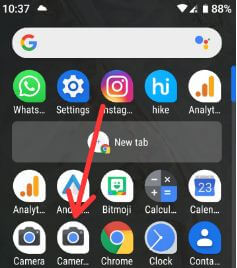
Step 1: Open the camera app in your Google Pixel or other older Pixel device.

Get Pixel 3 camera settings to older Pixel

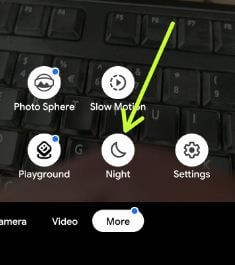
Step 2: Swipe screen up to the right side until More.

Here you can see the new Playground feature add on your older Google Pixel, Pixel 2, and other device.

Get Pixel 3 Playground feature on old Pixel

Step 3: Tap Playground.

Pixel 3 playmoji icon

Step 4: Tap sticker icon.

Get Pixel 3 Playground feature on old Pixel devices

Step 5: Tap Playmoji.

Here you can see pets, Marvel studios avengers, weather, sports, food, the last JEDI, text stickers, 2D stickers, and other stickers pack. You can use Marvel stickers with selfie mode. So when you react, marvel stickers react as you react.

How to get Pixel 3 Playground feature on old Pixel devices

Step 6: Select Playmoji you want to use.

And that’s all. We hope this makes it clear how to get the Pixel 3 Playground feature on old Pixel devices. If you have any kind of trouble, tell us in below comment box.

Source: Android Police, XDA Developer