How to Get Night Sight in Pixel 2 XL, Pixel 2 and Google Pixel

Here’s how to get Pixel 3 Night sight for Pixel 2 XL, Pixel 2 and Google Pixel. To get Night sight mode for older Pixel devices, you’ll need to download Google camera apk in your devices. Using this Night Sight mode feature, you can capture a better photo even low light condition. We already discuss how to get Night sight on OnePlus 6, Mi5 and other android devices using this.

Google Pixel 3 and Pixel 3 XL have awesome camera features such as Top Shot, Night Sight, Group selfie, Playground, Super res zoom, Photobooth, Portrait mode and more. Let see steps to get Pixel 3 Night sight for Pixel 2 XL, Pixel 2 and Google Pixel first generation.

Read Also:

How to Use Night Sight Google Pixel 3 and Pixel 3 XL

Most of all android and iOS devices have the same low light photo issues. But using this new Pixel 3, you can take a better photo. Download and install Google Camera apk on your phone.

Step 1: Open this android file host in your Older pixel devices.

Download Google Camera 6.1 apk for Pixel 2, Pixel 3, Pixel XL and Google Pixel.

Step 2: Tap Click here to start the download.

Here you can see different country apk mirror links such as Europe, Washington DC, USA and more.

Step 3: Tap Primary download or any alternative download mirror from options (We use Primary to my Google Pixel first generation).

Step 4: Now you can see downloading Google camera 6.1.013 apk in your device.

After complete downloading, when you try to install, make sure to enable unknown apps on your Pixel to install this Google camera apk file. Use below given settings to access apk file in your device.

Settings > Apps & notifications > Advanced > Special app access > Install unknown apps

Google camera app on your Older Pixel devices

Step 5: After installing apk, open new installed Google Pixel 3’s camera app on Google Pixel, Pixel 2, Pixel 2 XL.

Open Pixel 3 camera app

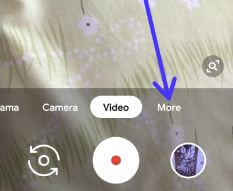
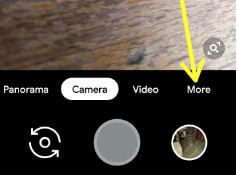
Step 6: Swipe camera mode right side up to More.

Get Pixel 3 Night mode on older Pixel smartphone

Step 7: Tap Night option.

How to get Pixel 3 Night sight for Pixel 2 XL, Pixel 2 and Google Pixel XL

Step 8: Capture photo in low light and compare it with HDR.

How to get Pixel 3 Night sight for Pixel 2 XL, Pixel 2 and Google Pixel

Step 9: Compare Google Pixel HDR+ and Google Pixel Night Sight.

Now enjoy Google Pixel 3’s camera app feature on your Older Pixel, Pixel 2, Pixel 2 XL and Google Pixel devices.

And that’s it. We hope this makes it clear how to get Pixel 3 Night sight for Pixel 2 XL, Pixel 2 and Google Pixel. If you have any kind of trouble, tell us in below comment box. Stay and connect with us for the latest updates.

Source: XDA Developer

How to Turn On Night Mode on Android 9 Pie

Here’s how to turn on night mode automatic on Android 9 Pie. Before this automatic night mode feature, we use device theme on android 9 Pie devices to enable light or dark mode in your Pixel devices. In the latest Android Pie version, you can set mode based on the wallpaper you set. Now using this feature, automatically change light & dark mode bases on time of the day.

This automatic Night mode feature is slightly different compare to light or dark theme settings. This Android 9 Pie time-based night mode affects only app drawer, notification panel, power menu, and volume button. Follow the below-given step by step process to turn on night mode automatic on android 9 Pie devices.

Read Also:

How to Set Night Mode to Automatic on Android 9 Pie

You can enable dark mode on android 9 Pie using this automatic based on time of the day using developer mode settings. First of all enable developer mode on android 9 Pie using below given settings.

Step 1: Swipe down the notification panel from the top of the screen and tap the Settings gear icon.

Step 2: Tap System.

Step 3: Tap about phone.

Activated Developer mode on android Pie devices

Step 4: Scroll down up to end of the page and tap the Build number 7 times or tap until appear “you are now a developer!” on your Android Pie 9.0

Step 5: Tap the back button, and tap the Developer option at the end of the page.

You can see turned on developer mode in your Pie. Let see steps to enable night mode based on time on android Pie devices if already activated developer options on your Android Pie devices.

Step 1: Go to settings > System > Advanced > Developer options

Step 2: Scroll down up to Night mode (Show below given screenshot).

By default turn on night mode on your Android Pie devices.

Turn on night mode automatic on android 9 Pie

Step 3: Tap Night mode.

How to turn on night mode automatic on android 9 Pie

Step 4: Choose Automatic (Based on the time of the day).

Now automatically enable dark mode on Android 9 Pie based on the time of the place you are.

Read Also:

How to turn on dark mode on Android Pie 9.0 based on a wallpaper

You can manually turn on dark mode on Android Pie 9.0 using display settings.

Step 1: Go to settings in your android 9 Pie.

Step 2: Tap Display.

Step 3: Tap Advanced.

Step 4: Tap Device theme.

Enable dark mode based on wallpaper on android 9 Pie

Step 5: Choose from automatic based on wallpaper/ Light/Dark.

Now choose white wallpaper for light mode and choose black wallpaper to enable dark mode on Android Pie 9.0.

And that’s all. I hope this little tip useful to turn on night mode automatic on Android 9 Pie. If you have any questions, tell us in below comment box.

How to Get Night Sight and Live Google Lens on Any Android Devices

Want to get Google Pixel 3 and Pixel 3 XL camera features on your android devices? How to get Pixel 3 Night sight and Live Google lens on any android devices. To get Pixel 3 Night sight feature on older Pixel and other Android phones, download Google camera 6.1 apk file in your Smartphone. We already discussed get Pixel 3 playground on older Pixel devices. Google camera 6.1 useful to add new features to older Pixel devices such as New UI, HDR+, RAW support, Live Google Lens, Night sight, capturing audio via an external microphone and more.

There are several new camera features on Pixel 3 such as Top shot, Group selfie, Night Sight, Photobooth, Portrait mode, Playground, Super res zoom and more. Follow the below-given step by step process to get Pixel 3 Night sight and Live Google lens on any android devices.

Read Also:

How to Install Google Pixel 3 Night Sight and Live Google Lens on any android devices

First of all, let see how to use Night Sight and Live Google Lens features in all Pixel and latest Android devices.

Night Sight

Most of all smartphones have problem when capturing photos in low light conditions. But using this new Night sight feature, you can take better photos even low light conditions. Google compared this Night sight feature with iPhone XS. If you have a Pixel 3 device, you’ll get Night sight feature in a few days.

Live Google Lens

This updates Google Lens feature is useful to copy text, add or cell phone numbers from images, find real-time products you capture a photo, identify different things, discover books & media, scan code and more. We hope this updates Google Lens feature handy for you.

To get Night sight and Live Google Lens feature on any android 9 Pie devices such as OnePlus 6, Mi5, Mi5S, etc. Download and install Google Camera 6.1 apk on your phone.

Get Pixel 3 Night sight and Live Google lens on any android devices

Not working on my Google Pixel first generation with the latest updated Pie 9.0.

Step 1: Download Google Camera 6.1 apk in your OnePlus 6, Mi5 and other android devices.

Step 2: Make sure to enable unknown apps on your Pixel to install this Google camera apk file. In your android 8.1 Oreo and latest android Pie 9.0 devices. use below settings to access apk file in your Smartphone.

Settings > Apps & notifications > Advanced > Special app access > Install unknown apps

Step 3: After installing apk, open the camera and swipe right side up to More.

How to get Pixel 3 Night sight and Live Google lens on any android devices

Step 4: Here you can see Night Sight and Lens option.

Step 5: Tap on Night Sight.

How to Get Night Sight in Pixel 2 XL, Pixel 2 and Google Pixel

Step 6: Now, capture photos and compare them with HDR+.

And that’s all. I hope this tutorial useful to get Pixel 3 Night sight and Live Google lens on any android devices. If you have any kind of trouble, tell us in below comment box.

Source: XDA Developer

How to Fix Pixel 3 Not Saving Photos

Pixel 3 and Pixel 3 XL users have faced problems saving photos when taking a photo. Some users reported on Reddit about this Google camera not saving the photo on Pixel 3 and Pixel 3 XL. After the taken photos, some user camera app accidentally stopped working. Now when again open camera preview, you can’t see previously taken a picture on Pixel 3 and Pixel 3 XL. According to The Verge, several android devices facing this Google camera problem such as Nexus 6P, Nexus 5X, Moto Z2 and more. There is not any official solution to fix this Google Pixel 3 camera issues. It may be a software issue or HDR, android bug or Google camera app issue. In Google support forum some of the users report Google camera HDR+ is causing issues.

Google still hasn’t provided particular solutions. Check out these solutions to fix Pixel 3 failing to save photos. I have Google Pixel’s first generation with the latest updated android. I can’t facing this type of camera issues on my Google Pixel Pie 9.0 even single time. Apply below given possible solutions to fix Pixel 3 photo not saving to gallery after taking.

Read Also:

How to Fix Google Pixel 3 Failing to Save Photos After Taking Photos

To fix this issue with a photo taken by Google camera is not saving on Pixel 3, Pixel 2, Pixel 2 XL and other devices, try below given possible solution.

Turn off HDR+ on Pixel 3

Step 1: Open the camera app in your Pixel 3.

How to fix Pixel 3 failing to save photos

Step 2: Tap HDR+ at top of the screen.

By default HDR+ auto-selected.

Fix Pixel 3 failing to save photos

Step 3: Tap HDR+ off.

Now restart your Google Pixel 3 and other devices.

Step 4: After a restart, the device, open the camera, and take photos.

After the taken photos, back to the galley and check fix photo not saving problem on Pixel 3 and other devices. If you can’t find a solution, wait until Google officially finds a solution to this problem.

Software Update

Wait until the next monthly system update in your Pixel devices. It will fix this issue.

Have you been ever facing this type of issue on your Pixel or any other android devices? Do you have any other tips we’ll try to fix Pixel 3 failing to save photos after taking photos? Share with us in below comment box. Stay and connect with us for the latest updates about this Google Pixel 3 camera problem.

How to Use Google Autofill in Pixel 3, 3 XL, 3a, 3a XL, 2 XL, 2, Google Pixel XL

Here’s how to enable and use Autofill in Pixel 3 XL and Pixel 3. An Android Autofill setting is useful to automatically enter the password after one time adds the password and other information on your device. In Google Autofill settings, you can enter personal info, address, payment methods and passwords in your device. Passwords are saved to Google smart lock for chrome Autofill settings and android. Available on Google Pixel 3a, Pixel 3a XL, Pixel 2, Pixel 2 XL, Google Pixel, Pixel, Pixel 4, and Pixel 4 XL. Also, change the autofill information using the Chrome app in your Android devices.

By default set Autofill service as Google in your Pixel 3 and other latest android devices. When use Autofill with Google android Oreo & Pie, Google can help you to automatically fill forms based on what’s on your screen. Just single tap, it will fill in the password and other detail automatically. Let see settings to change the Autofill in Pixel 3 XL and Pixel 3.

Read Also:

How to Use Autofill on Pixel/Android Devices

You can find android autofill settings under languages and input settings. Check out below given settings.

Step 1: Swipe down the notification panel from top of the screen.

Step 2: Tap Settings gear icon.

Step 3: Scroll down at the end of the page and tap System.

Languages & input settings Pixel 3 Pie phone

Step 4: Tap Languages & input.

Set up Autofill in Pixel 3

Step 5: Tap Advanced.

Set up and use Autofill in Pixel 3 Pie

Step 6: Tap settings gear icon beside Autofill service under Input assistance sub headings.

Here you can see account, personal information, addressed, payment methods and passwords.

How to use Autofill in Pixel 3

Step 7: Select option and enter info you want to use autofill with Google.

Let see the example of how to autofill service works. When you first time sign in with any account (Facebook, Instagram, Snapchat) on your device. It will ask you to save password. If you want to use autofill service, just tap yes to save password on your device. Now when next times log in your account, just enter the first letter and you can see your username and password enter automatically.

Step 1: Open Instagram or Facebook.

How autofill service works

Step 2: Enter the first letter on the box, you can see your username.

Use Autofill in Pixel 3 XL Pie

Step 3: Tap username, now you can see automatically enter username and password.

Read Also:

How to Change Google Autofill Service in Pixel 3

How to change Autofill service in Pixel 3 Pie

Settings > System > Languages & input > Advanced > Autofill service > Add service > Select from list

You can update chrome autofill settings also on your desktop PC or laptop devices. Use this Google autofill for manage apps password and other information on your android 9 Pie, Oreo, and other latest devices.

And that’s all. We hope this makes it clear how to use Autofill in Pixel 3 and Pixel 3 XL. If you have any kind of question, tell us in below comment box. Stay and connect with us for the latest updates.

Pixel 3 Features Coming to Older Pixel Devices

Here’s the list of Pixel 3 features that are coming to older Pixel devices. Google Pixel 3 and Pixel 3 XL added several new features that use AI with machine learning. If you have older Pixel devices, you’ll get some of the Pixel 3 and Pixel 3 XL features. You can easily get software related updates on your older Pixel 2 or Google Pixel devices.

Google Pixel 3 and Pixel 3 XL added new features including screen call, Google duplex, Night Sight, Top shot, Group selfie – wide-angle selfie, Gmail smart compose, motion autofocus and more. Check out below a given list of which Pixel 3 features are coming to older Pixel devices.

Read Also:

Which Pixel 3 Features Are Coming to Older Pixel Devices?

These Google Pixel 3 features are coming to Pixel 2, Pixel 2 XL, Google Pixel and Pixel XL devices.

Portrait mode – Adjust depth effect

Pixel 3 comes with several camera features and one of them is Portrait mode. After the taken pictures in Portrait mode, you can easily change the focus and adjust background blur or bokeh portrait mode. Also, blur a part of the photo you want in your device. Currently, this feature is coming to Pixel 2 only, other Pixel users will be waiting.

Playground

Pixel 3 features are coming to older Pixel devices

Google AR Stickers updated with new Playmoji such as Marvel Avenger, Pets, Weather and more. This Pixel 3 Playmoji is already available on the Pixel and Pixel 2 devices.

Read More: How to get Pixel 3 playground feature on older Pixel, Pixel 2

Night Sight

Night sight is the perfect camera feature to take better photos in low light conditions. Google compared this feature and taken shot on low light with iPhone XS and Pixel 3. Google Night sight feature uses Google’s machine learning to easily identify the picture color. First of all, this feature will come on Pixel 3, other pixel users will be waiting.

Top Shot

Which Pixel 3 features are coming to older Pixel devices

This Pixel 3 top shot feature is to use AI + HDR plus that use to find a better moment photo from you captured. When we take pictures, sometimes facing a problem of blocked faces, blinking eyes, and more issues and we missed a great moment photo.

After taken photos, you’ll see a sequence of photos before or after you press the shutter button to take a photo in Pixel 3. Using Google Pixel 3 top shot features, you can easily find the best moment photo from the taken photo. This Top shot feature automatically recommends the best photo of the moment. You can manually select photos also.

Read More: How to use Top shot on Pixel 3 and Pixel 3 XL

Group Selfie

Pixel 3 features are coming to older Pixel 2 device

Pixel 3 group selfie features are useful to zoom out the screen up to 184% wider so easily take group selfie on your Pixel 3 and Pixel 3 XL devices.

Call Screening

Pixel 3 features are coming to older Pixel smartphone

This feature uses Google Assistant to automatically answer your phone calls in your device. When you’ll see private number call or spam call on your Pixel 3, you can see Google assistant will ask to private number about who’s calling and why. And after that, if you find a phone call is important, then pick up a call. This Google Pixel 3 call screening feature is coming to both Pixel and Pixel 2.

Read More: How to use Pixel 3 call screening feature

Google Duplex

Google Duplex uses Google Assistant to book restaurants, make calls, schedule appointment and more. Currently, this feature will arrive first next month at restaurants in select cities. This Pixel 3 features are coming to older Pixel devices end of the year.

Gmail Smart Compose

This Gmail feature uses machine learning that predicts what you type and help to find a word you type, so you can quickly type email. Gmail smart compose also available for desktop, but first of all, it’ll come on Google Pixel 3. Older pixel device users should be waiting for this feature.

End the list. Do you know which Pixel 3 features are coming to older Pixel devices we missed above? Share with us in below comment box.

Source: Android Police, Droid-life