Google Pixel 3 Hidden Features Worth Finding

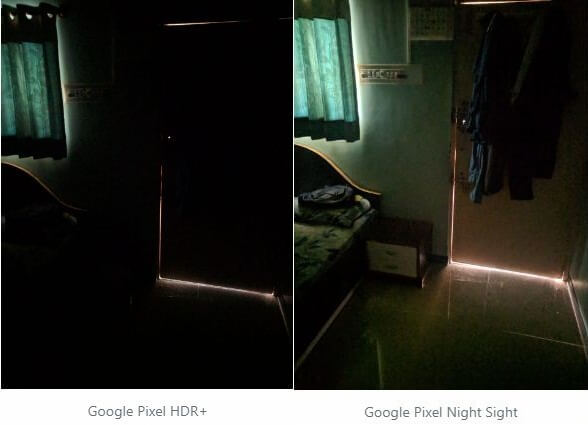
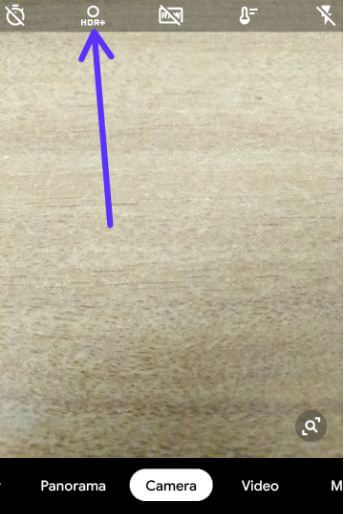
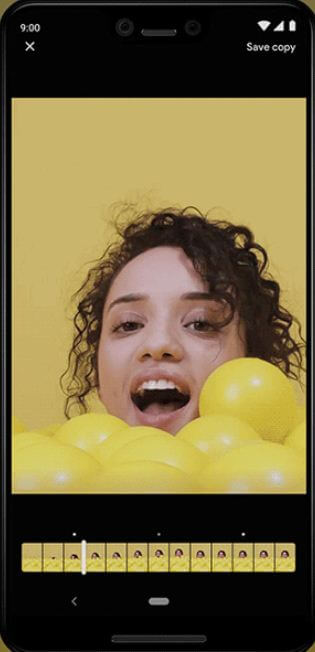
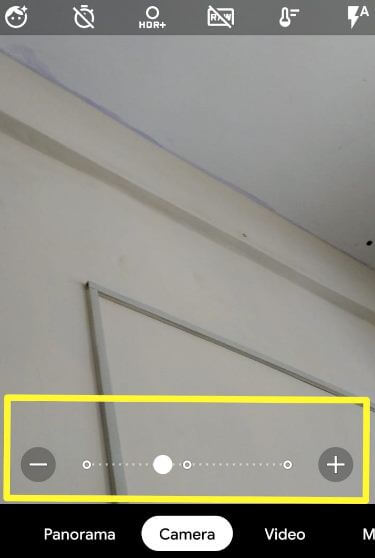
Google Pixel 3 and Pixel 3 XL hidden features include lockdown, driving mode, Digital wellbeing, Always on ambient display, device theme, hide Pixel 3 XL notch and other settings. Google Pixel 3 and Pixel 3 XL have wireless charging, eSIM that useful to use dual SIM, Qualcomm snapdragon 845 processor and use AI + HDR+ to capture amazing photos using best camera features such as Top Shot, Group selfie, Night sight, Photobooth and more.

Google Pixel 3 and Pixel 3 XL have awesome camera features and hidden features that not mention in Google event 2018. Check out below given Pixel 3 XL and Google Pixel 3 hidden features.

Read Also:

5 Hidden Pixel 3 Features You Should Know

Both device has same settings. Only key feature is Notch. Pixel 3 XL device has Notch. You can easily show/hide the notch on Pixel 3 XL using developer mode settings. Let see Google Pixel 3 and Pixel 3 XL hidden features.

Device theme (Android 9 Pie)

Pixel 3 hidden features

By default Pixel 3 theme set automatic based on the wallpaper. If set black wallpaper, theme set as a dark mode. If set white wallpaper, theme set as a light mode. You’ll manually change the Pixel 3 theme as dark or light using display settings.

Settings > Display > Advanced > Device theme > Automatic based on wallpaper/light/Dark

Hide Notch on Pixel 3 XL

Google Pixel 3 XL has a notch display. If you don’t like notch, you can manually hide the notch on Pixel 3 XL using developer mode settings. Make sure to turn on developer options on Pixel 3 XL to remove the notch.

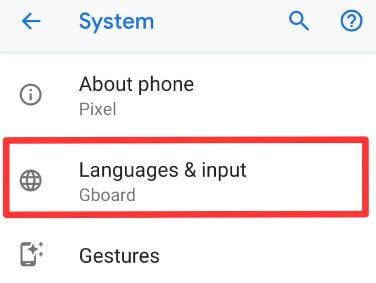
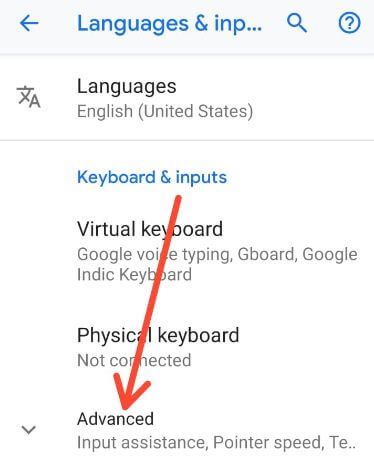
Settings > System > Advanced > Developer options > Drawing > Simulate a display with a cutout > Hide

Now hide the notch from your Google Pixel 3 XL device.

Driving Mode

Pixel 3 XL hidden feature driving mode

When turn on driving mode on Pixel 3 and Pixel 3 XL, it will automatically turn on DND mode and android auto in your phone. When you start driving a car, it will automatically enable driving mode in your device.

Settings > connected devices > Connection preferences > Driving mode

Lockdown – Best Google Pixel 3 hidden features that disable Fingerprint and Smart lock temporarily

Google Pixel 3 hidden features

This Pixel 3 and Pixel 3 XL hidden feature useful to disable fingerprint temporary you added from your Pixel 3 devices. When activating lockdown on Pixel 3 and Pixel 3 XL, you can unlock your device using a PIN number or Pattern lock or Password only. You can’t unlock Pixel 3 using fingerprint. When turning on lockdown, automatically add lockdown option to power menu in your Pixel 3 and another android 9 Pie supported devices.

Settings > Security & location > Device security > Lock screen preferences > Enable show lockdown option > Long press power button > Tap Lockdown to activate

Digital Wellbeing – Track all your phone activity

Pixel 3 XL hidden feature

Settings > Digital wellbeing > Dashboard

One of the most useful Google Pixel 3 and Pixel 3 XL features. It includes Dashboard, Wind down, Do not disturb, Flip to Shhh and other settings. This Google Pixel 3 hidden feature shows how many notifications you’ve got, how many minutes you’ve used a particular app on your Pixel 3 per day, set app time limit for automatically stop apps from working, how long you’ve used each app and more.

Check out the list of above given top best Google Pixel 3 hidden features. Which is your favorite hidden tip from the above list? Did I miss anything? Let me know in the below comment section. I’ll add it to the list.

How to Uninstall App Updates on Android 9 Pie

Here’s how to uninstall app updates on Android 9 Pie and Oreo 8.1 devices. There are several default apps installed on our android devices. And that app gets regularly updated with the latest features and uses to fix a problem on your android device also. If you have any app related problems such as app freezing or crashing, suddenly app stopped working, app slows down your device and facing other issues. You’ll try to uninstall updates or clear app cache on Android 9 Pie, Oreo 8.1, and Nougat 7.1.2, Marshmallow 6.0, and other android devices. Let see step by step process to uninstall apps update on Android 9 Pie.

Read Also:

How to Undo an App Update on Android 9 Pie, Oreo 8.1

In this tutorial, I’ll show you two methods to uninstall the latest app update on Android 9 Pie and Oreo devices using apps & notification settings. You can’t find the “uninstall update” option on third-party apps, so disable apps that download from play store if you have a facing problem.

1st Method: Uninstall updates on android apps

Step 1: Swipe down the notification shade and tap the Settings gear icon.

Step 2: Tap Apps & notifications.

Uninstall updates on android apps

Step 3: Tap See all apps.

Step 4: Select app you want to uninstall system update on android Pie, Oreo, Nougat.

Uninstall the latest app update on Android

Step 5: Tap Three vertical dots at the upper right corner.

Uninstall updates android 9 Pie

Step 6: Tap uninstall updates.

You can see this message on your android screen: Replace this app with the factory version? All data will be removed.

Uninstall apps update on Android 9 Pie

Step 7: Tap OK.

Now, this app is replaced with its original settings when you bought phone. Restart your android devices and after update app to the latest version to fix android apps problems.

2nd Method: Uninstall apps update on Android 9 Pie using play store

Step 1: Open Play store app in your android Pie, Oreo, and Nougat.

Open Play store app in your android Pie

Step 2: Tap Three horizontal lines at the upper right corner.

My apps and games settings android Pie

Step 3: Tap My apps & games.

Installed apps list android Pie

Step 4: Tap the installed tab.

Step 5: Select the app you want to uninstall an app update.

Uninstall system update on android app

Step 6: Tap Uninstall (Make sure by default installed app selected).

You can see this message on screen if the system app: Do you want to uninstall all updates to this android system app?

How to uninstall apps update on Android 9 Pie

Step 7: Tap OK to uninstall an update.

Now uninstall system update on android app and replace with the factory version. You can install or update the app with the latest version to get new features in your android Pie, Oreo and Nougat devices.

Disable Automatic App Updates in Android 10 and 9 Pie

Open Google Play Store > Three horizontal lines (More) at upper left corner > My apps & games > Installed > Select app from list > Three vertical dot at top right corner > Uncheck the box “Enable Auto update

And that’s it. I hope this little tip useful to uninstall apps update on Android 9 Pie. If you have any questions, tell us in below comment box. Feel free to share with others.

How to Set Up Fingerprint on Pixel 3 and Pixel 3 XL

Want to set up a fingerprint screen lock on Google Pixel 3 and Pixel 3 XL? Here’s how to add a fingerprint on Pixel 3 and Pixel 3 XL. You can add a maximum of 5 fingerprints in your Pixel devices. Find Pixel imprint option under security & location settings to set up a fingerprint screen lock. Also, use fingerprint to authorize payments when buying from Play store or unlock apps. Also, use a smart lock in your Pixel devices to automatically unlock your device.

You can temporary turn off fingerprint security and Google smart lock by turning on lockdown on Pixel 3 XL and Pixel 3. Let see step by step process to set up and use fingerprint on Pixel 3 XL and Pixel 3.

Read Also:

How to Add a Fingerprint in Pixel 3 and Pixel 3 XL

Fingerprint security is less secure than a pattern lock or PIN number. You can edit, rename and remove the fingerprint from Pixel 3 anytime. First of all, let see steps to set up fingerprint on Pixel 3 XL and Pixel 3.

Step 1: Go to Settings on your Pixel 3 & Pixel 3 XL.

Step 2: Tap Security & Locations.

Set up fingerprint recognition on Pixel 3

Step 3: Tap Pixel imprint under the device security section.

Step 4: Tap Next.

Choose a backup screen lock to use with Pixel Imprint in your Google Pixel 3 and Pixel 3 XL from below given options.

Pixel Imprint + Pattern/Pixel Imprint + PIN/Pixel Imprint + Password.

Set up fingerprint on Pixel 3

Step 5: Choose from above-given options.

We have chosen Pixel Imprint + PIN.  To use fingerprint on Pixel 3, set PIN number.

Step 6: Enter a PIN number and tap Next.

Step 7: Re-enter your PIN and tap Confirm.

Now on your Google Pixel 3 and Pixel 3 XL device screen, you can see lock screen notifications options.

Show all notification content/Hide sensitive content/don’t show notification at all.

Pixel 3 Lock screen notifications change

Step 8: Choose from option & Tap Done.

You can see the fingerprint scanner screen in your device. You can find a fingerprint sensor on the back of your Pixel phone.

Set up and use fingerprint on Pixel 3

Step 9: Put your finger on back of your phone sensor and lift after you fill a vibration, move your finger until process completed.

After finish set up, you can see Fingerprint added! Here you can see another option at the bottom left side “add another” to add a new fingerprint on Pixel 3 XL.

How to set up and use fingerprint on Pixel 3

Step 10: Tap Done.

Now, set up fingerprint on Pixel 3 and Pixel 3 XL device. You can unlock your Pixel device using fingerprint sensor.

How to add fingerprint on Pixel 3 & Pixel 3 XL

You can add multiple fingerprint up to 5 on your Google Pixel 3 and Pixel 3 XL devices.

How to add fingerprints on Pixel 3

Settings > Security & locations > device security > Pixel imprint > Add fingerprint

Relevant:

How to remove fingerprint on Pixel 3 & Pixel 3 XL

Settings > Security & locations > device security > Pixel imprint > Tap trash icon of added fingerprint (Show above given screenshot)> Delete

How to rename fingerprint on Pixel 3 & Pixel 3 XL

Settings > Security & locations > device security > Pixel imprint > Tap existing fingerprint > Rename

And that’s all.  We hope this makes it clear how to set up and use fingerprint on Pixel 3 and Pixel 3 XL. If you have any kind of trouble, tell us in below comment box.

How to Uninstall Apps on Android 13, 12, 11, 10, 9

Do you want to delete apps on Android phones and tablets? In this tutorial, I’ll show you three ways to uninstall apps on Android 13, 12, 11, 10, and Android 9 devices. You can’t uninstall apps from Android that came with the phone, but you can disable apps (System Apps) on your Android devices. Several apps on our devices are unnecessary or temporary use. Disable the app; you can see the hidden app from your Android app drawer or home screen. You can’t delete pre-installed apps on Android devices. Also, uninstall app updates if any app-related issues. Let’s see different methods to remove or uninstall apps on Android.

Read More: How to Clear App Cache on Android

How to Uninstall Apps on Android: 4 Methods

Apply the below given different methods to uninstall the app on an Android device.

How to Uninstall App on Android

Step 1: Open the app drawer on your Android.

Uninstall apps Android 9 Pie

Step 2: Long press the app and move it to Uninstall at the top screen to delete the app from the app drawer.

You can see this pop-up: Do you want to uninstall this app?

How to uninstall apps Android 9 Pie

Step 3: Tap OK.

How to Uninstall an App on Android

How to Uninstall App on Android Phone

Step 1: Long-press on any downloaded app and tap the I icon or App info.

How to Uninstall Apps on Android 13, 12, 11, 10, 9

Step 2: Tap Uninstall.

Step 3: Click OK.

How to Delete Apps on Android using Google Play Store

Step 1: Open the Google Play Store on your Android device.

Tap the Profile icon to view all apps in Google Play Store Android

Step 2: Tap the Profile icon at the top right corner.

Manage apps and device settings to uninstall an apps on Android

Step 3: Tap the Manage Apps devices.

Tap on Manage to uninstall apps on Android phones


Step 4: Tap the Manage.

Step 5: Select the App you want to uninstall from your device.

Remove apps Android 9 Pie

Step 6: Tap the Uninstall.

Step 7: Tap Uninstall.

Now uninstall the app from your Android device. To use it again, download the app from the play store and install it on your phone.

How to Uninstall an App in Android using Apps settings

Step 1: Swipe down the Notification panel from the top of the screen and tap the Settings gear icon.

Step 2: Tap on Apps or Apps & Notifications.

Step 3: Tap the See all apps.

You can see the list of apps installed on your phone.

Step 4: Select the app from a list you want to uninstall.

Delete apps on android Pie

Step 5: Tap the Uninstall button.

Step 6: Tap on OK.

How to Delete Multiple Apps at Once using Play Store – Uninstall Multiple Apps

How to Remove Apps Android using Play Store


Open the Play Store> Profile icon at the top right > Manage apps & device > Manage > Tick mark the apps you want to delete and tap on the Trash icon (Recycle Bin) at the top right > Uninstall.

If you select the system default apps, system apps remain on your device, but any updates will be uninstalled.

How to Uninstall App Updates on Android for System Apps

If a system app-related problem occurs, try to uninstall the system app update and restart your phone. And again, update the app to fix app issues. It will replace your app with the factory version.

How to Uninstall App Update on Android for System Apps

Settings > Apps > See all apps > Tap app > Three vertical dots > Uninstall updates > OK.

How to Hide (Disable) Apps on Android: System Apps

Step 1: Open the Settings app.

Step 2: Tap Apps or Apps & notifications.

Step 3: Tap See all apps.

Step 4: Tap Three vertical dots (More) at the top right corner.

Show system apps in Android 9 Pie

Step 5: Tap the Show system.

Step 6: Select the System app or pre-installed app you want to remove.

Disable System Apps on Android Pie 9.0

Step 7: Tap Disable.

Disable App on Android 10 and 9 Pie

Step 8: Tap Disable app.

Now hide the app from your phone. To use an app again, enable it using the above settings.

End the list of methods to uninstall apps from Android phones. Stay and connect with us for the latest updates. If you have any questions, please tell us in below comment box.

Related:

How to Create a Folder on Google Pixel 3, 3 XL, 3a, 3a XL

Want to add folders to the home screen on Google Pixel 3 and Pixel 3 XL? Here’s how to create a folder on Google Pixel 3, Pixel 3 XL, Pixel 3a, and Pixel 3a XL. You can make folders on the Google Pixel 3 home screen only. But can’t make Google Pixel 3 folder in the app drawer. Also, add or remove apps from the app folder and easily remove apps folder anytime within a few seconds from the Pixel 3 home screen. Using this created folder, you can easily find particular categories related to apps such as social media, news, sport, action and more.

Read More:

How to Create/Make Pixel 3 Folder on Home Screen

Let see the process to add a folder to the home screen on Pixel 3 and Pixel 3 XL and steps to remove the folder on Pixel 3 if you don’t want to use it.

Create a new folder on Pixel 3 and Pixel 3 XL

Step 1: Swipe up two times Pill icon to access app drawer in your Pixel 3 and Pixel 3 XL.

Create a new folder on home screen Pixel 3 XL

Step 2: Tap and hold the app from the app drawer and move it to the home screen.

You can move all apps to the home screen you want to add a new folder in your Google Pixel 3 and Pixel 3 XL.

Add folders to home screen on Google Pixel 3

Step 3: Now long-press any app from the home screen and move it to another app to make a folder (Show above screenshot).

Step 4: Now make the app folder in your Google Pixel 3 & Pixel 3 XL.

Step 5: Tap the app folder.

Make a folder on Pixel 3 app drawer

Step 6: Tap the Unnamed folder.

How to create a new folder on Pixel 3

Step 7: Enter the folder name you want and tap any blank space.

Step 8: Now long-press any app from app drawer & home screen and move it to the folder if you want to add more apps in your Pixel 3 and Pixel 3 XL.

How to Remove Apps From App Folder on Pixel 3 and Pixel 3 XL

You can easily remove the app from the created app folder. Also, uninstall apps also directly using this setting.

Step 1: Tap created app folder on Google Pixel 3.

How to remove apps from app folder on Pixel 3 XL

Step 2: Long press the app and move it Remove at the top of the screen to remove the app from the Pixel 3 folder only not the app drawer.

How to Remove the Folder From Pixel 3 Home Screen

You can remove the app folder from the home screen on Pixel 3 and Pixel 3 XL using below given settings.

How to remove app folder from Pixel 3 home screen

Step 1: Long press app folder and move it to Remove at top of the screen.

And that’s all. We hope this article useful to create a new folder on Pixel 3 and Pixel 3 XL. If you have any kind of trouble, tell us in below comment box. Stay and connect with us for the latest updates.

Read Also:

How to Customize Google Pixel 3 Home Screen Settings

Here’s how to change home screen settings on Google Pixel 3 and Pixel 3 XL. In Google Pixel 3 home screen settings, you can see At a glance, Add new app icon to home screen, Notification dots, Display Google app, suggestions, home screen rotation and change icon shape options. Let see best settings for customize home screen Pixel 3 and Pixel 3 XL.

In Google Pixel 3 and Pixel 3 XL home screen, you’ll create app folder, add app shortcut, add widgets and more. You can also use third-party launchers such as Nova if you don’t want to use default installed Pixel launcher. Check out below-given home settings to customize home screen Pixel 3 Pie.

Read Also:

How to Change Home Screen Settings on Pixel 3 and Pixel 3 XL 9.0 Pie

Using launcher, you’ll easily customize your Pixel 3 home screen you want to set. It will useful to change icons, layout, hide apps, gestures, animation and more. Without third-party launcher, you can change home screen settings on Pixel 3 XL and Pixel 3 using below given settings.

Step 1: Unlock your Pixel 3 & long press on the blank space on your Pixel 3 home screen.

Here you can see home settings, widgets, and wallpapers settings.

Change home screen settings on Google Pixel 3

Step 2: Tap Home settings.

Below given Google Pixel 3 and Pixel 3 XL home settings available in your latest Google flagship.

How to customize home screen Pixel 3

Notification dots

By default turn on notification dots in your Google Pixel 3. When you receive any notifications, you’ll see the dot icon on the particular app icon. Disable it, if you don’t want to show notification dots. Also, enable/disable notification dots on Google Pixel 3 using below given settings.

Settings > Apps & notifications > Notifications > Allow notification dots

At a Glance

Pixel 3 at a glance

It will appear information at the top of your Pixel 3 screen such as meeting, business or another event, flight information, traffic alerts and more.

Add new app icon to home screen

By default enable add app icon to home screen in your Pixel 3 & Pixel 3 XL. So when download and install new apps from the play store, you can see that app icon on the phone home screen. If you don’t want to show app icon on home screen, turn off add app icon to home screen in Pixel 3 XL and Pixel 3 Pie.

Display Google app

Go to the home screen and swipe screen right side to open Google news feed in your Google Pixel 3 and Pixel 3 XL. Here you can see several topics related to news like News, World, Windows, Android, Google, iPhone, Cricket, etc. Also, add your favorite topics also to get latest updates. To turn off Google news feed, disable this option.

Suggestion

In this setting, you can see apps, action and Overview selection options. In this setting, you can see three options to customize home screen Pixel 3 and Pixel 3 XL.

Apps:

You can see the most used apps list at the top of your device app drawer. If disable this option, turn off app suggestions in your Pixel 3 device.

App Actions:

App Actions Pixel 3 XL

See the most used contact name or apps or message on your app drawer list. If you don’t want to show this app or phone name icons, disable app actions Pixel 3 XL and Pixel 3.

Overview selection

Pixel 3 Overview selection

This new feature is useful to copy text & images even switching apps in your device. When switching apps on your Google Pixel 3 or Pixel 3 XL, touch & hold text and images to see actions in your device. You can copy text, search and directly share with your friends or family member or other social media apps also.

Allow home screen rotation

Enable home screen rotation on Pixel 3 XL and Pixel 3 to rotate the screen when your device is rotated.

Change icon shape

Change icon shape in Pixel 3 XL Pie

By default set app icon shape in your android devices. Choose from Square/Rounded square/Squircle/Teardrop to change icon shape in Pixel 3 XL and Pixel 3 devices.

And that’s it. I hope the above-given tutorial useful to customize home screen Pixel 3 and Pixel 3 XL. Do you have any other Google Pixel 3 home screen tips we missed above? Share with us in below comment box.