How to use Motions and Gestures on Samsung Galaxy A50

Here’s how to use motions and gestures on Samsung galaxy A50. First enable gesture to use it in your phone. We use motions & gestures for quickly view the screen, automatically turn on screen, take screenshot, mute alarms & incoming calls and more. Samsung A50 gestures include Lift to wake, Double tap to wake, Smart stay, Smart alert, Easy mute, One-handed mode, Palm swipe to capture and Swipe to call or send messages.

You can manage motion and gestures settings available in advanced features. Some of the oldest Samsung devices use air gesture to control functions without touching the screen. To use Samsung A50 gestures, make sure the feature is enabled. Follow below given complete guide to enable & use motions and gestures on Samsung galaxy A50.

Don’t Miss This:

How to use full screen gestures in Galaxy A50

How to enable or disable Motion Sense on Pixel 4 and 4 XL

How to change lock screen in Galaxy A50

How to use motions and Gestures on Samsung Galaxy A50     

To enable or disable gestures on galaxy A50, apply below settings.

Step 1: Swipe up from home screen to open app drawer

Step 2: Tap Settings app

Manage motion and gestures settings A50

Step 3: Tap Advanced features

Motions and gestures settings in galaxy A50

Step 4: Tap Motions and gestures

Below given different Samsung A50 motions and gestures are available.

How to use motions and Gestures on Samsung Galaxy A50

Lift to wake

Turn on lift to wake toggle for automatically wake up screen when you pick up your phone.

Double tap to wake

It will useful to show message on lock screen without touch your device. Enable double tap to wake and double tap on screen to activate the screen.

Smart stay

Samsung A50 gestures

It will keep the screen on while you’re looking at it by using the front camera to find your face. Turn on smart stay toggle in your device.

Smart Alert

If you’re busy and can’t pick up phone calls or read text messages, this gesture is useful for you. It will useful to vibrate your phone when you pick it up after missing calls or receiving messages.

Easy mute

This Samsung A50 gesture is useful to mute incoming calls and alarms by putting your hand over the screen or turning your phone face down.

One-handed mode

If you want to use your phone using one hand, this gesture is perfect. It will reduce screen size by using gesture or button. First of all enable one-handed mode on galaxy A50 and choose from gesture or button. Now tap the home button 3 times or swipe up diagonally from either bottom corner.

Palm swipe to capture

Palm swipe to capture gestures A50

This gesture is useful to take screenshot in your phone. Turn on palm swipe to capture and swipe the edge of your hand across the screen.

Swipe to call or send messages

You can quickly make phone calls or send messages using this gesture. Swipe a contact or phone number right to make a call or swipe left to send a message to contacts or number.

And that’s it. End the list of Samsung A50 gestures. I hope this article useful to enable and use motions and Gestures on Samsung Galaxy A50. If you have any question, tell us in below comment box.

How to Backup Data on Android Phone [2023]: 3 Ways

Here is the complete guide on how to backup data on Android devices. If your Android mobile is lost, damaged, hangs, or has various bugs, you need a factory reset or a new device. You must have several essential photos, music, videos, and other files. You have to back up & restore all your important documents and files using your Google account, Android backup service, and manual backup options. Here are a few tricks for how to backup your Android phone.

You can also back up & restore your data on Android devices using your Google sync account, Google Drive, or a USB cable to connect your mobile to your PC and restore later on your devices. Below, you can see methods to backup and restore Android phone data.

Read More: How to Back Up all your Photos using Google Photos

How to Backup Data on your Android 14, Android 13, and Android 12

Check out the different methods to back up Android phones.

Method 1: Enable Google Sync

Once you create your Google account on your new mobile or tablet, it automatically backs up all your data, including contacts, calendar, app data, people details, music, Wi-Fi password, apps, pictures, bookmarks, other settings, and all your essential data. All this data is synced to the Google server so you can restore it quickly on your new Android devices. Follow the below-given steps to backup data on Android.

Step 1: Go to Settings.

passwords-and-accounts-settings-to-back-up-data-on-android-device-649bd9e8083a0

Step 2: Scroll down and tap Passwords & Accounts.

select-your-google-account-to-auto-sync-data-on-android-phone-649bd9e8ab768

Step 3: Tap on your Google Account.

enable-account-sync-to-backup-and-restore-android-phone-data-649bd9e6088e7

Step 4: Tap Account Sync.

You can see Calendar, Contacts, Docs, Drive, Gmail, Google Calendar, Google Fi, Google News, Google TV, Keep Notes, People details, etc.

back-up-android-phones-to-sync-google-account-649bd9e60ebca

Step 5: Make sure to toggle on the option you want to sync.

You will see the above screen on your devices. Now, check all toggle buttons are turned on, which means all your data is synced on the Google server. Turn off that toggle button if you don’t want to back up your data.

Method 2: Manually Back Up on Google One

This setting is helpful for backup data of apps, photos & videos, SMS & MMS messages, Call history, device settings, and Google account data.

Step 1: Go to Settings.

go-to-system-settings-to-backup-and-restore-android-data-649bd9e6ccc95

Step 2: Scroll down and tap on System.

how-to-backup-data-on-android-14-android-13-and-android-12-649bd9e708783

Step 3: Tap Backup.

Make sure to toggle on Backup by Google One.

how-to-backup-data-on-android-phone-using-google-one-649bd9e7ab85f

Step 4: Tap Back up now.

Method 3: Backup your Android Phone using Google Drive and USB cable

In this option, you can transfer your important documents or files and paste them onto your computer using a USB connector or cable. So you can easily back up data on Android devices using Google Drive and a USB cable anytime after resetting or buying a new phone.

Above, you can see the most valuable and straightforward steps to back up data on Android before a factory data reset or your device is stolen or broken. If you know helpful tricks to back up data on your Android tablets or phones effortlessly, please share them with us.

Related:

Fix samsung galaxy S8 wifi issue: How to

Here’s how to fix Samsung galaxy S8 wifi issue. Wi-Fi connectivity issues on Samsung galaxy S8 & Galaxy S8 plus device. Some of the common issues are Wi-fi connected but not internet on galaxy S8, Wi-fi not connected, slow wi-fi speed and related problem.

Sometimes problem is in your wireless router that disconnect wi-fi network at some interval time in galaxy S8 device. This Wifi connects but no internet access problem most of all occurs on Windows 10 & Windows 8. But in this tutorial, I will show you step by step guide to fix Samsung galaxy S8 Wifi issue.

Read this:

How to fix slow internet connection on Samsung Galaxy S8 plus

How to set up Iris Scanning on Samsung galaxy S8

Fix Galaxy S8 blank screen problem

How to fix Samsung galaxy S8 Wifi issue: Troubleshooting Steps

Fix samsung galaxy S8 wifi issue

1st Way: Restart your Samsung galaxy S8 & S8 plus

One of the simple ways to fix Samsung galaxy S8 Wi-Fi issue. Restart your galaxy S8 device and check Wi-Fi working again.

2nd Way: Turn off / on Wi-Fi

Switch off Wi-Fi network on your Samsung galaxy S8 phone, after few minute turn on wi-fi again and check your device connect with Wi-Fi or not.

Turn on Airplane Mode on galaxy S8:

Turn on airplane mode on your galaxy S8 then turn off again.

3rd Way: Check Wi-Fi password correct or not

Make sure Wi-Fi password is correct entered on your galaxy S8 device.

4th Way: Delete Wi-Fi network & add again to fix Samsung galaxy S8 wifi issue

Delete connected Wi-Fi connection from your device and again add Wi-Fi network and try to connect.

Delete Wi-Fi network:

Settings > Wi-Fi > Tap Wi-Fi network name already connected > Forgot

Add Wi-Fi network:

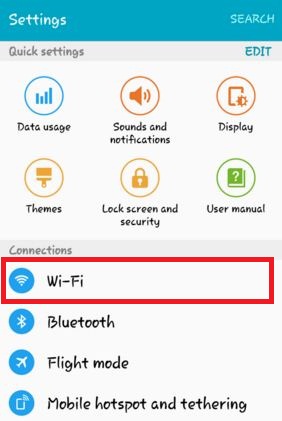
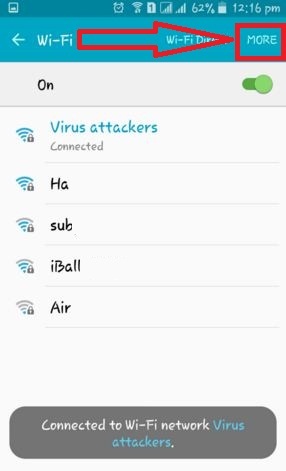
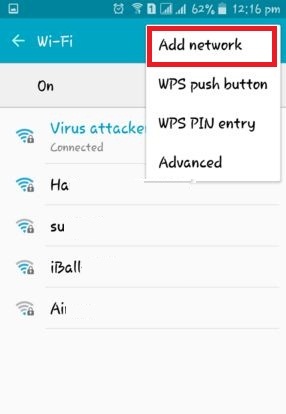
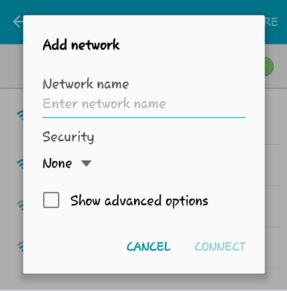
Settings > Wi-Fi > Tap Wi-Fi Network name > Add network > Enter SSID & other details > Save

5th Way: Restart the router to fix galaxy S8 wi-fi connectivity issue

Unplug the router and modem for few minute and plug it again. Check Wi-Fi working or not in your device.

 6th Way: Turn on safe mode on galaxy S8 to fix Samsung galaxy S8 wifi issue

First of all enable safe mode in galaxy S8 device to check any app causing wi-fi issue.

After enable safe mode on Samsung galaxy S8, try connecting to Wi-Fi network, if works fine in safe mode then third party apps causing issue of wi-fi not working on galaxy S8 device. Remove one by one recently downloaded third party app and check wi-fi is working or not.

7th Way: Reset default network on Samsung galaxy S8

Reset default network galaxy S8:

Settings > Wireless & networks > Wi-Fi > Settings > Reset default network

If above steps not works then reset all network settings on your android phone.

End the list of possible solutions to fix Samsung galaxy S8 wifi issue. Don’t forget to share which method worked for you to solved Wi-fi connected but not internet on galaxy S8 problem. If you have known other easy trick to fix this issue, please share with us.

Fix Google Play Store Error 24 When Installing App

Seen Google play store error 24 when application installation in your Android device. You can see the message of “Unknown error code during application installation: “-24”. Due to this issue, download the android app but can’t install an app in your android device. Most of all this error affects the apps installed in android run time (ART). It’s easy to fix play store error code 24.

This error 24 generate on the WhatsApp app also. Other play store error that related with this “can’t install app” type is error code 501, error code 504, error code 18, and more. Follow the below-given step by step guide to fix Google play store error 24 when application installation.

Related Article:

How to Fix Error 24 on Play Store When Application Installa

How to Fix Google play store error 24


Try below given a possible solution to solve error 24 in Google play store.

1st Method: Remove the app folder using a File manager

Step 1: Install the file manager like as root manager.

Use file manager to fix error code 24 in play store

Step 2: Browse internal storage Android/data/com.WhatsApp/Instagram/hike (Find your app-related data).

Step 3: Delete com.WhatsApp folder in your device.

Step 4: Install the app from the Google play store.

2nd Method: Delete Junk files in your device using a clean master app

Step 1: First of all install a clean master app in your device from the play store.

Step 2: Uninstall any app from the device that wants to fix the error.

clean junk files in android to fix error 24 in play store

Step 3: Now clean junk files in your device.

Now again install that application in your device.

3rd Method: Clear the cache & data to fix Google Play Store Error 24 Code

Step 1: Go to “Settings”.

Step 2: Under the device section, tap “Apps”.

You can view a list of apps installed on your device.

Step 3: Tap any app that wants to clear the cache.

Step 4: Tap “Storage”.

clear cache of WhatsApp in android device

Step 5: Touch “Clear cache” & “Clear data”.

Now try to install an application in your device. Also, try to uninstall the app updates and restart your phone. After the restart, update that app with the latest version on your android devices.

4th Method: Factory Reset Android phone

It will reset all your phone internal storage data including downloaded apps, Google account, music, photos, system & app data, and settings, etc. Before resetting the android phone, back up your important data.

Step 1: Go to “Settings”.

Step 2: Tap “Backup & reset” under the personal section.

Step 3: Touch “Factory data reset”.

reset android phone to fix error code 24

Step 4: Tap “Reset phone”.

Confirm your pattern to unlock your android phone or tablet device.

factory data reset android to fix play store error 24

Step 5: Tap “Erase everything”.

It will erase all your personal information and downloaded apps. After deleted, you can’t back up in your device.

End the list of methods to fix Google play store error 24 when installing apps. Don’t forget to mention which method worked for you? If you find it helpful, share this play store tricks with others.

Best Insurance Apps for Android 2023

Online insurance apps can manage bills, renew your bills, and provide hassle-free claims. They provide different types of insurance, including car, health, Auto, Mortgage, and life insurance. With these apps, you can compare, buy, and manage insurance for different people with your account. Using these best Insurance apps for Android in 2023, you can plan for life, protect against health, make safe & profitable investments, Mortgage redemption, etc. Do you want to download some of the best insurance mobile apps in 2023?

Read Also: Best Health Insurance Apps for Android in 2023

Best Insurance Apps 2023 For Android

Now check out these excellent Android insurance apps for your Android devices!

Policy Bazaar App

Policy Bazaar Insurance Android App

Cheapest car insurance app. Compare, buy, and manage your insurance. The claim assistance feature will provide you hassle-free customer experience. Policy Bazaar offers Term Life Insurance, Medical Insurance, Motor Insurance, Travel Insurance, Investment Plans – ULIP, Child, Retirement, Pension & Tax Saving Plans.

ACKO

ACKO Android Insurance App

Best life insurance apps. You can buy, compare, and manage various insurance like motor, health, and corporate health. These plans have very low premiums. ACKO does not take a commission for its services and provides super-fast claims. You can renew your plans with just one tap. 

HDFC Ergo Insurance

HDFC Ergo Insurance App Android

Geo coordinates-based location search linked to Google Maps for cashless hospitals, network garages, and branches. You can find all your desired insurance, like motor, Health, Travel, Home, and Personal Accident Insurance, in one place. You can renew policies and set renewal reminders.

TATA AIG Insurance

TATA AIG Best Insurance Apps for Android

Automobiles, health, and travel insurance in one place. You can access your policy while offline and correct policy details with ease. 

The General® Auto Insurance: Best Car Insurance Apps 2023

The General Auto Insurance App Android

Access your IDs quickly. Easy and hassle-free claim. Make a payment, schedule a payment, and split the cost across different payment methods.

GEICO Mobile Car Insurance App 2023

GEICO Mobile Car Insurance App For Android

This Insurance app is best for viewing and managing your Insurance claim directly from your Android smartphone and tablet. You can manage everything your Insurance needs and easy.

Download Now

Progressive – Best Auto Insurance App For Android

Progressive Best Auto Insurance App For Android

This Android Insurance app is the #1 Android app for auto Insurance. You can view your Insurance policy details, report a claim, and easily communicate with your Insurance agent. You can also view your latest upcoming billing and pay bills online via debit and credit cards. Also, change Insurance policy and quickly access policy documents.

Download Now

State Farm – Pocket Agent Insurance App

Pocket Agent Insurance App For Android

State Farm Pocket Agent is an attractive app. It uses Material Design very well. Like most, it covers the basics. This app includes paying your bill, filing a claim, viewing documents, roadside assistance, etc. The app is pretty simple once you get used to it. With the State Farm mobile app, you can manage your insurance and banking accounts, request roadside assistance, file and track claims, and control your auto, home owner’s, renter’s, condo owner’s insurance, etc. They have even gotten into banking a little bit. It’s a little different, but it does have many features. It may be a little heavy, but having all those things sometimes is nice. In India, this is not available.

This app is best for Home Insurance, Life Insurance, Mutual Funds, Mortgage Insurance, Health Insurance, and other insurance claims. Using this Android app for Insurance, you can view your Insurance policy, information, Insurance card, and Insurance Agent details, search for any Insurance agent, etc.

Features:

  • Submit an auto Insurance claim
  • Easily transfer funds
  • Access agent & Insurance card any time

Download Now

ILTakeCare Insurance App

ILTakeCare Insurance App

Provides car insurance, two-wheeler insurance, health insurance, and wellness service. Quick & Easy Claim Process, Online policy renewal, Health Assistance – Get in touch with a doctor 24×7, and with the wellness feature, you can monitor your diet, exercise, sleep, and step count.

Digit Insurance

Digit Insurance App Android

Digit insurance provides health, car, bike, commercial, and travel insurance. Superfast claims – self-inspection through mobile. Access and renew your existing insurance policies instantly with just one click away. 

American Family Insurance App For Android 2023

American Family Insurance App For Android

You’ve probably looked into top family safety apps to protect your loved ones, but knowing they were about won’t suffice. You need to ensure your family with one of the best family insurance apps. This insurance app doesn’t offer clumsy navigation and cluttered screens, helping you efficiently manage all your insurance-related tasks. The app is best for car insurance, homeowners, renters, health, business, and ranch coverage. This app can Provide a Save proof of car insurance directly to the device or Wallet without a sign-in. Set in-app notifications and payment reminders. Users can use Touch ID or Face ID to log in quickly and securely. Find an auto or glass repair shop and even get roadside assistance.

Download Now

Compare & Buy Insurance-Policybazaar

Compare & Buy insurance Policybazaar App For Android

Policybazaar is India’s largest insurance comparison app. You can compare and buy from the broadest range of insurance and investment products on the Policybazaar app. Features of Policybazaar are Hospital Locator and Cashless Garage Locator.

Download Now

MintPro

Mintpro online insurance business App for Android

Start your online insurance business with the MintPro app. Mintpro app is one of the best insurance apps if you are looking to start, grow, or manage your insurance business. This app can Provide quotes from multiple insurers in motor, health, life, etc. Insurance advisors can issue policies online instantly without lengthy paperwork. Follow up on your leads & renewals as an insurance advisor online with the app. Share quotes, reminders, and documents with your customers. Se your financial performance, the insurance commission you earned & much more. Download our specially designed app for insurance and get started right now!

Download Now

Symbo POS

Symbo POS Best Insurance Apps For Android

Symbo POS app Partner and sell all insurance products from one single app. The SymboPoS App provides partners to earn, manage, share information, and generate & compare insurance quotes. The PoS app is easy to use and can access features quickly. The app has various insurance products such as term, motor, health, personal accident, travel, etc. Our app supports both English and Hindi languages. KYC documents such as identity/address proof and education qualifications can be uploaded via the app. The documents will get verified online. Partners can learn about insurance through the app’s training videos and e-books.

Download Now

Insurance Agent App for Android

Insurance Agent app for Android Devices

This Insurance app supports various Insurance policies, including Auto, Health, Life, Mortgage, and Home Insurance. You can also get details of your Insurance policy and clients, easily manage Insurance companies and agents, record clients & prospects, and other vital information.

Download Now

Compare & Buy Insurance Online-PolicyX 

Compare & Buy Insurance Online Policy App for Android

PolicyX has now made insurance comparing and buying an easy process. All your Insurance needs are available at your fingertips. Many Insurance like Health Insurance, Life Insurance, Term Insurance, Car Insurance, Bike Insurance, Travel Insurance, ULIPs, etc., are available for your every insurance need. Besides giving the best insurance advice with the best plans at a competitive price, PolicyX aims to make finding and keeping the insurance policy accessible. Whether for emergency hospitalization for car repair, or any other reason, you will have your insurance policy documents ready and handy on your app.

Download Now

Taxi Insurance App For Android by Acorn 

Taxi Insurance App for Android

Quick and easy way to get a taxi insurance policy. Get your taxi insurance in hand! The Acorn Insurance App is the fastest way to get a quote, renew your policy, and review your documents in one place. You can easily manage your short-term or annual taxi policy from your device. This app can provide yearly or short-term insurance. We have affordable yet extensive options to suit your needs. Acorn taxi policies include a 24/7 accident & claim helpline, Third Party, Public liability insurance as standard on annual guidelines, Competitive cover, even if you’ve got points on your license, etc. Download the App and use our reliable, trustworthy, and modest insurance products.

Download Now

Above, you can get the most popular Insurance apps for Android smartphones and tablets. Which of the above Android apps for Insurance would you prefer most to get instant Insurance details? If you know other useful Android Insurance apps, share them with us in the below comment box.

Read More:

How to Snooze Notifications On Android 10

Here’s how to snooze notification in Android 10. You can enable or disable notification snoozing on android 10 using apps & notification settings. The first time introduced notification snoozing in android Oreo 8.0 devices. Using this feature, you can control notifications of a specific app if you don’t have time to view it or reply to it. To snooze notifications, make sure turn on snoozing android 10. You can change the notifications snooze time on your android 10 for 15 minutes/30 minutes/1 hour/2 hours. After the set duration, notifications not showing on the lock screen you snoozed for time.

By default disabled notification snoozing in your android 10. Follow the below-given step by step process to use notification snooze in Android 10.

Read Also:

How to Enable Notification Snoozing On Android 10

To use notification snoozing on android 10, first enable it using the below steps.

Step 1: Swipe up from the home screen to open the app drawer in your Android 10.

Step 2: Tap Apps and notifications.

Android 10 snooze notification settings

Step 3: Tap Notifications.

Change the notifications snooze time

Step 4: Tap Advanced at the end of the page.

enable snooze notifications android 10

Step 5: Turn on Allow notification snoozing toggle.

Now let see how to snooze notifications android 10 for a particular time in your device.

Step 1: Swipe down the notification panel from the top of the screen when receiving any new notifications.

Step 2: Swipe notification right or left.

Snoozing notification in Android 10

Step 3: Tap the clock icon.

By default, set snoozed for 1 hour.

Step 4: Tap Drop down arrow to change snoozing time.

How to snoozing notification in Android 10

Step 5: Choose from 15 minutes/30 minutes/1 hour/2 hours.

Android 10 allows you to silent all notification from the home screen. You can also hide lock screen notifications for all apps or hide notification for a specific app in your android 10.

Read Also:

Hide notifications for specific apps on Android 10

By default show notifications on the lock screen for all apps in your android 10. You can alert or silent or turn off notification to swipe down notification from the top of the screen.

Step 1: Go to Settings.

Step 2: Tap Apps & notifications.

Step 3: Tap Notifications.

Step 4: Tap See all from the last 7 days.

Hide notifications for specific apps on Android 10

Step 5: Turn off toggle you want to disable app notifications.

Turn off all notifications Android 10 lock screen

Android 10 is shown alerting and silent notifications on the lock screen by default. You can change it any time using the below settings.

Step 1: Open the Settings app.

Step 2: Tap Apps & notifications.

Step 3: Tap Notifications.

Step 4: Tap Notifications on lockscreen under the lock screen section.

Here you can see show alerting & silent notifications, show alerting notification only and don’t show notifications options.

Turn off all notifications Android 10 lock screen

Step 5: Choose Don’t show notifications.

Now you can’t see notifications on lock screen in your android 10 when receiving any notifications.

And that’s it. I hope the above-given tips useful to snoozing notification in Android 10. If you have any questions regarding this article, tell us in below comment section. We’ll respond as soon as possible. Stay and connect with us for the latest updates.