How to Block a Number In Android 9

Want to block unknown numbers from texting and incoming calls on Android 9 Pie? Here’s how to block a private number on android 9 Pie devices. In the latest Android 10 devices, you need to toggle on the “unknown” under the phone app settings to block calls from unidentified callers. Individually block spam calls and numbers on android 9 Pie devices such as Google Pixel, Pixel 2 XL and upcoming Pixel 3 and Pixel 3 XL. You can block a number on the android phones under phone app settings.

When you block a phone number on android Pie 9, you won’t receive texts or calls from blocked numbers in your android device. According to XDA developers, Google removes call recording from android 9 Pie with third-party apps. Follow the below-given step by step process to block a number on Android Pie 9.

Read Also:

How to Block Unknown Numbers Android 9 Pie

Annoying by the unknown number on your android 9 Pie or another device, you can block a phone number on android Pie 9 and other android devices using below given settings.

Step 1: Open the phone app in your android Pie 9.0.

Block incoming calls android 9 Pie

Step 2: Tap Three vertical dots (Menu) at the upper right corner.

Android pie phone app settings

Step 3: Select settings.

Here you can see android Pie phone call settings like sounds & vibration, calls, blocked numbers, voicemail, caller ID & spam and more.

Block spam calls and numbers on android 9 Pie

Step 4: Tap blocked numbers.

Block a number from texting and incoming calls on android 9 Pie

Step 5: Tap Add a number.

Step 6: Enter the phone number you want to block calls and texts.

How to block a number on android Pie 9

Step 7: Tap Block.

Now you can see that mobile number added to the block list.

How to unblock a number on Android Pie 9.0

If unintentionally blocked unknown mobile number, you’ll unblock the number in your android 9 Pie using the below-given setting.

How to unblock number on android Pie 9.0

Phone app > Menu > Settings > blocked numbers > Tap Cross icon of number you want to unblock > unblock

Block Unknown Numbers on Android 10

Phone app > Menu > Settings > blocked numbers > Toggle on “Unknown” 

And that’s all. I hope these solutions worked for you to block a number on Android Pie 9. If you have any other ideas, you can share it with us in the comments. What are your favorite features of the Android 9 Pie?

How to Change Language on Android 9 Pie

Here’s how to change phone language and keyboard language on android 9 Pie. By default phone language set as English (United States) or default country. You can change the language on android 9 Pie under language & input settings. Also, add more than one language on the list. You can set android Pie languages from English, Espanol, Afrikaans, Bosanski, Brezhoneg, Cestina, Cymraeg, Dansk, Deutsch, English, Filipino, Italiano, Francais, Nederlands, Polski, Chinese and more. Also, re-order and remove language at any time from the list.

Read Also:

How to Set or Change the Language on Android Pie 9.0

Check out below-given settings to change the default language and keyboard type in your android 9 Pie devices.

Step 1: Swipe down the notification panel twice and tap the Settings gear icon.

Step 2: Scroll down and tap the System.

Step 3: Tap Languages & input.

Android 9 Pie language and input settings

Step 4: Tap Languages.

By default android 9 Pie language set as English (United States).

Change phone language android Pie

Step 5: Tap Add a language.

Add a language on android 9 Pie

Step 6: Choose from the languages you want to add.

Now add language to list.

How to change language on android 9 Pie

Step 7: Long press language and move it to the first position to set as a default language.

Now set your favorite language as android 9.0 languages.

How to Remove Language

How to remove language on android 9.0 Pie

Settings > System > Language & input > Languages > Three vertical dots (More) at upper right corner > Remove > Select language you want to remove > Trash icon > OK

Now you android Pie text displayed in another language. Also, change keyboard languages and layout on android 9 Pie.

How to Change Keyboard Language

Settings > System > Language & input > > Virtual keyboard > Gboard > Languages > Add keyboard > Select languages > Done

In Gboard settings, you can change keyboard theme, enable one-handed mode, auto correction, Enable glide typing, enable/disable predictive text and more settings.

And that’s all. If you have any questions about this change language on Android 9 Pie, let us know in the comments below! What are your favorite features of Android Pie 9.0?

How to Make Apps Full Screen on Samsung Galaxy Note 9

Here’s how to enable and turn off full screen mode on your Samsung Galaxy Note 9. You can individually choose which apps you want to see in the full screens aspect ratio. Not all apps supported full-screen mode on Samsung note 9. You can enable and use full-screen apps on galaxy Note 9 under display settings. Some of the apps may not work properly in full-screen mode.

Several users reported YouTube full-screen not working. Just disable full-screen apps on Note 9 that facing problems while open full screens. Follow the below-given step by step process to use full-screen apps on Galaxy Note 9.

Read Also:

How to Enable and Use Full-Screen Apps on Galaxy Note 9

How to use full screen apps on Galaxy Note 9

By default turned on full-screen apps on Google, Gmail, and other apps. If you don’t want to show apps as full-screen mode, disable it using below given settings.

Step 1: Swipe down the notification panel and tap the Settings gear icon.

Step 2: Tap Display.

In galaxy note 9 display settings, you can see auto-brightness, Blue light filter, screen mode, screen resolution, home screen, full-screen apps, easy mode, icon frames, Edge screen, LED indicator, Status bar, Navigation bar, and more settings.

Step 3: Tap Full-screen apps.

By default enable and disable full-screen apps in your Samsung galaxy note devices.

Step 4: Turn on the toggle button of the app you want to use as a full-screen mode.

Step 5: Tap “Tap here to full entire screen” at the bottom middle.

Now, enjoy full-screen mode on YouTube, Facebook, Skype, and other apps from the list. Let see other Samsung Galaxy Note 9 display settings.

Change Screen Resolution on Note 9

Set galaxy Note 9 resolution as HD+ 1480×720, FHD+ 2220×1080, and WQHD+ 2960×1440.

Step 1: Go to Settings in your Note 9 device.

Step 2: Tap Display.

Step 3: Tap Screen resolution.

Step 4: Choose from HD+ 1480×720/FHD+ 2220×1080/WQHD+ 2960×1440.

And that’s all. I hope this tutorial helpful to enable and use full-screen apps on Galaxy Note 9. If you have any questions, tell us in below comment box. Stay and connect with us for the latest Note 9 tips and tricks.

How to Change the Navigation Bar Button Order on Galaxy Note 9

Do you want to change the Galaxy Note 9 navigation button order? Here’s how to change the navigation bar button order on Galaxy Note 9 One UI 2.0 & 1.1. You can switch the Navbar button order on galaxy Note 9 under display settings. By default navigation button set as recent apps (Left), home and back button (Right). You can also hide navigation bar buttons, change the background color of the navigation button, or adjust the sensitivity of the home screen in your Samsung Note 9.

Read Also:

How to Switch Navigation Button Order on Galaxy Note 9

How to change navigation bar button order on Galaxy Note 9

Let see the complete process to customize the navigation bar on Galaxy Note 9 devices.

Change the Order of Navigation Key in Samsung One UI 2.0 (Android 10)

Step 1: Go to Settings.

Step 2: Tap on Display.

Step 3: Tap on the Navigation bar.

Step 4: Choose from Back, Home, and Recent/Recent, Home, and Back under button order section.

For Older Galaxy Note 9 Version (Android Oreo)

Step 1: Swipe down the notification shade and tap the Settings gear icon.

Step 2: Tap Display.

Here you can see auto-brightness, blue light filter, change font size & font style, screen mode, screen resolution or screen size, Edge screen, full-screen apps, navigation bar, LED indicator, status bar, and more settings.

Step 3: Tap Navigation bar.

You can switch navigation button order or background color of the home, back and recent buttons. Replace back button and recent button order.

Step 4: Tap Button Layout.

Step 5: Select the option you want to switch the navigation button order.

Step 6: Choose background color for change of navigation button look.

This selected background color you select may not be applied to all apps.

How to Add a Button on the Navigation Bar to Show or Hide Navigation Key

Turn on toggle show & hide button under navigation bar settings. When enabled, automatically add a button to the left side of the navigation bar to show or hide the navigation bar button from the home screen.

Settings > Display > Navigation bar > Show and hide button

And that’s it. We hope this makes it clear how to change the navigation bar button order on Galaxy Note 9. Have any questions? Feel free to leave them in the comment section below and we’ll do our best to help you out!

How to Enable and Use Game Launcher on Galaxy Note 9

Here’s how to set up and use a game launcher on Galaxy Note 9. You can set up game launcher on galaxy Note 9 under advanced features settings. By default installed Game launcher app in your Samsung device. All install games will be shown under the game launcher app. You can see a game sound and game performance settings under Note 9 game launcher app. Game launcher app automatically arranges all your galaxy Note 9 games in one place and adds features that useful for playing games on Note 9. While activating no alerts during game mode in galaxy Note 9, most alerts, except incoming calls will be blocked and the Bixby button won’t work on Galaxy Note 9.

Samsung’s latest flagship Galaxy Note 9 device has mainly focused on the S Pen Stylus that supports Bluetooth connectivity and Gaming. Galaxy Note 9 comes with the latest Fortnite game access. Let see how to enable game launcher on Galaxy Note 9.

Read Also:

How to Set Up Game Launcher on Galaxy Note 9

How to use game launcher on galaxy Note 9 Oreo

Step 1: Swipe down the notification shade and tap the Settings gear icon.

Step 2: Tap Advanced features.

Step 3: Tap Games and make sure toggle on the Game launcher.

Here you’ll see settings for play games on Note 9 such as save power, mute game and more. Also, show games played and videos recorded in my games settings.

Enable Calls and Messages While Playing Game on Samsung Note 9

Step 1: Tap on Game launcher from the app drawer or home screen.

Step 2: Start any game.

Step 3: Swipe screen from the bottom of the end to see the Game tools icon at the bottom left on the navigation bar.

Step 4: Tap the Game tools icon (Find it navigation bar) on the bottom left.

Step 5: Tap on No alert during a game.

Make sure toggle on “Turned on“.

Step 6: Choose from In floating pop-up/In notification only.

Also, block the home button, Edge panel, and auto-brightness during gameplay in your devices. In the additional features, you can enable a pop-up panel (4 apps on the screen) to quickly access the app, enable the floating keyboard, and auto screen lock.

How to Enable/Disable App Notifications From Game Launcher on Galaxy Note 9

Step 1: Open Note 9 app drawer and tap Game launcher app.

Step 2: Tap Three vertical dots (Menu) at the upper right corner.

Here you can add a game and see Note 9 Game launcher settings.

Step 3: Select Settings.

By default enable app notifications game launcher in your galaxy Note 9.

Step 4: Toggle off app notification.

Now, you don’t get any apps notification while playing games on the Galaxy Note 9 device.

Change Note 9 Game Tools Settings

Step 1: Tap on Game launcher from the app drawer or home screen.

Step 2: Start any game.

Step 3: Tap on the Game tools icon at the bottom left.

Step 4: Tap on the Settings icon at top side.

Below given settings available in your Samsung Note 9.

Shortcuts:

You can change the only right shortcut from Screen touch lock (Default)/Navigation key lock/Screenshot/Record/None. Left shortcut icon set as Game tools.

Screenshot resolution:

Change the screen resolution from 100% (Default)/50%/25%.

Record Videos:

Choose what show during gameplay from Show a profile picture/Camera/None. In Audio source, choose from Microphone (Record external audio using microphone)/Game audio (Record audio from the game. System sounds of your phone may also be recorded). In the game video quality, set resolution from 1080px/720px/540px/480px, set bit rate and aspect ration also.

And that’s all. I hope you will enjoy viewing how to use a game launcher on Galaxy Note 9. Did I miss anything? Just in case if you want to admit then let me update! We shall update you with more game launcher details. Stay and connect with us for the latest updates.
How to Change Default Apps on Galaxy Note 9

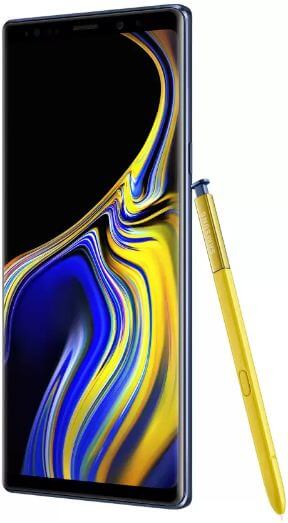
Here’s how to change Galaxy Note 9 default apps. By default set default apps on Samsung Note 9 such as phone app, SMS app, calendar app, browser app, home app (launcher), calling apps, music app, and more. You can individually change default apps on Note 9 under apps settings. Sometimes if you have used more than one app that works the same, you can pick which app to use by default in your android device. After setting a default app, your device won’t ask again. Also, change the default launcher on your Samsung Note 9.

You can clear default apps settings to get back system default apps in your device. Also, reset app preference in Samsung Note 9 to set default apps settings as factory default. Follow the below-given step by step process to set default apps on Samsung Note 9.

Read Also:

How to Change the Samsung Note 9 Default Apps

How to change Galaxy Note 9 default apps

You can easily change apps settings on your Samsung Galaxy Note 9 under apps settings. Let see details.

Step 1: Swipe down the notification shade and tap the Settings gear icon.

Step 2: Tap Apps.

In the app’s settings, you can see default apps, manage app permissions, and more.

Step 3: Tap Default apps.

Here you can see set messaging app, phone app, music app, calendar app, browser app, and other default apps settings.

Step 4: Select app you want to change app default.

Step 5: Choose an app from a list.

Now, set the app as default on your galaxy Note device. If you want to remove default apps from Galaxy Note 9, clear default app in your device using below given settings.

Change the Default Launcher on Samsung Note 9

Settings > Apps > Three vertical dots (Menu) at the top right corner > Default apps > Home Screen > Choose the launcher

Clear Default Apps on Galaxy Note 9

You can easily clear some default app settings in your Samsung galaxy note 9 and other android devices using below given settings.

Settings Apps > Default apps > Tap default apps from list you want to clear > Open by default > Clear defaults

Now automatically set by default app in your phone app. In other useful app settings, you can change app permission on galaxy Note 9.

Manage App Permissions on Note 9

You can individually enable/disable app permission on galaxy Note 9 under apps settings. Let see the step.

Step 1: Go to Settings in your galaxy Note 9.

Step 2: Tap Apps.

Step 3: Tap App permissions.

Here you can see Samsung Note 9 app permissions such as call logs, camera, contact, location, microphone, phone, and more.

Step 4: Tap any option you want to change app permission settings.

Step 5: Enable app permission you want in your Note 9.

And that’s all. Do you still have a question about change galaxy Note 9 default apps? If you have any questions or comments, let us know in the comments below! Stay and connect with us for latest updates.