How to Change Screen Mode on Galaxy Note 9

Here’s how to change display mode on galaxy Note 9. By default galaxy Note 9 screen mode set as Adaptive display. You can change screen mode on galaxy Note 9 under display settings. This Samsung Note 9 screen mode includes Adaptive display, AMOLED cinema, AMOLED photo, and basic mode. You can use Note 9 screen mode to adjust the display color to your preference. Using adaptive display screen mode, you can adjust colors of the edged screen and display brightness & clarity of the image.

You can’t change screen mode while turned on Blue light filter on Note 9. Follow the below-given step by step process to change display mode on galaxy Note 9.

Read Also:

How to Change Display Mode on Galaxy Note 9

How to change display mode on galaxy Note 9

You can select screen mode that perfect for display while watching movies or images, or adjust display color on galaxy Note 9.

Step 1: Swipe down the notification panel and tap the Settings gear icon.

Step 2: Tap Display.

In galaxy Note 9 display settings, you can see brightness, blue light filter, change font size & font style, screen mode, screen resolution or screen size, enable/disable full-screen apps, easy mode, navigation bar, and more.

Step 3: Tap Screen mode.

By default set Adaptive display as screen mode on Note 9. You can also see below-given options for display mode.

Adaptive display: Adjust display color range, saturation, and sharpness. Also, adjust the display color by color volume in your Samsung Galaxy device.

AMOLED Cinema: Perfect for watching videos or movies on YouTube or other apps.

AMOLED Photo: Suitable for viewing pictures.

Basic: For general use only.  

Step 4: Choose the screen mode from the above given options.

It’s quite easy to change screen mode on galaxy Note 9 that suitable for your condition to watch movies or images on your phone.

How to Enable/Disable Full-Screen Apps on Galaxy Note 9

Here you can select apps you want to use in the full-screen mode or full-screen aspect ratio on galaxy Note 9.

Settings > Display > Full-screen apps > Select apps you want to use full screen on Note 9

Not all apps supported full-screen mode in your Samsung Galaxy Note 9 and other devices.

And that’s it. We hope this makes it clear how to change display mode on galaxy Note 9. If you have any kind of question, tell us in below comment box. Stay and connect with us for the latest updates.

How to Take a Screenshot on Samsung Galaxy Note 9

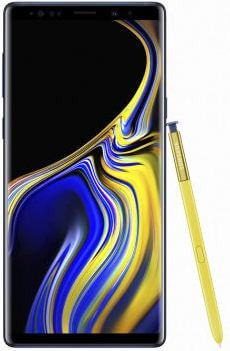
Here’s how to capture a screenshot on Galaxy Note 9. There are 3 ways to take a screenshot on Galaxy Note 9. One of the most common methods to take a screenshot is using the power button & volume down button. You can use the Palm swipe gesture and use Bixby/Google assistant. Also, use the smart capture feature to take a scrolling screenshot in your Samsung Note 9. Galaxy Note 9 has a marvelous S Pen stylus that also helps to take a screenshot and edit & share without open it in your device.

Read Also:

How to Capture Screenshot on Galaxy Note 9

How to capture screenshot on Galaxy Note 9

Samsung Galaxy Note 9 comes with S Pen stylus with Bluetooth connectivity, Fornite Game, Super AMOLED screen, 4000mAh battery, Qualcomm Snapdragon 845 processor, faster wireless charging, and more.

Take a Screenshot on Note 9 using hardware key

Press and hold the volume down and power button at the same time to screenshot on Note 9.

Use Palm Swipe to Capture Gesture

Turn on palm swipe gesture in your Samsung Galaxy Note 9 to take a screenshot.

Step 1: Open Settings in Note 9.

Step 2: Tap Advance features.

Step 3: Turn on Palm swipe to capture toggle.

Step 4: Just swiping the edge of your hand right to left or left to right to take a screenshot Samsung Note 9.

Use Google Assistant or Bixby Voice Assistant

Step 1: Open the content or web page you want to capture.

Step 2: Long press home button to access Google Assistant or Say “Hey Bixby” if you’ve configured (Press & hold the Bixby button).

Step 2: Say “take a screenshot“.

Step 3: Now, automatically capture screenshot of the screen.

You can also take a scrolling screenshot on galaxy Note 9 using below given settings.

Use Smart Capture to Take Scrolling Screenshot on Galaxy Note 9 

Step 1: Open Settings in your galaxy Note 9.

Step 2: Tap Advance features.

Step 3: Find Smart capture and turn on the toggle in your device

Now take a screenshot using volume down and power button in your Note 9. You can see the captured screenshot on your galaxy Note 9 device at bottom right side. Also, see several options below screenshot including Bixby vision, scroll capture, crop, draw, and share.

Step 4: Tap scroll capture to capture multiple screenshot on Galaxy Note 9.

And that’s all. I hope this article useful to capture a screenshot on Galaxy Note 9. If you have any questions, tell us in below comment box. Stay and connect with us for the latest updates.

How to Change the Galaxy Note 9 Screen Resolution

Here’s how to change screen resolution on Samsung Galaxy Note 9. By default set screen resolution as FHD+ 2220×1080 pixels. You can change Note 9 screen size under display settings. Set galaxy Note 9 resolution as HD+ 1480×720, FHD+ 2220×1080, and WQHD+ 2960×1440. Not all apps supported all the screen resolution on your device. Some of the running apps may close when you change the resolution on galaxy Note 9.

Samsung Galaxy Note 9 display settings include auto-brightness, Blue light filter, font size & font style, screen zoom, screen mode, screen resolution, full-screen apps, easy mode, and more settings. Follow the below-given step by step process to change display resolution on galaxy Note 9.

Read Also:

How to Change Display Resolution on Galaxy Note 9

How to change display resolution on galaxy Note 9

It’s quite easy to change galaxy Note 9 screen resolution using display settings. Let see the complete guide.

Step 1: Swipe down the notification shade and tap the Settings gear icon.

Step 2: Tap Display.

Step 3: Tap Screen resolution.

By default set screen resolution as FHD+ 2220×1080 pixels.

Step 4: Choose from HD+ 1480×720 / FHD+ 2220×1080 / WQHD+ 2960×1440

Now enjoy full HD resolution in your Samsung Galaxy Note 9 devices.

Turn On Blue Light Filter on Galaxy Note 9

By default turned off toggle blue light filter in your device. When turning on a blue light filter on galaxy Note 9, it’ll reduce eye strain by limiting the amount of blue light emitted by the screen.

Step 1: Go to Settings in your galaxy Note 9.

Step 2: Tap Display.

Step 3: Toggle on “Blue light filter”.

Now you can easily look at your Galaxy Note 9 screen or read in dim light.

And that’s all. Do you have still have questions about change display resolution on galaxy Note 9? Feel free to leave them in the comment section below.

How to Record Slow Motion Video on Galaxy Note 9

Here’s how to record slow-motion video on Galaxy Note 9. You can shoot super slow-motion video at 960 fps in 720p resolution on galaxy Note 9 like as Samsung Galaxy S9 device. Galaxy Note 9 has a dual 12MP camera with a 2x optical zoom. You can easily capture the whole scene even zoom in because of the telephoto lens & wind-angle lens.

Samsung Galaxy Note 9 has improved camera results compare to previous Note 8. Also, use the galaxy Note 9 flew detection feature that automatically notifies if photo blurry or smudged lenses and more. Let see how to record slow-motion video on galaxy Note 9.

Read Also:

How to Take Slow Motion Video on Galaxy Note 9

How to record slow motion videos on galaxy Note 9

You can record videos in slow motion on galaxy Note 9 using camera modes settings. Check out below given step by step the process.

Step 1: Open the Camera app in your Note 9 device.

By default auto mode is selected in your device. In galaxy Note 9 camera mode settings, you can see the live focus, Pro, Panorama, Super slow-mo, AR Emoji, and more.

Step 2: Select Super slow-mo from the list at top of the camera mode screen.

Single take selected by default in your Samsung Note 9 phone. Also, set double take if you want.

Step 3: Tap the red shutter button to record slow-motion video.

Step 4: Touch again red shutter button to end the video.

To view recorded super slow-mo, tap the video at the bottom right screen. Now enjoy captured Samsung Galaxy Note 9 slow-motion video.

Galaxy Note 9 Super Slow Motion Settings

Step 1: Open the Camera app in your Samsung Note 9.

Step 2: Tap Settings gear icon at the upper right corner.

Here you can change Note 9 super slow motion resolution for front and rear camera.

Step 3: Tap Super slow-mo.

Step 4: Choose a single take or double take.

And that’s all. If you have any questions about this record slow-motion video on galaxy Note 9, let us know in the comments below! What are your favorite features of Galaxy Note 9?

How to Take a Picture With S Pen on Galaxy Note 20 Ultra/Note 20/Note 10 Plus/Note 10/Note 9

Do you want to set S Pen to take pictures on your Samsung Note series? Here’s how to take a picture with S Pen on Samsung Galaxy Note 20 Ultra 5G/Galaxy Note 20/Galaxy Note 10+/Galaxy Note 10/Galaxy Note 9. To take photos with S Pen, you must enable Air action on your Samsung Galaxy devices. Other camera features you can use using Samsung S Pen are quickly accessing the camera, recording video, browsing the gallery, play, pause & skip songs, customizing media gestures, double-press the S Pen button to switch the camera, and using gestures to switch the camera, zoom in or out, change camera mode, etc. Make sure to enable S Pen Unlock to unlock your phone without your Password or PIN. Just press the Pen button to unlock your Samsung.

How Do You Take a Picture with Galaxy Note 20 Ultra Pen?

How to Take a Picture With S Pen on Galaxy Note 20 Ultra 5G


Step 1: Go to Settings.

Step 2: Scroll down and tap on Advanced features.

Step 3: Tap on S Pen.

Step 4: Tap the Air action and toggle on the button to enable it.

Step 5: Open the Camera app and remove the S Pen.

Step 6: Press the Button on S Pen to take a picture.

How to Quickly Open Camera using S Pen

Step 1: Follow the above given in steps 1 to 4.

Step 2: Tap on the Hold down Pen button to.

Step 3: Choose a Camera.

Step 4: Now, hold down the Pen button from any screen to quickly launch the camera on your Samsung Galaxy Note series.

How to Change Air Action Command on Samsung Galaxy Note 20 Ultra/Note 20/Note 10+/Note 9

Step 1: Go to Settings.

Step 2: Scroll down and tap on Advanced features.

Step 3: Tap on S Pen.

Step 4: Tap on the Air action.

Step 5: Tap on the Camera icon.

Step 6: Here, you can choose the S Pen settings for a single press (Take pictures/record video), double press (Switch cameras), and gestures (switch cameras/next or previous mode/zoom in or zoom out).

Step 7: Toggle off the Camera button if you don’t want to use it.

How Do I Use my Galaxy Note Pen as a Camera?

To use your Samsung Galaxy Note Pen as a camera, go to Settings > Advanced features > S Pen > Air action > Hold down Pen button to > Select the Camera app. Now, single-press the Pen button to take a picture or record a video, double-press the Pen button to switch the camera mode and use gestures to switch cameras, zoom in or out, etc.

Why is my S Pen Not Taking Photos?

If your S Pen is not taking photos, make sure to enable Air action on your Samsung devices. To enable air action, go to Settings > Advanced features > S Pen > Air action > Toggle on. Also, try resetting S Pen to go to Settings > Advanced features > S Pen > Air action > Three vertical dots > Reset S Pen.

Can you Take Pictures with S Pen S21 Ultra 5G?

Yes, you can take pictures with S Pen on Samsung S21 Ultra 5G. You can use S Pen to take a photo or record videos on your Samsung devices. Also, create notes, unlock your phone, use multiple S Pen, play or pause a song, browse the phone gallery (Next or previous photo), and more.

Read Also:

And that’s it. Do you use S Pen on your Samsung Galaxy Note series? Which is your favorite S Pen feature? Tell us in below comment section.

How to Change the Language on Galaxy Note 9

Want to change default set language on Galaxy Note 9? By default set language as English (United States). You can change the language on Galaxy Note 9 under the language & input section. In Samsung Galaxy Note 9 language & input settings, you can change default phone language, keyboard language, and change default keyboard. You can quickly switch languages on galaxy Note 9 while use apps or messages in your device. Also, add more than one language on the list. Just move language in top position to set as default language on Samsung Note 9.

You can also change language and input settings on your Samsung Galaxy devices. Follow the below-given step by step process to change the language on Samsung Galaxy Note 9.

Read Also:

How to Set or Change the Language on Galaxy Note 9

How to change language on Galaxy Note 9

You’ll change language and input settings on galaxy Note 9 under general management settings. Let see details.

Step 1: Swipe down the notification shade and tap the Settings gear icon.

Step 2: Scroll down and tap General management.

Here you can see Language & input, Date & time, and reset settings.

Step 3: Tap Language & input.

Step 4: Tap Languages.

By default set English (United States) as language in your Samsung galaxy note 9 and other devices.

Step 5: Tap Add a language.

Here you can see languages list such as English (UK), Brezhoneg, Chishona, Dansk, Deutsch, Euskara, Filipino, Furlan, Chinese, Italiano, Kiteso, Walser and more.

Step 6: Tap any Language you want to set.

Now, this language added to your language preference list in your Samsung devices.

Step 7: Move language to the first position you want to set as default.

Now this language set as Note 9 default language. Also, change the keyboard language on Galaxy Note 9 using below given settings.

Read Also:

How to Change the Keyboard Language on Samsung Note 9

You can change the default Note 9 keyboard language under language & input settings.

Settings > General management > Language & input > Virtual keyboard > Gboard or other keyboard you use > Languages > Add keyboard > Select language

It will change your keyboard languages and layouts on galaxy Note 9 devices.

And that’s all. We hope this makes it clear how to change the language on Galaxy Note 9. If you have any questions, tell us in below comment box. Stay and connect with us for the latest updates.