How to Change the Screen Timeout Time on Pixel 3, 3 XL, 3a, 3a XL

By default set screen timeout time Pixel 3 and Pixel 3 XL. You can change the screen timeout period on Google Pixel 3 under display settings. To extend battery life Pixel 3, set minimum lock screen timeout period. You can set lock screen timeout 15 seconds/30 seconds to save battery life in your Pixel (Available on Pixel 3a, Pixel 3a XL, Pixel 4, Pixel 4 XL, Pixel 2, Pixel 2 XL, Google Pixel, Pixel XL)devices. You can extend the lock screen timeout on Google Pixel 3 from choosing 1 min/2 min/5 min/10 min or 30 min. When reaching the time limit you set, your Pixel 3 screen will automatically lock.

Read Also:

How to Set Up Screen Timeout in Google Pixel 3 and Pixel 3 XL

After set display timeout on Pixel 3 XL and Pixel 3, your device screen turns off. Lock screen timeout also called sleep time.

Step 1: Swipe down the notification shade from the top of the screen.

Step 2: Tap Settings gear icon.

Step 3: Tap Display.

In Google Pixel 3 and Pixel 3 XL display settings, you can see auto-brightness, Night light, Adaptive brightness, wallpaper, Auto-rotate screen, screen saver, Ambient display, Device theme, and more settings.

Google Pixel 3 advanced settings Pie

Step 4: Tap Advanced.

Set display timeout on Pixel 3 XL Pie

Step 5: Tap Sleep (Android 9 Pie)/Screen timeout (Android 10).

How to change screen timeout time Pixel 3

Step 6: Choose from 15 seconds/30 seconds/1 min/2 min/5 min/10 min or 30 min.

Now when reaching sleep time and you don’t use your phone, it will automatically lock the screen. Set minimum screen timeout time to save battery Pixel 3 and Pixel 3 XL.

Enable Adaptive Brightness Pixel 3 to save battery

This Adaptive brightness feature is the newly added feature. It will automatically adjust screen brightness using environment. Also, manually adjust the brightness to move the slider.

Enable adaptive brightness Pixel 3 to save battery

Settings > Display > Adaptive brightness > Turn on Adaptive brightness

Now you’re Google Pixel 3 and Pixel 3 XL will automatically adjust brightness using light.

And that’s it. I hope this little tip useful to change screen timeout time Pixel 3 and Pixel 3 XL. If you have any questions, tell us in below comment box. Stay and connect with us for the latest updates.

How to Add a Lock Screen Message on Pixel 3, 3 XL, 3a, 3a XL

Want to set a lock screen message on Pixel 3 and Pixel 3 XL? You can add a lock screen message in Google Pixel 3 XL and Pixel 3 using lock screen preferences settings on your phone. When setting a lock screen message, you can see the name on the lock screen. Different android device OS has slightly different settings to put a message on the Pixel 3 lock screen. You can also put a personal message on lock screen such as phone number, address, Blood type using emergency information. So it’ll help when you lost your Google Pixel 3 or Pixel 3 XL.

Lock screen messages and emergency info settings are different. Also, add your profile picture on the lock screen in the latest Android 10 devices. Follow the below-given step by step process to add lock screen message Pixel 3 and 3 XL. Available on Pixel 3a, Pixel 3a XL, Pixel 4, Pixel 4 XL, Pixel 2, Pixel 2 XL, Google Pixel, and Pixel XL.

Read Also:

How to Put a Message on Lock Screen in Google Pixel 3 and Pixel 3 XL (Android 9 Pie & 8.1 Oreo)

You can add name, owner information, number and anything you want to see you’re Google Pixel 3’s lock screen. Check out below given settings to enter or change the message on lock screen Pixel 3 XL.

Step 1: Swipe down the notification shade from the top of the screen and tap the Settings gear icon.

Step 2: Scroll down and tap Security & location setting.

Lock screen preferences Pixel 3 Pie


Step 3: Tap Lock screen preferences under the Device security section.

Here you can see a show or hide lock screen notifications, add users from the lock screen, lock screen message and show lockdown option settings.

Google Pixel 3 lock screen messages

Step 4: Tap Lock screen messages.

Put personal message on lock screen Pixel 3

Step 5: Enter name you want to show Pixel 3 lock screen.

Add a lock screen message on Pixel 3

Step 6: Tap Save.

How to add a lock screen message on Pixel 3

Step 7: Now lock your Pixel 3, you can see the entered name on the screen.

Alternative Way: Settings > Security & locations > Tap Settings gear icon in front of screen lock > Lock screen message > Enter name > Save

Add A Message on Lock Screen on Pixel 3a, 3a XL, 3, 3 XL, 4, 4 XL, 2 XL, 2, Google Pixel, Pixel XL (Android 10)

Put A Message on Lock Screen on Pixel 3a and 3a XL

Settings > Display > Advanced > Lock screen display > Lock screen message > Enter the text or line > Save

How to Put Emergency Information on Pixel 3 lock screen

This information on the Pixel 3 lock screen will helpful if you accidentally lost your Pixel 3 and Pixel 3 XL. Using this owner information, if you have lucky then the person will contact you using phone number or address or any other information you added on the emergency info lock screen.

Step 1: Lock your Pixel 3 and Pixel 3 XL.

Emergency info on Pixel 3 lock screen

Step 2: Tap Emergency.

Pixel 3 emergency information

Step 3: Tap Emergency information twice from the upper screen.

Here you can see the info and contacts tab.

Put emergency info on Lock screen Pixel 3 Pie

Step 4: Tap info tab, here you can add address and blood type.

Step 5: Tap Contacts tab, here you can put a mobile number so in case lost phone, the user will contact you.

Step 6: Tap a Pencil icon to edit information.

Alternative Way: Settings > About phone > Emergency information

And that’s it. Do you still have any questions about adding a lock screen message on Pixel 3 XL and Pixel 3? If you have any question, tell us in below comment box. Stay and connect with us for latest updates.

How to Fix Double Notch Problem on Google Pixel 3 XL

Recently some of the Google Pixel 3 XL users causing the issue on the second notch appear on side of the screen when the rotating screen. Google speaking to Android Police, and said they’re working on a fix. If you’re facing this Google Pixel 3 XL double notch problem, try these solutions to fix the Pixel 3 double Notch issue. When users rotating the screen and back again rotate screen show a second notch side of the screen.

Google’s flagship Pixel 3 and Pixel 3 XL (Notch) launched with awesome camera features but facing some issues also such as RAM issue (Memory management), Double notch, etc. You can easily fix this bug temporarily to restart your Google Pixel 3 XL. You can cutout display and corners on android 9 Pie devices using developer mode settings. Check out below given possible solutions to fix the double Notch problem on Pixel 3 XL.

Read Also:

How to Fix Google Pixel 3 Double Notch Issue

How to fix double Notch problem on Pixel 3 XL

You can easily hide Notch on Pixel 3 XL using developer mode settings if you don’t like the Notch. Check out below given possible solutions to fix the Pixel 3 XL double notch bug.

Restart your Google Pixel 3 XL

Most of Pixel 3 XL users temporarily solved a double Notch problem on Pixel 3 XL after reboot device.

Step 1: Long press the power button on your Google Pixel 3 XL.

Step 2: Tap restart option.

After restarting your device, you can see disappear the second notch from a side of the screen in Pixel 3 XL.

Hide Notch on Pixel 3 XL

If you don’t like Pixel 3 XL Notch, you’ll hide using developer mode settings.

Step 1: Swipe down the notification shade from the top of the screen and tap the Settings gear icon.

Step 2: Tap on System at the end of the page.

Step 3: Tap Advanced.

Step 4: Tap Developer options.

Step 5: Scroll down up to the drawing section and tap Simulate a display with a cutout.

A list of several options appears in your Google Pixel 3 XL devices including Hide/Corner Display cutout/Double display cutout/Tall Display Cutout.

Step 6: Choose Hide from the list to disable Pixel 3 XL Notch.

Now check your Google Pixel 3 XL double notch bug fix.

And that’s it. Do you have any alternative methods to fix the double Notch problem on Pixel 3 XL Pie? Share with us in below comment box. Stay and connect with us for the latest updates.

How to Download Google Pixel 3 Camera port for Pixel 2 and Pixel

Thanks to XDA Senior member cstark 27 to release the new update port of Google camera. Let see how to download Google Pixel 3 camera port for Pixel 2 and Pixel. This Google Camera mode added Portrait mode, Photobooth, motion-tracking autofocus and real-time Google Lens on your older Google Pixel, Pixel XL, Pixel 2 and Pixel 2 XL devices.

Google Pixel 3 and Pixel 3 XL launched with awesome camera features such as Top Shot, Night Sight, Photobooth, Super res zoom, motion-tracking autofocus, Google Lens suggestion and more. We already discussed getting Pixel 3 Night Sight on Pixel, Pixel 2 and other devices.

Read Also:
How to Download Google Pixel 3 Camera APK For Pixel 2 and Pixel

To install this update of Google camera port on older Pixel devices, download APK file and install it on your phone.

Step 1: Download Pixel 3 camera port for Pixel 2 and Pixel

Step 2: Tap click here to start the download.

List of apk mirror links available on the screen such as Washington DC, USA, Europe and more.

Step 3: Tap Primary download or any alternative download mirror.

Step 4: Now you can see downloading Google camera port apk in your Pixel.

After complete downloading, when you try to install, make sure turn on unknown sources on your Pixel to install this third party Google camera mode apk file. You can activate is using below given settings.

Settings > Apps & notifications > Advanced > Special app access > Install unknown apps

Google Pixel 3 camera port apk for Pixel 2 XL

Step 5: After installing apk, open the camera app (New camera app installed) and swipe right side up to More.

Step 6: Here you can see new added features such as Photobooth, Night (Show below given screenshot).

Google pixel 3 camera mode on Pixel 2 XL

Step 7: Tap Settings.

Pixel 3 camera mode settings

Step 8: Here you can see new added options such as HDR+ Options, Google Lens suggestion.

 Step 9: Tap HDR+ option.

By default auto-selected.

How to download Google Pixel 3 camera port for Pixel 2 and Pixel

Step 10: Choose from the list you want to set HDR+

And that’s all. I hope this little tip useful to download Google Pixel 3 camera port for Pixel 2 and Pixel Pie. If you have any kind of trouble, tell us in below comment box. Stay and connect with us for the latest updates.

Source: XDA Developer

How to Enable Fingerprint Swipe Gesture on Pixel 3 and Pixel 3 XL

Here’s how to enable and use fingerprint swipe gesture on Google Pixel 3 and 3 XL. When turning on fingerprint swipe gesture on Pixel 3 XL and Pixel 3, just swipe down on the fingerprint sensor on the back of your phone and you can see notifications you receive. Pixel 3 and Pixel 3 XL gestures include Active edge, Swipe fingerprint for notifications, jump to camera, flip to camera and prevent ringing. By default turn off fingerprint scanner gesture in your android devices.

What is a gesture? A gesture is useful to quickly show notifications using the fingerprint sensor, open camera or switch camera mode and check other notification messages in your device. You can see several gestures on Google Pixel 3 XL and other devices. But in this tutorial, I’ll show you how to enable fingerprint swipe gesture on Pixel 3 Pie.

Read Also:

How to Use Pixel 3 Fingerprint Swipe Gesture

Check out below given settings to activate the fingerprint swipe gesture on Pixel 3 and 3 XL.

Step 1: Swipe down the notification shade from the top of the screen.

Step 2: Tap Settings gear icon.

Step 3: Scroll down up to the end of the page and tap System.

Pixel 3 Gestures settings

Step 4: Tap Gestures.

Turn on fingerprint swipe gesture on Pixel 3 XL Pie

Step 5: Tap the Swipe fingerprint for notifications.

How to enable fingerprint swipe gesture on Pixel 3 Pie

Step 6: Toggle on Swipe fingerprint for notifications to activate the Pixel 3 gesture.

Now you can quickly access notifications message using a fingerprint scanner in your Google Pixel 3 and Pixel 3 XL. You can also check notification using Pixel 3 Ambient display settings.

Step 1: Swipe down the notification shade from the top of the screen.

Step 2: Tap Settings gear icon.

Step 3: Tap Display.

Step 4: Tap Advanced.

Step 5: Scroll down up to Ambient display and tap on it.

Here you can see below-given settings that help to quickly show notification on the lock screen or always-on display.

Double-tap to check phone

Just double-tap on your Google Pixel 3 screen to quickly see message notifications you missed.

Lift to check phone

Just pick up your Pixel 3 and Pixel 3 XL device to quickly view received lock screen notifications.

Step 6: Turn on the toggle you want from the above options.

You can easily show notifications on the lock screen or always-on display on Pixel 3 and Pixel 3 XL using this setting.

And that’s all. We hope the above-given tutorial helpful to enable fingerprint swipe gesture on Pixel 3 and Pixel 3 XL. If you have any questions, tell us in below comment box. Stay and connect with us for the latest updates.

How to turn on dark theme in phone app Android

Google added new dark theme or dark mode in android messages, YouTube and Google Map. Now you’ll turn on dark theme in phone app android devices. You can find this dark theme option under display settings in Phone app. By default disable this option. When enable dark mode on phone app, it will automatically turn background color dark.

We already discussed about enable dark mode on YouTube or android messages. Now I think next time Google will update contacts app with dark mode settings. You’ll have wait to enable dark theme in Google contacts. Follow below given step by step process to turn on dark theme in phone app android phone.

You May Like This:

How to manually change theme on Pixel 3, 3 XL

How to enable Night mode in Google Map on android

How to enable dark mode in Huawei P20 Pro

How to turn on dark theme in phone app android devices

If you want to enable dark theme on phone app in android phone, make sure you are rooted with latest version of the app. You can also download APK and sideload it manually. When officially available this phone app dark mode settings, you can enable dark theme in phone app android using below given settings.

Step 1: Open Google Phone app in your android devices

Google Phone app in Android

Step 2: Tap Three vertical dots from upper right corner

Turn on dark theme on phone app android

Step 3: Select settings

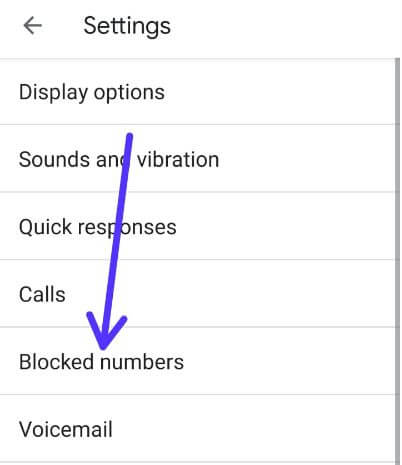
In android phone display settings, you can see display options, sounds & vibration, Quick response, calls, blocked numbers, caller ID & Spam and other settings.

Display settings in android phone

Step 4: Tap Display options

Before get this Night theme, you can see below given first image settings in your device. After updated app, you can see sort by, Name format and dark theme options. By default turn off this option in your device.

How to turn on dark theme in phone app Android


Step 5: Turn on dark theme toggle

Now you can see dialer, contact number page and all other Google phone app settings is dark mode.

Step 6: Turn off dark theme toggle if you don’t want to use dark mode

It’s quite easy to enable or disable dark theme in phone app on android phone or tablet devices.

How to enable dark mode on android messages

We already discussed about turn on dark mode in android messages. You can activate dark theme on android messages using below given settings.

Enable dark mode on android messages app

Open messages app > Three vertical dots from upper right corner > Enable/Disable dark mode

Now I will wait for the Google contacts app getting this dark theme setting. I hope Google will add this setting as soon as possible.

And that’s all. Do you still have question about turn on dark theme in phone app android devices? If you have any question, tell us in below comment box. Stay and connect with us for latest updates.

Source: XDA Developer