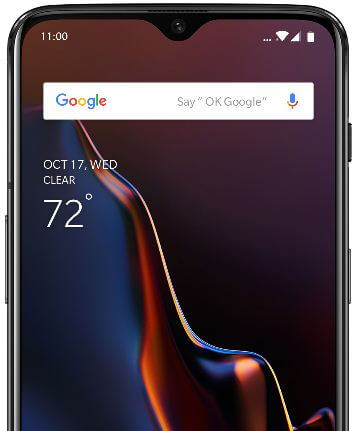
How to Set Up OnePlus 6T Face Unlock

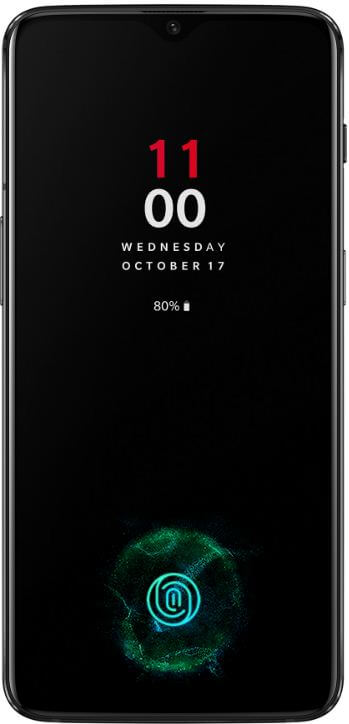
How to set up face unlock on OnePlus 6T. You can use face unlock in OnePlus 6T to quickly unlock your phone when your face recognized. Fingerprint or Face unlock security is less secure compare to Password or PIN or Pattern number. OnePlus 6 face unlock is super fast comparing to iPhone X. But the disadvantage is any people can unlock your OnePlus 6 using your photos or a printed selfie that looks like you. Sometimes users facing fingerprint not working or unlock your device at the first attempt. If you facing this type of problem, set up OnePlus 6T face unlock security in your device. OnePlus 6T introduces a new in-display fingerprint that unlocks your device slowly compare to the OnePlus 6 fingerprint.

Read More:

How to Set Up OnePlus 6T Face Unlock

How to set up OnePlus 6T face unlock

You can find the face unlock option under security and lock screen settings.

Step 1: Swipe down the notification shade from the top of the screen.

Step 2: Tap the Settings gear icon.

Step 3: Scroll down and tap Security and lock screen.

Here you can see find my device, screen lock, fingerprint, face unlock, lock screen preferences, smart lock, and other settings.

Step 4: Tap Face unlock under the device security section.

Step 5: Enter PIN or Password or Pattern lock.

Step 6: Tap Add face data under face management and tap Next.

Step 7: Hold your OnePlus device 20 to 30 cm from your face, make sure your face appears in the circle, and wait until the complete process.

This message appears on the screen: Face unlock set up done

Step 8: Tap Confirm.

Now you can use face unlock in OnePlus 6T to unlock your Oxygen OS device. You can see the face unlock settings.

Face unlock: Enable or disable face unlock in OnePlus 6T.

Face unlock Assistive lighting: When the camera cannot recognize your face, the screen will light up to help the camera recognize your face.

Auto unlock when the screen is on: Unlock your device with your face as soon as the screen enable, without swiping first.

How to Remove Face Data on OnePlus 6T

Settings > Security and lock screen > Face unlock in device security section > Remove face data > OK

Do you still have a question about set up OnePlus 6T face unlock? If you have any questions, tell us in below comment box. Stay and connect with us for the latest updates.

How to Change Home Screen Settings in OnePlus 6T

Want to customize OnePlus 6T home screen settings? Here’s how to change home screen in OnePlus 6T Pie devices. In OnePlus 6T home screen settings, you can see add a new app icon to the home screen, Shelf, drawer, change icon pack, home screen layout, and more. You can personalize the home screen in OnePlus 6T that quickly accesses some functions such as just swipe down to access quick settings and change the grid & icon size on the home screen.

Read Also:

How to Set or Change Home Screen in OnePlus 6T

How to change home screen settings in OnePlus 6T

You can change the home screen in OnePlus 6T you want using the below-given settings.

Step 1: Unlock your OnePlus 6T and long press on the blank space on the home screen.

Here you can see wallpapers, widgets, and a home screen.

Step 2: Tap Home screen.

You can see below given OnePlus 6T home screen settings.

Add icon to home screen

When installing a new app on your OnePlus 6T, you can see that app icon on the home screen to quickly access it from home. If you don’t want to add an app icon to home screen, turn off the toggle. After disabling it, you can open a newly downloaded app from the app drawer.

Swipe down to access

Turn on swipe down to quickly access settings from the home screen in your OnePlus 6T.

Shelf

Swiping right on the home screen to access Shelf in OnePlus 6T devices.

Double tap to lock

Double tap on the blank area of the home screen to screen off and lock the OnePlus 6T.

Launcher layout

Set layout from the home screen only or home screen & drawer to access it.

Drawer

Display all apps when entering the drawer. Also, enable app search when entering the drawer.

Notification dots

By default enable notification dots in OnePlus 6T and other android devices. Whenever you’ll receive any message notifications on your phone, you can see the dots icon on the app you receive a notification. This feature remembers you about unread or pending notifications.

Icon pack

To change the icon shape in OnePlus 6T, use this setting. Choose OnePlus 6T icon pack from OnePlus/Round/Square.

Home screen layout

You can customize the grid size, icon size, and hide app names using OnePlus 6T home screen layout settings. Change icon size and home screen grid size in OnePlus 6T.

Hidden space

Hide your important apps using this feature. Slide to the right in the drawer to enter hidden space in your OnePlus devices.

And that’s all. I hope this little tip useful to change home screen settings in OnePlus 6T Pie. If you have any questions, tell us in below comment box. Don’t forget to share with others if you found it helpful.

How to Change Dark/Light Theme on OnePlus 6T

By default set light theme on OnePlus 6T devices. You can easily change the light theme to the dark theme on OnePlus 6T using customization settings. To save battery life and easily view the screen, set a dark mode in your OnePlus 6T. When turning on dark mode in OnePlus 6T, you can see the notification panel, gallery, messages app, and other settings background looks black color. Also, choose colorful if you want to show both light and dark mode in your OnePlus 6T devices. You can change the accent color, home & lock screen wallpaper, icon shape, icon pack, and font style using these customization settings.

Read Also:

How to Customize Light or Dark Theme on OnePlus 6T

How to customize light or dark theme on OnePlus 6T

Now change the theme and accent colors on OnePlus 6T you want using the below given complete guide.

Step 1: Swipe down the notification shade from the top of the screen and tap on the Settings gear icon.

Step 2: Tap the Customization.

Step 3: Tap on Tone.

You can see wallpapers, theme/tone, accent colors, font style, icon shape, and icon pack. By default set OnePlus 6T theme as a light mode.

Step 4: Select the tone from Colorful (Both light & dark mode) or light or dark.

Now you can see your OnePlus 6T device background looks like a black screen such as notification panel, gallery background, app drawer, and more.

Note: Colorful theme can only use the system color theme.

How to Change the Accent Colors on OnePlus 6T

You can change accent colors in OnePlus 6T Oxygen OS using display settings.

Settings > Customization > Accent Color > Select accent color or Customize your favorite color you want to set > OK

How to Change Icon Shape on OnePlus 6T

Settings > Customization > Icon shape > Select shape from Round/Square/Teardrop/Round rectangle > OK

And that’s all. We hope this makes it clear how to customize a light or dark theme on OnePlus 6T. If you have any kind of trouble, tell us in below comment box. Don’t forget to share with others if you found it useful.

How to Enable and Use Screen Off Gestures in OnePlus 6T

Want to quickly access functions even screen off on OnePlus 6T? Here’s how to enable and use screen off gestures in OnePlus 6T. Using this OnePlus 6T screen of gestures, you can quickly open the camera, turn on a flashlight and other useful settings to just draw O/V/S/M/W on the screen when locked your OnePlus. After choosing quick gestures settings, just draw the word and you can see open that feature in your device. In OnePlus 6T gestures settings, you can see system gestures and screen off gestures settings.

Read Also:

How to Use Screen Off Gestures in OnePlus 6T

You can enable/disable quick gestures in OnePlus 6T using below given settings.

Step 1: Swipe down the notification panel from the top of the screen.

Step 2: Tap Settings gear icon.

Step 3: Tap Buttons and gestures.

Here you can see Alert slider, Navigation bar & gestures, quick gestures, and quickly activate the assistant app settings.

Step 4: Tap Quick gestures.

In OnePlus 6T quick gestures settings, you can see system gestures and screen off gestures section. In screen-off gestures, enable/disable double-tap to wake and music control gestures.

How to use screen off gestures in OnePlus 6T

Step 5: Tap Draw O/Draw V/Draw S/Draw M/Draw W.

Step 6: Choose from Record a video/Open Shelf/open app/Turn on or off the flashlight and more settings.

Step 7: Now Draw a word and you can see open the settings you set/

Now you can quickly access your favorite feature using this quick gesture setting. You can also see below given OnePlus 6T system gestures settings.

System Gestures

Settings > Button & gestures > System gestures

Below given three options are available.

Flip to mute: Flip the OnePlus 6T on an incoming call to mute it.

Three-finger screenshot: To take a screenshot on OnePlus 6T, swipe with three fingers on the screen.

Answer calls by gestures: Answer incoming calls automatically by raising the phone to the ear

It’s quite easy to use gestures on OnePlus 6T. You can customize the off-screen gesture you want using this tip.

And that’s all. I hope the above-given tutorial useful to use screen off gestures in OnePlus 6T. Do you have any other OnePlus 6T tip you want to share? Tell us in below comment box.

How to Change Navigation Bar Buttons on OnePlus 6T

By default enable fully navigation gestures on the OnePlus 6T devices. You can change the navigation bar buttons on OnePlus 6T from the back, home, recent, or navigation gestures (Left and right) or Navigation gestures (Bottom). If you want to change the navbar button style on Oneplus 6T, check out this tutorial. You can customize the navigation bar on OnePlus 6T under the navigation bar & gestures settings on your phone. Also, swap back and recent apps button only on the navigation bar in your OnePlus device.

Read Also:

How to Change the Buttons on Navigation Bar OnePlus 6T

How to change navigation bar buttons on OnePlus 6T

When enabling navigation gestures on OnePlus 6T, you’re device use gestures to replace the navigation bar. Enable/disable navigation gestures OnePlus 6T using below given settings.

Step 1: Swipe down the notification shade from the top of the screen and tap on the Settings gear icon.

Step 2: Tap Buttons and gestures.

Here you can see the Alert slider, Navigation bar & gestures, quick gestures, and quickly activate the assistant app options.

Step 3: Tap Navigation bar & gestures.

Step 4: Choose from Back, home, recents, or Navigation gestures (Left and right) or Navigation gestures (Bottom).

Step 5: We select Navigation gestures (Bottom).

You can see activating full navigation gesture on OnePlus 6T. To access the phone, apply the below settings.

Home: Swipe up from the bottom center edge of the screen.

Recent apps: Swipe up from the bottom center edge of the screen and pause.

Back: Swipe up from the left or right side of the bottom of the screen.

Switch to the previous app: Swipe up from the bottom center edge of the screen to the right then release your finger.

Landscape: Same as portrait, navigation gestures are still from the bottom of the device.

How to Change the Back Button on OnePlus 6T

If you don’t want to use navigation gestures on OnePlus 6T, change the navigation bar button order using the given settings.

Settings > Buttons and gestures > Navigation bar & gestures > Choose Back, home, recents > Navigation bar customization > Choose from Back, Home, Recents or Recents, Home, Back

Now you can see the back, home, and recent buttons on the navigation bar in OnePlus 6T devices instead of gesture navigation.

Do you still have a question about change navigation bar buttons on OnePlus 6T? If you have any kind of trouble, tell us in below comment box. Stay and connect with us for the latest OnePlus 6T tips and tricks.

How to Turn On Quick Launch in OnePlus 6T

Here’s how to turn on a quick launch in OnePlus 6T Pie. You can quickly launch apps or add shortcuts from the OnePlus 6T lock screen using an in-display fingerprint. You can use quick launch to lock screen in OnePlus 6T such as voice search, add camera mode shortcuts, Chrome, alarm, and more. Also, add your favorite shortcuts and app shortcuts also such as WhatsApp, Instagram, Snapchat, Facebook, and more. You can change the priority of shortcuts you want to quickly launch on the lock screen. By default 6 shortcuts added on your OnePlus 6T lock screen to quickly launch.

Read Also:

How to Turn On Quick Launch in OnePlus 6T

To use quick launch apps on OnePlus 6T using the lock screen, make sure to enable quick launch on your OnePlus 6T. You can find OnePlus 6T quick shortcut settings under the utility settings.

Step 1: Swipe down the notification shade from the top of the screen and tap the Settings gear icon.

Step 2: Scroll down and tap on Utilities.

Here you can see gaming mode, quick launch, parallel apps, app locker, schedule power on/off, pocket mode, OnePlus switch, and OnePlus laboratory settings.

Step 3: Tap Quick launch.

Long press the fingerprint identification area to launch quick pay or active apps.

How to turn on quick launch in OnePlus 6T

Step 4: Toggle on “Turn on quick launch“.

Step 5: Now continue to hold your finger after unlocking to open the quick launch panel.

Step 6: Swipe to select the shortcut and release your finger to launch the app.

How to Add Quick Launch Shortcut to OnePlus 6T lock screen

Settings > Utilities > Quick launch > Shortcut settings > + Add shortcuts > Select shortcut and apps

Now you’ll quickly launch these new shortcuts to lock the screen in the OnePlus 6T. It’s quite easy to set up a fingerprint shortcut on the OnePlus 6T.

After set up a fingerprint on OnePlus 6T, you can quickly add shortcuts using in-display fingerprint in your device.

How to Disable or Exit Quick Launch Shortcuts From Lock Screen OnePlus 6T

If you want to close quick launch apps on the OnePlus 6T, follow the below-given settings.

Step 1: Continue to hold your finger after unlocking to open the quick launch panel.

Step 2: Swipe to see shortcut and release it to Exit from the bottom of the screen

And that’s all. We hope this makes it clear how to turn on a quick launch in OnePlus 6T. If you have any questions, tell us in the below comment box. Stay and connect with us for the latest updates.