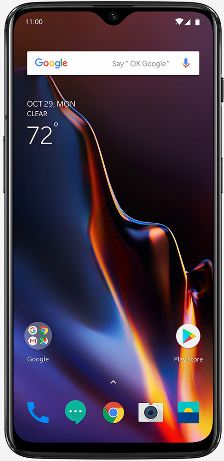
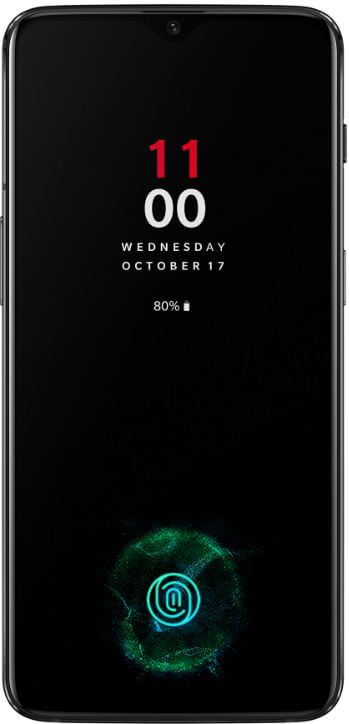
How to change lock screen preference in OnePlus 6T

Want to show / hide lock screen notification content in OnePlus 6T Pie? You can change lock screen preference in OnePlus 6T Oxygen OS under security & lock screen settings. By default show all notification content in the lock screen in your OnePlus 6T Pie. Also hide sensitive content in OnePlus 6T.

In lock screen content notification settings, you can choose from show all notification content / hide sensitive content / Don’t show notification at all. Follow below given step by step process to change lock screen preference in OnePlus 6T Pie 9.0 devices.

You May Like This:

How to take a screenshot on OnePlus 6T

How to customize gaming mode on OnePlus 6T

How to disable navigation gesture in OnePlus 6T

How to change lock screen preference in OnePlus 6T Pie

How to change lock screen preference in OnePlus 6T

You can hide notification content in OnePlus 6T lock screen using below given settings.

Step 1: Swipe down notification from top of the screen and tap Settings gear icon

Step 2: Tap Security & lock screen

Step 3: Tap lock screen preferences under device security

Step 4: Tap On lock screen

You can see below given three options in your devices.

Show all notification content

You can see all message notifications on lock screen when receive any new notifications in your OnePlus 6T Pie.

Hide sensitive content

To secure important message from show lock screen in OnePlus 6T, hide sensitive content in your phone.

Don’t show notification at all

If you can’t see any notifications on OnePlus 6T lock screen, select this option.  

Step 5: Choose from Show all notifications content / hide sensitive content / Don’t show notifications at all

You can show/hide lock screen notification in OnePlus 6T Oxygen OS using above given settings.

And that’s all. I hope this tutorial useful to change lock screen preference in OnePlus 6T Pie. If you have any kind of question, tell us in below comment box. Stay and connect with us for latest updates.
How to Turn On Earphone Mode In OnePlus 6T

By default turned off earphone mode in OnePlus 6T. Here’s how to turn on earphone mode in OnePlus 6T Oxygen OS. When turning on autoplay earphone mode, it will automatically resume music playback when connecting earphones and stop when disconnecting. You can find earphone mode under sound settings.

In OnePlus 6T earphone mode settings, you can see a smart answer for Bluetooth, speak caller ID, notification ringtone in earphones, Google TTS voice data and Bluetooth absolute volume. Follow the below-given step by step process to turn on earphone mode in OnePlus 6T Oxygen OS.

Read Also:

How to Enable OnePlus 6T Earphone Mode: Latest Oxygen OS

How to turn on earphone mode in OnePlus 6T

You can quickly activate earphone mode to swipe down the notification shade from the top of the screen and tap earphone mode in the quick settings panel. Also, enable and use earphone mode in OnePlus 6T using below given phone settings.

Step 1: Swipe down the notification shade from the top of the screen and tap the Settings gear icon.

Step 2: Tap Sound.

In OnePlus 6T sound settings, you can see Do not disturb, Earphone mode, Audio tuner, phone ringtone, touch sound, default notification sound, and other sound settings.

Step 3: Tap Earphone mode.

By default turn off earphone mode in your OnePlus 6T Pie 9.0 devices.

Step 4: Turn on toggle Autoplay.

Now automatically start songs playlist when connecting earphones. You can see below given OnePlus 6T earphone mode settings in your device.

Autoplay

Automatically play or pause music when connecting earphones.

Smart answer for Bluetooth

During an incoming call, connect the Bluetooth audio device to answer.

Speak caller ID

Speak the incoming caller ID via earphones.

Notification ringtone in-earphones

Set ring mode in your OnePlus 6T Oxygen OS.

You can change OnePlus 6T earphone mode settings you want in your devices.

Enable Audio Tuner OnePlus 6T: Latest Oxygen OS

Step 1: Go to settings in your OnePlus 6T/6.

Step 2: Tap on Sounds.

Here you’ll see Do not disturb mode, Earphone, Ringtone, and more.

Step 3: Tap on the Audio tuner under the earphone section.

Step 4: Make sure toggle on the Audio switch.

Also, change OnePlus 6T audio tuner settings including Sound enhancement, equalizer settings, and preset options.

Change OnePlus 6T sound enhancement

Settings > Sounds > Earphone > Audio tuner > Sound enhancement > Choose from list you want to use

And that’s all. Do you still have a question about-turn on earphone mode in OnePlus 6T Oxygen OS? If you have any kind of trouble, tell us in below comment box.

How to Hide Notch in OnePlus 6T

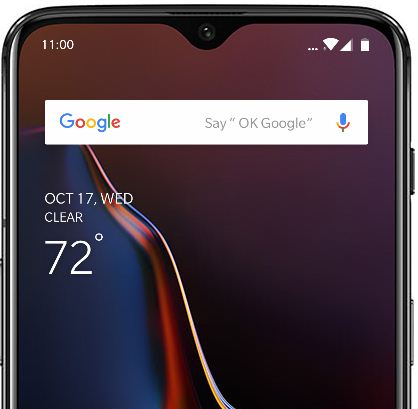
By default show the notch in OnePlus 6T devices. OnePlus 6T device is waterdrop type notch at the top middle of the screen. You can show/hide the notch on OnePlus 6T under display settings. When enabling OnePlus 6T notch, allow apps to use the notch area and when to disable notch, all apps cannot use the notch area in your device.

In the market, there are several devices that supported Notch display such as OnePlus 6, Google Pixel 3 XL, iPhone X/XR/XS/XS Max, Vivo and more. Follow the below-given step by step process to disable the notch in OnePlus 6T.

Read More:

How to Show or Hide TearDrop Notch in OnePlus 6T Oxygen OS

How to hide the Notch area in OnePlus 6T

You can find the Notch display feature under display settings. By default show the notch at top of the screen in your device. If you annoying by Notch, disable it using below given simple settings.

Step 1: Swipe down the notification panel from the top of the screen and tap settings gear icon.

Step 2: Tap Display.

In OnePlus 6T display settings, you can see auto-brightness, sleep, Night mode, reading mode, screen calibration, Notch display, full-screen apps, Ambient display, wallpapers & theme and more.

Step 3: Tap Notch display.

By default selected Show the notch area. So we can see a notch in our device.

Step 4: Choose Hide the notch area if you want to disable Notch in OnePlus 6T.

Now you can’t see notch in your OnePlus 6T top of the screen. If you want to show notch again, enable it using above given settings. Also, hide the OnePus 6 notch using the above-given settings. If you have Pixel devices, you can see four types of notch under developer mode settings.

How show/hide Notch in Pixel devices using developer options

Make sure to enable developer mode in Pixel devices to change notch display.

Step 1: Swipe down the notification shade from the top of the screen and tap the Settings gear icon.

Step 2: Tap the System at the end of the page.

Step 3: Tap Advanced.

Step 4: Tap Developer options.

Step 5: Scroll down up to drawing subheading and tap Simulate a display with a cutout.

Here you can see four options in your latest Pixel 3 XL and other Pixel devices including Hide/Corner Display cutout/Double display cutout/Tall Display Cutout.

Step 6: Choose from above-given options.

And that’s all. I hope this little tip useful to hide the Notch area in OnePlus 6T. If you have any questions, tell us in below comment box. Stay and connect with us for latest update.

How to Change Individual App Icon on OnePlus 7T Pro/7T/7 Pro/7/6T

Want to change the app icon shape in OnePlus 6T Oxygen OS? You can change all icon shape at once or change individual app icon on OnePlus 7T Pro/7T/7 Pro/7/6T. By default set OnePlus 6T icon shape as OnePlus. You can set icon shape from OnePlus/Round/Square. Also, download more icon packs from the play store. You can change the icon pack in OnePlus 6T using home screen settings. Just change the specific app’s icon you want to change icon shape.

Read Also:

How to Change Individual App Icon on OnePlus 6T

How to change individual app icon on OnePlus 6T

Check out below given both methods to change icon shape individually or change all apps icon at once in your OnePlus 6T.

How to Change Icon Shape Individually in OnePlus 6T and other OnePlus devices

Step 1: Long press app you want to change icon pack.

Step 2: Tap Edit (Pencil) icon.

Step 3: Tap app icon on the screen.

Step 4: Choose from OnePlus/Round/Sqaure.

Now change the app icon in your OnePlus 6T Oxygen OS device.

How to Change All Apps Icon at Once in OnePlus 6T

It will affect your entire device apps icon at once in your device.

Step 1: Long press on the blank space in the OnePlus 6T home screen.

Step 2: Tap Home settings.

On the OnePlus 6T home screen, you can see add the icon to home screen, Shelf, Notification dots, icon pack, home screen layout, and more.

Step 3: Tap Icon pack.

By default set icon shape in OnePlus 6T as OnePlus.

Step 4: Choose from OnePlus/Round/Square.

Now all apps icon change in your OnePlus 6T devices.

And that’s all. I hope this little tip useful to change the individual app icon on the OnePlus 6T. Do you have any kind of trouble? Tell us in below comment box. Stay and connect with us for the latest update.

How to Customize Gaming Mode on OnePlus 6T

Let see the process to customize gaming mode on OnePlus 6T. There are several settings available for gaming mode in your OnePlus 6T Oxygen OS. You can find OnePlus 6T gaming mode under the utility settings. You can block app notifications, limit apps network usage, show notifications of voice or video call you to receive and answer calls via speakers when turning on gaming mode in OnePlus 6T. Turn on gaming mode automatically for apps that enabled by you. OnePlus 6T has a powerful octa-core processor with 6/8 GB RAM that perfect for the gaming lover.

Read Also:

How to Customize Gaming Mode on OnePlus 6T

How to customize gaming mode on OnePlus 6T

The gaming mode will turn on automatically when these apps are opened and turn off when they are closed. Add your favorite apps for gaming mode in OnePlus 6T.

Step 1: Swipe down the notification shade and tap the Settings gear icon.

Step 2: Tap Utilities.

You can see gaming mode, parallel apps, app locker, pocket mode, OnePlus switch, and more.

Step 3: Tap Gaming mode.

You can see below given OnePlus 6T gaming mode settings.

Answer calls via speaker

It will automatically route the incoming calls to the speaker when the gaming mode is turned on. By default disable this option.

How to show notifications

When you playing a game on your OnePlus 6T and receive any message notifications, it disturbs you. If you don’t want to interrupt while playing a game, block app notifications on your phone.

Notifications for 3rd party calls

The voice or video calls from social apps will show a notification. Enable this option to get notifications when enabling gaming mode in OnePlus 6T.

Disable automatic brightness

Disable lock screen brightness when turning on your device.

Network boost   

Limit other apps’ network usage when gaming mode is turned on. Turn on network boost toggle if limit app data usage in OnePlus 6T.

How to Add Apps to Gaming Mode in OnePlus 6T

You can add apps you want to automatically turn on gaming mode in OnePlus 6T Oxygen OS.

Settings > Utilities > Gaming mode > Add apps for gaming mod at end of the page > Select apps

Now enjoy gaming mode in OnePlus 6T and OnePlus 6 devices.

Do you still have a question about customizing gaming mode on OnePlus 6T Pie? If you have any kind of trouble, tell us in below comment box. Don’t forget to share with others if you found it useful.

How to Change Fingerprint Animation Effect in OnePlus 6T

Here’s how to change fingerprint animation effect in OnePlus 6T. You can change the animation effect of the in-display fingerprint in OnePlus 6T using customization settings. Make sure to set up fingerprint in OnePlus 6T to use screen animation effect. OnePlus 6T introduced a new in-display fingerprint feature with different animation effects. When you unlock your OnePlus with fingerprint, you can see animation effect on the screen. By default set OnePlus 6T fingerprint screen animation as cosmos. Select fingerprint animation effect from Energy/Cosmos/Ripple/Stripe you want. Do you know how to set McLaren fingerprint animation effect on OnePlus 8T/8, OnePlus 7T Pro/7T, OnePlus 6T/6, etc.

Read Also:

How to Change Fingerprint Animation Effect in OnePlus 6T

This in-display fingerprint takes time when you set up it in your device compare to a simple fingerprint. You can also use super-fast face unlock in your OnePlus 6T to quickly unlock your phone.

Step 1: Swipe down the notification panel from the top of the screen.

Step 2: Tap the Settings gear icon.

Step 3: Tap on Customization.

Step 4: Tap on Fingerprint Animation.

How to change fingerprint animation effect in OnePlus 6T

Step 5: Select the fingerprint animation effect from Energy/Cosmos/Ripple/Stripe and None.

Now unlock your OnePlus 6T with an in-display fingerprint to check how it looks when unlocking your device. You can turn on the toggle to show the fingerprint icon in the Ambient display on OnePlus 6T. Two ways to show the fingerprint icon on the screen, one is to pick up your phone to show and another is to tap the screen to show.

How to Add New Fingerprint to OnePlus 6T

You can add more than one fingerprint to your OnePlus 6T using security and lock screen settings. Fingerprint security is less secure than PIN or Password lock screen security.

Settings > Security & lock screen > Fingerprint > Add fingerprint

You can delete the fingerprint if you don’t want to use another fingerprint on your OnePlus 6T or other Android devices.

And that’s all. Do you still have a question about the change fingerprint animation effect in OnePlus 6T? If you have any questions, tell us in below comment box. Don’t forget to share with others. Stay and connect with us for the latest updates.