How to Use Gestures on Pixel 2 XL and Pixel 2

Let see how to enable and use gestures on Pixel 2 and Pixel 2 XL devices. Google Pixel 2 gestures include Active edge, Swipe fingerprint notifications, double-tap to check phone, lift to check phone, quickly open camera, flip camera for selfies, system navigation, prevent ringing, and more. You can quickly access notification using swipe fingerprint for notification gesture on Pixel 2 and Pixel 2 XL devices.

Read Also:

How to Turn On and Use Gestures on Pixel 2 and Pixel 2 XL

Different Android device has slightly different settings to enable gesture on Pixel 2 and other devices. Follow the below-given settings to use gestures on Pixel 2 and Pixel 2 XL.

Step 1: Go to Settings.

Step 2: Scroll down and tap on System.

Use gestures on Pixel 2

Step 3: Tap Gestures.

Below given Google Pixel 2 gestures list appears.

How to Use Gestures on Pixel 2 XL and Pixel 2

Active edge

This Pixel 2 active edge feature allows users to squeeze the edges to launch the Google Assistant in your Pixel 2 device. In the HTC U11 device, this feature helps to launch various apps such as camera, Amazon Alexa, etc.

See Also: How to use Active Edge on Pixel 2 and Pixel 2 XL

Swipe fingerprint for notifications Pixels

By default turned off this fingerprint gesture in Pixel 2. To check your notifications, swipe down on the fingerprint sensor on the back of your devices such as Pixel 2, Pixel 2 XL, Google Pixel, Pixel XL, etc.

Use Swipe fingerprint for notifications in Pixel 2 XL

Settings > Apps & notifications > Notifications > Advanced > Swipe fingerprint for notifications > Toggle on Swipe fingerprint for notifications

Quickly Open Camera

Press the power button twice to quickly open the camera in your Android phone from any screen. By default enable Jump to camera gesture in your Pixel 2.

Flip Camera for Selfie

When opening the camera in your Pixels, double twist it to switch between the front camera to the rear camera.

System Navigation

Turn On and Use Full Screen Gestures on Pixel 2

You can enable full gesture navigation, 2-button navigation (Back & Home), or 3-button navigation (Back, Home, and Recent Apps).

Double-tap to check phone

If you are busy, you can see the messages you received without unlocking your phone in your device. Just double-tap on your screen to quickly check the notification you received in your Pixel 2 devices.

Lift to check phone

Just pick up your Pixel 2 and Pixel 2 XL device to quickly read your notifications.

Prevent Ringing

You can mute or vibrate your Pixel to press power & volume up together.

Flipp to Shhh

Enable flip to Shhh to automatically activate Do not disturb mode in Pixel 2 when you put your phone face down on a flat surface.

Power Menu (Stock Android 11 OS)

Device Control in Pixel 2 Power Menu on Android 11 OS

To directly access connected devices like Home Mini, Pixel, etc. Hold the power button and you can see the device controls in your latest stock Android 11 OS.

And that’s all. Do you still have a question about use gestures on Pixel 2 and Pixel 2 XL? Which is your favorite Pixel 2 gesture from the above list? Tell us in below comment box. Stay connected with us for the latest Pixel 2 tips and tricks.

How to Enable HDR+ on Pixel 2 XL and Pixel 2

Here’s how to enable HDR+ on Pixel 2 camera settings. This Google Pixel 2 and Pixel 2 XL HDR+ technology (Pixel visual core) take marvelous photos with great effect. By default disable HDR+ switch in your device. You’ll manually turn on HDR+ control on Pixel 2 using camera settings.

Camera is the most important part of any smartphones. In Google Pixel 2 have awesome camera settings like HDR+ switch, Motion photos, Portrait mode for a blurred background effect, Engage beauty mode, and more.

Read Also:

How to Enable HDR+ on Pixel 2 XL

Step 1: Open the Camera app in your Pixel 2 device.

Enable Pixel in Visual Core HDR+ Control

Step 2: Swipe down to the blank space and tap Settings gear icon.

Google Pixel 2 Camera advanced settings to turn on HDR+ Control

Step 3: Tap on Advanced under general section.

Here you can see Pixel 2 HDR+ control options. By default disable this.

How to Enable HDR+ on Pixel 2 XL

Step 4: Toggle on HDR+ control.

And that’s all about Pixel 2 HDR+ technology. Let see other Pixel 2 camera tips you should know. Check out below-given tricks.

Beauty mode: This is called face retouching. You can’t use beauty mode or Portrait mode at the same time.

Portrait mode: Portrait mode is useful to automatically find a depth of field, which focus on the background blur and various bokeh effects. Also outstanding video performance with low lightening and fast & smooth Autofocus.

See Also: How to use Portrait mode on Pixel 2 and Pixel 2 XL

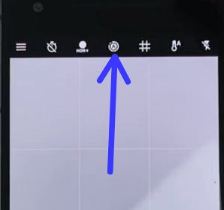
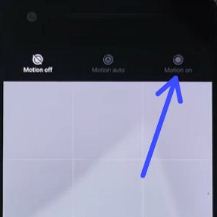
Enable Motion Photo: This Pixel 2 motion photo feature looks like Apple’s Live photos. When you have taken a photo you can play a short burst of the video in your Pixel 2 device.

The above given three options are only available on Pixel 2 and Pixel 2 XL devices. If you have Google Pixel and Pixel XL device, you might chance to get this Pixel 2 camera settings through a next system software update.

Have any questions related to manually enable HDR+ on Pixel 2 camera? Do you have any Pixel 2 camera tips want to share? What are your favorite features of Pixel 2? Tell us in below comment box.

How to Change the Theme on Google Pixel 2 and 2 XL

Here’s how to change the theme on Google Pixel 2 and Pixel 2 XL. You can enable dark theme on Pixel 2 XL & Pixel 2 (Stock Android 11) to swipe down the notification panel at the top and tap dark theme. Also, set a schedule to automatically turn on dark mode in Pixel 2 (XL) running Android 10 & 11 version. When turning on dark theme, you can see the black background in your phone settings, quick settings tiles, etc. It will help to save battery life in your devices. You can disable dark mode or set a light theme in your Pixel 2 anytime. Another way is to use a third-party launcher to install the theme on Google Pixel 2 device.

Read Also:

How to Enable Dark Theme on Pixel 2 and Pixel 2 XL

Two ways to activate dark mode in Google Pixel 2 and Pixel 2 XL running stock Android 11 OS.

Quickly Turn On Dark Theme in Pixel 2 XL and Pixel 2

How to enable dark theme on Pixel 2

Swipe down the notification panle from the top and tap Dark theme to enable or disable it.

How to Change Theme on Google Pixel 2 and Pixel 2 XL Using Display Settings

Step 1: Go to Settings.

Step 2: Tap on Display.

How to Change the Theme on Google Pixel 2 and 2 XL

Step 3: Toggle on Dark theme to activate it.

Turn On Dark Theme in Pixel 2 XL

Step 4: Tap Dark theme.

Change Theme on Google Pixel 2

Step 5: Tap Schedule.

Automatically enable dark theme in your Pixel 2

Step 6: Choose Turns on at custom time or Turns on from sunset to sunrise.

It will automatically enable dark theme in your Pixel 2 and 2 XL device.

And that’s all. I hope this article helpful to change the theme on Pixel 2 and Pixel 2 XL. Do you have any Pixel 2 tips want to share?  Stay connected with us for daily latest Android tips and tricks.

How to Fix Notification Dots Not Showing on Android Oreo

By default enable notification dots in Android Oreo 8.0 and 9 Pie. Several users facing notification dots not showing when receiving messages after the Android Oreo updated in Pixel, Samsung Galaxy, Nexus, etc. Check out below given possible solutions to fix Android Oreo notification dots not working issue. Also, use third-party launchers to use notification dots feature on your devices. Google Now launcher doesn’t support notification dots. You’ll try Nova launcher, Pixel launcher, or action launcher in your device.

Android Oreo 8.0 launched with awesome features such as Notification dots, Picture-in-picture mode, Auto-fill, Android instant apps, install unknown apps, and more.

Read Also:

How to Fix Android Oreo Notification Dots Not Working on Nexus 5X, Nexus 6P, and Pixel C

If not showing notification dots when receiving a message, first of all, disable notification dots and then after enabling it again after restarting your device.

Disable Notification Dots on Android Oreo (All Pixel)

Step 1: Go to Settings.

Step 2: Click on Apps & notifications.

Step 3: Click Notifications.

By default enabled in your Android Oreo devices.

Allow notification dots on android 8.0 Oreo devices

Step 4: Toggle off “Allow notification dots”.

Alternative Way: Long press on the blank space in home screen > Settings > Notification dots > Toggle off “Allow notification dots”

Enable Pixel Launcher to Access Notifications

Step 1: Go to Settings.

Step 2: Tap Apps & notifications.

Step 3: Tap Special app access at the end of the page.

Step 4: Tap Notification access.

How to Fix Notification Dots Not Showing on Android Oreo

Step 5: Toggle on “Pixel launcher“.

Hide Notification Dots Using Apps & Notification Settings

Step 1: Go to Settings in your Oreo devices.

Step 2: Tap Apps & notifications.

Step 3: Tap App info.

Step 4: Tap App wants to turn off notification dots.

Step 5: Tap App notifications.

Fix android Oreo notification dots not working

By default enabled notification dots on your Oreo devices.

Step 6: Toggle off “Allow notification dots”.

Now, restart your phone.

Step 7: After a restart, Toggle on “Allow notification dots“.

Check Turn Off Do Not Disturb

Make sure turned off Do not disturb mode in your Android devices.

Swipe down the notification panel from the top of the screen > Tap Do not disturb

And that’s all. I hope this tip helpful to fix Android Oreo notification dots not working problems. Do you have any alternative tips? Share it with us in below comment box. Stay connected with us for daily latest Android Oreo 8.0 tips and tricks.

How to change notification sounds on Pixel 2 and Pixel 2 XL

Change ringtone and notification sounds on Pixel 2 and Pixel 2 XL devices. By default set notification tone in your Pixel 2 Oreo 8.0 devices. You will individually change settings for apps or for set whole device ringtone. One of the advantages of this android Oreo 8.0 OS is, you can add custom ringtone directly from your device without install any file manager app. Let see steps to change notification sounds on Pixel 2 and Pixel 2 XL Oreo 8.0.

To change default ringtone on Pixel 2 and Pixel 2 XL, download third party ringtone in your device and set it using sound settings. You can change notification sound for messages, emails and other applications you use. Follow below given step by step guide to change notification sounds on Pixel 2 and Pixel 2 XL Oreo 8.0 devices.

Read This:

How to use Do Not Disturb on android Oreo 8.0

How to enable Do Not Disturb driving mode for Pixel 2 and Pixel 2 XL

How to change notification sounds on Pixel 2 and Pixel 2 XL Oreo 8.0

Android Oreo has awesome notification features called Notification dots. This Oreo notification dots feature helpful when you get notifications, that apps show dots. It’ll remember you about which notifications are unread.

Change notification sounds on Pixel 2 and Pixel 2 XL

Step 1: Go to settings in your Oreo

Step 2: Tap Sounds

Pixel 2 and Pixel 2 XL Sound settings

Step 3: Tap Advanced

Here you’ll see phone ringtone, default notification sound and default alarm sound options.

Default notification sounds settings in Pixel 2 Oreo

Step 4: Tap default notification sound

By default set notification sound in your Pixel 2 device.

Step 5: Choose from list want to change notification sound

Change notification sounds on Pixel 2 and Pixel 2 XL Oreo

Step 6: Tap + Add ringtone

You can see all downloaded audio files of your Pixel 2 and Pixel 2 XL device.

Step 7: Tap any audio tone to set third party notification tone

You can easily set downloaded tone as notification tone in Pixel 2 and Pixel 2 XL devices. Check out below given useful Pixel 2 sound settings.

How to turn off notification sounds on Pixel 2 and Pixel 2 XL

In latest android 8.0 Oreo devices, you can individually turn off app notifications sound and disable app notifications on Pixel 2 and Pixel 2 XL devices.

Turn off app notification sound on Pixel 2 and Pixel 2 XL

Turn off app notification sound on Pixel 2 and Pixel 2 XL

Settings > Apps & notifications > Notifications > Notifications > Tap app want to disable notification sound only > turn off toggle button of allow sound

Disable app notifications on Pixel 2 and Pixel 2 XL

How to turn off app notifications on Pixel 2 and Pixel 2 XL

Settings > Apps & notifications > Notifications > Notifications > Tap app want to disable app notifications > Turn off toggle button On

How to change phone ringtone on Pixel 2 and Pixel 2 XL

How to set or change phone ringtone on Pixel 2 and Pixel 2 XL

Settings > Sound > Phone ringtone > Select ringtone want to change

If set third party downloaded ringtone on Pixel 2 and Pixel 2 XL, than go to Settings > Sound > Phone ringtone > + Add ringtone > Select downloaded ringtone

How to change default alarm sounds on Pixel 2 and Pixel 2 XL

Change default alarm sound on Pixel 2 and Pixel 2 XL Oreo

Settings > Sound > Advanced > default alarm sounds > Choose from list

And that’s it. Do you find this information useful to Change notification sounds on Pixel 2 and Pixel 2 XL? Share your feedback with us on below comment section.

How to Enable Do Not Disturb Driving Mode on Pixel 2 XL

You can see Do not disturb driving mode which is helpful to stop all notifications in your Pixel 2 & 2 XL. Here’s how to enable Do not disturb driving mode on Pixel 2 XL using sound settings. Sometimes due to reading notifications or other phone activity while driving, people seriously injured or death also. By default turned off the Do Not Disturb mode of driving mode on Pixel 2 and Pixel 2 XL. Do Not Disturb mode is useful to block your device all interruptions including message notifications, phone calls, email, alarms, and other phone activities.

Read Also:

How to Enable Do Not Disturb Driving Mode on Pixel 2 and Pixel 2 XL

Step 1: Go to Settings in your Pixel 2 device.

Step 2: Tap Sound.

Step 3: Tap Do Not Disturb.

enable Do not disturb driving mode on Pixel 2 and Pixel 2 XL

Step 4: Tap Driving under automatic rules.

Now enable Do Not Disturb mode for driving on your Pixel 2 and Pixel 2 XL devices. This is the perfect feature to use on your Pixel 2 devices while driving to avoid the accident.

Let see other useful settings for Pixel 2 and Pixel 2 XL devices such as always-on display, portrait mode, Active Edge, and more.

How to Use Portrait Mode on Pixel 2

Camera app > Swipe left screen > Portrait > Shutter button

How to Enable/Disable Always-On Display on Pixel 2 and Pixel 2 XL

Settings > Display > Advanced > Lock Screen > Toggle on “Always show time and info”

And that’s all. I hope this tutorial helps you to enable Do not disturb driving mode on Pixel 2 and Pixel 2 XL. If you have any kind of trouble, let us know in the below comment box. Stay connected with us for the latest Pixel 2 tips and tricks.