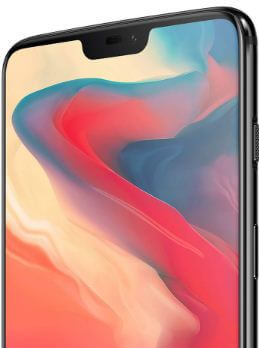
How to Turn On Battery Saver in OnePlus 6

By default turned off battery saver in OnePlus 6 and other devices. Let see how to turn on battery saver in OnePlus 6 Oxygen OS. This battery saver mode is helpful to extend battery life via reduce the device’s performance and limits vibration, location services, and stop unnecessary background data. You’ll automatically enable battery saver mode to set the battery percentage in OnePlus 6 using battery settings. Battery saver mode turns off automatically when your phone is at 90% charging. Power saver mode is also helpful to improve battery life in OnePlus 6.

Read Also:

How to Enable Battery Saver Mode in OnePlus 6 Oxygen OS

There are two ways to enable battery saver mode in OnePlus 6 device. Check out below given both methods.

1st Method: Quickly Turn On OnePlus 6 Save Battery Mode

Step 1: Scroll down the notification shade from the top in your OnePlus 6.

Step 2: Tap & hold the Battery saver.

By default turned off Battery saver toggle button in your OnePlus 6 phone.

Step 3: Tap on the TURN ON NOW button.

You’ll also turn on automatically battery saver at 5% battery or at 15% battery in your device.

Step 4: Tap Set schedule.

Step 5: Choose Bases on percentage.

How to turn on battery saver in OnePlus 6

Step 6: Set the percentage you want to automatically activate battery saver mode.

Now whenever reach your OnePlus 6 battery you set, it’ll automatically enable and use battery saver mode in your device.

2nd Method: How to Turn on Battery Saver Mode in OnePlus 6 using Phone Settings

Step 1: Swipe down the notification panel from the top and touch on the Settings gear icon.

Step 2: Scroll down and Tap on Battery.

Step 3: Tap on Battery saver.

You can see the set a schedule and turn off when fully charges toggle in your latest OnePlus Oxygen OS.

Step 4: Tap on the TURN ON NOW button to enable battery saver mode.

How to Turn Off Battery Saver Mode OnePlus 6T/6

Settings > Battery > Battery saver > Tap on TURN Off

And that’s all. Did you find the above tutorial helpful to turn on battery saver in OnePlus 6 Oxygen OS? If you have any kind of problem, tell us in below comment box. Stay and connect with us for the latest updates.

How to Enable Fingerprint in OnePlus 6

There is several lock screen security available to unlock your OnePlus 6 device such as a Fingerprint sensor, super-fast face unlock, pattern lock, password, and more. But in this tutorial, I’ll show you how to set up a fingerprint sensor on OnePlus 6 Oxygen OS. Fingerprint security is more secure compare to face unlock but less secure than a password, PIN, or pattern lock. Also, use a fingerprint sensor to pay your bill online via Net banking or credit or debit card in your OnePlus 6 device. Add multiple fingerprints to your OnePlus device.

Read Also:

How to Enable and Use Fingerprint Sensor on OnePlus 6 Oxygen OS

How to use Fingerprint sensor on OnePlus 6

First of all setup fingerprint in OnePlus 6 devices using security & location settings.

Step 1: Swipe down the notification panel and tap the Settings gear icon.

Step 2: Tap Security & location.

Scroll down up to the fingerprint list section, here you can see finger 1, finger 2, and Add fingerprint options.

Step 3: Tap Finger 1 or Finger 2 you want to set up, also add two fingerprints.

Step 4: Now put your finger on the sensor and lift after you feel a vibration and continue the process up to 100% completed.

Now registered fingerprint in your OnePlus 6 device.

Step 5: Add another fingerprint, tap Add fingerprint, and follow on-screen instructions.

You’ll also use fingerprint to purchase and app access from the play store on your phone. Long press the fingerprint sensor launch quick pay in your OnePlus 6 phone.

If you don’t want to use a fingerprint sensor, you’ll remove it from your device.

How to Remove Fingerprint in OnePlus 6

Step 1: Go to Settings.

Step 2: Tap Security & location.

Step 3: Tap the Trash icon of the added fingerprint you want to remove.

You’ll see a pop-up message on the screen: Do you want to delete this fingerprint?

Step 4: Tap Delete.

How to Enable Three Finger Screenshot Gestures in OnePlus 6

Settings > Buttons & gestures > Quik gesturs > Toggle on Three-finger screenshot

And that’s it. I hope this little tutorial helpful to set up and use a fingerprint sensor on OnePlus 6. If you have any questions, tell us in the below comment box. Read more about OnePlus 6 tips and tricks.

How to Use Smart Folder In OnePlus 6 to Automatically Create Folder Name

Here’s how to use Smart Folder In OnePlus 6/6T. This OnePlus 6 smart folder feature is automatically creating folder names related to apps when you create a new folder. If you move app related to the game, it’ll create a game folder or if you move the WhatsApp app to the Snapchat app, it’ll create a social media folder automatically.

OnePlus 6 has several awesome features such as Navigation Gestures, Notch Display, Superfast face unlock, Smart folder & smart search, Auto call recording, Gaming mode and more. In this tutorial, I’ll show you how to use the Smart folder in OnePlus 6 Oxygen OS.

Don’t Miss This:

How to Create and Use a Smart Folder in OnePlus 6 Oxygen OS

How to use Smart folder in OnePlus 6 Oreo

This Smart folder is the newly added features in the OnePlus 6 device. Let see how to use it.

Step 1: Long press any app and move it to another app to create a new folder.

Step 2: You can see automatically created folder name which is related to the app category you moved. Also, rename folder name anytime you want.

Step 3: Now add or remove apps to the folder you want.

Step 4: To remove the app folder, tap & hold the folder and move to “Remove” at top of the screen.

OnePlus 6 also introduces Smart text features to quickly find the relevant tag you search in the app drawer.

Create a App Folder on OnePlus 6

Step 1: Open app drawer or home screen on your OnePlus 6.

Step 2: Tap & hold the app and move it to another app you want to create a folder

OnePlus 6 Smart Text feature

If you want to quickly find apps or relevant tags in your OnePlus 6, you’ll use this OnePlus 6 smart text features.

Step 1: Open App drawer in your OnePlus 6 device.

Step 2: Tap the Search bar icon of the app drawer.

Step 3: Enter apps you want to find.

Step 4: You can see entered apps related to all tags in your device.

Step 5: Select tag from a list you want to quickly access in your OnePlus 6 Smartphone.

And that’s all. I hope this little tip helpful to use a Smart folder in OnePlus 6 Oxygen OS. If you have any questions, tell us in below comment box. Stay and connect with us for the latest OnePlus 6 updates.

How to free up space in OnePlus 6

OnePlus 6 device has splendid 6.28-inch Optic AMOLED display, 6 GB/8 GB of LPDD4X RAM, 64 GB / 128 GB / 256 GB storage and Snapdragon 845 chipset. This storage capacity is enough for download and enjoys videos, movies and other activities. Several users facing storage space running out problem in low storage devices. So here I’ll show you how to free up space in OnePlus 6 Oxygen OS.

In your OnePlus 6 device storage & memory settings, you can see individually usage memory data by apps, videos, audio, images, cache data and more. This OnePlus 6 free up storage space will make your device faster. Let see some of the handy tricks to free up space in OnePlus 6 Oreo 8.1 device.

You May Like This:

How to free up device storage on Galaxy S9 & S9 Plus

How to use Alert slider in OnePlus 6

How to automatically backup photo and video in Google Pixel

How to free up space in OnePlus 6 Oxygen OS

How to free up space in OnePlus 6 Oxygen OS

To fix storage space running out problem in OnePlus 6/5T/5/3, you can clear app cache, clear RAM, remove already backed up photos & videos and more. Because of this storage space running out issue, some system functions may not work properly. Check out below given method to free up storage on OnePlus 6 device.

1st Method: Free up space in OnePlus 6

Step 1: Swipe down notification panel and tap Settings gear icon

Step 2: Tap Storage & memory under device section

Here you can see memory usage by apps and other storage in your OnePlus phone.

Step 3: Tap Free up space

Step 4: Select backed up photos & videos and tap Free up

You can see pop-up message on screen: Free up space

Step 5: Tap Free up space

2nd Method: Free up device storage using Google Photos app

Step 1: Open Google Photos app in your OnePlus 6

Step 2: Tap Three horizontal lines (Menu) at upper left corner

Step 3: Tap Settings

Step 4: Tap Free up device storage

Step 5: Tap Free up

These items have been safely backed up to your Google Account. You’ll still be able to view them at any time.

3rd Method: Clear app cache to free up storage

Step 1: Go to Settings in your OnePlus 6

Step 2: Tap Storage & memory under device section

Step 3: Tap Apps

Step 4: Select app usage more memory

Step 5: Tap Clear cache

And that’s all. End the list of possible solutions to free up space in OnePlus 6 Oxygen OS. Do you know any other tricks to free up storage OnePlus 6? Share with us in below comment box.

Best OnePlus 6 Tips and Tricks

OnePlus 6 has several awesome features such as Navigation Gestures, Face unlock, Portrait & Pro mode, Superfast speed, Parallel apps, Auto call recording, Ambient display, Display Notch, and more. In this tutorial, I’ll show you the top 5 best OnePlus 6 tips and tricks you should know. This OnePlus 6 device has a stunning 6.28-inch Optic AMOLED display, 6 GB of RAM, 64 GB of storage with Snapdragon 845 chipset. There’s extremely nothing to dislike here. If you want to think about buying this killer flagship, check out these best OnePlus 6 tips and tricks.

Read Also:

Top 5 Best OnePlus 6 Tips and Tricks You Should Know

Best OnePlus 6 tips and tricks

Superfast speed, face unlock, and camera improvement is the most improved OnePlus 6 features compare to previous OnePlus 5T/5/3 devices.

Enable/Disable Notch Display

Disable the notch on OnePlus 6 Oreo


By default enable a notch on the OnePlus 6 upper of the display. You can hide or disable the notch on OnePlus 6 using Notch display settings. Due to this display notch feature, some of the apps not supported full screen.

Step 1: Go to Settings.

Step 2: Tap on Display.

Step 3: Tap on Notch display.

Step 4: By default Show the notch area selected.

Step 5: Choose the Hide the notch area.

Superfast Face Unlock

This is one of the best OnePlus 6 features. OnePlus 6 has faster face recognition than the iPhone X Smartphone. You’ll use your face to unlock your device quickly. Also unlock your device with your face while the screen turns on, without swiping first. While the camera can’t recognize your face, the screen will light up to recognize your set up face.

Read More: How to set up Face unlock on OnePlus 6

Navigation Gestures Controls

Navigation gestures feature helpful to hide navigation bar buttons from your OnePlus 6 device. After activating the navigation gestures, you’ll use gestures instead of the home, back, and recent apps buttons of the navigation bar. Also, add a button to show or hide navigation bar on your OnePlus 6 Oxygen OS device.

Settings > Buttons & gestures > Navigation bar & gestures > Choose Navigation gestures (Bottom) to use fully navigation

Read More:  How to enable and use Navigation gestures on OnePlus 6

Auto Call Recording to Record Phone Call on OnePlus 6

Auto call recording feature is useful to record calls of a specific number or unknown number in your OnePlus 6 devices. By default disable calls auto recording in OnePlus 6 Oxygen OS. You can enable auto recording notification and also select favorite contacts to recording calls in OnePlus 6 using the phone call setting.

Read More: How to use Auto call recording on OnePlus 6 to record phone calls

Gaming Mode

OnePlus 6 has super fast speed and smooth to playing a game, downloading a movie, and more activities. If you are a gaming lover, this device is best for you to play android games. You’ll also add apps for gaming mode to automatically enable or disable while gaming mode will turn on or off.

Read More: How to use Gaming mode on OnePlus 6 Oxygen OS

And that’s all. End the list of the top 5 best OnePlus 6 tips and tricks. Do you know any other useful OnePlus 6 tips and tricks we missed above? Share with us in below comment box.

How to change battery icon in OnePlus 6 Status bar

By default set battery icon in status bar in OnePlus 6 Oxygen OS and other devices. You can add or remove battery style icons and also customize status bar on OnePlus 6 using customization settings. Let see how to change battery icon in OnePlus 6 Status bar.

In OnePlus 6 status bar settings, you can see Battery style, display network speed and icon manager. Different android device has slightly different settings to change battery icon and hide or show battery percentage inside the battery icon. Follow below given step by step process to change battery icon in OnePlus 6 Status bar.

You May Like This:

How to change screen calibration in OnePlus 6

How to use full screen mode on OnePlus 6

How to change default apps in OnePlus 6

How to change battery icon in OnePlus 6 Status bar

How to change battery icon in OnePlus 6 Status bar

Step 1: Swipe down notification panel and tap Settings icon

Step 2: Tap Status bar under customization section

There are three settings available including Battery style, Network speed and Icon manager options.

Step 3: Tap Battery style

By default set battery bar as battery style in OnePlus 6 Oxygen OS. You can see below given options.

Battery bar: By default set this battery icon style. While decrease battery, battery icon will empty.

Battery circle: You can see round icon battery in your device.

Battery hidden: Hide battery icon from your OnePlus 6 status bar.

Currently you can’t show or hide OnePlus 6 battery percentage. You’ll wait for the next OnePlus 6’s update to show battery percentage in OnePlus 6 status bar. I hope this update will add this battery percentage feature.

You can also customize icon manager and show network speed in status bar on OnePlus 6 Oreo 8.1 devices.

Icon Manager:

By default enable all apps icons in your device. In icon manager settings, you’ll show/hide status bar icons in OnePlus 6 Oreo 8.1.

Network Speed:

By default hidden network speed in your device. If you want to display network speed in OnePlus 6 status bar, enable network speed in your OnePlus 6 device using this setting.

And that’s all. Did you find above tutorial helpful to change battery icon in OnePlus 6 Status bar? Do you have any other tricks? Share with us in below comment box.