How to Start OnePlus 11 and OnePlus 11R in Safe Mode

Do you want to start OnePlus 11 and OnePlus 11R in Safe Mode? Let’s see how to turn on or enable safe mode in the OnePlus 11 5G series. After entering your OnePlus into safe mode, you can only access the system’s default apps. All downloaded apps are hidden from your phone.

What is Safe Mode?

Safe mode is hidden mode, which is helpful to check if third-party apps are causing the problem on your phone, like your OnePlus unresponsive screen, blank screen, frozen device, app crashes or freezes, etc.

When your device enters into safe mode, check if any issues occur. If you don’t have any problem in safe mode, any third-party app is causing the problem on your OnePlus Oxygen OS device. If you’re OnePlus device facing issues in safe mode, any hardware or software-related problems.

If you have a specific app-related issue, you can clear the app cache and data to fix app freezing or crashing issues on your OnePlus 11 series. Long-press the volume up & power key and move the slider to the restart to close or exit OnePlus 11R safe mode.

Read More: How to Hide Apps (Find Hidden Apps) on OnePlus

How to Start OnePlus 11 and OnePlus 11R in Safe Mode

How to Start OnePlus 11 and OnePlus 11R in Safe Mode

You can use the power and volume key to enable safe mode OnePlus 11 5G and OnePlus 11R 5G devices.

Step 1: Press and hold the power button and volume up key and move the slider to power off to turn off your OnePlus 11 5G series.

Step 2: Power on your phone. When you see the OnePlus logo, release the power button and press only the volume down button until you view the Safe mode icon at the bottom left corner.

All third-party downloaded apps are disabled on your device. Check any issues that occur in your OnePlus safe mode. To find the app causing a problem, turn off safe mode to reboot the OnePlus 11 series. If you still face issues in safe mode, check for OS or hardware-related issues. Now open one by one recently downloaded apps and remove them until you find the app causing the problems on your OnePlus phone.

How to Turn Off Safe Mode on OnePlus

Press and hold the power button and volume up key and move the slider to the Restart to get rid of the OnePlus 11 safe mode.

How to Clear App Cache in OnePlus Oxygen OS

Step 1: Swipe down the notification panel and tap the Settings gear icon on your OnePlus.

Step 2: Tap the Apps.

Step 3: Tap the App management.

Step 4: Select an App you want to clear the cache.

Step 5: Tap the Storage usage.

Step 6: Tap the Clear cache.

You can clear the app data on your OnePlus to delete the app’s data permanently. Restart your phone and check whether the app crashing or freezing issues are resolved.

And that’s all. We hope this tutorial is helpful to enable safe mode in the OnePlus Oxygen OS. If you have any questions, let us know in the comment box below. Stay and connect with us for the latest updates.

Relevant Tips and Tricks:

How to Fix Apps Keep Crashing On OnePlus 6T, 6, 5T, 5

Annoying by suddenly app crashing or freezing issue in OnePlus 6? OnePlus users reported several app crashing problems after the Oreo update such as phone app, Google Map, Facebook, etc. But in this tutorial, I’ll show you possible solutions to fix the app crashing issue on OnePlus 6 Oxygen OS.

In other app-related problems, you can see app freezing or crash, suddenly stopped game or app, automatically close apps such as Facebook, Instagram, Snapchat, and more. Check out below given different methods to fix app crashes on OnePlus 6 Oxygen OS.

Read Also:

How to Fix OnePlus 6 App Crashes and Freezing Issue

How to fix app crashes on OnePlus 6 Oxygen OS

Different user-facing different apps or games related issues. You’ll try the below-given troubleshooting methods to fix app freezing or crashing issues in your latest OnePlus devices.

Clear App Cache and Data

If you have to know which app freezing on OnePlus 6, just find the app and clear the app cache and data on your device.

Step 1: Go to Settings in your OnePlus 6.

Step 2: Tap Apps & notifications.

Here you can manage app permissions, default apps, parallel apps, and special access settings.

Step 3: Tap on See all apps.

Step 4: Tap App you want to clear the cache.

Step 5: Tap on Storage & cache.

Step 6: Tap on Clear cache.

Now restart your OnePlus 6 and open apps or games crashing on your device and check fix problems or not.

Make Sure the App Updated to fix App Crashes on OnePlus 6 

If suddenly the app stopped or freezing in OnePlus 6, close the application and check any app update is available or not on your device.

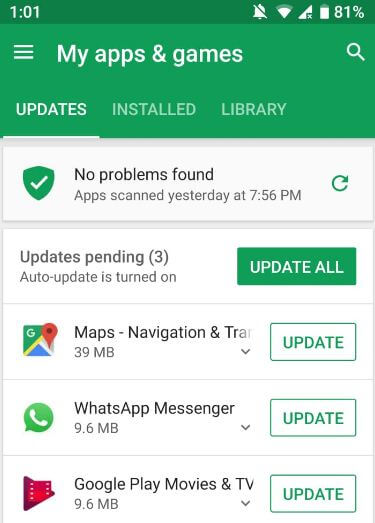
Step 1: Open the Play store.

Step 2: Tap Three horizontal lines at the upper left corner.

Step 3: Tap My apps & games.

Step 4: Tap Update all if available.

If available update then updates it. If not fix the app freezing problem, try the below-given method.

Uninstall App & Re-install again

Play Store > Three horizontal lines > My apps & games > Tap app > Uninstall

Now restart your phone. After restart, again downloads the latest version of apps in your OnePlus 6. If none of the above-given methods fix the app freezing issue on OnePlus 6, check below given last methods.

Uninstall Update Android System Webview on OnePlus 6/6T

Step 1: Go to Settings.

Step 2: Tap on Apps & notifications.

Step 3: Tap on See all apps.

Step 4: Tap on Android System Webview.

Step 5: Tap on Three vertical dots at the top right corner.

Step 6: Tap Uninstall updates.

Step 7: Tap on OK.

Boot OnePlus 6 into Safe mode

If you can’t found which apps causing the issue in your device, enable safe mode in OnePlus 6 Oxygen OS device. This OnePlus 6 safe mode will help to find a third-party app-related issue in your device.

Step 1: Press & hold the power button in your OnePlus 6.

Step 2: Long press the power off button on your screen.

You can see this pop-up message on the screen: Reboot to safe mode

Step 3: Tap OK to boot OnePlus 6 into safe mode.

Step 4: Now power off your device, after the start, you can see the safe mode symbol at the bottom left corner of the screen.

Now all downloaded third-party applications are disabled on your device. Check your OnePlus 6 device facing app crashing or freezing issue. If you don’t found any problem while using the OnePlus 6 into safe mode, it means any third-party apps causing the issue in your device. Power off your device to disable safe mode in OnePlus 6.

Step 4: Now remove one by one recently installed third-party apps until finding the app that causing the issue in your device.

After finding the app, install the other removed app you need.

Force Stop App on OnePlus 6T/6

Step 1: Go to Settings in your latest OnePlus.

Step 2: Tap Apps & notifications.

Step 3: Tap the See all apps.

Step 4: Select App you want to Force stop.

Step 5: Tap on Forces stop.

Step 6: Tap on OK.

And that’s all. End the list of possible solutions to fix app crashes on OnePlus 6 Oxygen OS. Do you have any other methods? Share with us in below comment section.

How to backup data in OnePlus 6

OnePlus 6 device has 128 GB or 256 GB storage. So this storage is enough for most of people. We store photos, videos, messages, apps, documents and other files in our devices. In this storage some of the data are important for us. Let see how to backup data in OnePlus 6 Oxygen OS.

Backup and restore data is important while accidentally lost or damage or stolen your OnePlus 6 Oreo 8.1. You’ll also back up important data safely before factory data reset or hard reset OnePlus 6. There are several methods to backup and restore OnePlus 6 data to PC or laptop. Follow below given methods to backup data in OnePlus 6.

Relevant Article:

How to automatically backup photo & video in Google Pixel, Pixel 2

How to back up call logs in android Oreo 8.0 & 8.1

How to improve battery life in OnePlus 6

How to backup data in OnePlus 6 Oxygen OS

How to backup data in OnePlus 6 Oxygen OS

You’ll backup OnePlus 6 data using Google drive and third party software in your device. Let see different methods to backup important OnePlus 6 data.

1st Method: Backup data in OnePlus 6 using Google Drive

Step 1: Swipe down notification shade and tap Settings gear icon

Step 2: Scroll down up to system section and tap backup & reset

Step 3: Tap Back up to Google drive and make sure turned on in your device

If you have Google photos app, photos and video that have already been backed up still will be available in your device. Here you’ll individually active backups for app data, call history, photos & videos, SMS text messages and device settings.

Step 4: Tap Account

Step 5: Choose backup account

Step 6: Now wait for the backup process complete in your device. All the data you selected will be restore to Google drive.

2nd Method: Transfer important data using USB cable

You’ll connect your OnePlus 6 device to PC or laptop using USB cable. To use this method, first of all enable USB debugging in OnePlus 6.

Step 1: Connect your OnePlus 6 device to PC via USB cable

Step 2: Open your phone storage and select important data such as photos, videos, apps files, docs and other data you want to backup

Step 3: Copy and paste selected important data to PC or laptop

You can also use third party software to backup and restore data in your OnePlus 6 Oxygen OS.

And that’s all. I hope this little tip helpful to Backup data in OnePlus 6 using Google Drive & USB cable. Do you know any other handy trick? Share with us in below comment box.

How to hide your location on Snapchat map android

Want to hide your location on Snap Map android or iPhone? Here’s quick guide to show or hide your location on Snapchat map android devices. Snap Map feature provides real time locations to your friends or other Snap users whenever you have open Snapchat. Thanks to the “Ghost mode” feature for turn off Snap Map location on Snapchat android.

When enable Ghost mode on Snapchat android or iPhone, your friends can’t see your location. It’ll hide location on Snap map android phone. Also add fake location on Snapchat map android or other devices to hide Snapchat map location. Follow below given step by step process to hide your location on Snapchat map android phone.

Relevant Article:

How to enable Ghost mode on Snapchat Android

How to create Snapchat Geofence story in android phone

How to group video chat on Snapchat android

How to add Bitmoji in Android Keyboard

How to hide your location on Snapchat map android devices

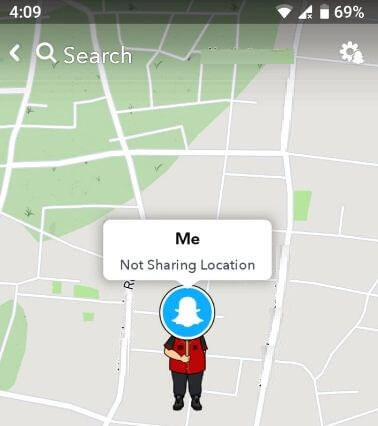
First of all make sure set up Snap map in your Snapchat android device. To turn off location on Snapchat android, turn on Ghost mode in your device using below given settings.

Step 1: Open Snapchat app in your device

Step 2: Zoom out screen to open Snap Map

Make sure turn on GPS in your android devices.

Turn off location on Snapchat android

Step 3: Tap Settings gear icon at upper right corner

How to hide your location on Snapchat map android

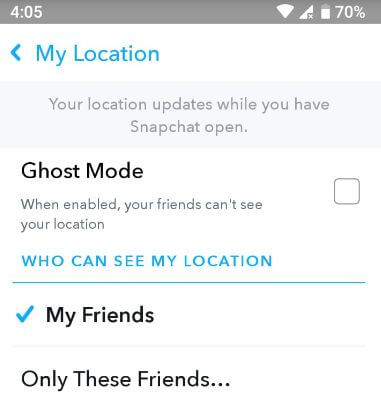
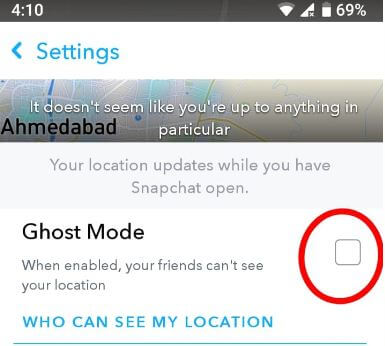
Step 4: Make sure Tick mark Ghost mode check box

Now your Snapchat friends can’t view your location even share with them. Here you’ll change location settings for Snap Map in your android device.

Step 5: Unchecked Ghost mode (Show below screenshot)

Here you can see Who can see my location section.

Hide your location on Snap Map android phone

Step 6: Tap My Friends or Only These friends (Selected friends can see live location)

You’ll also use below given Snapchat settings to disable or hide snap map location on Snapchat android devices.

Step 1: Open Snapchat app in android

Step 2: Tap Profile icon at upper left side corner

Step 3: Tap Settings at upper right side corner

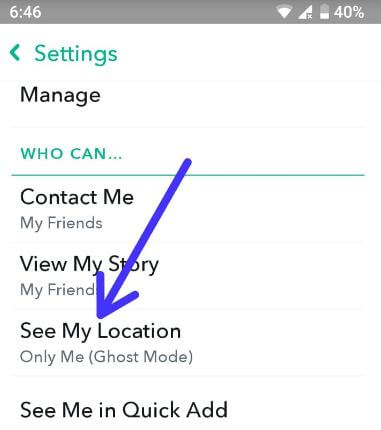
Step 4: Scroll down up to “Who can…”section (Show below screenshot)

Snapchat location settings in android

Step 5: Tap See My Location

Hide location on Snap map android phone

Step 6: Select Ghost mode

Now your Snapchat friends can’t track your real time location even if you’re available.

Disable location permission to hide your Snapchat map location in android Oreo & P 9.0

Settings > Apps & notifications > See all apps > Snapchat > Permissions > Disable location

And that’s all. Do you still have questions about hide your location on Snapchat map android devices? If you have any question about this article, let me know in the below comment section box.

How to set up Snap Map in Snapchat android phone

Here’s how to set up snap map in Snapchat android devices. This snap map feature is helpful to get current (Real time) location updates of your friends or track someone on Snapchat in your device. To use Snap map on Snapchat android, first of all set up in your device. Pinch your fingers inward on the camera screen to open snap map. To open Snapchat map android or iPhone, map requires location access.

In this Snapchat map, you’ll see snaps of events, breaking news, and more from around the world. Also allow friends to request your location in Snapchat in chat section. If you choose to show your location, it’ll only update while Snapchat is open. Let see step by step process to set up Snap Map in Snapchat android phone or tablet devices.

Don’t Miss This:

How to block someone from settings your Snapchat story in android

How to upload photo or video from gallery to Snapchat story android

How to use Bitmoji on Snapchat android device

How to set up Snap Map in Snapchat android phone


Step 1: Open Snapchat app in your android devices

Open snap map in Snapchat android

Step 2: Pinch on the camera screen

You’ll see this message on screen: Welcome to Snap Map!

Snap map in Snapchat android devices

Step 3: Tap Allow to access your location

Step 4: Tap Next

You can see below given screen in your device with this message: Who can see my location? Below given three options are available in your device.

How to set up Snap Map in Snapchat android phone

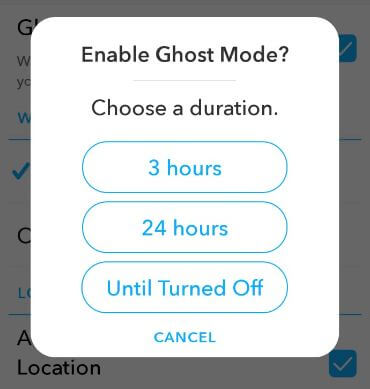
Only Me (Ghost Mode): When enable Ghost mode on Snapchat, your friend can’t see your location. You’ll choose time to enable Guest mode on Snapchat android for 3 hours / 24 hours / Until turned off. To turn off ghost mode, choose from friends or only selected friends in your device.

My Friends: Your Snapchat added friends can see your real time location.

Only these friends: Only selected friends can view your location on the Map in Snapchat android device.

Step 5: Choose from above given options & tap Next

You can add a snap to Snapchat story and it could appear on the Map.

Step 6: Tap Finish

It’s quite easy to set up Snap Map in Snapchat android phone. Now open Snapchat snap map in android and track real time location. And if you don’t want to show your location to your friends, enable Ghost mode in Snapchat android.

How to change who can see my location on Snapchat map android phone

Here you’ll set who can see your location on Snapchat map in android devices.

Step 1: Open Snapchat app in your android

Step 2: Tap Profile icon at upper left corner

Step 3: Tap Settings gear icon at upper right corner

Step 4: Scroll down up to “Who can…”section

Step 5: Tap See My Location

Step 6: Choose from Ghost mode / My friends / Only these friends

Now selected friend will see your location in him devices.

And that’s all. We hope this makes it clear how to set up Snap Map in Snapchat android phone. If you have any kind of trouble, tell us in below comment box. Stay and connect with us for latest updates.

How to Enable Audio Switch in OnePlus 8 Pro, 8, 7 Pro, 7, 6 Pro, 6

By default, turn off the audio tuner settings in your OnePlus devices. You’ll see a disable audio switch toggle button when using headphones on your device. Here’s how to enable Audio Switch in OnePlus 8 Pro, 8, 7 Pro, 7, 6 Pro, and 6 Oxygen OS using sound & vibration settings. To use the audio tuner settings in the OnePlus, plug the headphones into your device’s headphone jack (3.5mm). Now you’ll see enable all audio switch options in your phone, including earphone type and set equalizer settings in the OnePlus devices.

Read Also: How to Enable and Use Dolby Atmos on OnePlus

How to Enable Audio Switch in Your OnePlus 8 Pro, 8, 7 Pro, 7, 6 Pro, 6

How to enable Audio switch in OnePlus 6 Oxygen OS

Step 1: Swipe down the notification shade and tap the Settings gear icon.

Step 2: Tap Sound & vibration.

Step 3: Scroll down to the earphone section and tap the Audio tuner.

By default, turn off all audio tuner settings in your OnePlus. To activate audio tuner settings, plug-in headphones into your device.

Step 4: Turn on the Audio switch toggle button on your device.

Here, you’ll change your Android device’s earphone types and equalizer settings.

Step 5: Tap Earphone types.

Step 6: Choose from OnePlus bullets/OnePlus bullets (V2)/OnePlus icons/Feat JBL E1+.

Also, use the equalizer for preset and feel sound using headphones. You’ll choose presets from Rock & roll, classic, Hip hop, dance, electronic, Jazz, and more. Also, manually set an equalizer you want to use in your OnePlus device.

OnePlus Earphone Mode Settings

In this earphone mode, you can see autoplay for automatically playing music when connecting headphones, turn on call information broadcast & set Google TTS voice data in your device. Also, set or change notification ringtone in earphones on your OnePlus Oxygen OS device.

Settings > Sound & vibration > Earphone Mode.

Several users reported the Audio tuner equalizer not working or audio switch not enabling even headphone plug-in OnePlus devices. Have you ever faced this type of issue with your device?

And that’s all. We hope this clarifies how to enable audio switch in the OnePlus Oxygen OS. Do you have any other OnePlus tips and tricks? Please share them with us in the comment section.

Read Also: