How to Fix Serial Number 0123456789abcdef

The serial number 0123456789abcdef on your Android device is a generic placeholder often used in emulators or when the actual serial number isn’t properly retrieved. Here’s what it means and how to address it. Any device serial number is helpful in identifying your device model or checking if it’s an emulator.

What It Means: Serial Number 0123456789abcdef

Generic Serial Number: 0123456789ABCDEF is not a valid unique identifier. This serial number is typically displayed in Android emulators when your device fails to report its original serial number. Also, facing this due to USB debugging not being enabled or due to permission issues.

Read More:

My Serial Number is 0123456789abcdef

You can fix this serial number problem by applying the solutions given below to your Android devices, such as Samsung Galaxy, OnePlus, Vivo, Motorola, Google Pixel, Oppo, Redmi, etc.

Enable USB debugging

You can find the USB debugging option under developer options. So first, turn on developer mode on your device.

Check for Emulator

If you’re using an emulator, this serial is expected Use adb -e to find the emulator specifically

Check device drivers on PC

Make sure your PC or Laptop has the latest USB drivers for your device. If you are still facing the issue, update or reinstall the driver if needed.

Check the Cable or USB Port

Use a different USB port or change the faulty cables if needed

How to Check (Find) Serial Number on Android Phone

Serial Number 0123456789abcdef on Android

Settings > About phone > Model > Serial Number

And that’s all. Have you ever found serial number 0123456789abcdef on any of your devices? If yes, please tell us in the comment section below.

How to Get iOS 26 Liquid Glass Icon on Samsung Phone

Do you get iOS 26 liquid glass icon on Samsung devices without third party app? In this article, I’ll teach you steps to get iPhone like transparent glass icon in Samsung Galaxy devices using Theme park module in Good lock app. Recently latest theme park update added the different Samsung icon customization effects including Glass, Basic, Film Grain, Duotone, and Gradient. Make sure to install Theme park version 1.1.01.23 to your phone to get iOS 26 glass icons on Samsung S25 Ultra, S25, S24 Ultra, S24, S24 FE, S25 Edge, Z Fold 7, Z Flip 7, and other latest Samsung One UI 7/8 devices.

Read More: How to Set Labubu Wallpaper on Any Samsung Phone Free

How to Get iOS 26 Liquid Glass Icon on Samsung One UI 8/7 Without Third Party App

First, check your Theme park module version using below settings.

Open the Good lock app in your Samsung phone and tap the i icon in front of Theme park module.

Tap the Three vertical dots at the top right corner and tap About.

At the top, you can see the version number. Ensure to version is “1.1.01.23”. If you can’t see this version, download latest theme park version on your Samsung using this.

After download complete, tap on the apk file and tap Install.

Allow the all permission needed to install apk file to your Samsung phone.

After the app installed, tap the Open to access the Theme park module to your Samsung Galaxy device.

Tap the Icon in Theme Park Samsung

Tap the Icon tab at the bottom.

Create New Theme on Samsung Galaxy

Tap Create new button at the bottom middle.

You can see the default Samsung icon pack here. Also, change the app icon shape, icon color, and tray color.

Samsung Icon Pack Theme

Tap the Effects at the bottom left to view the different icon packs effects like Basic, Film Grain (My Favorite), Duotone, Glass, and Gradient.

Get iOS 26 liquid glass icon on Samsung

Tap the Glass in the effect to set transparent glass icon pack to your Samsung phone. Also, adjust icon edge, light, or angle. Also, change glass icon color and glow.

Download arrow icon at the top right corner in Theme Park

Tap the Download arrow icon at the top right corner.

Install Glass Icon Theme on Samsung Phone

Enter the Theme name you want to save and press the OK.

How to Get iOS 26 Liquid Glass Icon on Samsung One UI 8

Tap the Icon theme you created and tap Apply.

How to Get iOS 26 Liquid Glass Icon on Samsung Phone

Now go to home screen and app drawer to see the new transparent Glass icons on app drawer and home screen.

If you’re Samsung device can’t support this Theme park module version, you can use third party app called One Glass 7 icon pack (Purchase it from play store) to get transparent Glass icon on your Android devices.

Frequently Asked Questions (FAQs):

What are iOS 26 Liquid Glass icons?

They’re translucent, glass-like icons introduced first in iOS 26, featuring frosted transparency and light refraction effects to Samsung icons.

Can I get Liquid Glass icons on Samsung with One UI 7/8?

Yes. Samsung’s Good Lock module called Theme Park (v1.1.01.23) includes a Glass effect that apply iOS-style Liquid Glass with adjustable icon transparency, glow, and saturation.

How do I enable it using Theme Park on Samsung Phone?

Install the Good Lock and add a Theme Park via Galaxy Store. Make sure Theme park version is (v1.1.01.23). Open the Theme Park > Icon at the bottom > Create new theme. Under Effects, select the Glass. Adjust transparency, edge, light, saturation, angle, glow color, etc. Download arrow icon at the top right corner and save it as Glassy icon. Tap the theme and tap Apply to apply the icon pack on your Samsung phone.

Do I need a third‑party icon pack or modded APK?

No, there is not any official icon pack is required. You can use Good lock module’s Theme Park’s Glass option. Earlier mods/APKs exist, but Samsung’s integrated method via Theme Park is the best and safer.

How does it compare to actual iOS liquid glass?

Samsung’s latest Theme park version simulates translucency and frosted aesthetics well. While it doesn’t replicate iOS’s dynamic motion-based refraction, feedback suggests the effect is customizable and visually appealing.

Why aren’t some app icons applying the effect on Samsung Phon?

Some app icons may not support fully transparency or tinting like iOS Glass icons, so the glass effect may not apply uniformly. Good lock’s Theme Park lets you adjust icon effects including icon shape, icon color, glow color, Glass icon color, etc.

How to Customize Now Bar in Samsung Z Fold 7

By default, enable now bar in Samsung Galaxy devices. In this article, I’ll teach you how to customize Now Bar in Samsung Z Fold 7. This Latest now bar feature on Samsung Phone is helpful to quickly check the live notifications on lock screen, status bar, top of the notification panel, or AOD screen. You can customize Samsung’s Now Bar you preferred notifications like live match score, clock, weather, Digital wellbeing, etc. When use Now Bar in your Samsung Fold, you can access information from the lock screen without unlocking your phone.

Read Mode: How to Customize Always On Display on Samsung Galaxy Z Fold 7

How to Enable Now Bar in Samsung Galaxy Z Fold 7: See Live Notifications

Make sure to activate now bar to your Samsung device to view live notifications on the lock screen or status bar.

Step 1: Swipe down the notification panel twice from the top and tap the Settings gear icon.

Step 2: Scroll down until the Lock screen and AOD and tap on it.

Different Lock screen settings available here.

Step 3: Tap on Now bar.

Samsung Z Fold 7 Now Bar Settings

Step 4: Tap the View more to see the supported functions.

You can see different activities like Sports from Google (Live Score on Now Bar), Media player, Maps, Samsung Health, Samsung notes, SmartThings, Clock, Interpreter, etc.

Latest One UI 8 Now Bar settings added two new functions called Current Mode and Do not disturb.

How to Enable Now Bar in Samsung Galaxy Z Fold 7

Step 5: Toggle on/off the function you want to view notifications on lock screen without unlock your Samsung phone.

How to Customize Now Bar in Samsung Z Fold 7

Step 6: You can see the live notifications on the bottom middle of the screen, quick settings panel, or AOD. Tap on it to expand the function. Swipe up to view the next feature.

Enable Now Bar on Always On Display Samsung Z Fold 7

In the AOD Now Bar, you need to tap two times to play or pause any function that available on your Samsung AOS screen. You can enable Now bar on AOD screen using below settings.

Enable Now Bar on Always On Display Samsung Z Fold 7

Settings > Lock screen and AOD > Always on Display > Toggle on Show Now Bar

Enable Now Brief in Samsung Z Fold 7

Now brief feature is helpful to get a personalized briefing with suggested content and actions that change thought the day.

Enable Now Brief in Samsung Z Fold 7

Settings > Lock Screen and AOD > Now Bar > Toggle On/Off Now Brief

You can select the type of content show in your Samsung now brief.

Easy to customize now bar on your Samsung Galaxy Z Fold and other latest One UI 8 devices. Do you like this new feature? Please, thought your comment in the below comment box.

Frequently Asked Questions (FAQs):

What is the Now Bar?

The Now Bar is a pill-shaped info strip that appears on your Samsung’s lock screen or Always-On Display (AOD) during live activities like live match score, music playback, stopwatch, or navigation. It also integrates with the new Now Brief on Galaxy AI for the latest updates like next events, any reminder, etc.

How do I turn Now Bar on Samsung Z Fold 7?

To enable Now Bar on Galaxy Z fold 7, Go to Settings > Lock screen and AOD > Now bar. Tap View more to turn on live notifications for feature like Sports from Google, Media player, Timer, Samsung Health, Maps, etc.

Why isn’t the Now Bar showing up?

It only appears when a supported function is live on your Samsung phone like as live match playing, music playing, stopwatch running, Map activate). Ensure to turn on lock screen notifications, and the relevant apps have allow the notifications.

Does it work on AOD on Samsung Z Fold 7?

Yes. This Now Bar shows on both the lock screen and Always On Display. You can even double‑tap the media controls directly without unlocking your phone. You can show/hide Now bar on AOD using this: Settings > Lock screen and AOD > Always On Display > Toggle Off Show Now Bar.

Which apps support the Now Bar?

List of apps supported Now Bar: Sports from Google (Cricket, Football, Basketball, American football, Baseball), Media players (Spotify, Samsung Music), Google Maps, Samsung Health, Interpreter, Clock (Stopwatch, Timer), Voice recorder, Samsung Notes, Emergency sharing, and Smarthings.

How do I customize which apps show up in Samsung Now Bar?

You can see the list of live notifications by going to Settings > Lock screen and AOD > Now bar > View more > toggle on the each app to appear on lock screen/AOD. Make sure to app is live e.g. playing music or live match playing. It will then show up in the Now Bar when active any app.

Can I disable the Now Bar on AOD?

Yes! Go to Settings > Lock screen and AOD > Always On Display, then toggle Show Now bar off. It will be removed from AOD, though your chosen apps can still run in the background.

How to Set Labubu Wallpaper on Samsung Phone

Do you want to set viral labubu wallpaper on your Samsung Galaxy devices? In this article, I’ll teach you steps to set labubu wallpaper on Samsung phone including Samsung S25 Ultra, S25, S24 Ultra, S24 Plus, Z Fold 7, Z Fold 6, Z Flip 7, S24 FE, and other Samsung phones.

Two ways to set labubu wallpaper on Samsung phone including download labubu wallpaper video/image or use third party app called Licowa to get multiple labubu wallpapers to your Galaxy device. Also, adjust the clock style after apply Samsung labubu wallpaper.

Read More:

How to Set Live Labubu Wallpaper on Samsung Galaxy

Apply below given methods to get labubu live wallpaper free to your Samsung and other Android brands like OnePlus, Xiaomi, Oppo, Vivo, Motorola, etc.

1st Way: Download Labubu Live Wallpaper Free on Samsung using Licowa App

Open the Play store in your Samsung phone.

Tap the Search bar icon at the bottom middle of the screen.

Search for the Licowa – photobooth & wallpaper and install it to your phone.

Tap the Open to access the app.

Download Labubu Wallpaper on Samsung Phone

Tap the Wallpaper at the bottom.

You can see the list of different categories wallpaper including DIY live wallpaper, DIY wallpaper, Labubu, IOS, Dazzling, etc.

How to Set Labubu Wallpaper on Samsung Phone

Tap the Labubu from the top list and tap the Labubu wallpaper you want to download to your Samsung phone.

Download Labubu Live Wallpaper Free on Samsung using Licowa App

You can download (Down Arrow icon at the top right side) Labubu wallpaper to your phone or tap Set wallpaper at the bottom middle.

Set Live Labubu Wallpaper on Samsung Lock Screen

Tap Set Wallpaper > Lock screen.

How to Get labubu live wallpaper free to Samsung phone

Now lock your Samsung phone, tap the clock style to adjust it, and tap done at the top right corner.

2nd Way: Set Labubu Live Wallpaper on Samsung Lock Screen using Instagram App

Open the Instagram app in your phone and sign in with your account.

Search Labubu Wallpaper on Samsung Galaxy

Tap the Search icon at the bottom left side and search the “labubu wallpaper” in the search bar.

Tap the Share icon in the Labubu Wallpaper Instagram

Tap any Labubu wallpaper you want to download and tap Share icon.

Download Labubu Wallpaper from Instagram Samsung Phone

Swipe the right side and you can see the Download at the bottom right corner.

Open the Gallery app and tap the downloaded labubu wallpaper video/image you download.

Set Labubu Wallpaper on Samsung Lock Screen

Tap the Three vertical dots at the top right corner and tap the Set as wallpaper.

Set Labubu Wallpaper as lock screen in Galaxy

Tap Lock screen.

Set Labubu Live Wallpaper on Samsung Lock Screen using Instagram App

Tap the Clock style and adjust it according to live labubu wallpaper effect and tap Done at the top right corner.

Frequently Asked Questions (FAQs):

Where can I find Labubu wallpapers for Samsung phones?

You can download Labubu wallpapers from: Google Play Store or Samsung Galaxy Themes Store (search “Labubu”) Third-party apps like Licowa, Zedge, or Pinterest Fan pages or official The Monsters x Labubu social media pages.

How do I set Labubu as my home screen or lock screen wallpaper in Samsung Galaxy?

Go to Gallery > Select Labubu image > Three vertical dots or More at the top right corner > Set as wallpaper Choose Home screen, Lock screen, or Set on Home/Lock screen.

Can I use Labubu wallpapers on both inner and cover screens of Z Fold devices?

Yes! Samsung lets you set separate wallpapers for Samsung Fold cover screen and main (inner) screen by going to Settings > Wallpaper and style > Select the Labubu wallpaper > choose Cover screen or Main screen.

How to set custom Labubu wallpapers downloaded from the internet?

Download the image from Instagram app or third party app we mentions methods above. Open the downloaded Labubu wallpaper from Gallery > Set as wallpaper > Apply to home/lock/both > Adjust/resize the clock style > Done.

How to download HD/4K Labubu wallpapers on Samsung Phone?

Use keywords like “Labubu 4K wallpaper Samsung” on Google, Instagram, Zedge, or Reddit and download it to your phone.

How to Change Lock Screen Clock in Samsung Z Fold 7

Do you want to change the clock style on your Samsung lock screen? Here’s how to change lock screen clock in Samsung Z Fold 7. Different lock screen clock style available in the latest Samsung One UI 8/7 devices. Also, change the clock font and colour (Set your favourite colour to clock font) and adjust the clock size (Big or Small) to Samsung phone.

Read More: How to Customize Always On Display Samsung Z Fold 7

How to Change Lock Screen Clock Style in Samsung Galaxy Z Fold 7

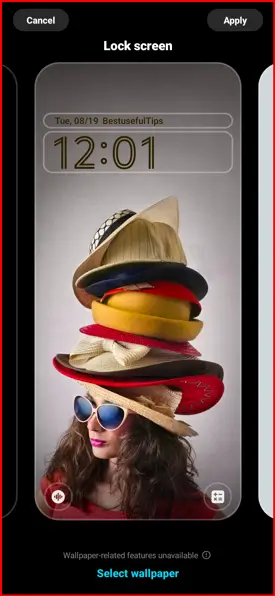
Make sure to lock your Samsung phone. Tap the side/power button to view the default lock screen clock style.

To change the lock screen clock on Samsung Z Fold 7, Tap & hold the blank space on the home screen > Wallpaper and style > Lock screen wallpaper > Clock style.

How to Change Lock Screen Clock in Samsung Z Fold 7

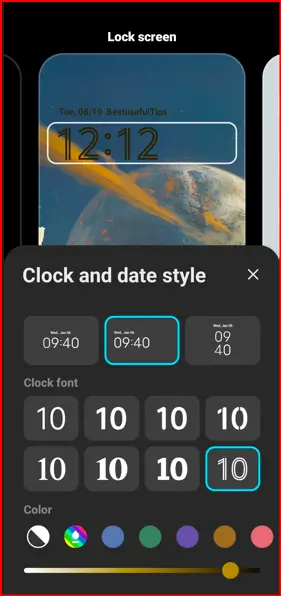
You can see the different clock styles, set font and color for clock style, or adjust font as thin or bold to move the slide bar.

Also, enable or disable weather information and date above or below the clock style on your Samsung Galaxy devices.

Choose your favourite clock style from the list and tap Apply at the top right corner to save the changes.

Alternative Way to Change Clock Style on Z Fold 7 Lock Screen

Settings > Wallpaper & style > Change Wallpapers > Select any wallpaper you want to set > Choose Lock screen > Next > Clock style > Choose your favorite clock style > Done at the top right corner.

Customize Lock Screen Clock on Samsung Z Fold 7

Long-press on the lock screen, then unlock your phone to customize lock screen like wallpapers, clock style, clock font & color, lock screen shortcuts, add widgets to lock screen, etc.

You can apply different frame & color for the photo or set different effect to your background wallpaper like blur, greyscale, custom background color, etc.

How to Change Lock Screen Time (Timeout) in Samsung Z Fold 7

When reach the time limit, it will automatically turn off your Samsung phone’s screen. To change the lock screen timeout time, go to Settings > Display > Screen timeout > choose a desire time duration (15 Seconds/30 seconds/1 minute/2 minutes/5 minutes/10 minutes).

How to Change World Clock on Lock Screen Samsung Galaxy Z Fold 7

You can add world clock on your Samsung lock screen using widget. Apply below settings to add world clock widget to Samsung lock screen.

Tap & hold the blank space on the home screen and tap the Widgets.

Scroll down up to Clock widget and tap on it. Here, you can see Analogue clock, digital clock, dual clock, etc.

In the dual clock, you can see different county clock like London, Seoul, etc. Tap the country name and select the country or city from the map to change to the clock.

Frequently Asked Questions (FAQs):

How do I change the lock screen clock style and color on Z Fold 7?

Go to Settings > Wallpaper & style > Tap the Lock screen wallpaper > Tap the Clock style. Choose between various clock designs, then select your preferred clock font & color and tap Done at the top right corner to confirm.

How do I edit the clock directly on the lock screen?

Long‑press the lock screen clock (when the screen is off, tap once to wake it), then unlock your phone to customize lock screen clock. Tap the clock style and select your desire clock style, font and color.

Can I move the clock position?

Yes. Tap on the lock screen clock or long-press the clock and move it change the position. Also, increase or decrease the clock size on your Samsung phone.

What if the “Done” button is greyed out after changing the clock on Samsung Z Fold 7?

This can happen due to wallpaper or theme error. Temporarily change your lock screen wallpaper to a built‑in or graphical or colours one, change the clock & font color, then switch wallpapers back. Now, check available the Done button for tap.

Can Good Lock modules enhance clock customization?

Absolutely. Samsung’s Good Lock suite (specifically ClockFace and LockStar) adds advanced clock faces features including drag clock position anywhere, create custom photo styles, add photo backgrounds/widgets, and more.

How to Customize Always On Display Samsung Z Fold 7

Be default, enable always on display on your Samsung Galaxy Z Fold 7. In this article, I’ll show how to customize always on display Samsung Z Fold 7. When you lock your phone and tap on the screen, you can see the AOD screen that includes new feature called Now Bar (Show Live Notifications on lock & AOD screen), clock style, AOD wallpaper, date & time, battery information, etc.

How to Customize Always On Display Samsung Galaxy Z Fold 7

How to Customize Always On Display Samsung Z Fold 7

You can change the AOD settings to your Samsung phone using below given settings.

Open the app drawer and tap the Settings app.

Scroll down until the Lock screen and AOD.

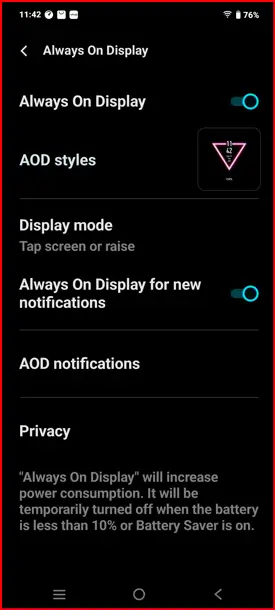
Tap the Always on display. You can toggle on/off here.

Below given settings are available for AOD customization.

Show Lock Screen Wallpaper: Enable this feature to view the lock screen wallpaper on your AOD screen.

Erase background: Show the main subject of the photo only. Works best with photos that have people or animals as the main subjects.

Show Now Bar: Show the live notifications on the Always on display. Double tap on the Now bar to play or pause any function.

When to show: Choose one of the below given option to enable always on display on your Samsung phone.

  • Tap to show: Tap on the lock screen to show Always on display screen.
  • Auto: Show all the time unless your phone detects that you’re sleeping or that it’s face down or in a dark place and hasn’t moved for at least 5 minutes.
  • Always: Always show AOD screen.
  • As scheduled: Set schedule to automatically activate always on display.
  • For new notifications: Show AOD screen when you receive a new notifications to your Samsung phone.

How to Change Always On Display Clock and Image on Samsung Z Fold 7

Tap & hold the blank space on the home screen and tap the Themes.

Tap the Top tab at the top right corner.

Tap the Dropdown box and tap Free.

Select any image from the available list.

Tap the Download button.

Tap the Apply button.

Choose from Clock and image or Image only.

Tap the Done.

How to Turn Off Always On Display Samsung Z Fold 7

Settings > Lock screen & AOD > Always on Display > Toggle Off

Frequently Asked Questions (FAQs):

How do I turn Always on Display (AOD) on or off Samsung Z Fold 7?

Go to Settings > Lock screen and AOD > Always on Display, then toggle it on or off

How can I change when the AOD shows?

Within AOD settings, under “When to show”, you can choose: Always (display always), Tap to show, Scheduled (Set specified times), OR for new notifications (briefly on new alert)

How do I customize the AOD clock style, or add images/GIFs on Z Fold 7?

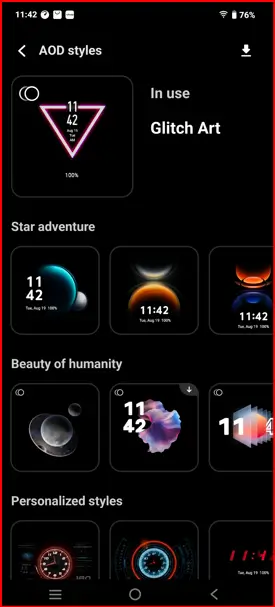
In the latest AOD settings, remove the Clock style options. You can use image clock feature to choose from gallery photos, stickers, GIFs, emojis, or downloadable themes to set AOD clock & image.

Can I add widgets, music info, or additional elements?

No! You can’t add in the latest Samsung AOD settings. You can use new Now Bar feature to Show live notifications on AOD screen like Music player, Maps, Weather, Clock, etc.

How to use Good Lock for deeper AOD customization?

Install Good Lock from Galaxy Store and install LockStar module (for layout/themes) and/or ClockFace (for add new clock faces) modules In LockStar. Enter Edit and tap on Always On Display to reposition/remove elements. Use ClockFace module to set new clock styles beyond stock options.

Where did the wallpaper-on-AOD setting go Samsung Z Fold 7?

For Z Fold 7 devices, only the cover screen supports wallpaper on Always On Display – inner screen shows only the clock face. To show wallpaper, enable “Show Lock screen wallpaper” or use Erase background by going to Settings > Lock screen and AOD > Always On Display > Toggle on Show lock screen wallpaper.