How to Take a Screenshot on Samsung Z Fold 7

Here’s how to take a screenshot on your Samsung Z Fold 7 using four different methods. When you take a screenshot on Z Fold 7 or other smartphone, it will capture a static image of your current phone’s screen. You can share, edit, or delete screenshot after taking it to your phone. Also, take a long screenshot if you want to capture multiple pages at the same screen to your Samsung Galaxy devices.

How to Take a Screenshot on Samsung Galaxy Z Fold 7: 4 Methods

1st Method: Take Screenshot using Physical Buttons

Open the page or screen to capture it to your fold phone and tap the Side/power button and volume down button simultaneously to capture the screenshot.

You can find all your taken screenshot in the screenshot folder under the gallery. Tap the screenshot to edit or share with others.

2nd Method: Take Screenshot on Z Fold 7 Using Quick Settings Menu (Hidden Menu)

If you can’t see the screenshot option to your quick settings panel, swipe down the notification panel twice and tap the Pencil icon.

How to Take a Screenshot on Samsung Z Fold 7

Tap the Edit and search the “Take screenshot”, tap on it to add it your quick settings menu, and tap Done at the top right corner.

Now, open the page or screen on your phone, open the quick settings panel and tap the Screenshot icon.

3rd Method: Using AI Select (Specific Portion Screenshot from Image)

If you want to capture a screenshot for specific portion of the page, you can use AI select feature to your latest Samsung devices.

Open the Edge panel from the right side of edge to your Samsung phone.

Take a Screenshot on Samsung Z Fold 7 using AI Select

Tap the AI Select.

Tap or draw around something to select it.

Tap the Pencil icon from the screen.

You can adjust the portion you want to capture the screenshot and tap the download arrow icon to save screenshot to your gallery.

4th Method: Using Palm Swipe to Capture Gesture

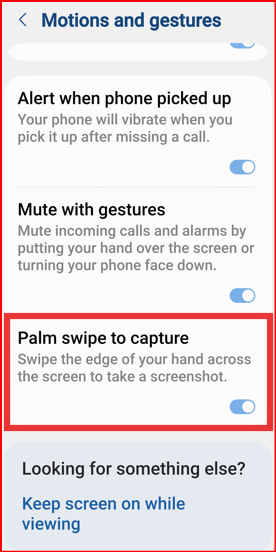
You can use this hand gesture to your Samsung phone to take screenshot. Make sure to enable palm swipe to capture to your Samsung Fold device.

Palm Swipe to Capture Gesture in Samsung Z Fold 7

Settings > Advanced Features > Motions & Gestures > Toggle on Palm swipe to capture

Open the page or screen you want to capture a screenshot and swipe the edge of your hand across the screen to take a screenshot on Galaxy Z Fold 7.

How to Take a Long Screenshot (Multiple Pages) in Samsung Z Fold 7

Take a screenshot from the one of the above given three method.

Take a Long Screenshot in Samsung Z Fold 7

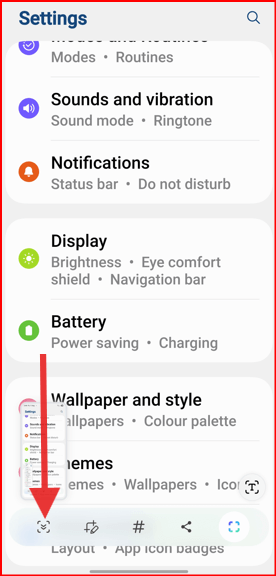
You can see the toolbar after capturing the screenshot. Tap the Scollbar (Down Arrow) icon from the toolbar. Tap on this Scrollbar icon until you want to take scrolling screenshot.

You can find taken screenshot to the screenshot folder in the gallery app on your Samsung Galaxy devices.

End the list of methods to take screenshot on Samsung Galaxy Z Fold 7. Which is your favourite method to capture the screenshot? Tell us in the below comment section.

Frequently Asked Questions (FAQs):

What’s the standard button combo to capture a screenshot on Z Fold 7?

Press and hold Side/Power & Volume Down simultaneously, then release. You’ll hear a shutter sound indicating the screenshot is taken to your phone. This method works for almost all smartphones.

How can I use gestures like palm‑swipe to capture on Samsung Phone?

You can enable it by go to Settings > Advanced features > Motions & Gesture > Toggle on the Palm swipe to capture. Swipe the side of your hand across the screen to capture.

Is there a Quick Settings shortcut on Samsung Z Fold 7?

Yes! After capturing via buttons or gesture, you need to add Take screenshot button to edit quick settings tiles we mentioned above second method. You can also use the Edge panel’s new AI Select feature to capture specific portion from the image.

Can I use voice to take a screenshot like hands‑free on Samsung Phone?

Absolutely. By default, setup Gemini on the latest Samsung devices. Say “Hey Google, take a screenshot.” The assistant will capture and let you share it immediately. You can use Bixby also. Open the page and say “Hey Bixby, take a screenshot”.

How do I take a scrolling/full‑page screenshot on Galaxy Z Fold 7?

Take a normal screenshot using one of the above given method then tap the Scroll capture icon (arrows down) from the bottom left side toolbar to capture multiple content.

How to Turn Off Samsung Z Fold 7

Here’s how to turn off your Samsung Z Fold 7 in three different methods. When you power off Samsung Galaxy Z Fold 7, your device inactive until turned on. All process stop including text messages, phone calls, etc. It will clear your phone’s memory, reset all connections, and refresh the system that improve the phone’s performance.

Read More: How to Restart Samsung Z Fold 7

How to Turn Off Samsung Galaxy Z Fold 7: 3 Ways

1st Way: Power off Samsung Z Fold 7 without power button (Side Key)

Tap the Power Icon in Quick Panel Z Fold 7

Pull down the notification panel twice from the top of the screen and tap on the Power button icon.

How to Turn Off Z Fold 7

Tap the Power off in the power menu.

How to Turn Off Samsung Z Fold 7

Tap Power Off again to turn off your phone.

2nd Method: Using Power & Volume Buttons

Long-press the side/Power Button and volume down button at the same time until the power menu appear.

Tap the Power Off in the power menu.

Tap the Power Off again to switch off your Samsung phone.

3rd Method: Turn Off Z Fold 7 using Side/Power Button

When you long-press the side/power button in your Samsung Z Fold 7, it will launch the Google Gemini. To change this side key settings to power menu, follow the below settings.

Open the app drawer and tap the settings app.

Scroll down until the advanced features and tap on it.

Tap the Side button.

Tap the Long press.

Tap the Power Off Menu on Samsung Z Fold 7

Choose a Power off menu.

Long-press the side/power button to launch the power menu and tap the Power Off.

Tap the Power off again to turn off the phone.

How to Turn On Samsung Z Fold 7

Long-press the side/power button until the screen turns on and your phone will power on.

End the list of ways to power off your Samsung Galaxy device. Which method do you use to shut down your Samsung phone? Tell us in the below comment box.

Frequently Asked Questions (FAQs):

How do I turn off my Galaxy Z Fold 7 using buttons?

Simultaneously press and hold the Side/Power and Volume Down buttons for a few seconds. When the power menu appears, tap the Power off, then confirm it by tapping the Power off again.

Can I turn off Z Fold 7 from the Quick Settings Panel?

Yes! Swipe down the notification panel with two fingers from the top of the screen, tap the Power button icon besides the settings gear icon, then select Power off and confirm to tap the power off again.

What if the Samsung power button behaviour is customized (e.g., to launch Bixby)?

To change this Samsung side key settings, Go to Settings > Advanced features > Side key, and set the Press and hold action to Power off menu. This ensures a long press brings up the power menu.

How do I shut down Z Fold 7 if the power button isn’t working?

You can still use the Quick Settings panel method mention above. If that also fails, try invoking Google Gemini or Bixby Voice Assistant (if set up): say “Turn off the phone.” Then manually tap the Power off icon, then tap the Power off icon again.

Will turning off the Samsung Z Fold 7 close all apps and restart cleanly?

Yes, a full shutdown clears temporary files and closes all apps. After it’s turned off, hold the Side/power button to turn on Z Fold 7.

My Z Fold 7 auto-locks the inner screen when folded. Does powering off differ?

Pressing the side/power button turns off whichever screen is active (inner or outer) — it doesn’t require folding the device.

How to Restart Samsung Z Fold 7

Here’s how to restart your Samsung Galaxy Z Fold 7 using three different methods. Restarting your Samsung phone will shut down all background running processes and boots up your phone OS. Also, helpful to solve small software bugs and improve your Samsung device performance that speed up your Samsung Z Fold 7 device.

Read More: How to Power Off Samsung S25 Ultra

How to Restart Samsung Galaxy Z Fold 7

Check out the below-given methods to reboot Samsung Z Fold 7 and other One UI 8/7 devices.

1st Method: Using Power & Volume Buttons

Long-press the side key (Power Button) and volume down button at the same time until views the power menu to your phone.

How to Restart Samsung Galaxy Z Fold 7

Tap the Restart in the power menu.

How to Restart Samsung Z Fold 7

Tap the Restart again to restart your Samsung Fold phone.

2nd Method: Restart Samsung Z Fold 7 using Power Button in Quick Settings Panel

Pull down the notification panel twice form the top of the screen.

Tap the Power Icon to Restart Z Fold 7

Tap the Power button icon beside settings gear icon.

Tap the Restart in the power menu.

Tap Restart to reboot your Samsung Galaxy device.

3rd Method: Restart Z Fold 7 using Side Key (Power Button)

By default launch the Google Gemini when your long-press the side/power button to your latest Samsung devices. You can change the Z Fold 7 side button settings using this.

How to Force Restart Samsung Galaxy Z Fold 7

If your Samsung phone facing crashing apps or freezing, slow down your phone, black screen issue, or any other small bugs, you’ll soft reset the phone to fix small bugs.

To force reboot your Samsung phone, long-press the volume down and side key (Power button) until your phone’s screen goes black (10-15 seconds) and it will automatically restart your phone.

End the list of methods to restart your Samsung Galaxy Z Fold 7. Which method do you use to restart your Samsung device? Please comment in the below box.

Frequently Asked Questions (FAQs):

How do I restart my Galaxy Z Fold 7 normally?

Press and hold the side (Power button) until the power menu appears. Make sure to side button set as power menu to your Samsung phone. Tap Restart, then confirm by tapping Restart again

How can I force-restart (hard reboot) Samsung Z Fold 7 when the screen is frozen?

Press and hold the Volume Down and Power buttons (Side Key) at the same time until the screen goes black and the Samsung logo appears. Release to restart the device.

How do I Reboot into Safe Mode to fix Apps issue?

Hold power and volume Down until the power menu appears. Long-press the Power off until the Safe mode option pops up, then tap on Safe mode icon on the screen.

Is there an auto-restart feature to optimize performance of your Samsung Z Fold 7?

Yes. Samsung’s device care settings allow you to set a schedule to restart your phone automatically when performance issues are detected.

How to Fix App Crashing and Freezing on Samsung S25 Ultra, S25 Plus, S25 Edge, S25

Are you annoying by suddenly app crashes or freezes in Samsung Galaxy S25 series? In this tutorial, I’ll explain you possible methods to fix app crashing and freezing on Samsung S25 Ultra, S25 Plus, S25 Edge, and S25. Reasons causing Samsung S25 Ultra apps keep crashing like check for app update, phone storage full, check software update, etc.

Read More:

How to Fix Apps Keep Crashing and Freezing on Samsung Galaxy S25, S25 Plus, S25 Ultra: One UI 7

Apply the below-given solutions to fix Samsung S25 Ultra apps keeps crashing and freezing problems.

Check for App Update

If you Samsung device facing specific app related issue like Messages, Phone, Facebook, etc. Ensure to app is update with the latest version. To check for app update on S25 series, follow the below settings.

Step 1: Open the Play store in your Samsung phone.

Step 2: Tap the Profile icon at the top right corner.

Step 3: Tap the Manage apps and device.

Step 4: Tap See details.

Check for App Update to Fix App Keeps crashing and Freezing issue on samsung S25 Ultra

Step 5: Tap Update button to update that app.

Restart the Samsung Device

Restarting your device remove unnecessary memory that will improve your phone’s performance.

Long-press the side key > Restart > Restart

Check Your Device Storage

If your Samsung S25 device storage is full, sometimes apps stop responding or suddenly apps stop working. Check your storage and free up space if full the storage.

Settings > Device care > Storage

To free up storage on Samsung Galaxy S25 Ultra, you need to remove the recycle bin files, delete unused apps, duplicate files, and unnecessary large file like videos, photos, etc.

Clear App Cache & Data

If specific app related problems, you need to try clearing the app cache and data. Clearing the cache will delete that app’s temporary data from your phone. When clear the app data, it will permanently delete the app’s data.

Clear the App Cache on Samsung S25 Series

How to Fix App Crashing and Freezing on Samsung S25 Ultra, S25 Plus, S25

Settings > Apps > Select the App from the list > Storage > Clear cache at the bottom right corner

Clear App Data on Samsung S25 Series

Settings > Apps > Select the App from the list > Storage > Clear data at the bottom left corner > Delete or Clear

Check for Software Update

Check for Software Update on S25 Ultra

Make sure to install the latest system update to your Samsung device.

Settings > Software Update > Download & install

If you still facing the app freezing and crashing problem on Samsung Galaxy S25 series, delete that app and re-install it to your phone.

Delete the App & Re-install It

Uninstall app to fix App Crashing on Samsung Galaxy S25 Ultra

 Long-press the app you want to remove and tap Uninstall > OK

Now, restart your Samsung phone and download that app from the play store and install it again to fix apps crashing and freezing on a Samsung S25 Ultra.

End the list of methods to fix Samsung Galaxy S25 Apps Crashes or freezes issue. Which of the above given method worked for you? Please, tell us in the below comment section.

How to Fix Bluetooth Not Working on Samsung S25 Ultra, S25 Plus, S25 Edge, S25

Annoying by Bluetooth connectivity issue on Samsung Galaxy S25 Series? In this tutorial, I’ll show you how to fix Bluetooth not working on Samsung S25 Ultra, S25 Plus, S25 Edge, and S25. Several reasons for Samsung S25 Ultra Bluetooth issues like Turned off Bluetooth, can’t pair with another device, phone or accessories problem, etc.

Read More:

How to Fix Bluetooth Issue on Samsung Galaxy S25, S25 Plus, S25 Edge, S25 Ultra: One UI 7

Apply the below-given possible solutions to fix Samsung S25 Ultra Bluetooth problems.

Turn Bluetooth Off & On

Swipe down the notification panel from the top and tap the Bluetooth icon to turn it off. Wait until 5-10 seconds and tap it again to turn Bluetooth on. Now, try to pair your S25 device with another device.

Restart your Samsung S25 Series

Long-press the side button to view the power menu in your phone.

Tap on Restart button.

Tap again to Restart button to restart the phone.

Try to connect with another device and check fix the Bluetooth problem.

Make Sure Unblock Pairing Request to Your Samsung S25 Ultra

If accidently add device to block pairing list, you can’t pair with that device. You can unblock it using below settings.

Step 1: Go to Settings.

Step 2: Tap Connection.

Step 3: Tap Bluetooth.

Step 4: Tap Three vertical dots at the top right corner.

Step 5: Tap Advanced settings.

Unblock Pairing Request to Fix Samsung S25 Ultra Bluetooth Issues

Step 6: Tap Block pairing requests.

Step 7: Remove your device if available in the list.

After removing your phone from the list, try to connect your S25 Bluetooth with another device.

Remove Bluetooth from Accessories & Re-Connect

If you’re facing issue to connect with other accessories like Galaxy Buds, Car’s accessories, Speaker, Headphone, etc. Remove your Bluetooth paired device and reconnect it.

How to Fix Bluetooth Not Working on Samsung S25 Ultra, S25 Plus, S25 Edge, S25

Go to Settings > Connections > Bluetooth > Tap the Settings gear icon of Bluetooth device you want to remove > Tap Unpair at the bottom right corner > Unpair.

Remove Bluetooth Cache on Samsung S25 Ultra

It will remove Bluetooth app’s temporary data from your phone.

Remove Bluetooth Cache on Samsung S25 Ultra

Settings > Apps > Three Horizontal liens in front of Your apps > Toggle on Show system apps > OK > Scroll down and tap the Bluetooth > Storage > Clear cache at the bottom right corner.

Reset Bluetooth Settings on Samsung Galaxy S25 Series

Step 1: Go to app drawer and tap the Settings app.

Step 2: Scroll down and tap the General Management.

Step 3: Scroll again and tap on Reset.

Step 4: Scroll and tap the Reset Wi-Fi and Bluetooth settings.

This will reset all your WiFi and Bluetooth network settings.

Step 5: Tap on Reset settings to reset your WiFi and Bluetooth settings to factory default.

We hope above-given solutions fix Samsung Galaxy S25 Bluetooth connectivity problem. Which of the above-given method helpful to fix Bluetooth issue? Please, tell us in the comment section below.

How to Fix WiFi Issue on Samsung S25 Ultra, S25 Plus, S25 Edge, S25

Are you experiencing Wi-Fi connectivity issue or slow wifi network on your Samsung Galaxy S25 series? In this tutorial, I’ll show you how to fix WiFi issue on Samsung S25 Ultra, S25 Plus, S25 Edge, and S25 device. Several reasons for WiFi connection occurs including poor network signal, router problem, or carrier issue.

Read More:

How to Fix WiFi Not Working in Samsung Galaxy S25, S25 Plus, S25 Ultra: One UI 7

Check out below-given methods to fix Samsung S25 Ultra WiFi Not Working issues.

Restart Your Phone

Swipe down the notification panel from the top and tap Power button icon.

Tap the Restart in the power menu.

Tap again Restart to restart your Samsung Galaxy S25 devices.

Connect your WiFi network and check fix the problem.

Turn Airplane Mode On & Off to Fix Slow WiFi Speed Problem on Samsung S25

If you facing slow WiFi connectivity issue to your Samsung Galaxy devices, turn the airplane mode on & off and check fix the issue.

Turn Airplane Mode On & Off to Fix Slow WiFi Speed Problem on Samsung S25

Pull down the notification panel from the top and tap the Airplane mode icon to enable it.

Wait until 5-10 seconds and tap the Airplane mode again to turn it off.

Connect your S25 with WiFi to fix the Wifi speed issue.

Check If you’re Phone Problem

Connect your WiFi to another smartphone or laptop to check if your phone facing only issue.

Turn Off the Router and Turn it ON

Unplug the router from the power cord for 10-15 seconds or switch off your router for 10-15 seconds and turn it on. Try to connect your WiFi connection, if you’re still facing the issue contact your WiFi network provider like Jio WiFi, GTPL, Tikona, etc.

Remove the WiFi Network & Re-connect it

Delete your saved WiFi connection and re-connect it again to your Samsung Galaxy S25 series.

Step 1: Go to Settings.

Step 2: Tap the Connections.

Step 3: Tap the Wi-Fi.

Step 4: Tap the Three vertical dots at the top right corner.

Step 5: Tap Advanced settings.

Step 6: Tap Manage networks in the network settings section.

Step 7: Tap the Network you want to delete.

How to Fix WiFi Issue on Samsung S25 Ultra, S25 Plus, S25 Edge, S25

Step 8: Tap Forget (Trash icon) at the bottom middle.

Step 9: Tap the WiFi network and enter the password to connect again.

If you’ve still facing the WiFi problems on Samsung Galaxy S25 Ultra, and other S25 series, follow the below-given method.

Reset WiFi Settings to Default on Samsung S25 Series

Step 1: Go to Settings.

Step 2: Scroll down up to General Management.

Step 3: Scroll again and tap Reset at the bottom.

Step 4: Scroll and tap Reset Wi-Fi and Bluetooth settings.

This will reset all your WiFi and Bluetooth settings.

How to Fix WiFi Issue on Samsung S25 Ultra

Step 5: Tap the Reset settings button at the bottom middle.

Now, go to Settings > Connections > Wi-Fi > Tap the Network name > Enter the password > Connect.

If you’re still facing the WiFi connectivity issue, please contact your WiFi service provider to fix this.

End the list of methods to fix WiFi Connectivity problems on Samsung Galaxy S25 series. Which of the above-given method helpful to fix your WiFi issue? Please, tell us in the below comment section.