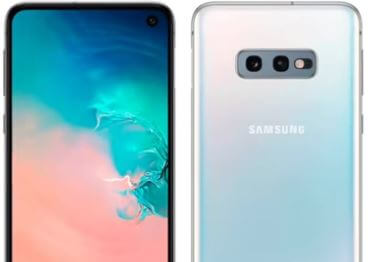
How to Change Photo Resolution in Samsung Galaxy S10 and S10 Plus

Want to change galaxy S10 photo resolution? Here’s how to change video and picture resolution in Galaxy S10 Plus camera. By default set front and rear video size in your Samsung Galaxy S10, S10 Plus, S10 5G, and S10e. You can change picture screen resolution under camera settings in your device.

Samsung Galaxy S10 Plus device has a 6.4-inch screen with three rear cameras including 16MP ultra-wide camera, 12MP dual-aperture wide-angle lens with OIS and 12MP telephoto lens with OIS. Also two rear cameras including 10MP front-facing camera with a dual aperture for better selfies and 8MP RGB depth camera. Check out the below-given step by step process change the Samsung S10 photo resolution using camera settings.

Read Also:

How to Change Camera Picture Resolution in Galaxy S10 Plus, S10, S10 5G, and S10e

How to change video resolution in Galaxy S10 Plus camera

In Samsung Galaxy S10 camera settings, you can see HDR (Rich tone), tracking autofocus, video stabilization, front & read video size, scene optimizer, flaw detection and more. You can change the rear and front picture size and video size on galaxy S10 plus using the below settings.

Change Camera Picture Resolution on Samsung Galaxy S10 & S10 Plus

Step 1: Open Camera app in your Samsung S10+.

Step 2: Tap on Resolution [4:3].

Step 3: Choose from [4:3]/[16:9]/[1:1]/[Full].

Change Video resolution on Samsung S10+

Step 1: Open the camera app in your Samsung Galaxy S10 Plus.

Step 2: Tap Settings gear icon at the upper left corner of the screen.

Here you can see several S10 camera settings.

Step 3: Scroll down up to the videos section to view the default video size.

By default set the rear video size set 16:9 UHD 3840×2160 and front video size set 16:9 UHD 1920×1080 pixels.

Step 4: Tap Rear video size.

Step 5: Choose from 16:9 UHD 3840×2160/FHD 1920×1080/HD 1280×720.

Sometimes users view the message of “The selected resolution doesn’t support video effect”.

Step 6: Choose from 16:9/full (19:9)/1:1

Change camera front video display size on Galaxy S10 plus & S10 5G

You can change the S10 camera video size using the same above given steps. By default front camera set as FHD 1920×1080 resolution. Change it using below given settings.

Camera > Settings gear icon > videos > Front video size > Choose video display size from list

Change Screen Resolution on Galaxy S10 Plus, S10

Step 1: Swipe down the notification shade from the top of the screen and tap the Settings gear icon.

Step 2: Tap on Display.

Step 3: Tap on screen resolution.

By default set HD+ as Galaxy S10 display resolution.

Step 4: Choose from HD+ (1520×720) / FHD+ (2280×1080) or WQHD+ (3040×1440)

Step 5: Tap on Apply.

Record HDR+ videos on Samsung Galaxy S10 Plus

Open Camera app > Settings gear icon at the upper left corner > Advanced recording options > HDR10+ video

And that’s it. I hope this little tip useful to change video and picture resolution in Galaxy S10 Plus. If you have any kind of question, tell us in below comment box. Don’t forget to share with others if you found it helpful. Stay and connect with us for the latest Samsung Galaxy S10 tips and tricks.

How to Change the Navigation Bar Button Order on Samsung Galaxy S10, S10 Plus, S10e

Want to change the buttons on the Samsung Galaxy S10 navigation bar? Here’s how to switch Navigation bar buttons on Samsung Galaxy S10, S10 Plus, S10 5G, and S10e devices. By default set recent, home and back button on galaxy S10 navbar. You can hide the navigation bar on Galaxy S10 or change the navbar button order under display settings.

You can use gestures also instead of navigation bar buttons in your Samsung Galaxy S10, S10 Plus, S10 5G, and S10e. Also quickly enable navigation bar using quick settings panel in your S10. Follow the below-given step by step process to switch Navigation bar buttons on Galaxy S10.

Read Also:

How to Switch Navigation Buttons on Galaxy S10, S10 Plus, and S10e

How to switch Navigation bar buttons on Galaxy S10

You can customize the navigation bar button on galaxy S10 plus & S10 using below given settings.

Step 1: Swipe down notification panel until quick settings panel view and tap Settings gear icon.

Step 2: Tap Display.

In Samsung Galaxy S10 plus display settings, you can see adaptive brightness, screen mode, font size & font style, screen resolution, night mode, navigation bar, easy mode, screen saver and more.

Step 3: Scroll down up to the Navigation bar and tap on it.

Now manage the home, back, and recent apps buttons of use gestures for more screen space in your Samsung S10. Here you can see Navigation type and button order settings.

Step 4: Choose a navigation type from Navigation buttons or Full-screen gestures.

Step 5: Choose Galaxy S10 plus navigation button order from recent-home-back/back-home-recent.

It will change the navigation bar button order on Galaxy S10 plus and galaxy S10 device. It’s quite easy to switch back and recent button order on Samsung S10.

Hide Navigation Bar on Galaxy S10 Plus, S10 5G & S10

If you don’t want to use recent, home and back buttons in your Samsung galaxy device, hide the navbar on galaxy S10 plus to choose full-screen gestures on S10.

Step 1: Go to Settings.

Step 2: Tap on Display.

Step 3: Tap on the Navigation bar.

Step 4: Choose Full screen gestures.

It will hide the navigation bar button from your galaxy S10 device and add three horizontal lines on your galaxy S10 Navbar.

Do you still have a question regarding switch Navigation bar buttons on Galaxy S10 & S10 plus? If you have any kind of question, tell us in below comment box. Stay and connect with us for the latest updates.

How to Set Up Face Recognition on Galaxy S10 and S10 Plus

Want to use facial recognition on Galaxy S10 and S10 plus to unlock your device? Here’s how to set up face recognition on Samsung Galaxy S10 and Galaxy S10 Plus to unlock your S10 using your face. There are different types of lock screen security available to unlock your S10 Plus such as ultrasonic fingerprint, facial recognition, Smart lock, and more. You can find face recognition option under Biometrics and security settings. For better performance, set up face unlock indoors or away from direct sunlight. Face recognition is less secure than a PIN, pattern, or password.

You can use Smart lock to automatically unlock your Samsung Galaxy devices such as the Trusted face, Trusted places, Voice match, etc. Follow the below-given step by step process to set up facial recognition on Galaxy S10.

Read Also:

How to Set Up and Use Face Recognition on Samsung Galaxy S10 Plus, S10, and S10 5G

How to set up face recognition on Galaxy S10

Are you ready to unlock your Samsung Galaxy S10 phone by showing your face? Check out below given complete process to set up and use face recognition on Galaxy S10 plus and S10.

Step 1: Swipe down the notification panel from the top of the screen and tap the Settings gear icon.

Step 2: Scroll down and tap Biometric and security settings.

Here you can see face recognition, fingerprints, privacy, and other security-related settings.

Step 3: Tap Face recognition.

To use face recognition on Samsung S10 plus & S10, you need to set a PIN, pattern, or password.  After creating a PIN, follow the below steps.

Step 4: Now you can see a circle on your Samsung S10 screen.

Step 5: Hold your phone 8 to 20 inches from your face. Make sure your face position in the circle shown on the screen.

Step 6: After the completed process, this message views the screen: Your face has been registered.

You can unlock your galaxy S10 phone with face recognition while the screen turns on, without swiping first in your device. Also enable faster recognition to quickly turn on face unlock. Turn off faster recognize to increase security and make it harder to unlock using an image or video.

Temporary Disable Face Unlock on Galaxy S10 Plus, S10 5G & S10

You can enable/disable face unlock on galaxy S10 plus using the below settings.

Settings > Biometrics and security > Face recognition > Turn off toggle face unlock

How to Remove Face Recognition on Galaxy S10, S10 Plus

If you don’t want to use the galaxy S10 face recognition security feature in your device, remove it using below given settings.

Settings > Biometrics and security > Face recognition > Remove face data > Remove

And that’s all. We hope this makes it clear how to set up face recognition on Galaxy S10 Plus, S10 5G, S10, and S10e. Do you still have any questions regarding this tip? Tell us in below comment box. Stay and connect with us for the latest Samsung Galaxy S10 and S10 Plus tips and tricks.

How to Change Home Screen Wallpaper on Galaxy S10 Plus, S10, S10e

Want to set multiple pictures on lock screen on Galaxy S10 plus and galaxy S10? You can change the home screen and lock screen wallpaper on galaxy S10 using home screen settings and display settings. Also, set a video as lock screen wallpaper on your Samsung S10 plus devices. You can change the wallpaper on galaxy S10 from your phone photos or default wallpaper in your device. Choose wallpaper from different categories such as solid color, texture, live photo, Art, landscape, etc. Follow the below-given step by step process to change Samsung Galaxy S10 home screen wallpaper (Available on Galaxy S10, S10 5G, S10 Plus, and S10e).

Read Also:

How to Change the Wallpaper on Galaxy S10, S10 Plus, and S10e

How to change home screen wallpaper on Galaxy S10

Check out below given two ways to change the home screen and lock screen wallpaper on Samsung Galaxy S10, Galaxy S10 Plus, S10 5G, and galaxy S10e.

Change the Wallpaper on Galaxy S10 home screen using home screen settings

Step 1: Long press on the blank space in the galaxy S10 & S10 Plus home screen.

Here you can see wallpapers, widgets, theme and home settings.

Step 2: Tap on wallpapers.

Step 3: Select wallpaper from the list or choose wallpaper from S10 gallery photos.

Step 4: Set as Home screen or Lock screen.

It’s quite easy to change the galaxy S10 home screen wallpaper.

Change Samsung S10 Lock screen Wallpaper Using Display Settings

Step 1: Swipe down the notification panel from the top of the screen and tap the Settings gear icon.

Step 2: Tap Display.

Step 3: Tap Wallpapers and themes.

Step 4: Tap Wallpapers.

List of default Samsung Galaxy S10 and S10 plus wallpapers are available in your device.

Step 5: Select wallpaper you want to set home screen & lock screen.

You can easily change the wallpaper on galaxy S10, S10 Plus, S10 5G and S10e devices using above given two different methods.

Set a Video as Lock Screen Wallpaper on Galaxy S10 Plus, S10 & S10e

Step 1: Go to settings in your Samsung devices.

Step 2: Tap on Wallpapers and themes.

Step 3: Click on the gallery at the top right side.

Step 4: Tap on a video you want to set as S10 lock screen.

Here you can see Edit (Trim 15 second video) and set as wallpaper options.

Step 5: Tap on Set as wallpaper.

And that’s all. I hope this little tip useful to change home screen wallpaper on Galaxy S10, S10 Plus, and S10e. If you have any kind of trouble, tell us in below comment box. Stay and connect with us for the latest updates.

How to Use Wireless PowerShare on Galaxy S10

Want to charge another phone using Samsung Galaxy S10 plus or S10? You’ll use Wireless PowerShare on Samsung Galaxy S10 Plus and S10 to charge your Galaxy S9, S9+, Note 9, and other devices. This is one of the hidden feature of Galaxy S10 device. You can still operate your galaxy S10 even charging another device. Huawei Mate 20 Pro was the first phone that support reverse wireless charging feature.

Recently completed Samsung unpacked event introduce three S10 phones, Samsung foldable phone and galaxy S10 5G model. Each galaxy S10 model added new Wireless PowerShare feature to charge other device.

Samsung galaxy S10 & S10 Plus comes with several new features including on-screen ultrasonic fingerprint, PowerShare for wireless charge other phones, Dolby Atmos, Awesome camera, and more. But in this tutorial, I’ll show you how to enable and use Wireless PowerShare on galaxy S10 and S10 Plus.

Read Also:

How to Use Wireless PowerShare on Samsung Galaxy S10, S10 Plus and S10e

How to use Wireless powershare on Galaxy S10

All Galaxy S10 device back side use Qi wireless charging pad that work as Wireless PowerShare on your Samsung galaxy devices. You can use galaxy S10 wireless powerShare feature to charge another phone. Check out below given step by step process to use galaxy S10’s hidden feature.

Step 1: Swipe down notification panel from top of the screen.

Step 2: Tap Wireless PowerShre to activate it or swipe right to find it and tap on it.

Step 3: Now put the centre of your galaxy S10, S10 Plus back to back with another Qi supported phone you want to charge

You can see this message: Connected

Now charge another phone, Galaxy watch, galaxy buds headset using your galaxy S10, S10 plus and S10e’s wireless PowerShare feature. It will reduce you’re device battery faster.

And that’s all. We hope this makes it clear use Wireless powershare on Galaxy S10, S10 plus, S10 5G and S10e. Stay and connect with us for latest Samsung galaxy updates. Don’t forget to share with others if you found it helpful.

How to Change Screen Resolution on Galaxy S10 Plus, S10, S10e, S10 5G

Want to change screen resolution on Samsung Galaxy S10 Plus and S10? Here’s how to change Samsung Galaxy S10’s screen resolution. By default set galaxy S10 screen resolution FHD+ (2280×1080). Not all apps supported all resolution. When changing display resolution on Samsung S10 plus, some currently running apps may stop because of not supported resolution. Samsung S10e has set 2280×1080 resolution. You can’t change it on your Samsung S10e.

You can find a screen resolution option under display settings in your Samsung Galaxy S10, S10 Plus, S10 5G, and S10e devices. Select a Samsung S10 display resolution from HD+/FHD+ or WQHD+ to change image resolution on galaxy S10+ and S10. Follow the below-given step by step process to change display resolution on Galaxy S10.

Read Also:

How to Change Display Resolution on Galaxy S10 Plus and S10

How to change display resolution on Galaxy S10

Select a resolution you want to set in your latest Samsung Galaxy S10 and S10+ devices using below given display settings.

Step 1: Swipe down the notification shade from the top of the screen and tap the Settings gear icon.

Step 2: Tap on Display.

Here you can see several useful galaxy S10 plus display settings including brightness, night mode, screen mode, font size & font style, full-screen apps, Navigation bar, screen saver, edge screen, home screen and more.

Step 3: Tap on screen resolution.

By default set HD+ as Galaxy S10 display resolution.

Step 4: Choose from HD+ (1520×720) / FHD+ (2280×1080) or WQHD+ (3040×1440)

Step 5: Tap on Apply.

Now adjust display settings on galaxy S10, S10 plus and S10e in your device.

Change Camera Video Resolution on Samsung Galaxy S10+ 

Step 1: Open the camera app in your Samsung Galaxy S10 Plus.

Step 2: Tap on the Settings gear icon at the upper left corner.

Step 3: Scroll down up to the videos section to view the default video size.

By default set rear video size set 16:9 UHD 3840×2160 and front video size set 16:9 UHD 1920×1080 pixels.

Step 4: Tap on Front video size or Rear video size

Step 5: Choose from 16:9 UHD 3840×2160/FHD 1920×1080/HD 1280×720

Record HDR10+ Video on Galaxy S10+

Step 1: Open camera app in your Samsung Galaxy S10 or S10 Plus

Step 2: Tap settings gear icon from the upper left corner.

Step 3: Scroll down up to the video section and tap Advanced recording options.

Several Galaxy S10 video settings include front video size, rear video size, advanced recording options, and video stabilization. In galaxy S10 advanced recording options, you can see High-efficiency video or HDR10+ video options.

Step 4: Choose HDR10+ video

How to change screen mode on Galaxy S10 Plus, S10 5G, and S10

By default Samsung Galaxy S10 screen mode set as Natural mode. Select Vivid mode and set the white balance on the screen you want. Also available advanced settings for set RGB balance in your Samsung S10, S10+ and S10e.

Step 1: Go to settings in your S10, S10+ & S10e.

Step 2: Tap Display.

Step 3: Tap Screen mode.

Step 4: Choose from Vivid or Natural.

And that’s all. I hope this little tip useful to change display resolution on Galaxy S10 plus. Do you still have any questions? Tell us in below comment box. Stay and connect with us for the latest updates.