How to Change Google Pixel 4 Lock Screen Wallpaper

Change the wallpaper on the Pixel 4 home screen and lock screen? This tutorial will help you to change the lock screen and home screen wallpaper on Pixel 4 XL and Pixel 4 running Android 10. You set wallpaper on Pixel 4 XL from your phone gallery or in-built wallpaper in your device. Different categories wallpaper available on your Pixel devices such as Live Earth, Solid colors, Seascapes, Cityscapes, Geometric shapes, Art, Sky-high and more.

Two ways to change the Pixel 4 XL picture for home screen and lock screen at once. You will change different wallpaper for the lock screen and home screen you want from your phone gallery. Also, download wallpaper from the play store and set lock screen wallpaper on Pixel 4 XL. Let see a complete guide to change lock screen and home screen wallpaper on Pixel 4 XL.

Read Also:

How to Change Lock Screen and Home Screen Wallpaper on Pixel 4 and Pixel 4 XL   

You can change the wallpaper on Google Pixel 4 lock screen and home screen using below given two methods.

1st Method: Change lock screen wallpaper on Pixel 4 XL and Pixel 4 using a home screen

Step 1: Long press on the blank space in your Pixel home screen.

Step 2: Tap Wallpapers.

You can see the home screen and lock screen with default set wallpaper on Pixel 4 and Pixel 4 XL.

Step 3: Tap My photos to choose a picture from gallery photos.

Step 4: Tap on a category from a list you want to set wallpaper.

Step 5: Select picture from a list  

Change the Pixel 4 XL picture

Step 6: Tap on Set wallpaper.

You can see three options including home screen, lock screen, and home screen & lock screen.

How to change lock screen and home screen wallpaper on Pixel 4 XL

Step 7: Select the Lock screen.

Now lock your phone and you can see change the lock screen wallpaper on Pixel 4 and Pixel 4 XL running Android 10.

2nd Method: Change home screen wallpaper on Pixel 4 and Pixel 4 XL using display settings

Step 1: Swipe up from the home screen to open the app drawer.

Step 2: Tap Settings gear icon.

Step 3: Tap on Display.

Change the wallpaper on Pixel 4 home screen and lock screen

Step 4: Tap on Wallpaper.

Step 5: Tap on the phone gallery or select category.

Step 6: Select wallpaper from a list you want to set

Step 7: Tap on Set wallpaper at upper right corner.

Step 8: Tap the home screen.

If you want to set both home screen and lock screen wallpaper on Pixel 4 XL, select home screen & lock screen. You can also set live wallpaper on Pixel 4 and 4 XL, but it will consume more battery in your device.

Enable Dark Theme on Pixel 4 XL and Pixel 4

Google Pixel 4 and Pixel 4 XL device is running with Android 10 devices. You can enable or disable dark mode on Pixel 4 XL using below given display settings.

Step 1: Go to settings in your Pixel 4 & 4 XL.

Step 2: Tap on Display.

Step 3: Turn on “dark theme” toggle to activate dark mode Pixel 4 XL.

It’s quite easy to enable or disable dark theme on your Pixel devices. Android 10 use system-wise dark mode.

And that’s it. I hope the above-given tutorial useful to change lock screen and home screen wallpaper on Pixel 4 XL and Pixel 4. Do you still have any questions regarding this article? Stay and connect with us for the latest updates.

Best Nutrition Apps For Android 2023

So here we have more Android apps to fit your health with the best nutrition and exercise with a fitness instructor. You can track food & fitness with calories, Protein, Carbs, fiber, cholesterol, and fitness and count calories burned. These Android apps for Nutrition & diet are best for living healthier and better lives. Here’s the list of free Android diet and nutrition apps for 2023.

In today’s time, health is wealth for all. This time health is everything in our life. Our food schedule is more important for to health of life because the diet is the best nutrition for health. But this task is most challenging to maintain with going outside the home. So here we have the best diet apps with nutrition food instructions so you can keep your health using your smartphone. It is also used as a calorie tracking app 2023 for Android.

Read Also:

Best Diet and Nutrition Apps for Android 2023

Today’s best diet apps are the power of your smartphone to help you take control of your nutrition and health through better eating. This application works like your personal food diary app and nutrition instructor application. Check out Android’s most popular weight loss apps 2023, diet plans, and exercise apps to fit your body.

Calorie Counter Android Nutrition App 2023: MyFitness Pal

Calorie Counter app for Nutrition

A calorie counter is the most popular for the best nutrition app on the Android smartphone. It is mostly you to fit your body and lose weight. This is more effective for weight loss and with the best diet plan. Track your food nutrition and calorie counter and sync data on Google. You can track your diet and exercise very fast. This interesting nutrition app for Android includes 5000000+ foods so you can easily track calories, protein, fiber, etc. You can also follow 350+ cardio exercises & strength training. This Nutrition app is the #1 useful Android app for Nutrition and diet.

Download

Calorie Counter by FatSecret

Calorie Counter Android App For Nutrition

It will be the easiest calorie counting app in 2023. It is most popular for weight loss and dieting. It is also used to track your best nutrition food, calorie burn and gain, and weight loss with the best nutrition and good quality food instruction for your health. It uses your personal diet planer.

Download

Lifesum Best Nutrition App 2023

Lifesum Diat Best Nutrition Apps For Android

This app has some good features, including meal plans, calorie counting via barcode scanning, progress tracking, macro tracking, recipes, healthy living tips, and more. Several supported diet plans also include low-calorie food and more to burn your fat. It is quite a popular app for health.

Download

Calorie Counter, Home Workout App For Android

Calorie Counter and Home Workout App For Android

Take care of your life at home. It is the best app for you to maintain your health inside your home and do all workouts and exercises at your home easier to lose weight, and the calorie counter is used for counting your regular gain and burning fat in your body. It maintains your history of exercise and nutrition diet plan daily and syncs with Google.

Download

Lose It

Lose it Android Nutrition App

This is best to track your daily food & exercise, and calorie budget. This Android app can also include a weight loss system to maintain your weight & health.

Download

Lose Weight with Fooducate

Fooducate Weight loss Android app

You can track your food, calorie quality, recipes, exercise, etc. This healthy diet nutrition app includes 250000+ unique food products to follow your recipes. This app also suggests which food is best for health, how to lose weight, how to maintain body etc.

Download

Shopwell Food Tracker App For Android

Shopwell Food Tracker App For Android

This application is used to check the calorie and nutrition score. It gives you the best nutrition food with the best quality compared with calories. It is personalized nutrition scores when you create a Food Profile with your dietary goals and health concerns. Scanning any item to see quick nutritional information and learn how it matches your needs is simple. Create your list of the best things and share them with your friends and family.

Download

Above, you can get the most beneficial healthy diet, and nutrition apps for Android smartphones and tablets. Which of the above Android apps would you most like for better health? Please comment below if you know other best Android nutrition apps in 2023 for a healthier life.

How To Hard Reset Galaxy S7 Edge Without Password

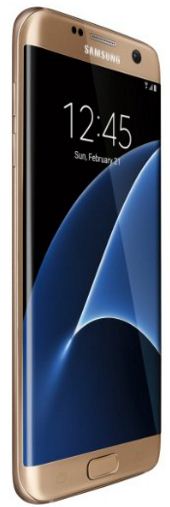
If your Samsung Galaxy S7 and Galaxy S7 edge won’t turn on or frozen, hard reset galaxy S7 Edge without Google account or Samsung account. You can also call factory reset galaxy S7 without password using android recovery mode. Also useful if the galaxy S7 edge screen is not working or unfreeze, and any application related issues such as app crashing or app freezing. You can use safe mode to find the app that causing issues in your device.

This reset Samsung Galaxy S7 Edge has deleted all your personal data, Samsung account, Photos, videos and more. Make sure back up & restore your important data to other phones or PC using a USB cable or Samsung Switch. In this tutorial, I will show you step by step guide to factory data reset or hard reset galaxy S7 and Galaxy S7 edge 7.0.

Don’t Miss:

How to fix Pixel 2 Won’t turn on or Won’t Charge

How to reset avatar on Android device

How to hard reset Huawei P20 Pro

Fix Galaxy S7 and Galaxy S7 edge Bluetooth problem

2 Methods To Hard Reset Galaxy S7 edge and Galaxy S7

hard reset galaxy S7 edge phone

1st Method: Hard reset Samsung Galaxy S7 or S7 Edge if your phone won’t turn on

First of all, Turn off your Samsung Galaxy S7 and Galaxy S7 edge device.

Step 1: Press and hold the power button, home and volume button at the same time

Step 2: When Samsung logo appears on the screen, holding the home & volume up button until appear “Android system recovery” screen

Here you can view a list of various options.

Step 3: Press volume down button until “Wipe data/factory reset” and press the power button to select it

Step 4: Press volume buttons to scroll to “Yes – delete all user data” and press the power button to select it.

Clearing the cache data may take 2-5 minutes.

Step 5: Use the volume buttons to scroll to “Reboot system now”, press the power button to select it

The hard reset has just finished in your Samsung Galaxy S7 and Galaxy S7 edge device.

2nd Method: Factory reset Galaxy S7 without password powered on

Step 1: Go to “Settings

Step 2: Under the personal section, tap on “Backup & reset

Before factory reset galaxy S7, backup your important data safely in your device.

Step 3: Tap on “Factory data reset

Step 4: Tap on “Reset Phone

If set Pattern lock/PIN/Password/Fingerprint, draw it to unlock your Galaxy S7 phone.

Step 5: Tap on “Erase everything

It will delete all your phone information including your Google accounts, downloaded apps, photos, videos, music, and other media files. Before reset your Galaxy S7 device, back up & restore your galaxy S7 & galaxy S7 edge data.

That’s all. We hope this makes clear how to hard reset Galaxy S7 and Galaxy S7 edge. If you have any questions, let us know in below comment box. Check out our other Samsung Galaxy S7 tricks.

How to fix Google Play store error 501

Error 501 in Google play store while updating, downloading or installing the app in android device. In my android device seen this type of error message: “Instagram” can’t be installed. (Error code: -501) in your device. Due to this error code 501, you can not download, install or update apps or games. If you are use custom ROM Cyanogen mod or recently rooted android phone, this problem occurs. It’s simple to fix Google play store error 501 in your device.

Other message: “Can’t download app due to an error code -501”. Most of all this error 501 in play store occurs while you install more than one app at a time in your android device. Try below given possible solutions to fix Google Play store error 501 in android phone or tablet device.

Related Tips:

How to fix error code 906 on Play store

How to fix Google Play store error DF-DLA-15

How to fix play store error code 921

Fix Google Play store error 110

4 Methods: How to fix Google Play store error 501 in android

fix Google Play store error 501 in android

First of all reboot your android device, switch on phone and try to download or update app from play store. If not fix error 501 in play store, follow below given methods.

1st Method: Clear cache of Google Play Store

Step 1: Go to “Settings

Step 2: Tap on “Apps” under device section

Step 3: Scroll down until see “Google Play Store” and tap on it

Step 4: Tap “Storage

Clear the cache of Google Play store to fix error 501

Step 5: Touch “Clear cache

Clear cache of Google Play services on your device:

Settings > Device > Apps > Google Play Services > storage > Clear cache

2nd Method: Uninstall updates of Google play store

Step 1: Go to “Settings

Step 2: Under device section, tap “Apps

Step 3: Tap “Google play store

Step 4: Touch “Three vertical dots

Uninstall update Google Play store to fix error 501

Step 5: Touch “Uninstall updates

Step 6: Tap “OK

3rd Method: Reset app preferences to fix Google Play Store Error 501

Reset app preferences on android to fix error 501

Settings > Device > Apps > More > Reset app preferences > Reset Apps

4th Method: For Custom ROM user

If error 501 occurs due to custom ROM such as Cyanogen mod, SlimROM etc. or recently rooted your android device. First of try re-flashing your OS and need to install a compatible GAPPs package. This method is fix Google play store error 501 in android.

If none of the above method fixes this play store error, factory reset your android phone. It will delete your phone data and downloaded apps.

End the list of solution to fix Google Play store error 501 in android device. If you have know alternative method that solve this error, please share with us on below comment box.

Fix Google Play Store error 921: How to

While updating or installing app from play store and get error code 921 in android phone or tablet device. You can see this message: “App” could not be downloaded due to an error. (921) while install application in your android device and you can see error message of “Unknown error code during application install: “921”. It’s easy to fix Google play store error 921 in android device.

This type of error mostly occurs on WhatsApp, Instagram, Subway surfer, Keyboard, Apex launcher etc. Another error which are common with this types error 103, error RPC S-7:AEC:0, error 501, error 492 and more. Let see step by step possible solutions to fix Google play store error 921 in android phone or tablet devices.

Related Tips:

How to fix Google Play store error 907

Fix play store error 481

How to fix error retrieving information from server

How to fix Google play store error 921 in android phone

Fix Google Play store error 921 in android

Try below given various methods to fix error 921 in Google play store.

1st Way: Check WI-FI or mobile data connection

While updating app and suddenly stopped updating app, check internet connection is not disconnect. If disconnect then connet your device with other Wi-Fi or cellular data and update apps or games. If Internet is connected but not updating app, reboot your device and try to updating apps. If not fix issue then try below method.

2nd Way: Clear the cache of Google Play Store to fix Google play store error 921

Step 1: Go to “Settings

Step 2: Under device section, touch “Apps

Step 3: Scroll down until see Google Play Store and tap on it

Step 4: Touch “Storage

Clear the cache of Play store to fix error 921 code

Step 5: Touch “Clear cache

Clear the cache of Google play services:

Settings > Device > Apps > Google Play Services > Storage > Clear cache

3rd Way: Uninstall updates of Google play store in android

Step 1: Go to “Settings

Step 2: Under device section, touch “Apps

Step 3: Scroll down until see “Google play store” and tap on it

Step 4: Tap “More

Uninstall Google Play store update to fix error 921 code

Step 5: Touch “Uninstall updates

Step 6: Touch “OK

Now try to downloading apps or games from Google play store.

4th Way: Remove your Google account

Step 1: Go to “Settings

Step 2: Under Personal section, tap “Accounts

All created account see on your android device.

Step 3: Touch “Google

Step 4: Touch “More

Remove your google account to fix error 921 in play store

Step 5: Tap “Remove account

Step 6: Again tap “Remove account

After remove Google account from android device, restart your device and again sign in with your account and try to downloading app from play store.

5th Way: Reset app preference to fix Google Play store error 921

Step 1: Go to “Settings

Step 2: Under device section, tap on “Apps

Step 3: Touch “More

Reset app preference to fix error 921 in play store

Step 4: Select “Reset app preferences

Step 5: Touch “Reset apps

If none of the above given method fix error 103 in play store problem, factory reset your android device using below settings.

Settings > Personal > Backup & reset > Factory data reset > Reset Phone > Erase everything

That’s all about possible solutions to fix Google play store error 921 in android device. If you have any kind of trouble, let us know below comment box. I will respond as soon as possible. Stay connected with us for latest android tips.

Fix Google Play Store error 941: How to

Fix error code 941 in Google play store while update or install app in your android phone or tablet devices. You can see this type of message on your device screen: “App” could not be downloaded due to an error. (941) In android device regularly get apps updates to fix small bugs and latest feature use. Sometimes annoying this app not install issue while need it. It’s quiet easy to fix Google Play Store error 941 in android device.

While error 941 displayed on your device, you can’t download or update apps from Google play store. To fix this error code 941, clear the cache of play store, remove your Google account and uninstall update of Google play store in your device. Follow below given various methods to fix Google Play store error 941 in android devices.

Related Play Store error tips:

Fix error code 944 on Play store

How to fix Google Play services has stopped working

Fix error 120 in Google Play Store

Fix Google Play Store error 413 in android

How to fix Google Play Store error 941 in android phone or tablet

Fix Google Play Store error 941 in android

Try below given troubleshooting methods to fix error 941 in play store.

1st Method: Clear the cache of Google Play Store

Step 1: Go to “Settings

Step 2: Tap “apps” under device section

Step 3: Scroll down until see Google Play Store and tap on it

Step 4: Tap “Storage

Clear the cache of Play store to fix error 941 in android

Step 5: Tap “Clear cache

Clear the cache of Google play services:

Settings > Device > Apps > Google Play Services > Storage > Clear cache

2nd Method: Uninstall Google play store updates

Step 1: Go to “Settings

Step 2: Under device section, touch “Apps

Step 3: Scroll down until see “Google play store” and tap on it

Step 4: Tap “More

Uninstall Google Play store update to fix error 941

Step 5: Touch “Uninstall updates

Step 6: Click “OK

Try to installing or updating apps from Google play store.

3rd Method: Delete your Google account to fix Google Play store error 941

Step 1: Go to “Settings

Step 2: Under Personal section, tap “Accounts

Step 3: Tap “Google” account

Step 4: Tap “More

Delete your google account to fix error 941 in play store

Step 5: Touch “Remove account

Step 6: Again touch “Remove account

After remove your Google account from device, restart your device and again sign in with your Google account and try to installing app from play store.

4th Method: Reset app preference

Step 1: Go to “Settings

Step 2: Under device section, tap on “Apps

Step 3: Touch “More

Reset app preference to fix error 941 in play store

Step 4: Select “Reset app preferences

Step 5: Touch “Reset apps

If none of the above given method fix Google Play store error 941 in your android device, factory data reset android device using below settings.

Settings > Personal > Backup & reset > Factory data reset > Reset Phone > Erase everything

That’s it. Did this above given tricks fix Google Play store error 941 in your android device? If you know other methods to fix this problem, let us know in the below comment box. To find more Google play store errors solutions visit wordpress-221392-673273.cloudwaysapps.com