How to Add Weather Effects to Wallpaper on Google Pixel 10, 10 Pro, 10 Pro XL

Here’s how to add weather effects to wallpaper on Google Pixel 10, 10 Pro, 10 Pro XL, and other Pixel devices running Android 16. You can add real-time weather effects to your home & lock screen wallpaper like gentle rain, or a sunny day, Snow, or local weather to automatically update depending on your place’s weather conditions. Follow the step-by-step guide below to add a live effect to your wallpaper on Google Pixel devices, making it more engaging and attractive.

Read More:

How to Add Live Effects to Wallpaper on Pixel 10, 10 Pro, 10 Pro XL

You can change your Pixel 10 wallpaper with new dynamic weather effects using the settings below.

Google Pixel 10 Wallpaper and Style Settings

Go to Wallpaper & Style Settings: You can apply different weather effects using Wallpaper & Style Settings. Go to Settings > Wallpaper & Style.

Tap on the Wallpaper on Google Pixel 10 Series

Select the Wallpaper: Tap on the Wallpapers.

Add Live Effects on Pixel 10 Pro

Live Effects: Tap on the Live Effects.

You can see three options here, including Shape, Weather, and Cinematic 3D wallpaper.

How to Add Weather Effects to Wallpaper on Google Pixel 10, 10 Pro, 10 Pro XL

List of different Weather Animations: When you select a photo from your phone gallery, you can see a list of weather effects, including “Local (By default), Fog, Rain, Snow, and Sun”.

Choose a Weather Effect for Home & Lock Screen: Select your real-time weather effect from the list and apply it to your wallpaper.

How to Add Live Effects to Wallpaper on Pixel 10 Pro

Apply Live Weather Effect to Wallpaper: After selecting the weather effect, tap on the Right arrow icon at the top right corner > Tap Next button at the top right corner > Select where to apply wallpaper (Lock screen/Home Screen) & tap on Apply button.

Now, go to the home screen or lock screen and check how this new effect looks on your Google Pixel 10 series live. You can see the live effects for 5-10 seconds only when you access the home screen or lock screen.

And that’s all. Do you like this new live effect feature for the wallpaper on your Google Pixel device? Which is your favourite real-time weather effect? Please, tell us in the comment section below.

How to Fix Bluetooth Not Working on Google Pixel 10, 10 Pro, 10 Pro XL

Bluetooth is a crucial function that enables you to connect your smartphone with other devices, such as headphones, smartwatches, and car systems, to enjoy music, make phone calls using the car dashboard (Android Auto), and more. Here’s how we cover all the necessary troubleshooting guides to fix Bluetooth not working on Google Pixel 10, 10 Pro, and 10 Pro XL. There are several Bluetooth issues that can be frustrating, like Bluetooth not working, can’t pair with car’s accessories (Creta, KIA, BMW, Audi, etc.), Bluetooth connectivity issues, Bluetooth unpaired, can’t pair with Bluetooth Earbuds/headphones (Pixel Buds, JBL, Samsung Buds, etc.), etc.

Read More: How to Fix WiFi Not Working on Google Pixel 10 Series

How to Fix Bluetooth Issues on Pixel 10 Pro XL, 10 Pro, 10: Android 16

Explore the following potential solutions to resolve Google Pixel 10 Bluetooth connectivity issues.

Step 1: Basic Checks

Toggle Bluetooth On/Off: Swipe down the notification panel from the top and quickly turn Bluetooth off, then back on. Alternatively, you can access this setting from the main Settings app > Connected devices > Connection preferences > Bluetooth > Toggle On/Off.

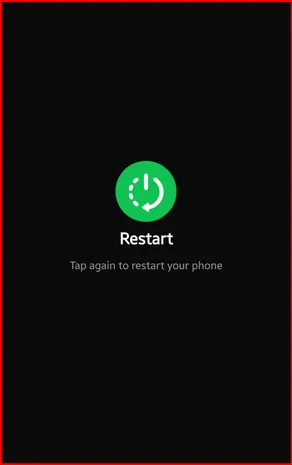
Restart Your Google Pixel 10 Pro XL: Restarting your phone can often resolve temporary software glitches. Check out how to restart your Pixel device.

Check the Other Device: Ensure the device you’re trying to connect to (e.g., headphones, speaker) is also turned on, charged, and in pairing mode.

Step 2: Forget and Re-pair Device

Access Bluetooth Settings: Show viewers how to go to Settings > Connected devices > Connection preferences > Bluetooth.

Forget and Re-pair Device to Fix Bluetooth Connectivity Issues on Pixel 10 Pro XL

Forget the Device: Tap the device name you want to remove. Tap the Settings gear icon next to its name.

How to Fix Bluetooth Not Working on Google Pixel 10, 10 Pro, 10 Pro XL

Re-pair the Device: Select “Forget” or “Unpair.” Try reconnecting your Pixel device with another accessory, such as a smartphone or a car’s accessories.

Step 3: Clear Bluetooth Cache and Data (Advanced Troubleshooting)

Go to App Info: Navigate to Settings > Apps > See all apps.

Show System Apps: Tap the three vertical dots at the top right corner and select “Show system” to see the system apps.

Find “Bluetooth”: Scroll down and locate the “Bluetooth” option (it may be listed as simply “Bluetooth” or “Bluetooth Share”).

Storage and Cache Settings Bluetooth App on Google Pixel 10

Storage & Cache: Tap on the “Bluetooth,” then “Storage & cache.”

Clear Bluetooth Cache and Data to Fix Bluetooth Connectivity Problem on Google Pixel 10 Pro

Clear the Cache: Tap “Clear Cache” at the top right.

Clear Cache, then Clear Storage/Data: After “Clear the Bluetooth cache”, then “Clear storage” or “Clear data.” Warn them that clearing data will remove all paired Bluetooth devices, so they’ll need to re-pair everything.

Restart Phone: Restart your phone after clearing Bluetooth’s data.

Step 4: Reset Network Settings – Reset Bluetooth & Wi-Fi Settings

When to Use: If you’re Pixel devices are facing any network issues, you will reset Wi-Fi, mobile data, and Bluetooth settings. It will not delete personal data, only reset network connections.

Navigate to Reset Options: Go to Settings > System > “Reset options” at the end of the screen > Reset Bluetooth & Wi-Fi.

Reset Bluetooth & WiFi Settings on Your Google Pixel 10 Pro XL

Confirm Reset: Tap “Reset Bluetooth & WiFi” and confirm by tapping the Reset button.

Re-pair Devices: You will need to re-pair all Bluetooth devices and re-enter your Wi-Fi passwords.

Step 5: Check for System Updates

Checking for Software Updates on your Google Pixel 10 Series

Go to System Update: Ensure your Google Pixel is up to date with the latest version. Go to Settings > System > Software updates or System update.

Check for Updates: Tap on System update to check for and install any available updates.

Step 6: Safe Mode (Check If Any Third-Party App Interference)

Enter Safe Mode: Enter your Pixel device into Safe Mode using this.

Test Bluetooth: Check if Bluetooth works in Safe Mode and if it functions without any issues. It means the recently installed third-party app is likely causing the problem.

Exit Safe Mode: To exit Safe Mode on your Google Pixel device, restart your device using the power menu.

Uninstall Problematic Apps: Uninstall recently installed apps one by one until the issue is resolved.

Conclusion:

End the list of troubleshooting steps to fix Google Pixel 10 Bluetooth Problems. You’ll try each step systematically to fix the issue. If you’re still facing the problems, please get in touch with the Google Support forum for further assistance.

How to Fix WiFi Issues on Google Pixel 10, 10 Pro, 10 Pro XL

WiFi is essential for daily life for all smartphone users, such as quickly surfing the internet, streaming 5G videos, and accessing apps. Sometimes, users encounter WiFi issues such as a connected WiFi network but no internet, a low network signal, or WiFi not working, among others. In this article, I’ll explain all the troubleshooting steps to fix WiFi issues on Google Pixel 10, 10 Pro, 10 Pro XL, and 10 Pro Fold.

Don’t Miss: How to Fix Bluetooth Not Working on Google Pixel 10, 10 Pro, 10 Pro XL

How to Fix WiFi Issues on Pixel 10 Pro XL, 10 Pro, 10: Android 16

Apply the methods given below to fix Google Pixel 10 Wi-Fi connectivity issues.

Step 1: Quick Fixes

Toggle WiFi On/Off: Swipe down the notification panel twice from the top and quickly turn WiFi off, then back on. Alternatively, go to the main Settings app > Network & internet > Internet > Toggle On/Off Use Wi-Fi.

Restart Your Google Pixel 10 Series: Restarting your Pixel device can often resolve temporary software glitches. Easy to restart your phone.

Restart Your Router/Modem: We use a router/modem to use WiFi on our smartphones. Sometimes the problem might be with the network, not the phone. Unplug the WiFi router and modem for 25-30 seconds, then plug them back in and wait for them to restart fully.

Check Router Proximity: Ensure the signal is strong and full. Move closer to the WiFi router.

Check Other Devices: If you’ve any other smartphone or laptop, check if other devices can connect to your WiFi network to determine if the issue is phone-specific or network-wide.

Step 2: Forget and Reconnect to the Network

Access WiFi Settings: To access the WiFi network, go to Settings > Network & internet > Internet.

Tap the Settings gear icon of connected WiFi network on Your Google Pixel 10 Pro XL

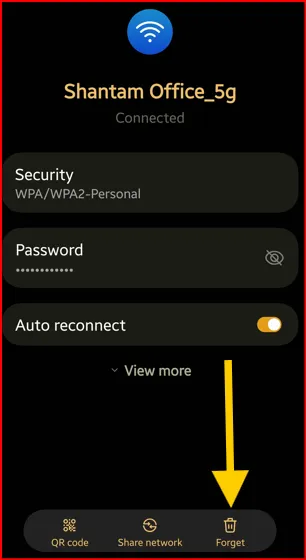
Forget the Network: Tap the “Settings gear icon” next to the WiFi network name you want to remove.

Forget and Reconnect to the Network to Fix WiFi Issues on Google Pixel 10, 10 Pro, 10 Pro XL

Reconnect to the Network: Select “Forget.” After removing the connected WiFi network, reconnect the network from the list and re-enter your WiFi password.

Step 3: Check for Software Updates

Go to Software Updates: To check for the Pixel system update, go to Settings > System > Software updates.

Check System Update on Your Google Pixel 10 Pro XL

Check for Updates: Check for system updates and install any available Android system updates, as these can sometimes resolve minor connectivity issues.

Step 4: Reset WiFi Network Settings

When to Use: If you’re Pixel devices are facing any WiFi or any other network problems, you will reset Wi-Fi and Bluetooth settings. It will not delete your phone’s personal data, only reset network connections.

Navigate to Reset Options: Go to Settings > System > “Reset options” at the last > Reset Bluetooth & Wi-Fi.

Reset Wifi Settings to Fix Wifi not working on Pixel 10 Pro XL

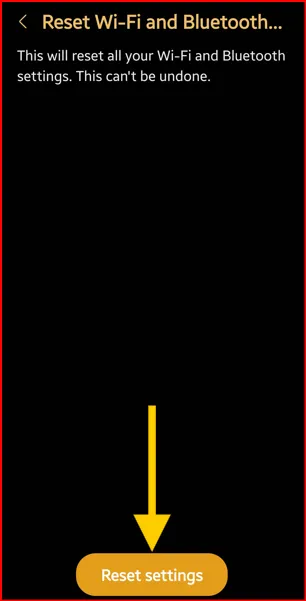
Confirm Reset: Tap “Reset Bluetooth & Wi-Fi” and confirm by tapping the Reset button.

Re-enter Passwords: Re-enter all your WiFi network passwords to enjoy your WiFi connection on Pixel.

Step 5: Safe Mode (Diagnose Third-Party App Causing the Issue)

Enter Safe Mode: You can boot your Google Pixel into Safe Mode using the power menu.

Test WiFi: If your WiFi works correctly in Safe Mode, a recently installed third-party app is likely the cause of the issue.

Exit Safe Mode: Restart the phone to exit Safe Mode.

Uninstall Problematic Apps: Uninstall the recently installed apps one by one until the WiFi issue is resolved.

Step 6: Factory Reset (Last Resort) Google Pixel 10

When to Use: If none of the above-given methods work for you, this is the last way to try. It will remove all data on the phone. Ensure that you back up your important data first before performing a factory data reset.

Factory Reset your Pixel 10 to fix Wifi issues

Navigate to Factory Reset: Go to Settings > System > Reset options > Erase all data (factory reset) > Erase all data.

Factory reset to Fix WiFi Issues on Google Pixel 10 Pro, 10 Pro, 10 Pro XL

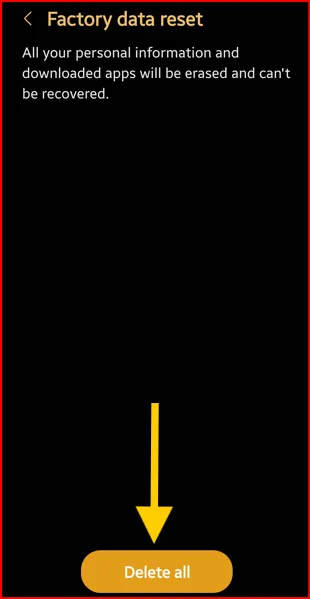
Confirm and Proceed: Enter your screen lock and confirm it by tapping Erase all data at the bottom right corner.

Important Note: After that, you will need to set up your phone as a new device.

Conclusion:

End the list of possible methods to fix WiFi not working issue on Google Pixel 10 series. If problems persist after applying the methods above, don’t hesitate to get in touch with your internet service provider or Google Support for further assistance.

How to Change Wallpaper on Google Pixel 10, 10 Pro, 10 Pro XL

Do you want to set a unique wallpaper on your Pixel 10 lock screen and home screen? Here’s how to change wallpaper on Google Pixel 10, 10 Pro, 10 Pro XL, and 10 Pro Fold. Changing wallpaper is the best way to personalize your Pixel phone and make it feel unique. The Google Pixel 10 series offers a variety of options, including pre-installed categories and personal features such as Live effects (Android 16), AI wallpaper, and Emoji workshop.

Read More: How to Customize Lock Screen on Google Pixel 10 Pro XL

How to Change the Wallpaper on Pixel 10, 10 Pro, 10 Pro XL: Android 16

Refer to the methods below to change the home screen and lock screen wallpaper on your Google Pixel 10 series.

Changing Wallpaper

Method 1: Changing Wallpaper from the Home Screen (Quick Access)

Press and Hold: Press and hold on an empty space on their home screen.

Change Pixel 10 Pro lock screen Wallpaper using wallpaper and style settings

Wallpaper & Style Option: You can see the menu pop up, which includes Wallpaper & Style, Widgets, Apps list, or Home settings. Tap on “Wallpaper & style.”

Tap on More Wallpapers on Your Google Pixel 10 Pro XL

Navigate to More Wallpapers: Once Wallpaper & style settings are open, tap on the “More Wallpapers” section.

Method 2: Changing Wallpaper through System Settings

Open Settings: Open the app drawer and tap the Settings app, or swipe down twice from the top and tap the Settings gear icon.

Google Pixel 10 Pro XL Wallpaper and Style Settings

Navigate to Wallpaper & style: Scroll down and tap on “Wallpaper & style.”

Select More Wallpapers: From here, tap on the More wallpapers.

Choosing Your Wallpaper:

How to Change Wallpaper on Google Pixel 10, 10 Pro, 10 Pro XL

  • Choose Your Own Photo: Tap on Choose a photo at the top and select a photo from the phone gallery (Google Photos)
  • Live Effects: This is the Latest added feature. You can add shape to your selected wallpaper, add atmosphere effects (Local, Fog, Rain, Snow, Sun), and create a 3D motion cinematic photo.
  • AI Wallpaper: Create AI wallpaper to choose from a theme list, such as Imaginary, Painting, Night, Luminous, X-ray, etc. Select any theme and change the underline dots prompt to customize your AI wallpaper.
  • Emoji Workshop: Create an Emoji wallpaper to select your favourite emoji (Up to 14), Emoji patterns, and Emoji colors.
  • Live Wallpapers: You can view Google’s collection of static and live wallpapers, including Living Universe, among others.
  • Categories: Different categories available here (e.g., Minerals, Liverpool FC, Arsenal FC, Motif, Landscapes, Life, Textures, Cityscapes, Google Arts & Culture, etc).

Read More: Google Pixel 8 AI Features You Should Know

Setting Wallpaper as Home Screen and Lock Screen:

Tap on Next button to set wallpaper on Google Pixel 10 Pro XL

  • Select the Wallpaper: Choose a wallpaper you want to set and tap the Next button in the top-right corner.
  • Confirm the Wallpaper Location: Select the desired wallpaper by tapping a checkmark, “Lock screen“, or “Home screen”.

Setting Wallpaper as Home Screen and Lock Screen on Google Pixel 10 Pro XL

  • Apply Wallpaper: Tap the Apply button in the middle.

Now, apply wallpaper to both the lock and home screens you selected.

Read More: How to Generate AI Wallpaper on Android Phone

Change Color Palette/System Accent Color Related to Wallpaper:

In the “Wallpaper & style” section, you can also adjust colors, color contrast, app icons, app grid size, etc. Keep the focus on the wallpaper.

Change Color Palette or System Accent Color Related to Wallpaper on Pixel 10 Pro XL

You can set the accent colors from the wallpaper colors or other colors. If you select any wallpaper colors for system accent color, it will automatically apply to icons, text, and more to match the colors in your wallpaper.

Conclusion:

It’s easy to change wallpapers on your Google Pixel 10 home and lock screen. What kind of wallpaper prefer? Please tell us in the comment section below.

How to Change Lock Screen Clock Style on Google Pixel 10, 10 Pro, 10 Pro XL

Do you want to personalize the clock display on your Pixel 10 series lock screen? Here’s how to change lock screen clock style on Google Pixel 10, 10 Pro, 10 Pro XL, and 10 Pro Fold. Several users may want to change their lock screen clock style for better visibility, personal preferences, or other reasons. You can change the clock color, clock font, and clock size on your latest Pixel devices. Google devices offer various options to customize the clock style on the lock screen.

Don’t Miss: How to Customize Lock Screen on Pixel 10, 10 Pro, 10 Pro XL

How to Change Clock on Lock Screen on Pixel 10 Pro, 10 Pro XL, 10: Android 16

Check out the step-by-step process below to change the Google Pixel 10 clock style on the lock screen.

Accessing Lock Screen Customization for Clock Style:

Method 1: Direct from Lock Screen (Quickest Way)

How to Change Lock Screen Clock on Google Pixel 10

Press and hold on an empty space on the Pixel 10 lock screen, then tap “Customize lock screen” at the bottom middle.

Method 2: Through System Settings (Alternative Path)

Long-press on the blank space on the home screen, or open the app drawer and tap the Settings app.

Wallpaper and style settings on your Google Pixel 10 Pro XL

Scroll and tap on Wallpaper & style.

Once in “Wallpaper & style, swipe right to access the “Lock screen” tab at the top.

Changing the Clock Style:

Lock screen customization: Swipe up to view the lock screen customization settings, including Wallpaper, clock, shortcuts, notifications on lock screen, and more lock screen settings.

Tap Clock in Wallpaper and Style settings on your Google Pixel 10 Pro XL

Browse Styles: Tap on the Clock option to view the different available clock styles.

How to Change Lock Screen Clock Style on Google Pixel 10, 10 Pro, 10 Pro XL

Select the clock style from the list, choose a clock color (Matching the wallpaper theme or your own color), and select a clock size (Large/Small).

How to Change Clock on Lock Screen on Pixel 10 Pro

Select Your Preferred Style: Tap the clock style you like best, then tap the Apply button in the top right corner.

Go to Lock Screen: Lock your Pixel phone and press the power button to view the lock screen clock style.

Conclusion:

Easy to change the lock screen clock style on your latest Google Pixel devices. Which clock style is your favourite? Please tell us in the comments section.

Read More: How to Change Wallpaper on Google Pixel 10, 10 Pro, 10 Pro XL

How to Customize Lock Screen on Google Pixel 10, 10 Pro, 10 Pro XL

Here’s how to customize lock screen on Google Pixel 10, 10 Pro, and 10 Pro XL. Pixel 10 lock screen customization allows you to showcase your personality through set custom wallpapers, clock styles, and shortcuts to your favorite apps, enabling quick access to information from the lock screen. Additionally, set a strong password to lock the screen and enable privacy settings, such as showing or hiding notification content on the lock screen. This helps display what information is visible before unlocking your Google Pixel devices. The Pixel 10 Pro & Pro XL offer numerous customization options.

Read More: How to Take a Screenshot on Google Pixel 10, 10 Pro, 10 Pro XL

How to Access Lock Screen Customization Settings on Pixel 10 Pro XL, 10 Pro, 10: Android 16

Two ways to access lock screen settings on the Google Pixel 10 series.

Method 1: From the Lock Screen (Quick Access)

Press the power button to wake the screen.

How to Customize Lock Screen on Google Pixel 10, 10 Pro, 10 Pro XL

Press and hold on an empty space on the lock screen that will open the “Wallpaper & style” or “Customize lock screen.”

Method 2: Through System Settings

Open the app drawer on your Pixel and tap the Settings app.

Scroll and tap on “Wallpaper & style” or “Display & touch” and then look for “Lock screen” settings. This is often the most comprehensive path.

Google Pixel 10 Lock Screen Customization Options

Apply below-given lock screen settings on your Google Pixel 10 series.

Changing Wallpaper on Home and Lock Screen

Wallpaper and style settings on Pixel 10 Pro XL

To change the Pixel 10 wallpaper, long-press on the blank area of the home screen and tap Wallpaper & style.

Swipe the screen to view the lock screen.

Tap on More Wallpapers to Select photo on Google Pixel 10 Pro

You can see pre-installed wallpapers. Tap on “More wallpapers

Changing Wallpaper on Google Pixel 10 Pro XL

You can view the various categories of wallpapers (Wallpaper Studio), including Live Effects (Available only on Android 16), AI Wallpaper, Emoji Workshop, Minerals, Living Universe, Liverpool FC, Arsenal FC, Google Arts & Culture, Motif, and more.

You can choose your own photo from Google Photos by going to Google Photos> Tap any photo you want to set > Three dots on the top right corner > Use as > Wallpaper > Next button on top right > Tick mark the Lock screen > Apply.

Read More: How to Use Locked Folder on Google Photos to Lock Important Photos

Change Clock Style and Layout

You can change the lock screen clock style and adjust the layout or clock position on your Pixel device using this feature.

How to Accessing Lock Screen Customization Settings on Pixel 10 Pro XL

Customize Clock on Pixel 10 Lock Screen: Open the app drawer > Wallpaper & style > Ensure Lock screen is set at the top > Clock > You can choose a clock style, clock color (Match the wallpaper theme or select your own color), and clock size as Large or Small.

You can’t set the custom clock font on your device. Select from the default clock styles.

Show/Hide Notifications on Lock Screen Pixel 10 Pro XL

Show or Hide Notifications on Lock Screen Pixel 10 Pro XL

Show all notifications on the lock screen on your Pixel and other Android devices. These are the best lock screen settings for privacy considerations. The options given below are available.

Full list (Show all notification content): This option displays the full/complete message on your lock screen. Without unlocking your phone, anyone can read your messages.

Compact view (Hide sensitive content): It will show the sender but hides the message content from the lock screen.

You can enable or disable other lock screen notifications, including show viewed notification icons, show silent notifications, and show sensitive content.

To access this Google Pixel 10 lock screen notifications: Settings > Notifications > Notifications on lock screen in the Privacy section.

Don’t show any notifications (Removed from the latest Android 16): Select this if you want to hide all notifications on your Pixel’s lock screen. To view the notification, you need to open that app.

Add Shortcuts to Lock Screen

Add Shortcuts to Lock Screen on Google Pixel 10 Pro XL

You can quickly access shortcuts (e.g., camera, home, flashlight, device controls, wallet) to the bottom corners of the lock screen.

Change the lock screen app shortcuts: Settings > Wallpaper & style > Lock screen at the top > Shortcuts > Select the Left shortcut & Right shortcut > Choose None if you don’t want to access any app from the lock screen > Apply.

Customize At a Glance Widgets

Customize At a Glance on Google Pixel 10 Pro XL

You can enable or disable “At a Glance“* (weather, Alerts, Air quality, calendar events) or other information widgets on the lock screen.

Turn On At a Glance: Tap & hold the blank space on the home screen > Home settings > Tap the Settings gear icon of At a Glance > Toggle on Use at a Glance.

Using the Pixel 10 At a Glance feature, you can personalize settings to display content relevant to you, such as weather, events, and commute information. Toggle on the option you want to access from the lock screen.

Read More: How to Add Weather Info and Widgets to Home Screen on Google Pixel

Show/Hide Widgets on Lock Screen

Show widgets on lock screen Google Pixel 10 Pro XL

Swipe the screen from right to left to show widgets on your lock screen. You need to select when to automatically show widgets on the Pixel 10 lock screen from “While charging or While upright & charging”.

Settings > Display & touch > Widgets on lock screen in the Appearance section > Toggle on Widgets on lock screen.

Google Pixel 10 Always-On Display (AOD) Settings

Google Pixel 10 Always-On Display (AOD) Settings

By default, show the clock style, date & time, notifications, battery info when the screen is off. Lock your Pixel and tap on the screen to view the AOD information.

You can turn off Always-on display by going to Settings > Display & Touch> Toggle off Always-on display.

You can use the “Lift to check phone” or “Tap to check phone” feature that works with the Pixel Always On Display.

To enable/disable Tap to Check phone, go to Settings > Display & touch > Lock screen > Tap to check phone (Tap your screen to view AOD info)

To enable/disable Lift to Check phone, go to Settings > Display & touch > Lock screen > Lift to check phone (Pick up your phone to view AOD info)

Add Text/Number to Pixel 10 Lock Screen

Add Text or Number to Lock Screen on Google Pixel 10 Pro XL

You can use this setting to add any text or mobile number to the lock screen. It will be helpful if you’ve lost your phone. Using lock screen information, a person can contact you.

Settings > Display & touch > Lock screen > Add text on lock screen

Google Pixel 10 Lock Screen Security Settings

Google Pixel 10 Lock Screen Security Settings

Set up screen lock: You can set up a screen lock on your Google Pixel (Android 16), which is essential for securing your Pixel’s data.

Select Security: You can set a screen lock using Swipe/PIN/pattern/password, fingerprint unlock, or face unlock.

Set Pixel 10 screen lock: Settings > Security & privacy > Device unlock > Select the screen lock > Follow the on-screen instructions.

The above-given settings are the best for personalizing the lock screen on your Google Pixel 10 Pro XL and other latest Pixel devices. What’s your favourite lock screen feature? Let me know in the comments below!