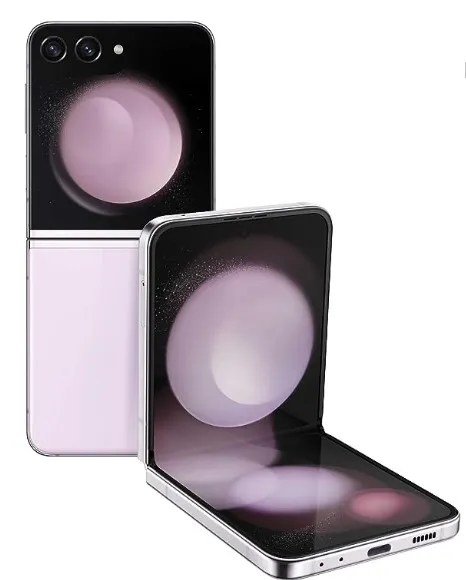
How to Change Theme on Samsung Z Fold 5 and Z Fold 4

Do you want to change the device theme on your Samsung Galaxy Z Fold 5 and Galaxy Z Fold 4? In this tutorial, I’ll teach you how to change theme on Samsung Z Fold 5 and Z Fold 4 5G. You can download themes from the Samsung store or play store on your Samsung One UI. Changing your Samsung phone theme will change the look of your phone settings, apps, and other background color. Let’s see the steps to change the default theme on Galaxy Z Fold 4 and Galaxy Z Fold 5.

Read More: How to Change the Lock Screen Wallpaper on Samsung Phone

How to Change Theme on Samsung Z Fold 5 and Z Fold 4 5G

How to Change Theme on Samsung Z Fold 5 and Z Fold 4

Step 1: Long-press on the blank area on your Samsung home screen.

Step 2: Touch Themes.

Step 3: Touch the Top tab at the top.

By default, show all available Samsung themes on your device.

Step 4: Choose from All (By Default)/Paid/Free from the dropdown box.

Step 5: Tap on the Theme you want to download.

You can see how it looks on different apps on your Samsung phone.

Step 6: Tap on the Download button.

Step 7: Tap Apply button when completing the downloading.

It will completely change the looks of your device.

How to Get Back Default Theme on Samsung Galaxy Z Fold 5 and Galaxy Z Fold 4

You can quickly restore the default Samsung phone theme using the below-given settings.

Step 1: Tap & hold the blank space on the home screen.

Step 2: Click on Themes.

Step 3: Click on Menu (Three Horizontal Lines) at the bottom right corner.

Step 4: Click on My Stuff.

Step 5: Click on Themes.

Step 6: Touch Default.

Step 7: Click on Apply.

You can see the default theme is set on your Samsung Galaxy devices.

How to Change the Samsung Keyboard Theme on Z Fold 5 and Z Fold 4

You can set the Samsung keyboard theme as Light, Solid Light, Dark, or Solid Dark. 

Step 1: Open the Settings app.

Step 2: Scroll down & click on General Management.

Step 3: Touch Samsung keyboard settings.

Step 4: Touch the Theme in the Style and Layout section.

Step 5: Choose a keyboard theme from Light, Solid Light, Dark, or Solid Dark.

And that’s all. Do you use the default phone theme or third-party theme on your Samsung Galaxy? Please, tell us in below comment section.

Read More:

How to Wipe Cache Partition on Samsung Z Fold 5 and Z Fold 4

Here’s how to wipe cache partition on Samsung Z Fold 5 and Z Fold 4 5G. Wiping cache data will delete the unnecessary system files that will improve your Samsung phone’s performance to free up Storage. When your Samsung phone freezes, runs slow, restarting again & again, you need to try wiping cache data on Samsung Galaxy Z Fold 5, Galaxy Z Fold 4, and other Android devices.

You must enter your Samsung phone in recovery mode to clear the cache partition or Wipe the cache partition. The main advantage is wiping the cache does not remove your data like your Samsung account, photos, videos, text messages, apps, etc. Let’s see the steps to wipe cache data on Samsung Z Fold 5 and Samsung Z Fold 4.

Read More: How to Clear Instagram Cache

How to Wipe Cache Partition on Samsung Z Fold 5 and Z Fold 4

How to Wipe Cache Partition on Samsung Z Fold 5 and Z Fold 4

You can clear all cache at once on Samsung Galaxy devices to wipe the cache data. 

Step 1: Swipe down the notification at the top & touch on the Power button icon.

Step 2: Touch Power off in the power menu.

Step 3: Touch again Power off to turn off your Samsung phone.

Step 4: When your phone is switched off, press the side key (Power Button) and volume up key simultaneously until Samsung Galaxy appears on the screen.

Android recovery screen appears on your phone screen.

Step 5: Press the volume down until you select the Wipe cache partition.

Step 6: Press the Power key.

Step 7: Press the Volume Down to select Yes.

Step 8: Press the Power key to start wiping the cache process.

You can see the wiping cache process at the bottom left corner. After completing the process, automatically select Reboot system now in Samsung recovery mode.

Step 9: Press the Power key on the Samsung phone.  

Remove all temporary files and data that slow down your phone’s performance. Also, free up space on your Samsung Galaxy device. 

How to Clear App Cache & Data on Samsung Z Fold Series                           

Clearing the app cache removes the app’s temporary data and sometimes fixes app crashing or freezing issues on your Samsung or other Android devices. Using the settings below, you can clear any app cache on Samsung Z Fold devices.

Step 1: Open the Settings app.

Step 2: Scroll down & click on Apps.

Step 3: Choose an App to clear the cache.

Step 4: Tap Storage in the usage section.

Step 5: Tap Clear cache at the bottom right.

How to Delete App Data on Samsung Z Fold 5 and Samsung Z Fold 4

Settings > Apps > Choose an App > Storage > Clear data > Delete.

And that’s all. Do you still have any queries about wipe cache partition on Samsung Z Fold 5 and Galaxy Z Fold 4? Please tell us in the below comment section.

Read More:

How to Fix Bluetooth Issues on Samsung Z Flip 5

Annoying that your Samsung phone keeps connecting and disconnecting from Bluetooth? In this tutorial, I’ll show you how to fix Bluetooth issues on Samsung Z Flip 5. Several reasons cause Bluetooth problems, like software glitches, turning off Airplane mode, clearing Bluetooth cache, deleting paired devices, etc. 

Different Bluetooth issues occur, like can’t pair with Buds 2 Pro/Buds, Bluetooth connectivity issues, Bluetooth unstable, can’t pair with car’s Bluetooth or other accessories, etc. Apply the below-given methods to fix Samsung Galaxy Z Flip 5 Bluetooth pairing and connectivity issues. 

Read More: How to Fix WiFi Issues on Samsung Galaxy 

How to Fix Bluetooth Issues on Samsung Z Flip 5 5G

How to Fix Bluetooth Issues on Samsung Z Flip 5

Follow the below troubleshooting steps to fix Samsung Galaxy Z Flip 5 Bluetooth connection problems.

1st Way: Restart your Galaxy Z Flip 5

Long-press the side key (Power Button) until you view the power menu. Tap on Restart in the power menu. Again touch Restart to reboot your Galaxy device.

Read More: How to Power Off Samsung Phone

2nd Way: Turn Off & On Bluetooth

Swipe down the notification shade at the top and touch on the Bluetooth icon to turn it off or on.

3rd Way: Make Sure to Turn Off Airplane Mode

Swipe down the notification twice at the top and touch the Flight Mode (Airplane mode) icon to turn it on or off.

4th Way: Check for System Software Update

Step 1: Open the Settings app.

Step 2: Touch on Software update.

Step 3: Touch on Download and Install.

5th Way: Clear Bluetooth Cache 

Step 1: Go to Settings.

Step 2: Scroll down & touch on Apps.

Step 3: Serch the Bluetooth and tap it.

Step 4: Click on Storage.

Step 5: Click on Clear cache.

Read More: How to Clear App Cache on Android

6th Way: Delete & Re-Pair device 

If your Samsung phone can’t pair with Buds 2, Smartwatch, or other accessories, you’ll try to remove that pair from your phone & car’s Bluetooth list if available and re-pair it again.

Step 1: Open the Settings app.

Step 2: Click on Connections.

Step 3: Click on Bluetooth.

Step 4: Click the Settings gear symbol of the paired device.

Step 5: Click Unpair at the bottom right.

Step 6: Click on Unpair.

Restart your Samsung phone and try to pair it, and check to fix the Bluetooth connectivity issues. 

7th Way: Reset Network Settings

It will delete all Samsung network settings so all paired device disconnect from your phone.

Step 1: Go to Settings.

Step 2: Touch General management.

Step 3: Touch Reset.

Step 4: Touch Reset network settings.

Step 5: Touch Reset settings.

Step 6: Touch Reset.

Turn Bluetooth on and try to pair it with another device. 

If you still face this Samsung Z Flip 5 Bluetooth issue, wait for the next software update or contact a nearby Samsung store.

And that’s all. We hope one of the above-given methods fixes your Bluetooth issues on Samsung Galaxy Z Flip 5. Stay with us for the latest Samsung Z Flip 5 tutorials.

Read More:

How to Fix WiFi Connection Problem on Samsung Galaxy Z Flip 5

Annoying that your Samsung phone keeps losing Wi-Fi or other WiFi issues? In this tutorial, I’ll teach you different methods to fix WiFi connection problem on Samsung Galaxy Z Flip 5. There are several reasons for WiFi not working on your Galaxy Z Flip 5, like phone or network errors, router problems, third-party apps causing the issue, etc.

Read More: How to Fix Slow Internet Connection Issue on Samsung Phone

11 Ways to Fix WiFi Connection Problem on Samsung Galaxy Z Flip 5

How to Fix WiFi Connection Problem on Samsung Galaxy Z Flip 5

Apply the below-given ways to Fix Samsung Galaxy Z Flip 5 WiFi not working issues.

1st Method: Restart your Samsung Z Flip 5

Swipe down the notification at the top and click the Power button icon to view the power menu. Tap the Restart in the power menu. Again tap the Restart to restart your phone

2nd Method: Make sure to Turn Off Airplane Mode

Swipe down the notification panel at the top and touch the Airplane mode to turn it on or off.

3rd Method: Check for System Update

Step 1: Open the Settings app.

Step 2: Touch on the Software update.

Step 3: Click on Download and Install.

Ensure the latest system update is installed on your phone and fix the WiFi issue. 

4th Method: Check your Phone or Internet Problem

Phone: Connect your WiFi connection with another device. If another device can access the Wifi connection, the issue is with your Samsung phone.

Internet: If your Samsung device connects with the WiFi, but you can’t access the internet, ensure the internet connection is stable. A slow internet connection also causes WiFi dropping issues.  

5th Method: Check if Router or Modem issue

If you access WiFi using a router on your Samsung phone, check if the router and modem’s power cable are damaged. Remove all the line from the router for 10-15 seconds, plug the power cable into it, and turn it on. Connect the Samsung phone to the Wi-Fi network.

6th Method: Auto-Reconnect the WiFi Network

Step 1: Go to Settings.

Step 2: Tap on the Connections.

Step 3: Tap on the WiFi.

Step 4: Touch on the Settings icon of your network.

Step 5: Make sure to Enable Auto-reconnect.

7th Method: Change or Disable Bandwith

We find this solution in the Reddit forum. Several Samsung phone users fix the WiFi dropping issue to turn off 160mhz bandwidth on 5ghz WiFi. 

8th Method: Disable Switch to Mobile Data

Go to Settings > Connections > WiFi > Three vertical dots (More) at the top right corner > Advanced > Toggle off Switch to mobile data.

9th Method: Enable Safe Mode to Fix WiFi Connection Problem on Samsung Galaxy Z Flip 5

To check any downloaded app causing the issue on your Samsung phone, enter your device into safe mode. It will turn off all third-party apps from your phone. You can access only system default apps.

10th Method: Remove & Reconnect the Network

Step 1: Open the Settings app.

Step 2: Touch on the Connections.

Step 3: Touch on the WiFi.

Step 4: Touch on the Settings icon of the network you want to delete.

Step 5: Touch the Forget at the bottom right.

Now, restart your Samsung phone and re-connect the WiFi by going to Settings > Connection > Wi-Fi > Add network > Enter the network name & password > Save.

11th Method: Reset Network Settings 

Step 1: Go to Settings.

Step 2: Scroll down & touch on the General management.

Step 3: Touch on Reset.

Step 4: Touch on the Reset network settings.

Step 5: Touch on Reset settings.

Step 6: Touch the Reset button.

Tap on the WiFi network and enter the password to connect to the WiFi. 

If none of the above-given solutions fix your Samsung Z Flip 5 WiFi issues, don’t hesitate to get in touch with the nearby internet service provider to check if there is a router or internet issue.

End the list of solutions to fix WiFi issue on Samsung Galaxy Z Flip 5. Don’t forget to mention which of the above-given method worked for you.

Read More:

How to Hard Reset Samsung Z Flip 5 and Z Flip 4

Do you want to reset the Samsung Galaxy Z Flip 5 and Z Flip 4 5G? In this tutorial, I’ll show you how hard to reset Samsung Z Flip 5 and Z Flip 4 using recovery mode. Hard reset or factory reset your Galaxy Z Flip phone will remove all data from your device like photos, Samsung account, Google account, videos, downloaded apps, system apps & settings, etc. Back up your phone data before hard resetting your Samsung Galaxy Z Flip 5 and Galaxy Z Flip 4 5G.

You can apply a hard reset Galaxy Z Flip 5 and Galaxy Z Flip 4 when your phone won’t turn on, black screen of death, a touchscreen is not working, stuck on the Samsung logo, and other issues. 

Read More: How to Enter Recovery Mode on Samsung Phone

How to Hard Reset Samsung Z Flip 5 and Z Flip 4 5G

How to Hard Reset Samsung Z Flip 5 and Z Flip 4

You can hard reset on Flip 4 and Flip 5 using the side key (Power key) and volume up & down buttons.

Step 1: Make sure to Switch off your Samsung Z Flip.

Step 2: Press & hold the Side Key (Power Key) and volume down key on your Samsung phone. When your Samsung phone turns on, release the power Key & press the volume up key until your Z Flip device enters recovery mode. 

Step 3: Touch the Volume Down key to select the Wipe data/factory reset.

Step 4: Press the Power button (Side Key) to apply.

Step 5: Touch the volume down button to highlight the Factory data reset.

Step 6: Press the Power key (Side key).

All your Samsung phone’s data will be deleted. Wait until factory reset your Galaxy Z Flip to factory default settings. 

Step 7: Press the Power Key (Side key) to reboot the system.  

How to Factory Reset Galaxy Z Flip 5 and Galaxy Z Flip 4 without Password

Step 1: Go to Settings on your Z Flip 5 and Z Flip 4.

Step 2: Scroll down & click General Management.

Step 3: Scroll and click on the Reset button at the bottom.

Step 4: Click on the Factory data reset.

Step 5: Scroll down & click on the Reset button.

Step 6: Unlock your Samsung Galaxy Z Flip 5 and Flip 4.

Step 7: Click on the Delete All button.

And that’s all. Do you still have any questions about hard resetting Samsung Galaxy Z Flip 5 and Z Flip 4? Stay and connect with us for the latest tips and tricks.

Read More:

How to Reset Network Settings Samsung Z Flip 5 and Z Flip 4

Here’s how to reset network settings Samsung Z Flip 5 and Z Flip 4 5G. Reset the network settings on Samsung phones will remove all saved WiFi networks, Bluetooth pairs, Cellular data settings, APN, and other network settings. All your data is safe. You don’t have to back up your data before performing Samsung Galaxy Z Flip reset network settings.

You can reset the network settings on Galaxy Z Flip 5 and Z Flip 4 if there are any WiFi issues, Bluetooth can’t pair, mobile data is not working, slow internet connection, etc. Follow the below-given settings to reset network settings on your Samsung Galaxy Z Flip 5 and Z Flip 4. 

Read More: How to Factory Reset Samsung Z Flip

How to Reset Network Settings Samsung Z Flip 5 and Z Flip 4 5G

How to Reset Network Settings Samsung Z Flip 5 and Z Flip 4

Make sure to remember the WiFi password. You need to enter it again after resetting the network settings. 

Step 1: Open the Settings app Samsung Z Flip device.

Step 2: Scroll down & click on General Management.

Step 3: Scroll and click on Reset at the bottom.

Step 4: Click the Reset network settings.

Step 5: Click on the Reset settings.

Step 6: Confirm your screen lock.

Step 7: Click on the Reset button.

All network settings will be reset.      

Factory Data Reset your Samsung Z Flip 5 and Z Flip 4 5G

Step 1: Open the Settings app on Galaxy Z Flip.

Step 2: Scroll down & touch the General Management.

Step 3: Scroll and touch the Reset at the bottom.

Step 4: Touch the Factory data reset.

Step 5: Scroll down and touch the Reset button.

Step 6: Unlock your Galaxy Z Flip device.

Step 7: Touch the Delete All button.

Wait until the factory reset your Samsung phone. All data will be deleted.

And that’s all. Do you still have any queries about resetting network settings on Samsung Galaxy Z Flip 5 and Galaxy Z Flip 4? Please tell us in the below comment section.

Read More: