How to Fix Apps Keep Crashing on Android or Samsung Galaxy

Annoying by suddenly crashing apps on your Android or Samsung Galaxy devices? Here are the possible solutions to fix apps keep crashing issue on Android phones. You can see the error message “unfortunately app has stopped” while using it or App isn’t responding like WhatsApp, Google App, Facebook, Instagram, Phone app, etc. Also, check for app updates available to fix freezing apps on Android phones.

Read Also:

Fix App Crashes on Android Phone: App Keeps Stopping Issue

Check out below given different methods to fix crashing apps or apps that keep closing unexpectedly in your stock Android or latest Samsung Galaxy devices.

Restart your Phone

Restart the device and check the app crashing or freezing. If you still facing the issue, follow the below-given method.

Check for App Update

Step 1: Open the Play Store on your device.

Step 2: Tap on Three horizontal lines at the top left corner.

Step 3: Tap on My apps & games.

Check for App Update to fix App crashes on Android phone

Step 4: Tap on Update if an available update of the app that crashes.

Clear App Cache

Step 1: Open the app drawer and tap on the Settings app.

Step 2: Tap on Apps & notifications.

Step 3: Tap on See all apps.

If you want to select a system app, tap on Three vertical dots at the top right corner > Show system.

Step 4: Select the App from the list.

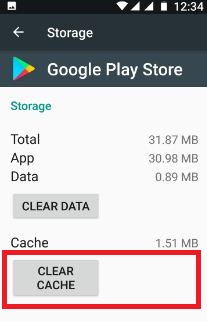
Step 5: Tap on Storage & cache.

How to Fix Apps Keep Crashing on Android

Step 6: Tap on Clear cache.

Force Stop App to Fix Apps Keep Crashing on Android or Samsung Galaxy

Step 1: Open the app drawer and tap on the Settings app.

Step 2: Tap on Apps & notifications.

Step 3: Tap on See all apps.

If you want to select a system app, tap on Three vertical dots at the top right corner > Show system.

Step 4: Select the App from the list.

Force Stop App to Fix Apps Keep Crashing on Android or Samsung Galaxy

Step 5: Tap Force stop.

Step 6: Tap on OK.

Restart your phone and check to fix the app issue.

Uninstall App Update

Step 1: Open the app drawer and tap on the Settings app.

Step 2: Tap on Apps & notifications.

Step 3: Tap on See all apps.

Step 4: Select the App from the list.

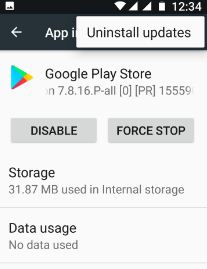
Step 5: Tap on Three vertical dots at the upper right corner.

Uninstall App Update to Fix app crashes on Android phone

Step 6: Tap Uninstall updates.

This will replace this app with the factory version. All data will be removed.

Step 7: Tap on OK to uninstall app update.

Restart your phone and update the app with the latest version and check to fix the issue.

Free Up Space to Fix App Crashes on Android Phone

Make sure storage is not full in your Android or Samsung devices.

Re-Install the App

Step 1: Open the Play Store on your device.

Step 2: Tap on Three horizontal lines at the top left corner.

Step 3: Tap on My apps & games.

Step 4: Select the App you want to uninstall.

Uninstall app to fix App Keeps Stopping Issue on Android

Step 5: Tap on Uninstall.

Step 6: Tap on Uninstall.

After uninstalling the app, you need to restart your Android phone and re-install the app again and check to fix the app crashing or freezing issue.

If none of the above solutions worked for you, you need to try a factory reset on your Android devices. It will delete all your phone data. Make sure to back up & restore the data before resetting it.

End the list of solutions to fix apps keeps crashing issue on Android phone or Samsung Galaxy device. Do you have any alternative methods? Share it with us in below comment box.

11 Best Stock Market Apps For Android 2023

Here’s the list of the 11 best stock market apps for Android in 2023. Using these Android stock trading apps, you can get real-time information on stock, finance & investment updates of the market. You can also track currencies, commodities, world indices, and equities and get stock quotes. Also track stacks & Indexes from New York Stock Exchange (NYSE), Dow Jones, Nasdaq, FTSE 100, NIKKEI 225, SENSEX, NIFTY, S&P, CAC 40, KOSPI, and more. And valuable to track live charts reports of Financial, and economic events, the latest quotes of stocks, mutual funds, F&O, and other important news related to stock markets.

Some investors are happy putting their money into a boring fund and letting it simmering-term. Stock market apps allow you to monitor stocks and funds you might own, research new investments before you buy them, and follow news about the companies you invest in. Here are the 11 best Android stock market apps. After reviewing fees, tradable assets, and more across several brokerages.

Read More: 10 Best Finance Apps for Android

Top 11 Best Stock Market Apps 2023 For Android

The following are the best stock market apps you can install on your Android device.

Moneycontrol Markets on Mobile

MoneyControl market app for android phone

This finance app is best for the latest updates on Indian and global financial stock markets and financial data. You can track Sensex, Nifty, Mutual funds, commodities, etc., and multiple assets from MCX, BSE, NCDEX, and NSE. Also, get financial markets analysis, expert views, news, and live streaming of CNBC-TV18, CNBC AWAAZ, CNBC Prime HD, and other live TV in English, Hindi, and Gujarati languages. You can effortlessly search stocks, mutual funds, indices, news, and commodities using the voice search feature. Also, view charts with a line, candlestick, area & OHLC, and latest stock quotes, F&O, latest price of NIFTY, Sensex, etc.

Download

Stocks, Forex, Finance & News App – Investing

Stock & forex app for android phone

This includes 40000 financial instruments, live quotes, a real-time global economic calendar, build your portfolio, track financial instruction, alert on breaking news, and extensive coverage of G-10 economies. Also, view real-time price quotes of assets & financial markets such as Nikkei 225, Down Jones, S&P, Nasdaq, etc.

Download

Yahoo Finance App 2023 for Android

Yahoo Finance App For Android Devices

Yahoo has always done an excellent job providing market information to its users. In the early Yahoo days, this meant providing stock market data on their main search website and web page for users interested in tracking the stock market. Some features of the Yahoo Finance stock market app include major stock market indexes, Stock market news, search for stocks by symbol, set notifications for information on specific stocks, and price alerts. The search feature in Yahoo Finance lets you filter stocks by things like P/E ratio, average volume, 1-year change, and more. You will have access to valuable tools like cryptocurrency news, a stock screener tool, and a currency converter.

Download

MSN Money – Stock Quotes & News App for Android

Best stock market apps for android

The best app to track financial data and indexes such as NYSE, S&P 500, Dow Jones, Nasdaq, FTSE 100, etc. Add your favorite stocks, ETFs, and mutual funds, and read the latest news on markets, business, insurance, technology, finance, taxes, etc. You can also track currency exchange rates and commodity prices.

Download

Webull: Best Free Stock Market App 2023

Wellbull stock trading app for Android

Webull is a technology-centric trading app that is best for stock traders with at least some experience. Webull is almost entirely free to use. There are no commissions for any trades on the app, including stocks and ETFs.Cryptocurrencies are new to the platform, but you won’t find bonds, mutual funds, or other assets. While Webull is a more unique app than most others on this list, it doesn’t lack features for active stock traders. Including Features are Tradable assets, Stocks, ETFs, options, and cryptocurrencies, Support brokerage and IRA accounts, Generous free stock promotions for new uses and for customers who refer others, advanced charting features, global markets and news, and many more.

Download

StockEdge

Stock Edge Stock Market Investing app For Android

StockEdge app is India’s Top Rated Unbiased Stock Market App for Investors & Short-Term Traders. This app is India’s best and fastest-growing Stock market app and Mutual Funds analytics & research App, primarily based on NSE & BSE data. Features provided in the app include Stock Market Updates, Stock Research, Technical Scans, Fundamental scans, Investment Ideas, Investor Portfolios, Mutual Fund Analytics, Light and dark theme available, and more features available in this app.

Download

Jstock

Jstock Best Stock Market Apps For Android

If you prefer minimalist apps, then JStock is your perfect choice. This app provides well-organized stock market information to help you decide your best investment strategy. Tap the + symbol on the My Watchlist page, and use the search field to find your preferred stocks to monitor. Individual stock pages are simple but include a tab with all the necessary data. You can find stock news, insider trades, feedback from stock analysts, and much more. You can also save your chosen stocks to your cloud storage account so you can store and load individual stock lists later. This is perfect for real-time stock news & alert, world indices, and stock investment. It supports 36 world stock markets and 10 years history chart of the stock & finance market. In the premium version, you can get unlimited stock news, watch lists, and portfolios.

Download

NetBenefits : Best for Beginners(Fidelity investments)

Netbenefits App For Stock marketing

Fidelity is a top brokerage for beginner investors and anyone focusing on long-term and retirement investments. Fidelity Investments is an app for Android, iOS, and Amazon devices. This app’s key features are Tradable assets Stocks, ETFs, mutual funds, fractional share investing, and more. It Supports brokerage, retirement, and education accounts, Intuitive screens to enter trades and track performance, and a social media-style feed of custom-tailored account and investment information.

Download

Share Market Trading App For Android

Market treding android app

This Android app is best for Forex, share, commodity, and other markets. It includes Forex trading basics, news trading, money management, and more. Consists of 20 hours of technical analysis videos for stock trading, commodity trading, and Forex trading.

Download

Learn How to Invest in Stocks

Invest in stock market app for android phone

Perfect Android app to learn investing in the U.S. stock market. It includes 40 chapters on the stock market, such as the basic principle of the stock market, investing money in the stock market, a step-by-step guide for beginners, seminars on investing, financial advice, and more. You can read/listen to all chapters. Also, it contains excellent advice on stock investing.

Download

US Stock Market App For Android

US stock market app for android phone

This US stock market app for Android phones tracks stocks and indexes from NYSE, Nasdaq, S&P, Dow Jones, and more. You can see quotes for stocks & indices, add, remove, re-order stocks/indices, and view daily/weekly/monthly/yearly charts. Also, support news-related stocks.

Download

End the list of the top best stock market apps for Android phones. Feel free to share this article with your friends! Do let us know which stock market app you would prefer first.

Read Also:

How to Enable and Use One Handed Mode on Galaxy Note 9/Note 8

Here’s how to enable and use one-handed mode on Samsung Galaxy Note 9 & Note 8 under advanced features settings. Using Note 9 one-handed mode, you can access your device using one hand from right or left side bottom corner of the screen. It will useful to adjust the display size and layout for easy control of your Samsung Note 9 with one hand. If you have the latest updated Samsung Note 10 One UI 2.0 (Android 10), you can use the new Gesture/Button to reduce the display size. By default turn off toggle One-handed mode in your android device.

Read Also:

How to Activate One-Handed Mode on Samsung Note 9

How to use one handed mode on Note 9

First of all, enable one-handed mode on galaxy Note 9 using the below settings.

Step 1: Swipe down the notification panel and tap the Settings gear icon.

Step 2: Tap Advanced features.

In Note 9 advanced feature settings, you can see S Pen, Smart stay, one-handed mode, Finger sensor gestures, Quick launch camera, Multi-window mode, Palm swipe to capture, Send SOS messages, Easy mute, and more.

Step 3: Tap One-handed mode.

Step 4: Toggle on one-handed mode or Use One-handed mode (One UI 2.0 Android 10)

Now swipe up diagonally from either bottom corner of the screen to reduce the display size in your Samsung Galaxy Note 9 Oreo.

You’ll also choose to reduce the screen size by using “Gestures” or “Button” in your Note 9.

Gestures:

Swipe up diagonally from the left or right bottom corner of the screen to access one-handed operation on galaxy Note 9.

Button:

Tap the home button 3 times quickly to use one-handed mode Note 9.

How to Exit or Close One-Handed Mode on Galaxy Note 9

If you don’t want to use your Note 9 using one-handed, tap outside of the one-handed screen to reduce display area to go back to full screen.

How to Enable Multi-Window Mode on Galaxy Note 9

In Note 9 advanced features settings, you can see multi-window settings that will help to use two apps at the same time in your Samsung Galaxy Note 9.

Settings > Advanced features > Multi-window

And that’s all. I hope this little tip helpful to enable and use one-handed mode on Note 9. If you have any questions, tell us in below comment box. Stay and connect with us for the latest updates.

How To Add or Remove Favorite Topics to Google Feed Android

Here’s how to add your favorite topics to Google Feed on Android devices. You can customize feed or add more cards to Google News of your favorite topics such as technology, News, lifestyle, fun, travel, emails, trips, Google translates, and more using Google app settings. You can individually block category you don’t want to show in Google news feed in your devices. Also, customize & disable Google now and reset feed preferences in android devices.

When enabling Google Now in android devices, you’ll get notified about weather alerts, sports scores, stocks, nearby places, movies & TV shows, task reminders, business listening, and articles about your favorite topics you added. If you annoying by Google feed stories in your android, you can disable Google Now feed android.

Read This:

How To Add or Remove Google Now Feed-In Android Oreo 8.1, 9 Pie, 10

Let see how to customize Google now feed and disable Google now feed for individual topics you don’t like.

Add your favorite topics feed in android Oreo 8.1

Step 1: Unlock your android Oreo device and Swipe left to right.

Google Now feed settings in android 8.1 Oreo

Step 2: Tap three vertical dots from the top right side.

Remove Google Now feed in android Oreo 8.1

Step 3: Tap customize the feed.

Add your favorite topics feed in android Oreo

Step 4: Tap Follow topics.

Step 5: Search topic name want to add.

Add new feed to Google news app in android Oreo

Step 6: Tap + icon to add in your Google now feed.

Now you’ll get the latest news of newly added topics in your display Google app menu.

Customize Google Now feed in android Oreo 8.1

Step 1: Follow the above-given method steps 1 to 3.

Here you’ll see a list of topics you added and also add your favorite topics in the list.

Customize Google feed in android Oreo devices

Step 2: Tap view all settings of topics you want to disable notification or other alert related that topics.

Turn off Google Now feed in android Oreo

Step 3: Disable notification you want.

Now turn off Google Now feed in android Oreo 8.1 for a particular topic or story. You can also customize feed using the below settings.

Reset feed preferences in android Oreo

Settings > Google app > Three horizontal lines > search > your feed > Tap topics to customize feed or disable notification

Remove Google Home Feed in Android

You can turn off display Google news app page in your android devices.

Step 1: Tap & hold the blank screen on your home screen.

Step 2: Tap Settings.

How To Customize Google News Feed In Android Devices

Step 3: Toggle off “Display Google app“.

Now swipe the screen left to right and you can’t see any Google app news page in your Oreo devices.

Read Also:

Turn Off Individually Google Feed Android

Turn Off Individually Google Feed Android

Swipe screen left to the right side on home screen > Feed icon at top right corner > Recent feed button at the bottom side > Scroll feed to the upside to remove Google feed individually

Stop New apps from adding to the home screen in Android 8.1 Oreo, 9 Pie, 10

Stop New apps from adding to the home screen in Android

Long press Oreo home screen blank space > Settings > turn off add icon to the home screen

And that’s all. Did you find the above tutorial helpful to remove Google Now feed in android Oreo 8.1? If you have any kind of trouble, tell us in below comment box. We will respond as soon as possible. Stay connected with us for latest android Oreo tips and tricks.

How to change Windows 10 display settings

Want to customize Windows 10 display settings? Here’s how to change Windows 10 display settings. This customize display settings Windows 10 PC includes screen resolution, scale & layout, Night light, Windows HD color, screen orientation and dual monitor setup Windows 10 PC.

There are two ways to adjust display settings on Windows 10 PC or laptop. You can anytime change display settings Windows 10 back to default. Also change the size of text and apps in Windows 10 PC. Follow below given step by step process to change Windows 10 display settings.

You May Like This:

How to change Windows 10 lock screen wallpaper

How to download Netflix movies & TV shows in Windows 10

How to change background wallpaper in Windows 10 PC

How to change Windows 10 display settings

How to change Windows 10 display settings

Let see two different ways to change display settings in Windows 10 PC or laptop devices.

1st Method: Adjust display settings in Windows 10 Laptop

Step 1: Right click on your Windows 10 display

Step 2: Tap Display settings

You can see below given display settings Window 10. Now adjust display settings on Windows 10 you want from below given display settings.


Night light

Adjust display settings in Windows 10 PC


By default turned off night light on Windows 10 PC. This night light or blue light filter Windows 10 feature is useful to reduce eye strain by displaying warmer colors at night. You can set schedule time to automatically enable night light in Windows 10 PC or laptop device.

Windows icon > Settings gear icon > System > Display > Night light

Also change night light settings in Windows 10 anytime you want in your desktop device.

Windows HD color settings

Change Windows HD color settings to enjoy a brighter, more vibrant picture in HDR and WCG videos, games, and apps in Windows 10.

Change Windows 10 scale and layout

You can change scaling settings in Windows 10 to fix app scaling problem. Enter custom scaling size you want to set. This change scale and layout settings in Windows 10 is useful to change the size of text, apps and other items on your PC or laptop device.

Change screen resolution in Windows 10 PC

Change Windows 10 resolution from list you want. To get best result, use recommended Windows 10 screen resolution in your PC. Also change screen orientation in Windows 10 PC from Landscape, Portrait, Landscape (flipped) and Portrait (flipped).

Multiple displays

Using this setting you can dual monitor setup Windows 10 PC. Set up multiple monitors in Windows 10 PC or laptop such as Dell, HP, Asus, Samsung, Lenovo etc. After setup dual monitor, make second monitor to your primary Windows 10 PC. Yu can set up Windows 10 dual monitor using below given settings.

2nd Method: Change Windows 10 display settings

You can customize display settings on Windows 10 PC using below given Windows settings.

Windows icon > Settings gear icon > System > Display

Now change display settings on Windows 10/8/7 PC such as screen resolution, blue light filter, scale & layout, Windows HD color and set up multiple monitor.

And that’s all. I hope you will enjoy viewing change Windows 10 display settings. Did I miss anything? If you notice that there is something missing feel free to let us below comment box.

How to Manage YouTube Caption Settings on Android

Want to adjust or manage YouTube caption settings on Android phones? You can add caption on YouTube videos and some of the videos automatically use caption on YouTube. It’s quite easy to change settings of YouTube captions on your android phone or computer. You can customize the font color, font opacity & font size, Background color & Background opacity, caption window color, edge type & edge color, and more on your computer.

You can change YouTube caption settings using the YouTube mobile app in your device. Sometimes YouTube caption not working in the android or YouTube CC button missing from your device. But in this tutorial, I will show you step by step guide of how to manage YouTube caption settings on Android (Nougat 7.0 and Marshmallow 6.0) devices.

Related:

How to Manage YouTube Caption Settings on Android Phone or Tablet

Let see how to enable and change the caption on YoutTube mobile device.

Step 1: Open the “YouTube” app & login with your account.

Step 2:  Tap “Three vertical dots” from the top right side.

Settings in YouTube app android device

Step 3: Touch “Settings”.

Tap caption to open settings in YouTube

Step 4: Tap “Captions”.

disable caption in YouTube android

By default disabled caption in YouTube on android device.

Enable caption in YouTube app android

Step 5: Toggle on “On“.

You can see standard options and custom options.

manage YouTube caption settings on android

Choose YouTube caption language, text size, change YouTube caption style, font family, text color, edge type, caption window color, and more. It’s easy to manage YouTube caption settings on android phone or tablet devices.

You can turn on or off YouTube captions and adjust their size on your desktop or mobile device.

How to Change the Caption on YouTube Mobile in 2020 Android

Change the caption on YoutTube Mobile

Sign in YouTube account in your mobile > Tap Profile icon at the top right corner > Settings > Captions > Toggle on Use captions

How to Adjust YouTube Captions Size and Style on Android

Change caption style in YouTube

YouTube app > Menu > Settings > Captions > Enable caption > caption size & style

How to Turn Caption On or Off in Desktop/Laptop

Video > Menu > Tap CC to turn on > Tap CC again to turn off

How to Adjust Caption Size & Style on Computer

Video player > Settings > Subtitle/CC > Options to customize

That’s all about YouTube captions settings on android nougat and marshmallow devices. You can easily manage or change caption settings on desktop or mobile devices.

I hope you have liked the above steps to manage YouTube caption settings on Android devices. Do let us know below comment box if you have any kind of trouble. Share this article with others if you found it helpful.