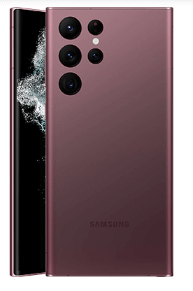
How to Change Edge Lighting Style Samsung S23 Ultra, S23+, S22 Ultra, S21+

Do you want to customize the edge lighting Samsung Galaxy? Here’s how to change edge lighting style Samsung S23 Ultra, S23+, S22 Ultra, S22 Plus, S22 and Galaxy S21 Ultra/S21 Plus/S21. You can find the edge lighting feature in notification pop-up settings on your latest Samsung One UI devices. When you receive a notification or call on your device, your Samsung device shows color effects on the edge of the screen. Check out the Samsung edge lighting settings below. 

Check More:

How to Change Edge Lighting Style Samsung S23 Ultra, S23 Plus, and S23 5G

How to Customize Edge Lighting Style Samsung Galaxy S22 Ultra

Step 1: Go to Settings.

Step 2: Scroll and tap Notifications.

Step 3: Tap Notification Pop-up Style.

Step 4: Tap Edge lighting style.

Step 5: Select the Effect you want to set.

How to Change Edge Lighting Color on Samsung S23, S23+, S23 Ultra 5G

Settings > Notifications > Notification Pop-Up Style > Edge lighting style > Colour > Choose a Auto or Select a color.

For Samsung S22 and S21 Series (Old Version):

How to Change Edge Lighting Effect on Samsung Galaxy

Step 1: Open the app drawer and tap on Settings.

Step 2: Tap on Notifications.

Step 3: Tap on Brief pop-up settings.

Step 4: Tap on Edge lighting style.

You can see three sections to customize edge lighting: effect, color, and advanced settings.

Step 5: Choose an Edge lighting effectcolor, and advanced (Short or long duration) and tap on Done.

How to Turn On Edge Lighting Notifications Even if the Screen is Off on Samsung Galaxy

Step 1: Go to Settings.

Step 2: Tap on Notifications.

Step 3: Tap on Brief pop-up settings.

Step 4: Toggle on Show even while the screen is off.

How to Turn Off Edge Lighting Effect on Samsung Galaxy

Settings > Notifications > Brief pop-up settings > Effect > None > Done.

Read Also: How to Change the Notification Sound on Galaxy S21 Ultra/S21+/S21/S20 Ultra/S20+/S20

How to Enable or Turn On Flash Notifications on Samsung Galaxy for Specific Apps

Step 1: Go to Settings.

Step 2: Scroll down & tap on Accessibility.

Step 3: Tap on Advanced Settings.

Step 4: Tap on Flash notification in the notifications section.

Step 5: Toggle on the Camera flash notification.

Step 6: Toggle on the App you want to enable the camera flash notification.

How to Enable Screen Flash Notification for Different Apps on Samsung Galaxy

Step 1: Open the app drawer and tap on the Settings app.

Step 2: Click on Accessibility.

Step 3: Click on Advanced Settings.

Step 4: Click on Flash notification in the notifications section.

Step 5: Toggle on the Screen flash notification.

By default, select all apps for flash notifications. 

Step 6: Choose the Selected apps.

Step 7: Select the Apps to screen flash notifications.

Also, change the screen flash notification light color in your Samsung devices.

FAQs:

Does Galaxy S22 Have Edge Lighting?

Yes. You can find edge lighting in notifications settings on your Samsung S22 series. Go to Settings > Notifications > Brief pop-up settings > Edge lighting style. Set the Edge lighting effect and colour you want to set.

Does the Samsung S22 Ultra Have an Edge Screen?

No. You can only find Edge panels (Display Settings) and Edge lighting (Notifications settings) on your Samsung S22 Ultra devices. This feature is only available for some countries or carriers. 

What is the Green Light on my Samsung Galaxy S21 Ultra?

This privacy indicator will alert you about using a mic or camera on your phone. You can see tiny green dots in the top right corner of the screen on your Samsung S21 device. It is easy to allow or deny apps to use a microphone or camera on the latest Android.

How do I Change the LED Light on my Samsung Galaxy S21?

You can change the LED light style and color in your Samsung Galaxy S21 device to go Settings > Notifications > Brief pop-up settings > Edge lighting style > Select a color & effect > Done.

How do you Turn On Flash Notification on Samsung Galaxy S21?

You can turn on camera flash notifications and screen flash notifications on your Samsung Galaxy S21 using accessibility settings. Go to Settings > Accessibility > Advanced settings > Flash notification > Toggle on Screen flash notification.

And that’s all. I hope the above-given tutorial is helpful to customize edge lighting style Samsung Galaxy S22 Ultra and S21 Ultra device. If you have any questions, let us know in below comment box.

How to Add Contacts to my Samsung Galaxy S22 Ultra/S22+/S22/S21 Ultra/S21+/S21

Here’s how to add or remove contacts on Samsung Galaxy S22 Ultra 5G/S22 Plus/S22 and Galaxy S21 Ultra/S21 Plus/S21 devices. You can add contacts from the recent contact tab or directly add a new contact to enter a phone number using a dialer. Also, edit contacts on Samsung Galaxy anytime using a phone app. You can permanently delete contacts one by one or delete all contacts at once on your Samsung Galaxy One UI devices.

How do I Add a Contact to my Samsung Galaxy Phone?

How to Add Contacts to my Samsung Galaxy S22 Ultra

Step 1: Open the Phone app on your Samsung device.

Step 2: Tap on Contacts at the bottom right corner.

Step 3: Tap on theicon at the top right.

Step 4: Enter the name, phone number (Add multiple numbers), email, address, important dates, website, notes, ringtone, add a profile picture, and more.

Step 5: Tap on Save.

How to Add Contact from Recent Contacts on Samsung Galaxy

Step 1: Open the Phone app.

Step 2: Tap on the Recents tab at the bottom middle.

Step 3: Tap on any unknown number/unsaved number from the list.

Step 4: Tap on Add to Contacts.

Three options are available here: Add to contacts/Create a new contact/Update existing contact.

Step 5: We choose to Create a new contact.

Step 6: Enter the Name, number & other details and tap on Save.

How do I Edit Contacts on Samsung Galaxy S22 Ultra?

Step 1: Open the Phone app & tap on the Contacts tab at the bottom right.

Step 2: Tap on Any contact you want to edit.

Step 3: Tap on the I icon.

Step 4: Tap on the Pencil icon (Edit).

Step 5: Add the details you want and tap on Save.

Read Also: How to Add Conversation Widget to Home Screen Android 12

How to Add Picture/Photo to Contact on Samsung Galaxy

Step 1: Open the Phone app & tap on Contacts.

Step 2: Tap on Any contact you want to add a profile picture to.

Step 3: Tap on the Camera symbol at the top of the contact.

Step 4: Choose a picture from Gallery/Camera/AR Emoji/Stickers.

Step 5: Select a Photo from the list.

Step 6: Crop a picture you want to set and tap on Done.

Step 7: Tap on Save.

How to Set Ringtone for Specific Contacts on Samsung Galaxy S22 Ultra 5G?

Step 1: Open the Phone app and tap on Contacts.

Step 2: Tap on Any contact you want to set a ringtone.

Step 3: Tap on the I icon.

Step 4: Tap on the Pencil icon (Edit).

Step 5: Tap on View more.

Step 6: Scroll down until you view Ringtone and tap on it.

Step 7: Choose a Ringtone from the default sound of your phone.

Step 8: Go back and tap on Save

How to Delete Contact on Samsung Galaxy?

You can permanently delete contacts on your Samsung Galaxy using the below-given settings.

Step 1: Open the Phone app and tap on Contacts.

Step 2: Tap on Any contact you want to set a ringtone.

Step 3: Tap on the I icon.

Step 4: Tap on More at the bottom right corner.

Step 5: Tap on Delete.

Step 6: Again, tap on Delete. 

How do I Add Contacts to my Samsung Galaxy S21?

To quickly add new contacts to Samsung Galaxy, open the phone app > Enter the number in the dialer > Tap Create new contact > Enter the contact details > Save. You can use an alternative method: Open Phone app > Contacts > + icon > Enter the details > Save.

How do I Edit Contacts on my Samsung Galaxy S21?

You can edit contact details on your Samsung S21 to go Phone app > Contacts tab > Select any contact > I icon > Edit > Enter the details you want to edit > Save. Easy to edit and remove contact details on your Samsung Galaxy devices.

Does Samsung Have a Contacts App?

Yes, you can find the contacts app in your app drawer on your Samsun Galaxy devices. Not all Samsung phones installed this Contacts app. Using the Samsung contacts app, you can share your contacts, move contacts, sync contacts, and import or export contacts to SD cards or .vcf files.

Where Should I Save my Contacts on Samsung Phone?

You can save your contacts to your Samsung account, Google account, Phone, or SIM card or create a custom list on your device. I suggest you save contacts on your Google account to back up and restore anytime quickly.

How do I Delete Phone Numbers from my Samsung Galaxy?

You can delete phone numbers on Samsung galaxy, go to the Contacts app > Three vertical dots at the top right corner > Delete contacts > Select the contacts > Delete. Delete contact one by one or delete multiple contacts simultaneously on your Samsung Galaxy devices.

And that’s all. Do you still have any questions about add contact to my Samsung Galaxy S22 Ultra series? Tell us in below comment section.

How to Enable Secure Folder on Samsung Galaxy Z Fold 2/Fold 3/Flip 3/Flip 2

Do you know how to enable and use Samsung secure folder? Here’s how to enable secure folder on Samsung Galaxy Z Fold 2, Galaxy Z Fold 3, Galaxy Z Flip 2, and Galaxy Z Flip 3. You can hide apps, files (Images, Videos, Audio, Documents), or folders on your Samsung One UI (4.1) devices using a secure folder. To secure data, you can lock your secure folder using pattern, password, PIN, or fingerprints. You can reset the lock using your Samsung account if you forget to unlock a secure folder.

How Do I Enable Samsung Secure Folder?

Step 1: Go to Settings.

Step 2: Scroll down & tap on Biometrics and security.

How to Enable Secure Folder on Samsung Galaxy Z Fold 2

Step 3: Scroll and tap on the Secure folder.

How Do I Enable Samsung Secure Folder

Step 4: You can see Samsung secure folder settings, including lock type, auto-lock secure folder, add a secure folder to apps screen, show the app notifications in a secure folder, etc.

To hide files, photos, videos, and other data using a secure folder, you need to add a secure folder to the home screen or apps screen.

How to Add Secure Folder to Apps Screen/App drawer on Samsung Galaxy

How to Add Secure Folder to Apps Screen on Samsung Galaxy

Settings > Biometrics and security > Secure folder > Toggle on add secure folder to apps screen

Now, go to the app drawer and see a secure folder in your Samsung One UI devices.

How to Add Apps or Files to Secure Folder on Samsung Galaxy

Step 1: Open the app drawer and tap on the Secure folder.

Step 2: Tap on the + icon to add apps.

How to Add Apps or Files to Secure Folder on Samsung Galaxy

Step 3: Select the apps and tap on Add at the bottom right.

You can see add apps to the secure folder. Now, lock your secure folder to secure your data or apps.

How to Lock Secure Folder on Samsung Galaxy Z Fold 2

If you don’t set up which lock screen security you want to use to unlock a secure folder, go to Settings > Biometrics and security > Secure folder > Lock style > Choose lock screen security

How to Lock Secure Folder on Samsung Galaxy

Step 1: Open the app drawer & tap on the Secure folder.

Open secure folder on Samsung One UI

Step 2: Click on Three vertical dots at the top right.

Lock Secure Folder on Samsung Galaxy


Step 3: Tap on Lock and exit.

A secure folder locked message appears on the screen.

Step 4: You need to unlock your secure folder using the lock you set to access it. Now, next time you don’t need to unlock your secure folder. 

How to Auto-Lock Secure folder on Samsung Galaxy

How to Auto Lock Secure folder on Samsung Galaxy Z Fold 2

Settings > Biometrics & security > Secure folder > Auto lock secure folder > Choose from Each time I leave an app/When screen turns off > After 5 minutes/ After 10 minutes/ After 30 minutes/When phone restarts

How to Hide Apps from Secure Folder on Samsung Galaxy

You can hide apps added to a secure folder on your Samsung device.

Step 1: Open the Secure folder from the app drawer.

Step 2: Long press the App until the menu view.

Step 3: Tap on Select.

How do I Lock an App with a Secure Folder on Samsung Galaxy

Step 4: Select the app you want to hide from the secure folder and tap on Hide.

How to Uninstall App from Secure Folder on Samsung Galaxy

You can remove apps one by one or remove all third-party apps at once from the secure folder in your Samsung One UI devices. This app will remove from the secure folder only. You can find these apps in the app drawer. Also, disable system apps in a secure folder.

How to Uninstall App from Secure Folder on Samsung Galaxy

Open Secure folder > Long-press the app > Select the apps > Uninstall > OK

How to Customize Secure Folder on Samsung Galaxy

You can change the secure folder name, and folder color and change the icon of the secure folder in your Samsung Galaxy devices.

Step 1: Open the app drawer and tap on the Secure folder.

Step 2: Tap on Three vertical dots.

Step 3: Tap on Customise.

How to Customize Secure Folder on Samsung Galaxy Z Fold 2

Step 4: Now, set a custom name, choose a color, select the secure folder icon, and click on the Apply in the upper right corner.

How to Disable Secure Folder on Samsung Galaxy?

You can remove or uninstall secure folder on your Samsung Galaxy using the below settings. Make sure to move all your media files (Photos, Videos, Documents) to your internal storage before uninstalling it. (To transfer media files from the secure folder, go to My files > Internal storage > Download > Secure folder)

How to Disable Secure Folder on Samsung Galaxy

Settings > Biometrics & security > Secure folder > More settings > Uninstall > Uninstall

Does Z Fold 2 have Secure Folder?

Yes, you can find a secure folder on your Samsung Z Fold 2. Go to Settings > Biometric and security > Secure folder. Also, lock your secure folder using a fingerprint scanner, PIN, Pattern, or Password. This will help you to hide files and apps in the secure folder.

How do I Lock an App with a Secure Folder? 

Open the secure folder from the app drawer & long-press the app, and tap on add to the home. Now, tap on Three vertical dots of the secure folder and select lock and exit. Secure folder locked message view. Now go to the home screen & open the app. You must enter the lock screen you set to use this secure folder app.

Does Samsung have inbuilt App Lock?

Yes, you can use Samsung secure folder feature to hide photos, apps, and other files. You can also lock secure folders and hide apps from secure folders to protect your data.

Read Also:

And that’s all. Easy to enable and use secure folder on Samsung Galaxy devices.

How to Add Conversation Widget to Home Screen Android 12

Do you know how to use conversation widgets on Android 12? Here’s how to add conversation widget to home screen Android 12. This feature will help you easily add recent conversations to the home screen for a chat. This Android 12 conversation widget includes recent discussions, messages, status updates, and messed calls.

How to Use Conversation Widget on Android 12 Home Screen 

Android 12 Widgets settings

Step 1: Long press on the blank area of the home screen and tap on Widgets.

Android 12 conversation widget

Step 2: Scroll down and tap on Conversations.

How to Add Conversation Widget to Home Screen Android 12

Step 3: Tap & hold to view a recent conversation list. 

Use conversation widgets on Android 12

Step 4: Tap a Conversation from the list to add it to your home screen.

How to Use Conversation Widget on Android 12 Home Screen

Step 5: You can see the conversation. Tap on it to chat.

You can resize the widget to long-press it, drop it anywhere on-screen, and adjust four dots to change widget size. To use two conversation widgets, you need to follow the same above-given steps.

How to Delete Conversation Widget from Home Screen on Android 12

How to Delete Conversation Widget from Home Screen on Android 12

Long-press the conversation widget on the home screen and move it to the × icon on the top left screen.

Where are the Widgets in Android 12?

You can find widgets in Android 12 to Long press on blank space on the home screen > Widgets > Tap any widget > Long-press the widget to add it to the home screen.

How do I Change Home Screen on Android 12?

You can change the home screen wallpaper on your Android 12 to go Settings > Wallpaper & style > Change wallpaper > Select the wallpaper > Right arrow icon at the bottom right > Home screen. Also, long-press the blank area, select wallpaper & style and change the wallpaper on your Android 12 device.

How do I Change the Clock Color on my Android 12? 

Using wallpaper, you can change the clock color on the lock screen in your Android 12. You can choose the color from four different wallpaper colors or the primary colors you want to set. To change the clock color on Android 12, go to Settings > Wallpapers & styles > Tap on Wallpaper colors or Basic colors > Tap on the color you want to set on your Android 12 clock.

How do I Add Custom Widget to my Android Home Screen?

You can add your favorite widget to the home screen on your Android phone by long pressing on the blank area of the home screen > Widgets > Tap any Widget category > Tap & hold the widget to move the home screen.

Read Also: How to Add Photo Widget to Home Screen on Samsung Galaxy

Does Google Message have a Widget?

No, you can’t find the widget of Google message. But if you have an Android 12 stock device, you can find messages in the conversation widget. This Android 12 conversation widget sees recent messages, missed calls, and status updates. Tap a conversation to add it to the home screen.

Is there Message Widget for Android?

No, you can only use the message as a conversation widget feature on Android 12 devices. Add your favorite or recent conversation to chat from the home screen quickly.

How do you Set Up Conversations on Android?

You can set conversation priority for a group or specific person you want on your Android phone. For the latest Android device, go to Settings > Notifications > Conversations > Select the conversation you want to change from priority/default/silent.

How to Hide Sensitive Content on OnePlus 10 Pro/10T/10R/9 Pro/9/9RT

Do you want to hide sensitive content on your OnePlus lock screen? By default, show all notification content on the lock screen on your OnePlus devices. You can hide sensitive content or hide all notifications from the lock screen on OnePlus using notification settings. Also, hide or block notifications for specific apps on your OnePlus devices. Here’s how to show or hide sensitive content on OnePlus 10 Pro/10T/10R/9 Pro/9/9RT.

Read More: How to Change Notification Sound on OnePlus

How to Hide Sensitive Content on OnePlus 10 Pro/10T/10R/9 Pro/9/9RT

How to Hide Sensitive Content on OnePlus 10 Pro

Step 1: Open the App drawer in your OnePlus.

Step 2: Tap on the Settings app.

Step 3: Scroll down & tap on Privacy.

Step 4: Tap on Notifications on the lock screen in the Privacy section.

Step 5: Choose to Hide sensitive content.

The other two options show all notification content (By default), and the other hides all notifications.

How to Hide Silent Conversations and Notifications on OnePlus

Step 1: Go to Settings.

Step 2: Scroll and tap on the Notifications & Status bar.

Step 3: Tap on Manage notifications in the notifications section.

Step 4: Tap on Notifications on lock screen.

Step 5: Choose to Hide silent conversations and notifications.

How to Stop Wake-up Screen When a Notification is Received on OnePlus

If you’re annoyed by the automatic wake-up screen when you receive a notification, you need to disable the below-given settings on your OnePlus devices.

Settings > Notifications & status bar > Manage notifications > More > Toggle off the Wake screen when a notification is received.

How to Hide Notification Content on Lock Screen for App in OnePlus

Step 1: Go to Settings.

Step 2: Scroll and tap on the Notifications & Status bar.

Step 3: Tap on Manage notifications in the notifications section.

Step 4: Tap on any App from the app notifications section.

Step 5: Toggle on Hide notification details on lock screen.

How to Hide WhatsApp Content in the Notification Bar OnePlus

If you don’t want to show notifications on the home and lock screen, disable app notifications on your OnePlus devices. You need to open the WhatsApp app to view notification content on your device. Below, the given settings are helpful to hide content on WhatsApp OnePlus devices.

Settings > Notifications & status bar > Manage notifications > Select the WhatsApp >Toggle off Allow notifications.

And that’s all. Do you have any queries about the show or hide sensitive content on OnePlus 10 Pro/10/9 Pro/9? Tell us in below comment box.

Read Also:

How to Enable Game Dashboard on Android 12

Android 12 (Pixels) devices include a new game dashboard feature to improve the gaming experience, like going live on YouTube, recording gameplay, displaying a live FPS counter, capture game screenshots & videos, etc. This feature is only available on Google Pixel devices running Android 12. Not all games support this Game dashboard feature. Here’s how to enable game dashboard on Android 12 Stock (Google Pixel 4a). 

How Do I Activate my Game Dashboard on Android?

Follow the below-given steps to enable and use the game dashboard on Android 12.

Step 1: Go to Settings.

Step 2: Tap on Apps.

Step 3: Tap on Game settings in the general section.

Step 4: Toggle on the Game dashboard.

Now, you can see game dashboard shortcut in games on your Android devices.

Where are Game Settings on Android 12?

Step 1: Go to Settings

Go to notifications settings on your Android 12 to use game dashboard


Step 2: Tap on the Notifications.

Use do not disturb settings to enable game dashboard Android 12 Pixels


Step 3: Scroll down & tap on Do not disturb in the General section.

Where are Game Settings on Android 12

Step 4: Tap on Schedules in the schedules section.

How Do I Activate my Game Dashboard

Step 5: Check the Gaming box and tap on the Settings icon of Gaming.

How to Enable Game Dashboard on Android 12

Step 6: You can see two options here.

Use game dashboard on Android 12


Step 7: Toggle on the Game dashboard floating icon.

If you don’t want to be a disturbance when you play games, you can also enable do not disturb for games on your Android device. You’ll only get notified by influential people and apps when playing a game.

Don’t Miss This:

How do I Play Hidden Games on Android 12?

You can play hidden games on Android 12 called Easter egg. This is a simple easter egg with a background that depends on your wallpaper.

Step 1: Go to Settings.


Step 2: Scroll down & tap on About phone.

Does Android 12 have an Easter egg

Step 3: Scroll down and tap on the Android version in the device details section.

What Does Android 12 Easter egg do

Step 4: Tap on the Android version until you view the Easter egg on your device.

How do I Play Hidden Games on Android 12

Step 5: You can see the above-given screen on your device.

Back to your screen to exit the easter egg game on your Android device.

Does Android 12 have an Easter egg?

Yes, you can enable easter egg on your stock Android 12 devices. To view easter egg, go to Settings > About phone > Tap on Android version until you consider the Easter egg game.

What Does Android 12 Easter egg do?

You can find Easter egg in the Android version number. You can see a clock as an easter egg on your Android 12. Move the clock time repeatedly, and the screen views a clock compatible with the background wallpaper you have set on your Android device.

And that’s all. Do you like this new Android 12’s Game dashboard feature? Which is your favorite Android feature? Tell us in below comment box.