How to change Windows 10 lock screen wallpaper

Want to change Windows 10 login screen background? Here’s how to change windows 10 lock screen wallpaper. There are two ways to change the lock screen pictures in Windows 10 PC using personalization and Windows settings. You can browse photos from drive in your desktop PC or laptop to change your Windows 10 lock screen picture. Also Windows 10 lock screen wallpaper download from Microsoft store.

You can customize lock screen on Windows 10 including Windows 10 login screen background, spotlight lock screen pictures and lock screen slideshow. Also choose apps to show quick status and Crotona on your Windows 10 lock screen. Check out below given step by step process to set or change windows 10 lock screen wallpaper HD.

Don’t Miss This:

How to change Windows 10 background picture

How to change power saver settings Windows 7

How to change screen resolution in Windows 10

How to change windows 10 lock screen wallpaper from PC Gallery

You can change lock screen wallpaper in Windows 10 laptop or PC using below given two methods.

1st Method: Change lock screen wallpaper in windows 10 PC

Step 1: Right click on your Windows 10 PC or laptop

Step 2: Tap Personalization

This Windows 10 setting include settings for change Windows 10 background picture, color, change theme Windows 10, fonts and other settings.

Change the lock screen pictures in Windows 10 PC

Step 3: Tap Lock screen from left side menu

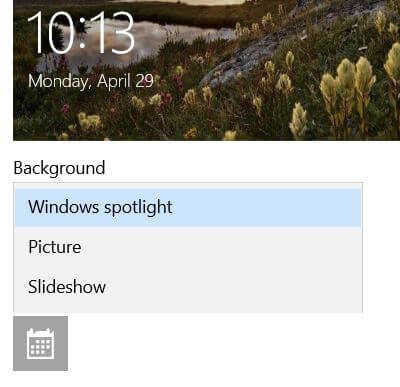
Here you can change the Windows spotlight lock screen, picture and slideshow options for Windows 10 lock screen background settings.

Change windows 10 lock screen wallpaper

Step 4: Tap Picture

Now appear list of Windows 10 background picture and also browse your favorite picture from your PC or laptop device.

How to change windows 10 lock screen wallpaper

Step 5: Choose your favorite picture

You can see background preview also to check how the background picture look on your Windows 10 lock screen look.

2nd Method: Change windows 10 lock screen wallpaper using Windows settings

Step 1: Tap Start button from bottom left corner on your Windows 10 PC

Step 2: Tap settings gear icon

Step 3: Tap Personalization

Step 4: Follow above given method steps 3 to 5

Now change lock screen picture on Windows 10 PC you want to set. If you don’t want to show lock screen background picture on Sign-in screen, you can disable it.

Windows 10 lock screen disable background picture on Sign in screen

You can remove lock screen wallpaper on Windows 10 PC sign in screen using below given settings.

Start button > Settings gear icon > Personalization > Turn off “Show lock screen background picture on the sign-in screen” toggle

And that’s it. We hope this makes it clear how to change windows 10 lock screen wallpaper. If you have any kind of trouble, tell us in below comment box. Stay and connect with us for latest Windows 10 updates.

How to change Windows 10 background pictures

Want to change desktop backgrounds on Windows 10 laptop or PC? Here’s how to change Windows 10 background pictures. By default set Windows 10 background as solid color (Dark). You can change wallpapers for Windows 10 PC from your PC drive or other Windows 10 wallpaper 4K.

You can download free desktop background pictures and other Windows 10 wallpaper pack to change desktop wallpapers on Windows 10 PC. Also download Windows 10 wallpaper HD 1920×1080 from Microsoft store in your desktop or laptop such as Dell, Lenovo, HP, Asus, Samsung etc. Follow below given step by step process to change Windows 10 background pictures in PC.

You May Like This:

How to change screen resolution in Windows 10

How to change date and time on Windows 10

How to enable or disable USB port Windows 7/8

How to change Windows 10 background pictures

You can change the desktop background wallpaper on Windows 10 from featured wallpapers of Microsoft such as Art, Natural wonders, places & landscape, panoramic. Check out below given both methods to change wallpapers for Windows 10 background on PC or laptop.

1st Method: Quickly change desktop backgrounds on Windows 10

Step 1: Right click on your Windows 10 desktop screen

Step 2: Tap Personalize

This Windows 10 personalization setting is useful to set or change desktop wallpaper, change slideshow lock screen, color, change Windows 10 theme, fonts and other settings.

Change the desktop background wallpaper on Windows 10

By default set background as solid color.

Change Windows 10 background pictures

Step 3: Tap background and choose Picture

Now you can see list of Windows 10 background wallpapers.

How to change Windows 10 background pictures


Step 4: Choose Windows 10 picture from list you want to set as desktop background

Step 5: Tap Browse to choose wallpapers for Windows 10 PC (Show above screenshot)

Also change Windows 10 background picture, slideshow and fit in your desktop PC.

2nd Method: Change Windows 10 background pictures using Windows settings

Step 1: Tap Start button from bottom left corner on your Windows 10 desktop PC or laptop

Step 2: Tap settings gear icon

Step 3: Tap Personalization

Step 4: Follow above given method steps 3 to 5

Now set desktop wallpaper on Windows 10 you want to set.

And that’s it. Do you still have questions about change Windows 10 background pictures? Have you change desktop backgrounds on Windows 10? Let us know in the comments section below! Stay and connect with us for latest Windows 10 tips and tricks.

How to change screen resolution in Windows 10

Here’s how to change screen resolution in Windows 10 PC or laptop device. There are two ways to change the Windows 10 resolution on your monitor. If you have problem with default screen resolution on Windows 10, change the size you want in your Windows PC. Adjust screen resolution from list of given Windows 10 screen size.

This display settings Windows 10 is useful to resize screen, change the text size, apps and other items. For best Windows 10 screen resolution use recommended screen size in your PC or laptop device. Follow below given step by step process to change screen resolution in Windows 10 to 1920×1080.

Don’t Miss This:

How to change date and time on Windows 10

Best Wireless printer for Android, Chromebook & Windows 10

How to download Netflix movies on Windows 10/8

How to change screen resolution in Windows 10 PC

You can change resolution and display size on Windows 10 laptop or PC devices using below given settings.

1st Method: Quickly change the resolution in Windows 10 PC

This Windows 10 screen resolution settings includes Night light, Windows HD color, scale & layout, screen resolution, screen orientation, multiple display and sleep better settings.

Step 1: Right click on your Windows 10 desktop screen

Step 2: Tap Display settings

change the Windows 10 resolution

Step 3: Tap Resolution

By default my Windows 10 screen resolution recommended 1920×1080 size.

How to change screen resolution in Windows 10 PC

Step 4: Choose Windows 10 resolution from list you want to set screen size Windows 10

Now change screen size in Windows 10 or Windows 8/7 PC or laptop such as HP, Asus, Lenovo, Dell etc.

2nd Method: Change screen resolution in Windows 10 laptop

Step 1: Tap Start button from bottom left corner on your Windows 10 desktop PC or laptop

Step 2: Tap settings gear icon

Here you can see Windows 10 settings.

Step 3: Tap System

Step 4: Now tap Resolution

Step 5: Choose the Windows 10 screen resolution as 1024×768 / 1280×960 / 1920×1080 and more.

And that’s all. We hope this makes it clear how to change screen resolution in Windows 10 PC. Do you still have any question regarding this tutorial? Tell us in below comment box. Stay and connect with us for latest updates.

How to Turn Dark Mode On Google Contacts App

Google discover dark mode in almost all Google apps. You can manually set the dark mode Google contact app or use system theme settings to automatically enable dark or light mode on your Google contacts app. In this tutorial, I’ll show you how to turn dark mode on Google contacts app on Android, Samsung, and OnePlus devices. Let’s see the settings to enable Google dark mode on the Google contacts app.

Read More: How to Turn On Chrome Dark Mode on Android, Windows 11/10

How to Turn Dark Mode On Google Contacts App on Android, Samsung, OnePlus

You can manually turn on dark mode on Google Contacts app using the below settings.

Step 1: Open the Google Contacts app on your phone.

Tap your Profile icon in Contacts App Android

Step 2: Tap the Profile icon at the top right corner.

Google Contacts App Settings to Enable Dark Mode

Step 3: Tap Contacts app settings.

Theme Settings in Google Contacts App

Step 4: Tap Theme in the Display section.

How to Turn Dark Mode On Google Contacts App

Step 5: Select Dark.

Set System-Wide Settings to Automatically Set Google Contacts Dark Mode or Light Mode

Google Contacts app > Profile icon at the upper right corner > Contacts app settings > Theme > System default.

Older Android Version

Step 1: Swipe up from the bottom of the home screen to access the app drawer in your Android.

Step 2: Tap the Contacts app.

Google Contacts app on android phone

Step 3: Tap Three horizontal lines (More) at the upper left side.

Google Contact app settings to enable dark mode

Step 4: Select Settings.

Here you can see Google contact app settings such as your info, name format, choose a theme, import & export contacts, restore contacts if lost, blocked numbers, and more.

Enable dark mode on Google contacts in android

Step 5: Tap Choose theme under the display section.

By default, the Google contact app set a light theme on older Android devices.

turn on dark mode in contacts app Android phone

Step 6: Choose a theme from Light /Dark /System default (Dark theme set by Battery saver).

How to turn on dark mode in Google contacts app Android

To enable dark mode on Google contacts on Android devices, choose dark or system default option from the options.

And that’s it. I hope this little tutorial is helpful to turn on dark mode in Google contacts app on Android device. Stay and connect with us for the latest updates. If you have any trouble, let us know in the below comment box.

Related:

How to Enable Developer Options and USB Debugging on Samsung Galaxy S10e

Here’s how to enable developer mode and USB debugging on Galaxy S10e. You can find developer options under system settings in your device. This Samsung S10 developer mode setting includes USB debugging, memory used by apps, OEM unlocking, debug the app, Windows animation scale, Bluetooth audio codec, background process limit, set logger buffer size, and more settings for development purpose only.

When you turn off developer mode toggle and back to the home screen, automatically disable or hide developer option from your Samsung S10e. To activate developer mode again, go to system settings and tap build number seven times. Follow the below-given step by step process to turn on developer mode on Galaxy S10e.

Read Also:

How to Enable/Disable Developer Mode on Galaxy S10e

How to enable developer mode on Galaxy S10e

You can turn on the developer options menu in Samsung galaxy S10e using below given complete process.

Step 1: Swipe down the notification panel from the top of the screen and tap the Settings gear icon.

Step 2: Scroll down up to end of the screen and tap About phone.

Here you can see several Samsung galaxy S10e settings.

Step 3: Tap Software information.

Step 4: Tap Build numbers 7 times or until see this message: Developer mode has been turned on.

Step 5: Tap the back button to go to phone settings. Now activated developer option in your Samsung S10e device.

You can see several galaxy S10e developer settings such as memory usage by apps, USB debugging, Night mode, desktop backup password, logger buffer size, picture color mode, auto-update system, transition animation scale, and other settings. You can enable USB debugging on galaxy S10e using the below settings.

Turn on USB Debugging on Galaxy S10e

Step 1: Swipe down the notification shade from the top of the screen and tap the Settings gear icon.

Make sure turn on developer mode in your S10e.

Step 2: Scroll down up to the end of the page and tap Developer option.

You can find USB debugging under debugging section in your Samsung galaxy S10e devices. By default turned off USB debugging in your S10e.

Step 3: Turn on toggle “USB debugging”.

This message appears on the screen: Allow USB debugging?

Step 4: Tap OK to enable USB debugging on S10e.

Now you’ll use USB debugging on galaxy S10e to copy data between your PC and galaxy S10e, install apps on your phone without notification, and read log data. Toggle off the button to disable USB debugging mode.

And that’s all. I hope this little tip useful to enable developer mode on Galaxy S10e. If you have any kind of trouble, tell us in below comment box. Stay and connect with us for the latest updates.

How to Unlock Galaxy S10 Plus/S10/S10e Without a Password/PIN/Pattern

Do you want to bypass the lock screen on Samsung without losing data? Here’s how to unlock Samsung Galaxy S10 Plus without a Password or PIN if you have forgotten. Pattern or PIN security helps secure essential data from other users or spammers. Factory reset or hard reset your Samsung Galaxy is the solution to unlock the screen of your Samsung device. It will delete all your Samsung S10/Samsung S10 Plus/Samsung S10e data, including your Samsung account, Google account, photos & videos, third-party downloaded apps, and more. Before performing a Galaxy S10 hard reset or master reset, back up your data safely to other phones or PCs. Follow the steps below to unlock Galaxy S10 without a pattern lock or PIN.

Read More: How to Reset Android Phone When Locked

How to Unlock Galaxy S10 Plus/S10/S10e Without a Password/PIN/Pattern | Bypasss Screen Lock on Samsung

How to unlock Galaxy S10 without pattern

When you set up your device, you need to set up lock screen security such as PIN or Password or ultrasonic fingerprint or face recognition to unlock the screen Galaxy S10 Plus and S10 quickly. If you forgot the pattern, PIN, or Password, apply the below-given complete process.

How to Unlock Samsung S10 Without a PIN, Pattern, or Password

Step 1: Power off your Samsung device.

Step 2: Press and hold the Volume down and Power buttons simultaneously.

When the Samsung logo appears on the screen, release the power key in your Samsung Galaxy. After a few seconds, the Android system recovery screen appears on your device.

Step 3: Press the volume down button until Wipe data/factory reset and press the power button to select it.

Step 4: Press the volume down button until Yes is selected, then press the power button to reset the Samsung Galaxy.

Step 5: Press the volume down button to Reboot system now, and press the power button to restart your Galaxy.

Now, wait until you restart your Samsung, and you can see remove all lock screen security from your device. You can easily unlock your device to touch it or swipe it.

How to Unlock Samsung Galaxy Forgot Pattern/PIN/Password using Find My Mobile

You can use the find my mobile feature to bypass the lock screen on Samsung Galaxy devices. Also, track your lost phone location.

Step 1: Click here and sign in with your Samsung account.

How to Unlock Galaxy S10 Plus Without a Pattern on Password

Step 2: Click on the Lock.

Step 3: Tap on Next.

How to Unlock Samsung Galaxy using Find My Mobile

Step 4: Enter a new password or PIN & confirm it again. Click on the Lock button at the bottom of the window.

It’ll change the lock screen pattern to PIN so you can use your Samsung Galaxy devices.

How to Factory Reset Samsung Galaxy S10 if Power On your device

Back up important data before factory data reset your Samsung Galaxy One UI.

Step 1: Open the app drawer on your device and tap Settings.

Step 2: Tap on General Management.

Step 3: Tap on Reset.

Step 4: Tap on Factory data reset.

Step 5: Tap on Reset phone or Reset.

Step 6: Tap on Delete All.

It will remove all data from your device.

Frequently Asked Questions:

How do I Unlock my Samsung Galaxy without the Pattern?

You can unlock your Samsung device with a forgotten password or pattern using Samsung recovery mode and find my mobile. It will delete all your phone data, including your Samsung account, Google account, photos, videos, etc. Back up your data before applying one of these methods.

And that’s it. I hope this little tip is helpful to unlock Galaxy S10 without a pattern or PIN. If you have any questions regarding this tip, please tell us in below comment box. Stay and connect with us for the latest updates.

Read Also: