Last Updated on September 22, 2026 by Bestusefultips
Does Your Android Phone Have a Built-In Screen Recorder?
Most Android phones released after 2020 have a built-in screen recorder. Here is a quick check:
| Phone Brand | Built-in Screen Recorder? | Android Version Required |
| Samsung Galaxy (S, A, Z series) | Yes | One UI 2.0+ (Android 10+) |
| Google Pixel | Yes | Android 11+ |
| OnePlus | Yes | OxygenOS 10+ (Android 10+) |
| Xiaomi / Redmi / POCO | Yes | MIUI 10+ / HyperOS |
| Oppo / Realme | Yes | ColorOS 7+ |
| Vivo / iQOO | Yes | Funtouch OS 10+ / OriginOS |
| Motorola | Yes | Android 11+ |
| Nokia / Stock Android | Yes | Android 11+ |
If your phone runs Android 11 or newer, you almost certainly have a screen recorder. If you have an older phone running Android 10 or below, use a third-party app (see bottom of this article).
How to Screen Record on Samsung Galaxy
- Swipe down from the top of the screen twice to open the Quick Settings panel in your Samsung phone
- Find and tap Screen Recorder (swipe left in Quick Settings if you do not see it)
- Choose your sound option: No sound, Media sounds, or Media sounds and mic
- Tap Start Recording
- A 3-second countdown appears, then recording begins
- A small floating toolbar shows at the top with Pause, Stop, and Camera (selfie) buttons
- Tap Stop when done. The recording is saved to Gallery > Screen Recordings
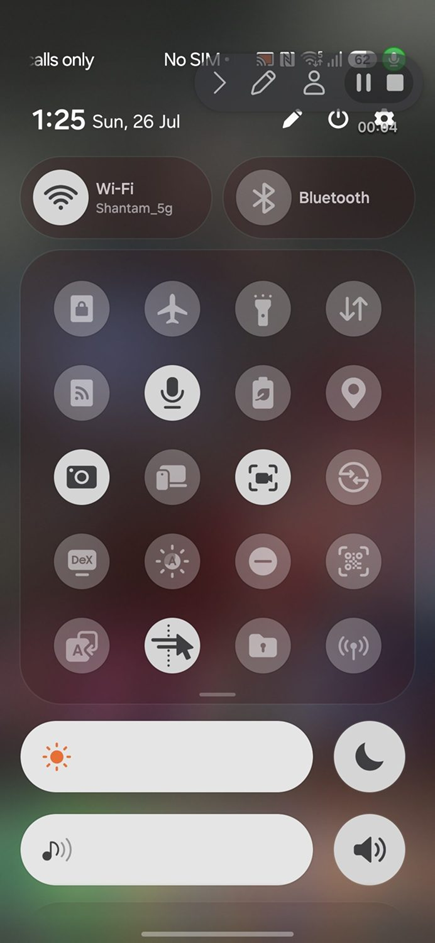
Swipe down twice on a Samsung phone to reach the full Quick Settings grid where Screen Recorder lives
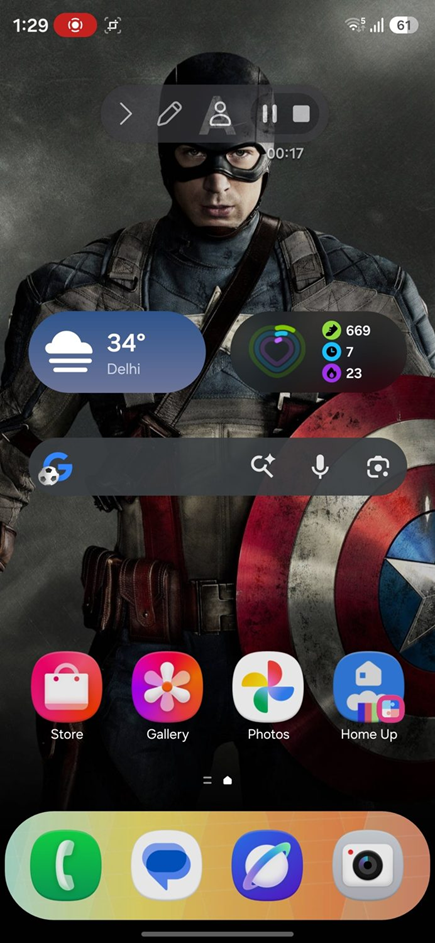
Once recording starts, Samsung shows a floating toolbar with draw, selfie camera, pause and stop, plus a live timer.
Samsung Extra Features
- Selfie overlay: Tap the person icon in the floating toolbar to show your face from the front camera in a small circle
- Draw on screen: Tap the pencil icon to draw or annotate during recording
- Pause and resume: Tap the pause button to pause without creating a new file
- Video quality: Settings > Advanced Features > Screenshots and Screen Recorder > Video Quality (720p, 1080p, or WQHD+)
How to Screen Record on Google Pixel
- Swipe down from the top twice to open Quick Settings in your Pixel phone
- Tap Screen Record (if not visible, tap the pencil icon to add it to Quick Settings)
- Choose: Record audio (Device audio, Microphone, or Device audio and microphone)
- Toggle Show touches on screen if you want tap indicators visible in the recording
- Tap Start
- A 3-second countdown begins, then recording starts
- To stop, swipe down and tap the Screen Recorder notification > Stop
- The recording is saved in Files > Movies or Photos > Library
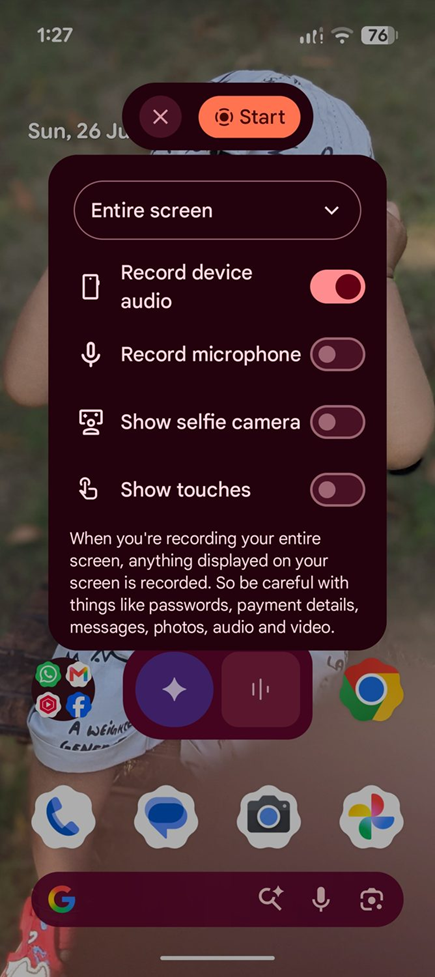
The Pixel Screen Record dialog: choose Entire screen or a single app, then toggle device audio, microphone, selfie camera and Show touches.
Pixel Extra Features
- Show touches: Displays a white dot wherever you tap on screen. Useful for tutorials.
- Device audio recording: Pixel can record internal audio from games and apps without picking up ambient noise from the microphone
How to Screen Record on OnePlus
- Swipe down from the top twice to open Quick Settings in your OnePlus phone
- Tap Screen Recorder
- A floating control panel appears with Start, Settings, and Close buttons
- Tap the Settings gear icon to configure: Video resolution (720p/1080p), Audio source (Internal audio/Microphone/Both/None), Show touches
- Tap the Record button to start
- Tap the Stop button in the floating panel when done
- Recording is saved in Files > Screen Recordings
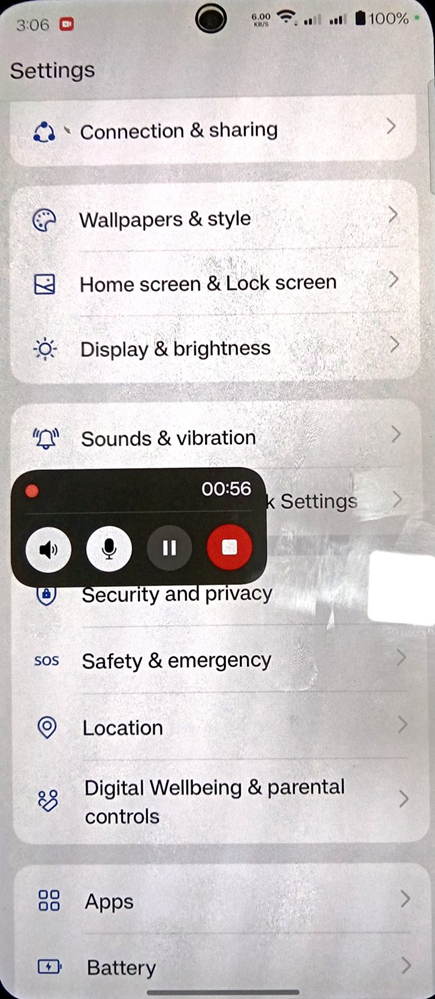
OnePlus (OxygenOS) shows a compact floating panel while recording: speaker audio, microphone, pause and the red stop button, with the elapsed timer above.
How to Screen Record on Xiaomi / Redmi / POCO
Xiaomi has one of the most feature-rich built-in screen recorders:
- Open the Screen Recorder app (find it in your app drawer or search for it)
- Tap the Settings gear icon in the top right corner to configure: Resolution (720p, 1080p, 1440p), Frame rate (24, 30, or 60 fps), Audio source, Video quality
- Tap the red Record button
- A floating Stop button appears. Tap it to stop recording.
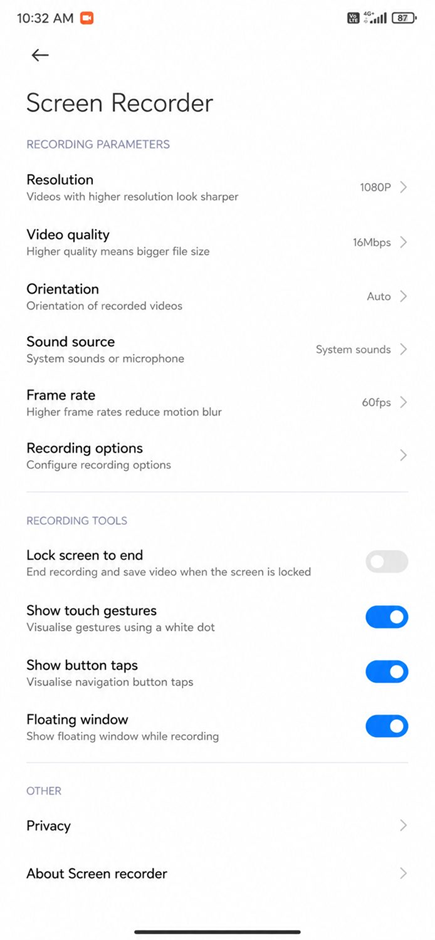
Xiaomi’s Screen Recorder has the most settings of any built-in recorder: resolution up to 1080p, bitrate up to 16 Mbps, frame rate up to 60fps, sound source, and toggles for touch gestures and button taps.
Xiaomi Extra Features
- 60 fps recording: One of the few brands that offers 60 fps recording by default, which is great for gameplay
- Custom resolution: You can set a custom resolution, not just preset options
- System sound only: Clean internal audio recording without microphone noise
How to Screen Record on Stock Android (Motorola, Nokia, etc.)
- Swipe down twice from the top of the screen
- Tap Screen Record
- Choose: Record audio (Device audio, Microphone, Device audio and microphone)
- Toggle Show taps if needed
- Tap Start. A countdown begins.
- To stop, swipe down and tap Stop on the notification
Screen Recording Audio Options Explained
One of the most confusing parts of screen recording is the audio settings. Here is what each option means:
| Audio Option | What It Records | When to Use It |
| No audio / None | Video only, completely silent recording | Recording sensitive content, or when you plan to add a voiceover later |
| Device audio / Internal audio / Media sounds | Only sounds from apps (game audio, music, video call audio from the other person) | Gameplay clips, app demos, recording a YouTube video playing on your phone |
| Microphone | Only your voice and ambient sounds from the microphone | Narrating a tutorial without app sounds |
| Device audio + Microphone / Both | Internal app audio AND your voice from the microphone | Tutorial with voiceover, commentary over gameplay, video call recording (both sides) |
Note: On Android 10 and older, internal audio recording was not supported by Android. Only microphone audio was available. Starting with Android 11, Google added official support for internal audio recording, and most phone brands have implemented it.
How to Screen Record While Gaming
If you want to record your gameplay, here are the best settings for a smooth recording:
- Set resolution to 1080p (not higher). Recording at 1440p or 4K while gaming can cause frame drops because your phone is rendering the game AND encoding the recording simultaneously.
- Set frame rate to 30 fps. Recording at 60 fps during gaming doubles the processing load. Unless you have a flagship phone with a powerful chip (Snapdragon 8 Gen 3 or newer), stick to 30 fps.
- Use Device Audio only (not microphone). This gives clean game sound without background noise.
- Close other apps before recording to free up RAM.
- Make sure you have at least 2-3 GB of free storage. A 10-minute gameplay recording at 1080p/30fps creates a file of approximately 250-400 MB.
Best Third-Party Screen Recorder Apps for Android
If your phone does not have a built-in screen recorder, or if you need additional features, these are the best third-party options:
| App | Best Feature | Internal Audio | Ads | Price |
| AZ Screen Recorder | No time limit, no watermark, can livestream to YouTube/Facebook | Yes (Android 11+) | Yes (removable) | Free, Pro $2.99 |
| XRecorder by InShot | Built-in video editor, facecam overlay, clean interface | Yes (Android 11+) | Yes (removable) | Free, VIP $7.99/year |
| Mobizen | Clean recording mode (hides notification bar and buttons) | Yes (Android 11+) | Yes | Free, Premium $3.99 |
| ADV Screen Recorder | Two recording engines (default + advanced), no root required | Yes (Android 11+) | Minimal | Free |
Note: All third-party screen recorders that claim to record internal audio on Android 10 and below either require root access or are using a workaround that records from the speaker via the microphone (lower quality). On Android 11 and newer, internal audio recording works properly through all these apps.
Troubleshooting: Screen Recording Not Working
Screen recorder option not in Quick Settings
On most phones, you need to add it manually: Swipe down twice > tap the Edit (pencil) icon > find Screen Recorder in the available tiles > drag it to the active area > tap Done.
Screen recording is greyed out or disabled
- Some apps (banking apps, DRM-protected streaming services like Netflix, Disney+, and Amazon Prime Video) actively block screen recording for security reasons. You will see a black screen or receive an error.
- Some workplace device management (MDM) policies disable screen recording. Contact your IT department.
- Make sure you are not in a phone call. Some phones disable screen recording during active calls.
Recording has no audio
- Check that you selected an audio option before recording (not ‘No audio’)
- Some apps mute internal audio during recording (video call apps may do this for privacy)
- Make sure Do Not Disturb mode is off
Recording is laggy or stuttering
- Lower the recording resolution (switch from 1080p to 720p)
- Lower the frame rate to 30 fps or 24 fps
- Close background apps to free up RAM and CPU
- Make sure your phone is not overheating. Phones throttle performance when hot, which makes recordings choppy.
Frequently Asked Questions
How do I enable screen recording on Android?
On Android 11 and newer, screen recording is built in. Swipe down twice from the top of the screen to open Quick Settings and look for the Screen Record tile. If it is not visible, tap the pencil/edit icon to add it. On older Android versions, download a third-party app like AZ Screen Recorder from the Play Store.
Why can I not screen record on Android?
The most common reasons are: your phone is running Android 10 or older (no built-in recorder), the app you are trying to record blocks it (banking and streaming apps), your workplace MDM policy disables it, or the screen recorder tile is not added to your Quick Settings yet.
Can you screen record with internal audio on Android?
Yes, starting with Android 11 (released 2020). When you start a screen recording, select ‘Device audio’, ‘Internal audio’, or ‘Media sounds’ as the audio source. This records audio directly from apps without using the microphone, giving you clean audio without background noise.
Does Android have a built-in screen recorder?
Yes. Android has had a built-in screen recorder since Android 11 (September 2020). All major phone brands including Samsung, Google Pixel, OnePlus, Xiaomi, Oppo, Vivo, and Motorola include it. Samsung actually added their built-in screen recorder earlier, starting with One UI 2.0 on Android 10.
