Last Updated on August 1, 2026 by Bestusefultips
First: Check What Is Using Your Storage
Before deleting anything, see what is actually taking up space:
- Go to Settings > Storage (Samsung: Settings > Device Care > Storage)
- You will see a breakdown: Apps, Images, Videos, Audio, Documents, System, Other
- Tap on each category to see details
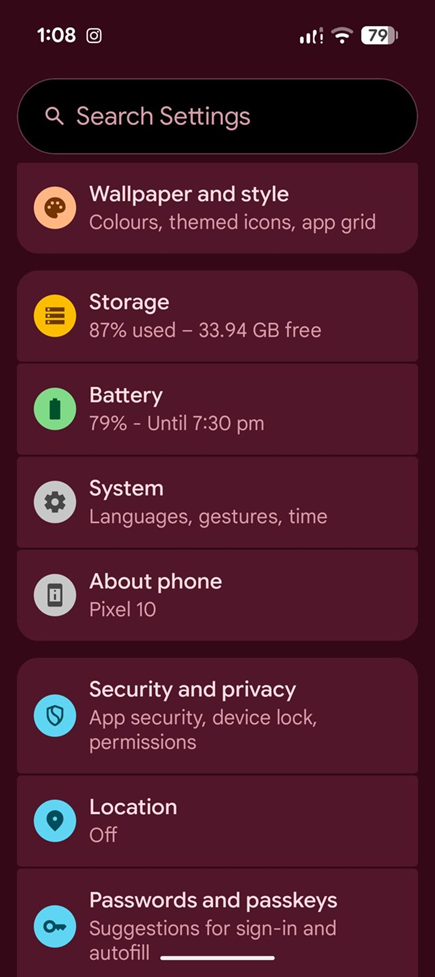
The Settings list shows storage at a glance: 87% used, 33.9 GB free.
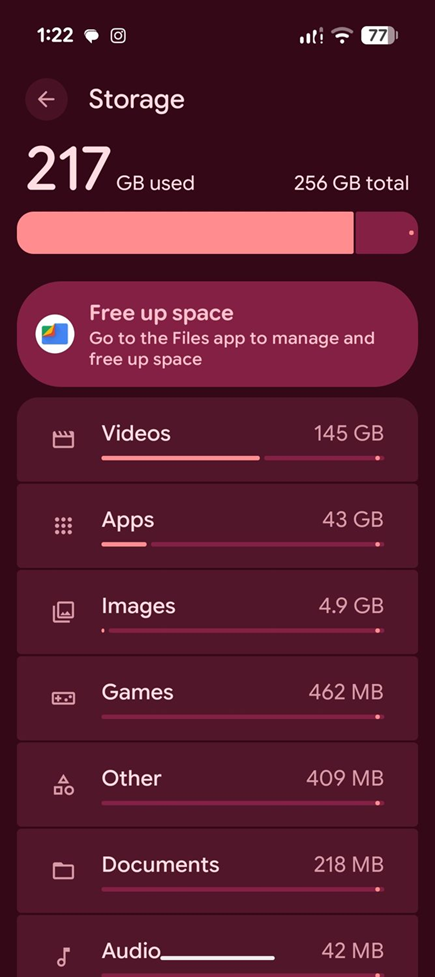
Storage breakdown: 217 GB of 256 GB used, with Videos alone taking 145 GB.
On most phones, the biggest space consumers are: Photos and Videos (40-50%), Apps (20-30%), and System files (15-20%).
Method 1: Delete Old Photos and Videos You Do Not Need (Saves 2-20 GB)
Photos and videos are almost always the biggest storage hog. A single 4K video can be 300-500 MB. A year of daily photos can easily use 5-10 GB.
- Open Google Photos or your Gallery app
- Sort by size if possible (in Google Photos: search ‘videos’ to find large files first)
- Delete videos you no longer need, blurry photos, screenshots you have already used, and duplicate images
- After deleting, empty the Trash/Recycle Bin (deleted photos stay in trash for 30-60 days and still use storage)
If you want to keep photos but free up space, back them up to Google Photos cloud (free up to 15 GB with a Google account, then $1.99/month for 100 GB) and select ‘Free Up Space’ in Google Photos settings.
Method 2: Clear App Cache (Saves 1-5 GB)
Every app stores temporary data called cache. Over time, apps like Instagram, Facebook, Chrome, Twitter/X, and TikTok can accumulate 500 MB to 2 GB of cache each.
Clear Cache for Individual Apps
- Go to Settings > Apps
- Tap on an app (start with social media and browser apps – they use the most cache)
- Tap Storage
- Tap Clear Cache (NOT Clear Data – Clear Data will log you out and delete saved information)
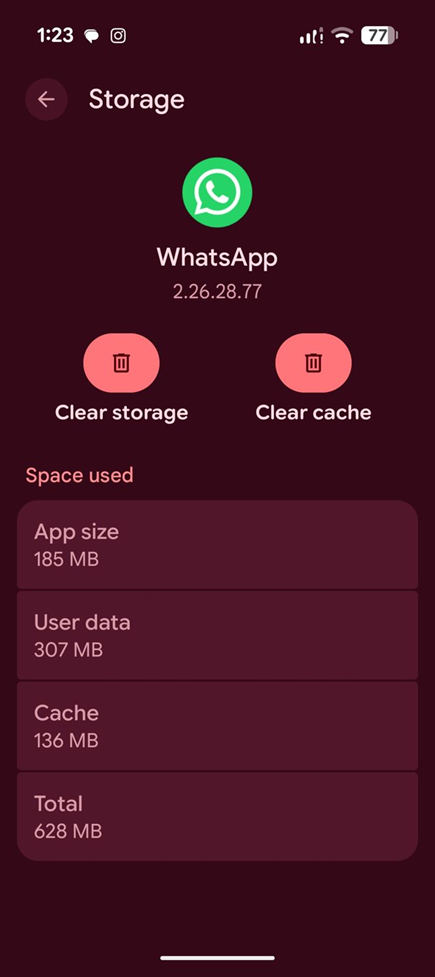
WhatsApp using 628 MB total, with 136 MB of it cache. Clear cache removes only the cache.
Clear All Cache at Once (Samsung)
Samsung phones let you clear all app cache at once:
- Go to Settings > Device Care > Storage
- Tap Clean Now or Temporary Files
- Confirm to delete all cached data
Clear All Cache at Once (Other Brands)
Most other Android phones do not have a one-tap cache clear option. You need to clear cache app by app, or use the Recovery Mode method: Power off your phone, hold Power + Volume Up to enter Recovery Mode, select ‘Wipe Cache Partition’, then restart. This clears system cache without deleting personal data.
Method 3: Uninstall Apps You Do Not Use (Saves 1-10 GB)
Check how many apps you have installed. Most people use only 10-15 apps regularly but have 50-80 installed.
- Go to Settings > Apps > Sort by size (largest first)
- Review apps you have not opened in the last 3 months
- Uninstall the ones you do not need
Games are often the biggest culprits. A single game like Genshin Impact uses 15-20 GB, Call of Duty Mobile uses 10-15 GB, and PUBG Mobile uses 5-8 GB. If you are not playing these games, uninstalling them frees up massive amounts of space.
Method 4: Delete Old Downloads (Saves 500 MB – 3 GB)
- Open the Files app (or My Files on Samsung)
- Go to the Downloads folder
- Sort by date (oldest first) or size (largest first)
- Delete old PDFs, APK files, ZIP files, and documents you no longer need
Many people forget about their Downloads folder. Old APK files, PDF attachments from emails, and ZIP files can accumulate over months and take up several gigabytes.
Method 5: Use Google Files to Find and Delete Junk (Saves 1-5 GB)
Google’s ‘Files by Google’ app (free) is one of the best storage management tools. It automatically identifies junk files, duplicate photos, old screenshots, and large files.
- Download ‘Files by Google’ from the Play Store if not already installed
- Open the app and go to the Clean tab
- You will see suggestions like: Junk files, Duplicate files, Old screenshots, Large files, Backed-up photos
- Review each suggestion and delete what you do not need
Files by Google is safer than third-party cleaner apps because it does not delete system files or anything important. It only suggests truly unnecessary files.
Method 6: Delete WhatsApp Media (Saves 1-10 GB)
WhatsApp is one of the biggest hidden storage consumers. Every photo, video, GIF, and document shared in your chats is saved to your phone’s storage.
- Open WhatsApp > Settings > Storage and Data > Manage Storage
- You will see total space used and which chats use the most storage
- Tap on the heaviest chats and select media to delete
- Use the ‘Larger than 5 MB’ filter to find and delete large videos first
Alternatively, go to your phone’s file manager and navigate to Internal Storage > WhatsApp > Media. You can delete entire folders like WhatsApp Video or WhatsApp Images. The messages in your chats will still be there, but the media will show as ‘download’ instead of displaying directly.
Method 7: Delete Old Text Messages with Attachments (Saves 200 MB – 2 GB)
MMS messages with photos and videos can add up over time. If you have years of text message history:
- Open your Messages app
- Long-press on old conversations you no longer need
- Delete entire conversation threads, especially those with lots of photo attachments
You can also set messages to auto-delete after a certain period: In Google Messages, go to Settings > Message Organization > Auto-delete OTP messages after 24 hours.
Method 8: Offload Unused Apps (Samsung and Pixel)
Offloading removes the app but keeps its data, so if you reinstall it later, you do not lose anything.
- Samsung: Settings > Device Care > Storage > Apps > select unused apps to offload
- Pixel: Settings > Apps > Unused Apps > toggle on auto-remove permissions and free up space
This is a good option for apps you rarely use but want to keep the option to restore later.
Method 9: Move Apps to SD Card (If Your Phone Supports It)
Some Android phones have a microSD card slot that lets you expand storage. If yours does:
- Insert a microSD card (128 GB cards cost around $15-20)
- Go to Settings > Apps > select an app > Storage
- If the option ‘Move to SD Card’ or ‘Change storage location’ is available, tap it
- Not all apps support this. System apps and some large apps cannot be moved.
Note: Samsung Galaxy A series, Motorola phones, and many budget phones support microSD cards. Flagship phones like Samsung Galaxy S series, Pixel, and OnePlus do NOT have microSD card slots.
Method 10: Clear Browser Data (Saves 200 MB – 1 GB)
- Open Chrome (or your default browser)
- Tap the three-dot menu > Settings > Privacy and Security > Clear Browsing Data
- Select: Cached images and files, Browsing history, Cookies and site data
- Set the time range to ‘All time’
- Tap Clear Data
Note: Clearing cookies will log you out of all websites. If you only want to free space without losing your logins, select only ‘Cached images and files’.
Method 11: Delete Offline Maps and Music Downloads (Saves 500 MB – 5 GB)
If you have downloaded maps for offline use in Google Maps, or downloaded music in Spotify, YouTube Music, or Apple Music, these files take up significant space.
- Google Maps: Open Maps > tap your profile > Offline Maps > delete maps you no longer need
- Spotify: Open Spotify > Settings > Storage > Delete Cache or remove individual downloaded playlists
- YouTube Music: Open YT Music > Library > Downloads > remove downloaded albums
Method 12: Compress Photos (Saves 30-50% of Photo Storage)
If you do not want to delete photos but need to free space:
- Open Google Photos
- Tap your profile icon > Google Photos Settings > Backup > Backup Quality
- Select ‘Storage saver’ instead of ‘Original quality’. This compresses photos to 16 MP and videos to 1080p, which is still excellent quality for viewing on phones and computers.
- Then go to Google Photos > Free up space to delete local copies of backed-up photos
Method 13: Delete System Update Files (Saves 500 MB – 2 GB)
After your phone installs a software update, the downloaded update file may still be taking up space.
- Go to Settings > Storage > Other (or System)
- Look for downloaded update files and delete them
- On Samsung: Settings > Software Update > delete any pending download files
Method 14: Check Telegram and Signal Storage (Saves 500 MB – 5 GB)
Like WhatsApp, Telegram and Signal download and cache media files locally.
- Telegram: Settings > Data and Storage > Storage Usage > Clear Cache. Telegram often caches 2-5 GB of media.
- Signal: Settings > Storage > Review and delete large media
Method 15: Factory Reset as Last Resort
If nothing else works and your phone is still showing full storage despite deleting files, the ‘System’ and ‘Other’ categories might be bloated. A factory reset clears everything and gives you a fresh start.
- Back up all your data first (Google Backup, photos to Google Photos, files to Google Drive)
- Go to Settings > System > Reset > Factory Data Reset
- After reset, set up your phone and restore from backup
- Only install apps you actually use
This is the nuclear option but it often recovers 5-15 GB of space that was being used by accumulated system files and fragmented data.
What NOT to Delete
Some files should never be deleted manually because they can break your phone:
| Do Not Delete | Why |
| Anything in the Android/data folder | Contains app data. Deleting can corrupt apps. |
| System files or folders | Can brick your phone or cause bootloop. |
| Files you do not recognize in root storage | May be system or app dependencies. |
| Cached data for Google Play Services | Can cause Play Store and Google app errors. |
Stick to the methods above which only target safe-to-delete files. If you are unsure about a file, leave it alone.
Frequently Asked Questions
Why is my Android storage full when I have nothing?
The most common causes are: app cache (especially social media and browsers), WhatsApp and Telegram media, system files and updates, and hidden data in the ‘Other’ category. Run through methods 2, 5, 6, and 14 above to find hidden storage consumers. The ‘Other’ category in storage settings often contains cached streaming data from Netflix, YouTube, and music apps.
What takes up the most space on Android?
On average: Photos and Videos (40-50%), Apps and App Data (20-30%), System (15-20%), and Other files (10-15%). Videos are the single biggest space consumer because even a short 1-minute 4K video can be 300-500 MB.
Is it safe to clear cache on Android?
Yes, clearing cache is completely safe. Cache is temporary data that apps store to load faster. When you clear cache, the app will recreate it as you use the app. You will not lose any personal data, photos, messages, or login information. The only effect is that apps may take a few extra seconds to load the first time after clearing cache.
How do I clear junk files on Android?
The safest way is to use Google’s ‘Files by Google’ app (free). Open it, go to the Clean tab, and it will identify junk files, duplicates, old screenshots, and large unused files. Avoid using third-party cleaner apps that promise to ‘boost performance’ as most of them show ads, run in the background, and can actually slow down your phone.
