How to Restart Pixel 9

Do you want to restart your Google Pixel 9 series? Here’s how to restart Pixel 9, Pixel 9 Pro, Pixel 9 Pro XL, Pixel 9 Pro Fold, and other Pixel devices running Android 16. 3 ways to restart Google Pixel 9 series include the power & volume up buttons simultaneously, the power button in quick settings tiles, and the power key. Also, use Gemini or Google Assistant to access the power menu to restart or power off your Google Pixel 9 Pro devices.

Google Pixel launched new Pixel phones, including the Google Pixel 10 series. You can see the Google Pixel 10 on the official Google store for each country. Also, check the Google Pixel 10 series price, specifications, AI, and Gemini uses.

Read More: Google Pixel 8 AI Features

How to Restart Google Pixel 9, 9 Pro, 9 Pro XL, 9 Pro Fold (Android 16): 4 Ways

Restarting the phone will stop all background processes, remove temporary files, speed up your phone, and sometimes fix minor glitches.

How to Restart Pixel 9 Pro, 9 Pro XL, 9 using the Power Button

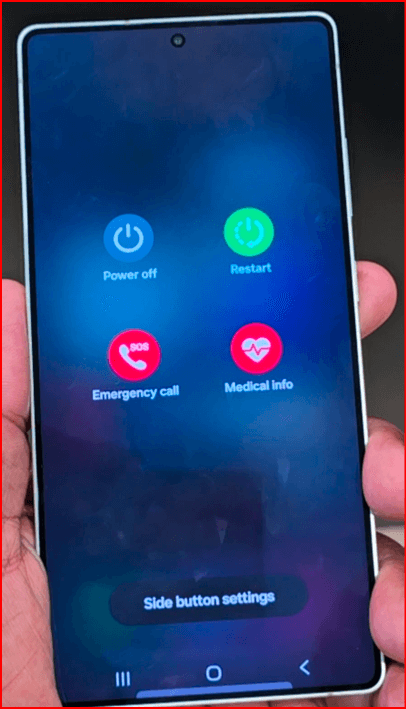
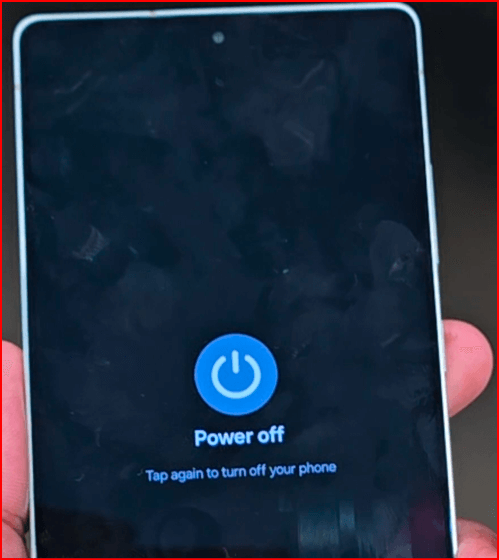
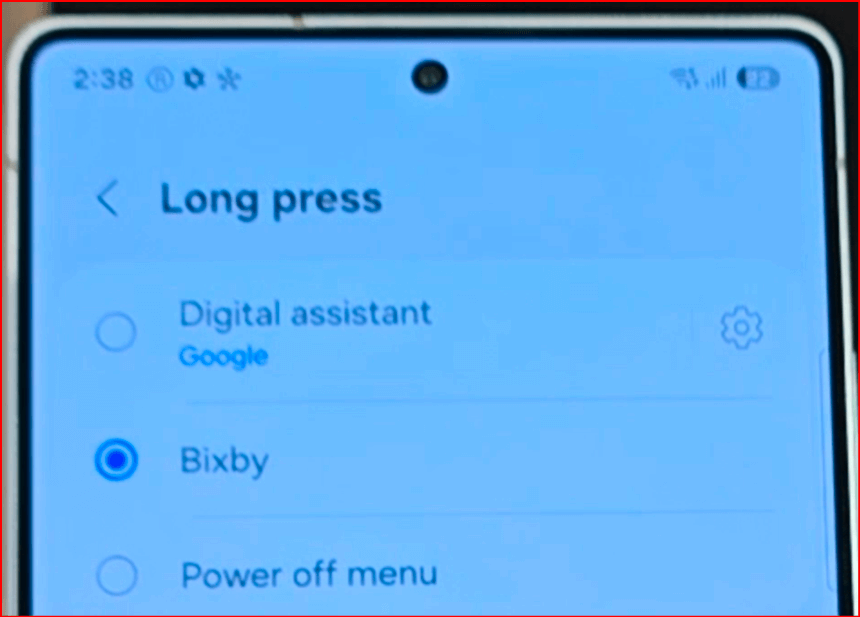
Long-press the power button on your Pixel device to view the power menu.

How to Restart Google Pixel 9 Pro XL

Tap Restart to restart your Pixel phone.

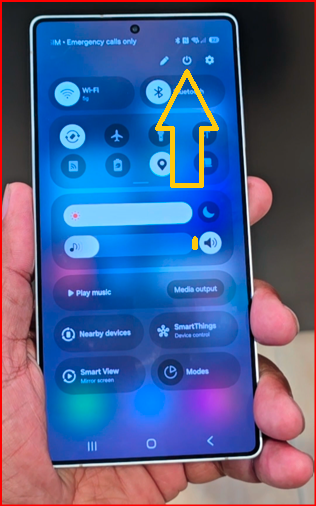
How to Reboot Pixel 9, 9 Pro XL, 9 Pro Fold using the Power Button in Quick Panel

Pull down the notification panel twice from the top on your Pixel device.

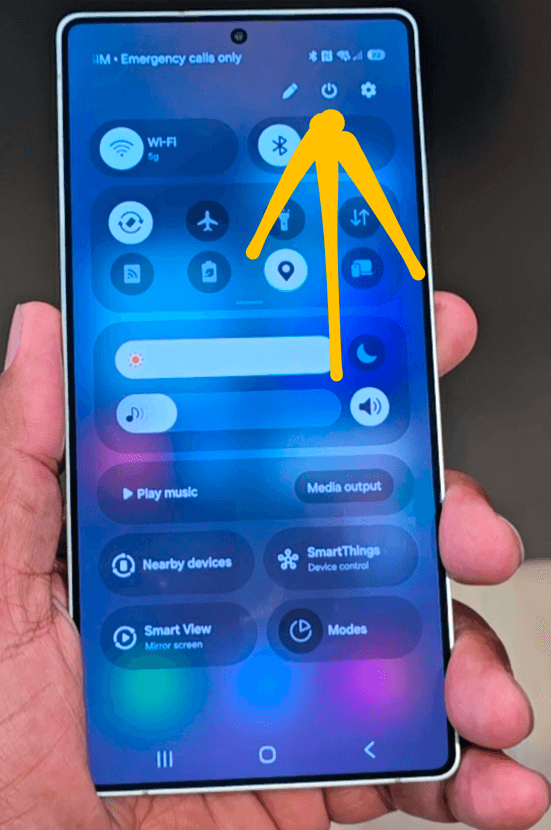
How to Reboot Pixel 9 Pro, Pro XL, Pro Fold using Power Button in Quick Panel

Tap the Power button at the bottom right corner.

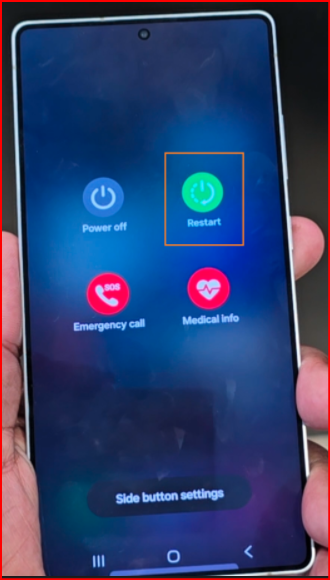
How to Restart Pixel 9 Pro, 9 Pro XL, 9 Pro Fold

Tap Restart in the power menu to reboot the Pixel phones.

How to Restart Pixel 9 Phone using Power & Volume Up Buttons

Long-press the power & volume up buttons simultaneously until you see the power menu.

Tap Restart to restart your Pixel.

How to Force Restart Google Pixel 9, 9 Pro, 9 Pro XL

Long-press the power & volume up buttons simultaneously until your Google Pixel’s screen turns off. Now, automatically reboot your Pixel 9 series.

End the list of methods to restart your Google Pixel 9 series. Which of the above-given methods do you use to restart a Pixel phone? Tell us in the comment section below.

FAQs:

When is the Pixel 9 Pro coming out?

The Google Pixel 9 and Pixel 9 Pro XL are coming to online stores on the 22nd of August. You can pre-order on Flipkart in India. Get all the Google Pixel 9 series details on the Google store.

How to Cloud Stratus C7 Screenshot

Here’s how to take a screenshot on Cloud Mobile Stratus C7. You can take a Cloud Stratus C7 Screenshot using the power & volume down buttons simultaneously for 1-2 seconds. A toolbar will display on the bottom left of your phone’s screen where you can share or edit the screenshot on your Cloud Staratus C7 and C5 devices. Also, use Hey Google or OK Google to capture a screenshot on your Smartphone.

You don’t need to use any third-party apps to take a screenshot of any screen on your mobile. Also, record a screen using a built-in screen recorder to your Cloud Mobile Stratus C7 and Cloud Stratus C5.

Read Also: How to Take a Screenshot on Samsung Phone

How to Take a Screenshot on Cloud Mobile Stratus C7 and C5

Check out the methods below to take a screenshot of Cloud Mobile Smartphones.

1st Method: Using Power & Volume Down Buttons

Step 1: Navigate to the web page or any screen you want to take a screenshot of your Cloud Stratus C7 and C5.

Step 2: Long-press the power and volume down buttons simultaneously until the screenshot is taken.

Step 3: You can see the screenshot taken on your phone’s bottom left screen. Also, find that screenshot in your phone gallery. Share or edit the screenshot you want.

2nd Method: Using Quick Settings Tiles

If you don’t want to use the power & volume buttons to capture screenshots on your Cloud Mobile Stratus C7 and C5, you can use the quick settings tiles icon.

Step 1: Open the screen you want to capture the screenshot on your phone.

Step 2: Swipe down the notification panel from the top and tap the Screenshot icon. If you can’t see the screenshot icon, you need to edit quick settings tiles on your Cloud mobile.

You can find your Cloud Stratus C7 screenshot in your phone gallery.

End the list of methods to take screenshots on your Cloud Mobile Stratus C7 and C5 devices. If you have any questions, please share them with us in the below comment section.

FAQs:

How do I Check the Battery Life of Cloud Mobile Stratus C7?

To check the battery life of the Cloud Mobile Stratus C7, go to Settings and navigate to the battery settings. Here, check the battery usage, battery percentage, which apps are consuming the most battery power, and other battery details.

Can I turn off the Google search bar on your Cloud Mobile Stratus C7?

No, you can’t turn off the Google search bar on your Cloud Mobile Stratus C7. You can disable Google search bar using home settings if available on your phone. If you can’t find the option, you need to install a third-party launcher (Nova) which allows you to turn off the Google search bar on your Cloud Mobile Stratus C7.

How to Change Clock Style on Samsung Galaxy A55 5G, A35 5G

By default, set clock style on Samsung lock screen and AOD Screen. Do you want to change the clock style on your Samsung display? In this tutorial, I’ll show you how to change clock style on Samsung Galaxy A55 5G, A35 5G, and other Samsung One UI 6.1 devices. Using wallpaper settings, you can change the lock screen clock style on Samsung A55 5G and A35 5G. In the latest version of One UI 6.1, Samsung has removed the AOD clock styles. You need to download the clock & image or image and set the Always On Display style on Samsung One UI 6.1 devices.

Read More: How to Change Cover Screen Clock Style on Samsung Z Flip 5/Flip 4

How to Change Clock Style on Samsung Galaxy A55 5G, A35 5G: One UI 6.1

Let’s see how to change the lock screen and AOD clock style on your Samsung phone running the One UI 6.1 version.

Change Lock Screen Clock Style on Samsung Phone

Step 1: Tap & hold the blank space on the home screen and tap Wallpaper & style.

Step 2: Tap the Lock screen wallpaper from the top left.

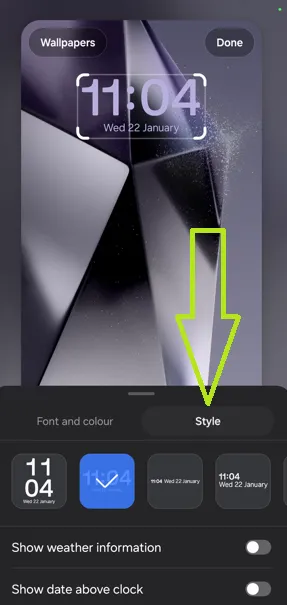
Step 3: Tap the Clock style.

Step 4: Choose a clock style from the list. Also, change the clock font and colour. You can toggle on showing weather information to the latest One UI version.

How to Change Clock Style on Samsung Galaxy A55 5G, A35

Step 5: Tap Done at the top right corner.

Change Always-On Display Clock Style on Samsung Phone

Step 1: Long-press on the blank area of the home screen and tap Themes.

Step 2: Tap AODs at the bottom menu.

Step 3: Tap the Top tab and Select the Free option in the dropdown box.

Step 4: Tap any image you want to set to your Samsung AOD clock style.

Step 5: Tap the Download button at the bottom.

Step 6: Tap the Apply button.

Change Always-On Display Clock Style on Samsung A55 5G, A35 5G

Step 7: Choose an Always on display style from Clock & image or Image only.

Step 8: Tap Done.

Lock your phone and tap the screen to view the Always-on display clock style.

It’s easy to change the clock on AOD and lock screen on your Samsung One UI 6.1 devices. If you have any questions, please share them with us in the comment section below.

Related Articles:

Best Samsung Galaxy S24 Screen Protectors

Discover the best screen protectors that keep your S24 flawless. This article will discuss the best Samsung Galaxy S24 Screen Protectors in 2024. The S24 is a leading Android device with a 6.2-inch Dynamic AMOLED 2X display. The display is compatible with a 120Hz refresh rate and QHD+ resolution. Protect this gorgeous display from scratches, cracks, and fingerprints with a reliable screen protector. We have reviewed five such Samsung S24 screen protectors for you. 

Check More:

5 Best Samsung Galaxy S24 Screen Protectors 2024

amFilm Privacy

amFilm Privacy Best Samsung Galaxy S24 Screen Protectors

To keep your display private, the amFilm screen protector blurs or blacks out your screen. If viewed from more than 28 degrees, a person won’t be able to see anything. Besides privacy, it also focuses on protection. It is made of premium 9H tempered glass. The pack also includes an auto-alignment tray that can precisely apply a protector to your phone in under 30 seconds.

Buy Now: Amazon US

JETech Privacy Glass Screen Protector for Galaxy S24

JETech Privacy Glass Screen Protector for Galaxy S24

Another privacy screen protector is on our list. This pack comes with a 2x glass screen protector and camera protector. Both are made of premium 9H tempered glass and effectively protect from drops and scratches. It can also prevent fingerprints and watermarks. It has an oleophobic and hydrophobic coating.

Buy Now: Amazon US

Supershieldz

Supershieldz Screen Protector for Samsung S24

The best budget option is getting 3 pieces of 9H tempered glass screen protector. It has 2.5D for comfort. It maintains 99.99% HD clarity and touch sensitivity. It also has water and oil-repelling properties.

Buy Now: Amazon US

Letosan

Letosan Screen Protector For Samsung Galaxy S24

This glass screen protector is just 0.16mm thick and provides “True Touch. ” Despite its thinness, it is 3X scratch-resistant and 10X military shockproof. Enhanced with oil-resistant material, it prevents fingerprints. You will get 2 9H camera protectors and 3 9H screen protectors.

Buy Now: Amazon US

OtterBox PolyArmor

OtterBox PolyArmor Best Samsung Galaxy S24 Screen Protectors

PolyArmor is a premium screen protector. Its glass material can absorb shock and resist scratching like no other. Its glassy texture avoids smudges and fingerprints. It also comes with an installation kit.

Buy Now: Amazon US

Frequently Asked Questions:

How do I install a screen protector without getting bubbles?

Clean your device’s screen with alcohol or any other cleaner and microfibre cloth. Make sure there is no dust or lint left. Then, peel off the liner and align it with the edge of the screen. Use the camera cut-out and buttons as a guide. Then, press the protector onto the screen, starting from the centre and moving outwards. Generally, tiny bubbles will go away when it cures. You can use a squeegee to push out those bubbles for more giant bubbles.

How often should I replace my screen protectors?

Experts recommend every 6-12 months. Look for signs like reduced screen sensitivity, bubbles, cracks and chips, discolouration, etc. 

And that’s all. Which Best Galaxy S24 screen protectors did you like? Tell us in the comments below. 

Related Samsung Accessories:

Best Samsung Galaxy S24 Plus Screen Protectors

Keep your S24 Plus flawless with these top screen protectors. This article will show the 5 best Samsung Galaxy S24 Plus Screen Protectors in 2024. This year, the Galaxy S series features beautiful displays. These displays are also very scratch-resistant but quite expensive. One bad screen can mar it. So, investing in screen protectors for your new S24 Plus phone is wiser. We have created a list of the best Galaxy S24 Plus screen protectors, so you don’t have to find one among tons on Amazon.

Check Also | Best Screen Protectors For Samsung Galaxy S24 Ultra

Best Samsung Galaxy S24 Plus Screen Protectors 2024

LYWHL Privacy Screen Protector for Galaxy S24 Plus

LYWHL Privacy Screen Protector for Galaxy S24 Plus

They are designed for privacy; they offer a coloured gradient privacy screen. The colour gradually changes from blue to purple. It is made of PET material. Besides standard protection, PET provides a blue light filter and easy, bubble-free sticking. This screen protector also has anti-scratch properties.

Buy Now: Amazon US

ArmorSuit

ArmorSuit Best Samsung Galaxy S24 Plus Screen Protectors

UltraHD clear and thin TPU screen protector film. It is scratch-proof and yellow-resistant, and also self-healing. Besides scratches, it also protects from dust, oil, and fingerprint smudges. Its TPU material is thin enough to preserve the original touch response.

Buy Now: Amazon US

Spigen GlasTR EZ Fit

Spigen GlasTR EZ Fit Screen Protector for Samsung S24 Plus

This is a high-quality glass screen protector made of 9H tempered glass. It offers extreme clarity and toughness for a better viewing experience and protection. It also has an oil-resistant coating to prevent fingerprinting. The kit includes two screen protectors and one installation guidance frame.

Buy Now: Amazon US

Supershieldz Tempered Glass Screen Protector for Galaxy S24 Plus

Supershieldz Tempered Glass Screen Protector for Galaxy S24 Plus

High quality but budget glass screen protector. Its 9H tempered glass is capable of resisting all scratches and impacts. For finger comfort, its edges are rounded to 2.5D. In this pack, you will get 3 screen protectors.

Buy Now: Amazon US

Dome Glass Whitestone EA Glass Screen Protector

Dome Glass Whitestone EA Glass Galaxy S24 Plus Screen Protector

Whitestone makes adamant screen protectors. These are made of 9H premium glass with an oil-repelling coating. The EA model has a special auto-align kit that can be applied to your Samsung phone’s screen protector in 30 seconds.

Buy Now: Amazon US

Related Samsung Accessories:

Frequently Asked Questions:

Are tempered glass screen protectors better than plastic?

Glass protectors are much better at protecting from impacts. They are also clear and less scratchy but expensive and add thickness. In comparison, plastic films are much thinner and cheaper but also scratch-prone. 

Is it OK not to put tempered glass on Gorilla Glass?

Gorilla Glass is chemically strengthened glass to improve scratch

Resistance. But it is not scratch-proof. Eventually, your phone will have many scratches. So, to keep an irreplaceable phone display flawless, a screen protector is the bare minimum.

And that’s all. Which Best Galaxy S24 Plus screen protector did you like? Tell us in the comments below. 

Best Screen Protectors For Samsung Galaxy S24 Ultra

Maintain the glory of Galaxy S24 Ultra’s display while upping protection. This article will show you the best 5 screen protectors for Samsung Galaxy S24 Ultra. With superb beauty comes great responsibility to maintain that beauty. And that’s where the best Samsung Galaxy S24 Ultra screen protectors in 2024. We have curated a short list of screen protectors of various types and budgets. You don’t have to find the perfect one among the vast number of screen protectors in the market.

Check Also | Samsung Galaxy S24 Ultra Cases

Best 5 Screen Protectors For Samsung Galaxy S24 Ultra

ESR Samsung S24 Ultra Screen Protector

ESR Screen protector for Samsung Galaxy S24 Ultra 

It can withstand military-grade standards of 33lb of force to protect your phone’s screen from scratches and drops. With 2.5D curved edges, you will find placing your fingers on the glass comfortable. It maintains HD clarity and touch sensitivity throughout its lifetime. This pack includes 2 glass screen protectors and 1 installation kit.

Buy Now: Amazon US

Buy Now: Amazon India

FANGTIAN Protector Film

FANGTIAN Protector Film for Samsung Galaxy S24 Ultra 

Made with PET hybrid material with a thickness of 0.23 mm, it offers a smooth touch and high sensitivity while maintaining scratch resistance. It is compatible with all cases. You will get four of these scratch-resistance films and an installation guidance frame.

Buy Now: Amazon US

TORRAS Diamond Shield

TORRAS Diamond Shield Screen Protectors For Samsung Galaxy S24 Ultra

Diamond shield offers 9H+ hardness glass of Aerospace grade, enhancing durability and scratch resistance. It also ensures no delay, be it touch response or fingerprint scanning. This pack includes 2 rugged screens and installation frames.

Buy Now: Amazon US

Zagg Glass Elite

Zagg Glass Elite Samsung Galaxy S24 Ultra Screen Protectors

They enhanced aluminosilicate tempered glass with better impact resistance and scratch resistance. With enforced edges, even edges won’t get a chip and crack. This glass screen protector pack has an installation tray for perfect alignment and bubble-free installation.

Buy Now: Amazon US

Belkin Screenforce Galaxy S24 Ultra Anti-Reflecting Screen Protector

Belkin Screenforce Screen Protectors For Samsung Galaxy S24 Ultra

The Crystal transparent 9H tempered glass screen protector can bring 20% in blue light. It has an anti-smudge and fingerprint coating to reduce fingerprinting and stains. It covers the whole screen for edge-to-edge protection. It is also thin enough that it feels like it is not there.

Buy Now: Amazon US

And that’s all. Which S24 Ultra screen protector did you like? Tell us in the comments below.

Related Samsung Accessories: