Last Updated on September 22, 2026 by Bestusefultips
Before You Start: Switching from Android to iPhone Checklist
- Charge your Android phone to at least 50%
- Make sure your iPhone is not yet set up (if it is already set up, go to Settings > General > Transfer or Reset iPhone > Erase All Content and Settings to start fresh)
- Connect your Android phone to Wi-Fi
- Back up your WhatsApp chats on Android (more on this below)
- Note all your app subscriptions – some will need to be re-purchased on iOS
- Download any files you want to keep from Google Drive
- Disable iMessage on any old iPhone (if you previously had one) to avoid missing text messages
- Check your storage: make sure your iPhone has enough space for all your data
Method 1: Move to iOS App (Apple’s Official Method)
Move to iOS is Apple’s free app designed specifically for Android-to-iPhone transfers. It is the easiest and most comprehensive method.
Step-by-Step Instructions
- On your Android phone, download ‘Move to iOS’ from the Google Play Store
- Turn on your new iPhone and start the setup process
- When you reach the ‘Apps & Data’ screen during setup, select ‘Move Data from Android’
- Your iPhone will display a 6-digit or 10-digit code
- Open the Move to iOS app on your Android phone
- Tap Continue and agree to the terms
- Enter the code shown on your iPhone
- Your Android will connect to a temporary Wi-Fi network created by the iPhone
- Select what to transfer: Contacts, Message History, Photos, Videos, Web Bookmarks, Mail Accounts, Calendars
- Tap Continue and wait for the transfer to complete. Do not use either phone during the transfer.
- When the loading bar on iPhone finishes, tap Done on your Android and Continue on your iPhone to finish setup
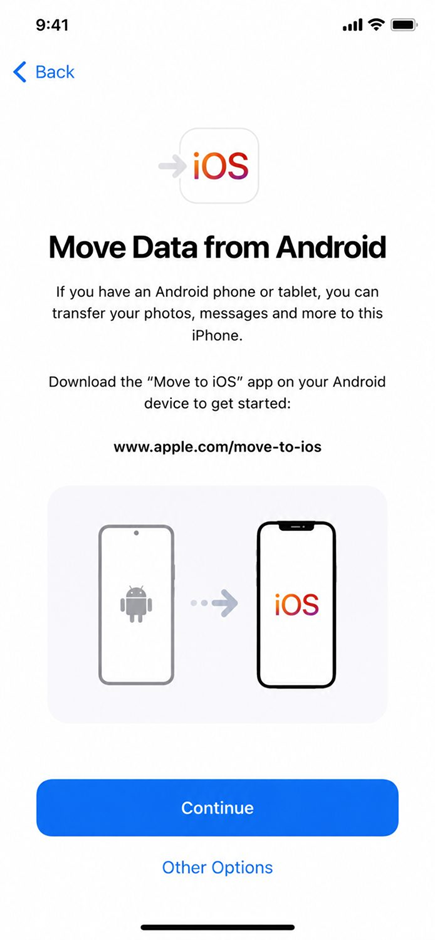
STEP 1 – on the iPhone. During setup the ‘Move Data from Android’ screen appears. Tap Continue and the iPhone will display a 6-digit code.
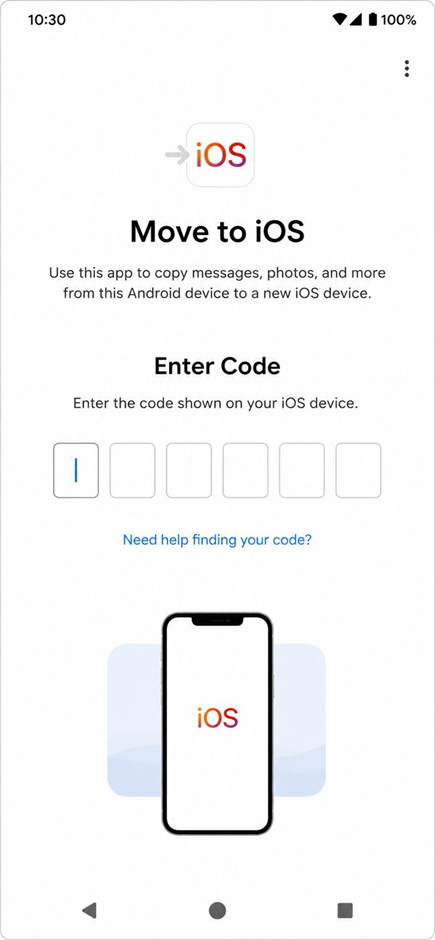
STEP 2 – on the Android phone. Open the Move to iOS app and type the code shown on the iPhone into the six boxes.
What Move to iOS Transfers
| Data Type | Transfers? | Notes |
| Contacts | Yes | All contacts from your Google account |
| Message history (SMS/MMS) | Yes | Text messages transfer to the Messages app |
| Photos and videos | Yes | From your camera roll and screenshots |
| Web bookmarks (Chrome) | Yes | Chrome bookmarks transfer to Safari |
| Mail accounts | Yes | Gmail and other email account settings |
| Calendars | Yes | Google Calendar events sync over |
| Free apps | Yes | If the same app exists on both Play Store and App Store, it is suggested for download |
| WhatsApp chats | Yes | Added in 2023. Transfers chats, photos, and videos (not call history) |
| Music files | No | Must transfer manually (see below) |
| Paid apps | No | Must be re-purchased on App Store |
| App data/progress | No | Unless the app uses cloud sync |
| Ringtones | No | iOS uses its own ringtone system |
| Call history | No | Android call log does not transfer to iPhone |
What Move to iOS Does NOT Transfer (And How to Fix It)
Music Files
Move to iOS does not transfer music stored on your Android phone. Here is how to move your music:
- If you use Spotify, YouTube Music, or Apple Music: Just sign into the same account on your iPhone. All your playlists and saved songs will sync automatically.
- If you have MP3 files on your phone: Connect your Android to a computer, copy the music files, then use iTunes (Windows) or Finder (Mac) to sync the music to your iPhone. Alternatively, upload your music files to Google Drive and download them on your iPhone.
- To transfer playlists between music services: Use the free app SongShift (iOS) or the website TuneMyMusic.com to transfer playlists between Spotify, YouTube Music, Apple Music, and other services.
App Data and Game Progress
Most app data and game progress does not transfer between Android and iPhone because they are different platforms. However, many modern apps and games save your progress to the cloud:
- Games: Check if the game supports cross-platform cloud saves (most games by Supercell, Epic Games, and Mojang do). Sign into the same game account on iPhone.
- Social media: All your data is in the cloud. Just sign into Instagram, TikTok, Facebook, X, etc. on your iPhone.
- Banking and finance apps: Download the app on iPhone and sign in with your credentials. Your account data is server-side.
Documents and Downloaded Files
Files in your Android Downloads folder do not transfer via Move to iOS. To move these files:
- Upload them to Google Drive, Dropbox, or OneDrive from your Android phone
- Install the same cloud storage app on your iPhone
- Download the files to your iPhone’s Files app
Method 2: Transfer WhatsApp from Android to iPhone
WhatsApp chat transfer was one of the biggest pain points when switching platforms. As of 2023, Move to iOS can transfer WhatsApp directly. But here is the dedicated method if you need more control:
Using Move to iOS (Easiest)
During the Move to iOS transfer process, WhatsApp will appear as one of the apps you can transfer. Select it and your entire chat history, photos, videos, and voice messages will move to your iPhone’s WhatsApp. After the transfer, you will need to verify your phone number in WhatsApp on iPhone.
Using WhatsApp’s Built-in Transfer (Alternative)
- Make sure WhatsApp is updated to the latest version on both devices
- On your Android, open WhatsApp > Settings > Chats > Move Chats to iPhone
- Follow the QR code scan process shown on screen
- Connect both devices to the same Wi-Fi network
- The transfer happens over Wi-Fi Direct between the two phones
Note: WhatsApp transfer moves your chat messages, photos, videos, voice messages, and documents. It does NOT transfer your call history, your status updates, or peer-to-peer payment history.
Method 3: Transfer Contacts Manually (Google Account)
If you only need to transfer contacts (not messages or photos), the simplest method is through your Google account:
- On your iPhone, go to Settings > Mail > Accounts > Add Account > Google
- Sign in with the same Google account you used on Android
- Enable Contacts sync
- All your Google contacts will appear in the iPhone Contacts app within a few minutes
This method keeps your contacts synced between Google and iPhone. Any contact you add or edit on either platform will update on both.
Method 4: Transfer Photos Manually (Google Photos)
If Move to iOS did not transfer all your photos, or if you want to transfer photos after the initial setup:
- On your Android phone, open Google Photos
- Make sure all photos are backed up: tap your profile icon > Google Photos Settings > Backup > turn on Backup
- Wait for all photos to upload to Google Photos cloud
- On your iPhone, download Google Photos from the App Store
- Sign in with the same Google account
- All your photos and videos will be available in Google Photos on iPhone
If you want the photos in your iPhone’s native Photos app instead, you can select photos in Google Photos and tap ‘Save to device’ to download them to the Camera Roll.
Method 5: Transfer Using a Computer (iTunes or Finder)
For a complete file transfer when other methods do not cover everything:
- Connect your Android to your computer via USB and copy all files (Photos, Music, Documents, Downloads) to a folder on your computer
- Disconnect Android and connect your iPhone
- On Windows: Open iTunes > Select your iPhone > File Sharing to transfer documents, or Photos to sync photos
- On Mac: Open Finder > Select your iPhone > Drag and drop files
This method gives you the most control over exactly which files are transferred.
Troubleshooting Move to iOS Problems
Move to iOS stuck on ‘Preparing’ or ‘Transferring’
- Make sure both phones are connected to power or have sufficient battery
- Turn off mobile data on your Android phone (the Wi-Fi Direct connection can be disrupted by cellular data)
- Disable any VPN or battery optimization apps on your Android
- If it has been stuck for more than 30 minutes, cancel and restart the process
Move to iOS says ‘Unable to Communicate with Device’
- Restart both phones and try again
- On your Android, go to Settings > Wi-Fi and forget all saved networks, then try again
- Make sure no other devices are connected to the iPhone’s temporary Wi-Fi network
Move to iOS not showing in setup
The ‘Move Data from Android’ option only appears during the initial iPhone setup. If you already set up your iPhone, you need to erase it first: Settings > General > Transfer or Reset iPhone > Erase All Content and Settings. Then start the setup process again.
Frequently Asked Questions
What does Move to iOS transfer?
Move to iOS transfers contacts, message history (SMS), photos, videos, web bookmarks, email accounts, calendars, WhatsApp chats, and suggests equivalent free apps for download. It does not transfer music files, paid apps, app data, call history, or ringtones.
How long does Move to iOS take?
The time depends on how much data you are transferring. For 10-20 GB of data (typical phone), expect 15-30 minutes. For 50 GB or more, it can take 1-2 hours. The transfer uses Wi-Fi Direct between the two phones, so internet speed does not matter.
Can I transfer WhatsApp from Android to iPhone?
Yes. WhatsApp can be transferred using Move to iOS during iPhone setup, or using WhatsApp’s built-in ‘Move Chats to iPhone’ feature. Both methods transfer your chat history, photos, videos, and voice messages. You cannot transfer WhatsApp call history.
What happens to my apps when I switch to iPhone?
Free apps that exist on both Google Play Store and Apple App Store will be suggested for download during setup. You will need to download them from the App Store. Paid apps must be purchased again because Google Play and Apple App Store are separate platforms. App subscriptions managed through Google Play will need to be canceled and re-subscribed through Apple.
