Last Updated on September 22, 2026 by Bestusefultips
5 Things to Do Before You Transfer Data
Before you start the transfer process, complete this checklist to avoid problems:
- Charge both phones to at least 50% – Data transfers can take 30 minutes to over an hour depending on how much data you have. A dead battery mid-transfer can corrupt your data.
- Update your old phone – Go to Settings > System > Software Update and install any pending updates. This ensures compatibility with the transfer tools.
- Back up your old phone to Google – Go to Settings > System > Backup and make sure Google Backup is turned on. Tap Back Up Now. This is your safety net if anything goes wrong during the transfer.
- Note your accounts and passwords – Make a list of all accounts you are logged into. Some apps like banking apps and authenticator apps do not transfer automatically and you will need to log in again manually.
- Check your storage – Go to Settings > Storage on your new phone and make sure it has enough space for all your data. If your old phone has 80 GB used and your new phone only has 64 GB of storage, you will need to clean up files first.
Method 1: Google Backup and Restore (Works on All Android Phones)
This is the universal method that works between any two Android phones regardless of brand. Google automatically backs up your contacts, call history, SMS messages, app data, device settings, and Wi-Fi passwords to your Google account.
Step 1: Back Up Your Old Phone
- Open Settings on your old phone
- Go to System > Backup (on Samsung: Accounts and Backup > Back Up Data)
- Make sure the toggle for Back Up to Google is turned on
- Tap Back Up Now and wait for it to complete
- You will see the date and time of the last backup when it is done
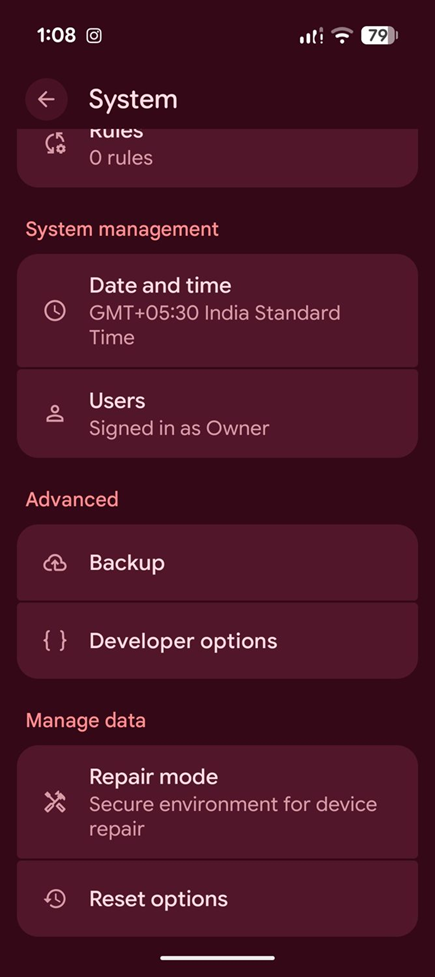
Settings > System on Android 16. Backup sits under the Advanced group.
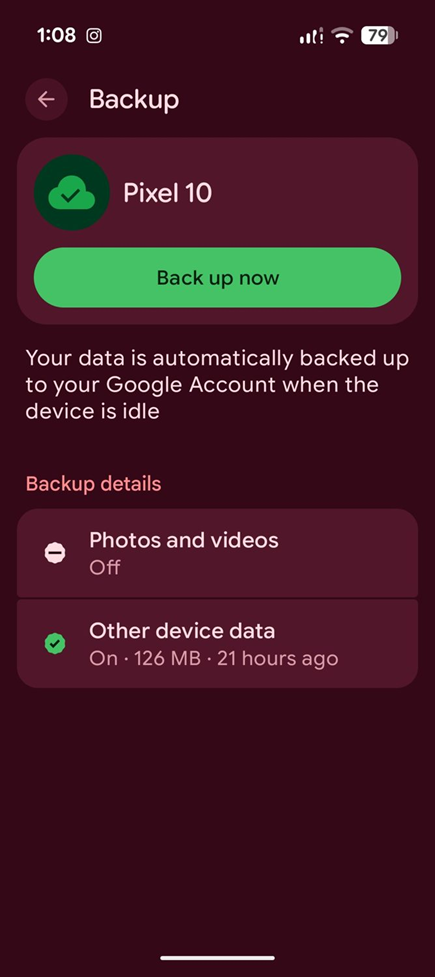
The Backup screen showing the Back up now button, plus what is included in the backup.
Step 2: Restore on Your New Phone
- Turn on your new Android phone and go through the initial setup
- Connect to Wi-Fi when prompted
- When asked ‘Copy apps and data’, tap Next
- Select ‘Can’t use old device’ if your old phone is not nearby, or ‘Use your old device’ if it is
- Sign in to the same Google account you used on your old phone
- Select the backup from your old phone (it will show the device name and date)
- Choose what to restore: Apps, Contacts, SMS, Device Settings, Call History
- Tap Restore and wait. This can take 15 minutes to 1 hour depending on how many apps you had.
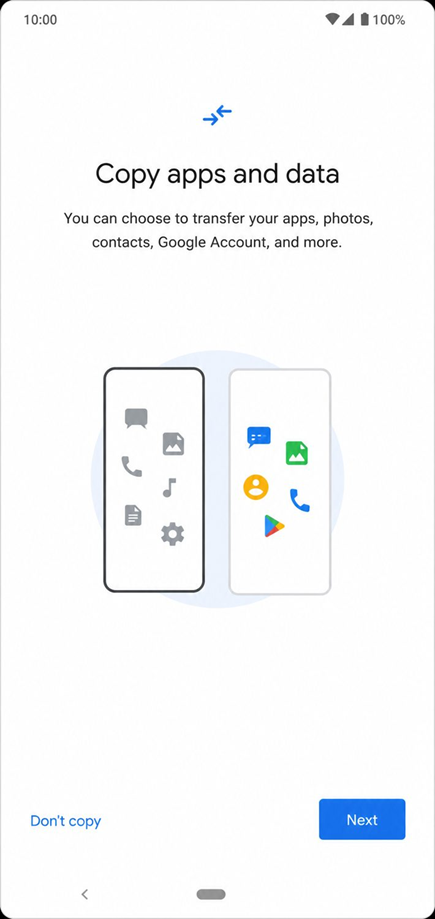
On a brand new Android phone, the setup wizard offers ‘Copy apps and data’. Tap Next here – if you tap ‘Don’t copy’ you will have to transfer everything manually later.
What Google Backup Transfers
| Data Type | Transfers? | Notes |
| Contacts | Yes | All contacts synced to Google account |
| Call history | Yes | Recent call log |
| SMS text messages | Yes | Requires Google Messages or Samsung Messages backup |
| Photos and videos | Partially | Only if backed up to Google Photos. Check Google Photos > Library > Utilities > Backup |
| App installs | Yes | Apps are re-downloaded from Play Store |
| App data and progress | Partially | Only if the app developer enabled cloud backup. Game progress may be lost. |
| Wi-Fi passwords | Yes | Saved Wi-Fi networks and passwords |
| Device settings | Yes | Display, sound, notification preferences |
| WhatsApp chats | Yes | If backed up to Google Drive within WhatsApp > Settings > Chats > Chat backup |
| Music files | No | Use YouTube Music, Spotify, or transfer manually |
| Downloaded files | No | Transfer via USB cable or cloud storage |
Method 2: Quick Share (Previously Near Share) – Wireless Transfer
Quick Share is Google’s built-in wireless file sharing feature, available on all Android phones running Android 6.0 and newer. It was renamed from Near Share to Quick Share in early 2024. Quick Share uses a combination of Bluetooth and Wi-Fi Direct to transfer files between phones without needing an internet connection.
How to Use Quick Share
- On your old phone, open the Files app or Gallery
- Select the files you want to transfer (you can select multiple files, photos, and videos)
- Tap the Share button, then select Quick Share
- Your old phone will start looking for nearby devices
- On your new phone, make sure Quick Share is turned on: swipe down from the top and tap the Quick Share icon in Quick Settings
- Your new phone will appear on your old phone’s screen. Tap on it.
- Accept the transfer on your new phone
- Files will transfer wirelessly. Speed is typically 30-50 MB per second.
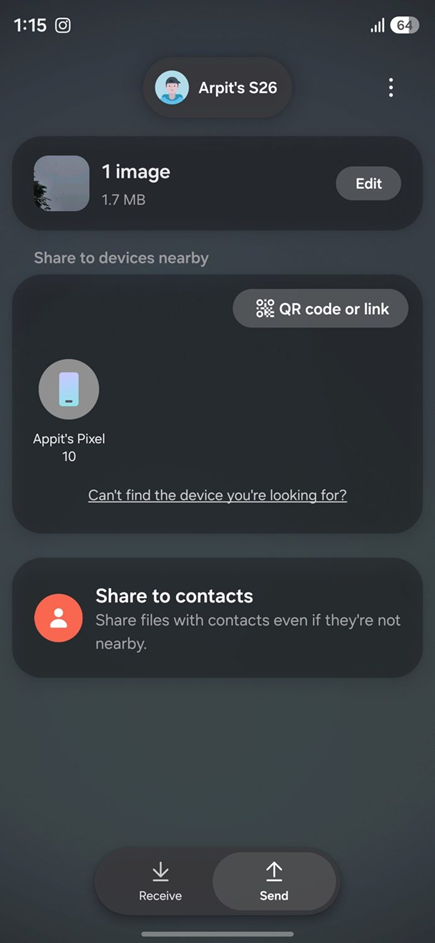
Quick Share detecting a nearby Pixel 10, with Send and Receive options at the bottom.
Best for:
- Transferring specific files, photos, or videos (not a full phone backup)
- Moving files when you do not have a USB cable or internet connection
- Sharing files between different Android brands (Samsung to Pixel, etc.)
Method 3: Samsung Smart Switch (Samsung Phones Only)
Samsung Smart Switch is the best method if your new phone is a Samsung Galaxy. It transfers almost everything from your old phone, including app data, home screen layout, and even your wallpaper. Smart Switch works with both Samsung-to-Samsung transfers and transfers from other Android brands to Samsung.
Smart Switch via USB Cable (Fastest)
- On your new Samsung phone, open Settings > Accounts and Backup > Smart Switch (or download Smart Switch from Galaxy Store if not pre-installed)
- Connect both phones using a USB-C to USB-C cable (included in most Samsung phone boxes) or a USB-C to USB-A adapter
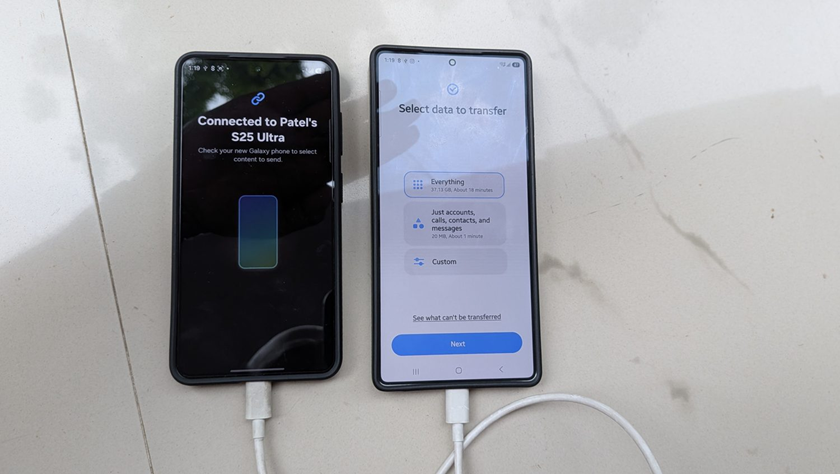
- On the old phone, tap Allow when prompted for USB connection
- On the new Samsung, Smart Switch will detect the old phone and show what data can be transferred
- Select what to transfer: Accounts, Apps, Contacts, Messages, Photos, Settings, Home Screen, etc.
- Tap Transfer and wait. A typical transfer of 50-60 GB takes about 30-45 minutes via cable.
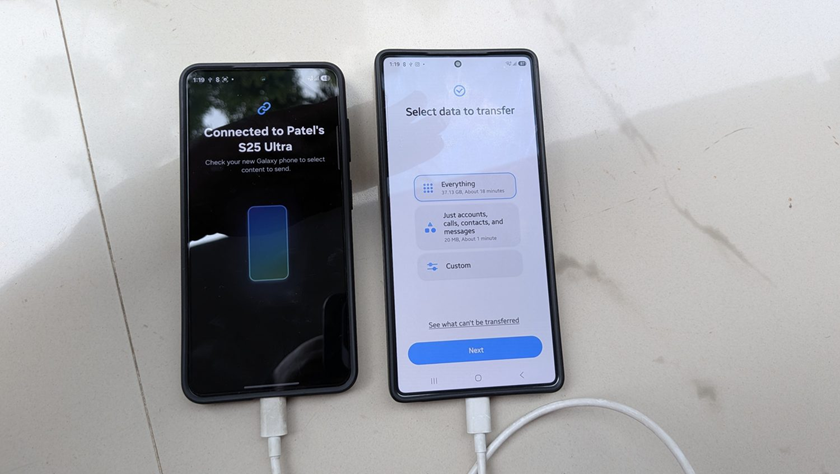
Both phones linked by USB-C cable. The new phone shows ‘Select data to transfer’ with Everything, accounts-only, and Custom options.
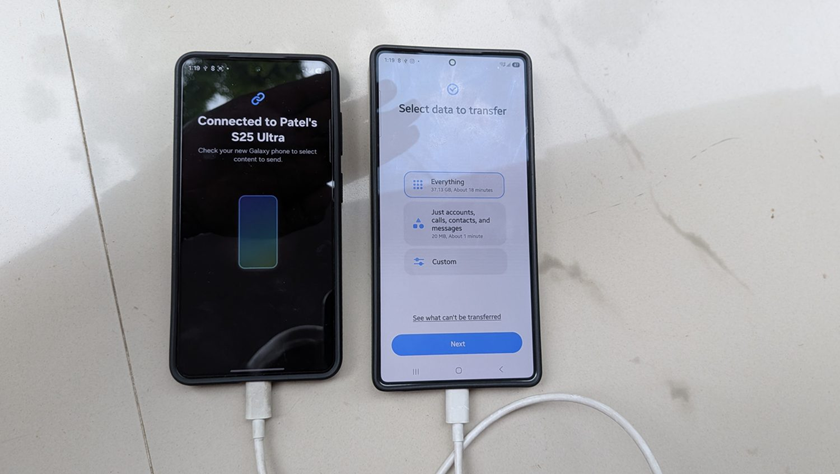
The old phone confirms ‘Connected to Patel’s S25 Ultra’ once the cable handshake completes.
The wireless route: both phones show ‘Transfer your data’ with Send from this phone / Receive on this phone.
Smart Switch Wirelessly
- Open Smart Switch on both phones (download from Play Store on the non-Samsung phone)
- On the new Samsung, tap Receive Data
- On the old phone, tap Send Data
- Select Wireless
- The phones will connect over Wi-Fi Direct
- Select your data and tap Transfer
Wireless transfer is slower than cable. Expect 50-60 GB to take 1-2 hours wirelessly.
What Smart Switch Transfers That Google Backup Does Not
| Data Type | Smart Switch | Google Backup |
| Home screen layout | Yes | No |
| App data (most apps) | Yes | Partial |
| Internal storage files | Yes | No |
| Music files | Yes | No |
| Downloaded documents | Yes | No |
| Alarm and clock settings | Yes | Yes |
| S Pen notes (Samsung) | Yes | No |
| Wallpaper | Yes | No |
Method 4: USB Cable Direct Transfer (During Setup)
When you set up a new Android phone for the first time, Android offers the option to connect your old phone directly via USB cable. This is built into the Android setup wizard and works on all Android phones.
- Turn on your new phone and start the setup process
- When you see ‘Copy apps and data’, tap Next
- Select ‘Use your old device’
- Connect both phones with a USB-C cable
- Follow the on-screen instructions to select what data to copy
- Wait for the transfer to complete
This method uses Android’s built-in migration tool and transfers contacts, messages, photos, apps, and most settings. It is faster than Google Backup because data moves directly between phones instead of downloading from the cloud.
Method 5: Manual Transfer via Computer
If the above methods do not transfer specific files you need, you can manually move files using your computer as a bridge.
- Connect your old phone to your computer via USB cable
- On your phone, change USB mode to File Transfer (MTP)
- Open your phone’s storage on the computer and copy the files you need (DCIM for photos, Music for songs, Download for downloaded files)
- Disconnect the old phone and connect the new phone
- Copy the files from your computer to the corresponding folders on the new phone
This is the most reliable method for music files, documents, and downloaded content that other methods may miss.
Which Method Should You Use?
| Situation | Best Method | Why |
| New phone is Samsung | Samsung Smart Switch via cable | Transfers the most data including home screen layout and all files |
| New phone is Pixel | Cable transfer during setup | Google’s built-in migration tool works best with Pixel phones |
| Old phone is broken or lost | Google Backup restore | Only method that works without the old phone. Requires prior backup. |
| Only moving some files | Quick Share | Fastest for selective file transfers without cables |
| Different brands, no cable | Google Backup + Quick Share | Use Google Backup for contacts/apps, Quick Share for photos/files |
Troubleshooting: Transfer Failed or Incomplete
Transfer stuck at a certain percentage
This is usually caused by a large file that is taking longer to copy. Wait at least 30 minutes before canceling. If it is truly stuck, try these fixes:
- Restart both phones and try again
- If using wireless, switch to cable transfer
- Clear the cache of the Smart Switch app (Settings > Apps > Smart Switch > Clear Cache)
- Make sure both phones are on the same Wi-Fi network (for wireless methods)
Some apps are missing after transfer
Some apps may not transfer because they are no longer available on the Google Play Store, they are region-locked, or they are not compatible with your new phone. Check the Play Store directly and search for the missing app. If the app was a paid app, it should be available for re-download if you used the same Google account.
WhatsApp chats did not transfer
WhatsApp uses its own backup system, separate from Android backup. You need to back up WhatsApp chats before the transfer:
- On your old phone, open WhatsApp > Settings > Chats > Chat Backup
- Tap Back Up to create a fresh backup to Google Drive
- On your new phone, install WhatsApp and sign in with the same phone number
- WhatsApp will detect the Google Drive backup and offer to restore it
Google Authenticator codes are missing
Google Authenticator now supports cloud sync (added in 2023). If you have the cloud sync feature enabled, your codes will automatically appear on your new phone when you sign into Google Authenticator with the same Google account. If not, you will need to re-register each account for two-factor authentication.
Frequently Asked Questions
Can I transfer everything from one Android to another?
You can transfer most things including contacts, messages, photos, videos, apps, Wi-Fi passwords, and device settings. However, some items cannot transfer: app-specific data from apps that do not support cloud backup, DRM-protected content, some game progress (unless the game uses cloud saves), and login sessions. You will need to sign into most apps again on your new phone.
Does transferring data delete it from the old phone?
No. All transfer methods copy data, they do not move it. Your old phone will still have all its data after the transfer. This is useful because you can keep the old phone as a backup until you are sure everything transferred correctly to the new phone.
How long does Android data transfer take?
It depends on how much data you have and which method you use. Here are typical times:
| Data Amount | USB Cable | Wireless | Google Backup |
| 10 GB | 5-10 minutes | 15-20 minutes | 20-30 minutes (depends on internet speed) |
| 30 GB | 15-20 minutes | 30-45 minutes | 45-60 minutes |
| 60 GB | 25-35 minutes | 1-1.5 hours | 1.5-2 hours |
| 100 GB+ | 40-60 minutes | 2-3 hours | 2-4 hours |
Does Samsung Smart Switch transfer text messages?
Yes. Samsung Smart Switch transfers SMS and MMS text messages from your old phone to your new Samsung phone. It also transfers the message timestamps so your conversations appear in the correct order. If your old phone is not Samsung, Smart Switch can still transfer messages from most Android brands including Pixel, OnePlus, and Xiaomi.
