Customizing Lock Screen Widgets on Google Pixel

Customizing Lock Screen Widgets on Google Pixel

Your lock screen is one of the most-used parts of your Android device, whether you use it on your Google Pixel 10 or another Android device. In this article, I’ll explain how to customizing lock screen widgets on Google Pixel 10, 10 Pro, 10 Pro XL, 9 Pro XL, 9 Pro, and other Pixel devices running the latest Android 16 version. To access your favourite widgets on a Google Pixel, swipe from the left of your lock screen. Google Pixel lock screen widgets let you add or remove them, and anyone can view them without unlocking your Pixel device.

Accessing the Lock Screen Settings using Settings Menu

To access the lock screen settings on your Google Pixel 10/9 series, start by unlocking your phone. Swipe down from the top of the screen to access the notification panel, then tap the gear icon to go to the Settings menu. Once you’re in, scroll down and tap on Display and touch. From there, choose the Lock screen option in the lock display section.

You can see all the lock screen settings for your Pixel device. These include settings for lock-screen widgets, notifications, app shortcuts, adding text or phone number, Now Playing, Dynamic clock, etc. You can personalize your Google Pixel’s lock screen.

Read More: How to Add Weather Effect to Wallpaper on Google Pixel

Choosing the Right Widgets for the Lock Screen

Selecting your favourite widgets for the lock screen should focus on your daily routine and priorities. You can add widgets you often use, such as weather, calendar, clock, Gemini, Google News, etc. The Google Pixel 10 series offers several widget options, so take time and select what fits your needs best. Don’t forget to use these amazing lock screen widget settings to make your lock screen efficient.

Step-by-Step Guide to Enable Lock Screen Widgets on Your Google Pixel 10/9

To access the widgets from the lock screen, make sure to turn on Widgets on Lock Screen on the Pixel device.
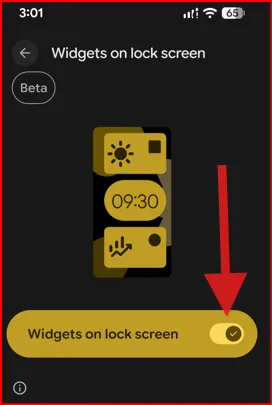
Enable Widget on Lock Screen Google Pixel 10 Series

  1. Swipe down the notification shade twice from the top and tap the “Settings gear” icon in your Google Pixel.
  2. Scroll down and tap “Display and touch”.
  3. Tap “Lock screen” in the Lock display section.
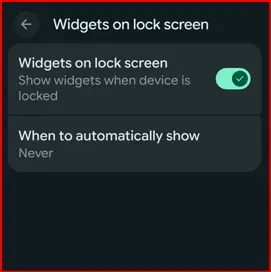
  4. Toggle on “Widgets on lock screen”.

Accessing Widgets on Lock Screen

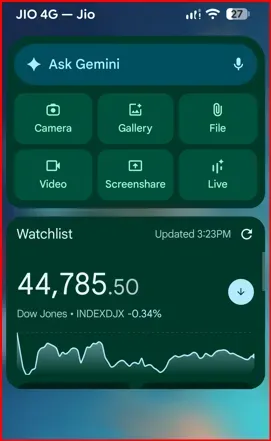
Lock your Google Pixel phone, then swipe from the left edge of your lock screen to access lock screen widgets.

Adding Widgets to the Pixel Lock Screen

To add widgets to the Pixel 10 lock screen, follow these steps:
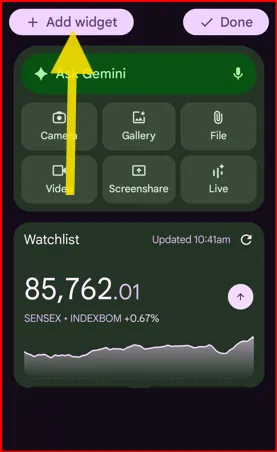
Add Widgets to Google Pixel Lock Screen

  1. Access the “Lock screen Widgets” settings as explained above.
  2. Long-press on the blank space and tap on “Add widget” at the top left corner to access the available Pixel Widgets.

You can add features or browse widgets here.
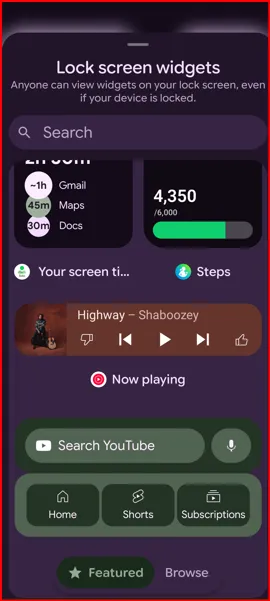
Customizing Lock Screen Widgets on Google Pixel 10 Series

  1. Tap on “Browse” at the bottom to view the list and select a widget by tapping on it, and tap “Add”.
  2. The chosen widgets will now appear on the lock screen.
  3. To change the widgets order, press and hold the one you’d like to move, then drag it to the top or bottom of the screen.

Customizing Widget Appearance – Position, Size & Color
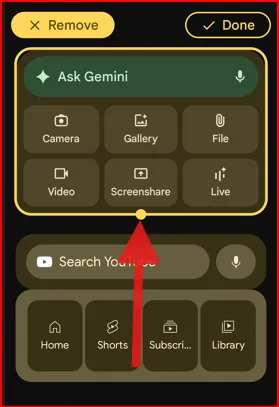
Customizing Widget Appearance on Google Pixel

You can adjust the lock screen widgets size and placement. Long-press a widget on the lock screen, then use the circle dot (o) to make it larger or smaller. If you’d like to reposition a widget, press and hold it, then drag it to your desired location to make it feel more intuitive for your routine use.

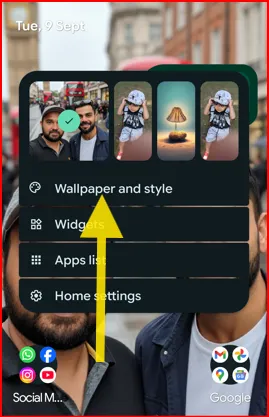
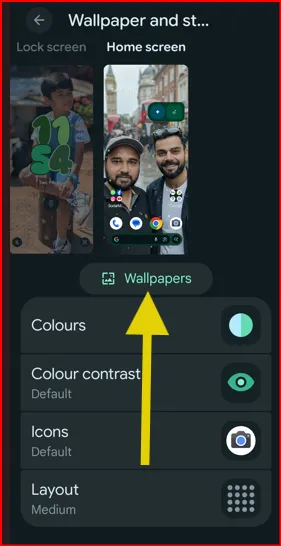
For an amazing visual experience, you can change the widget colors through the “Wallpaper & style” or “Colours” settings in your Pixel. Choose from the “Wallpaper colors or other colours” you want to set as the Widget color.

Remove Widgets on Pixel Lock Screen
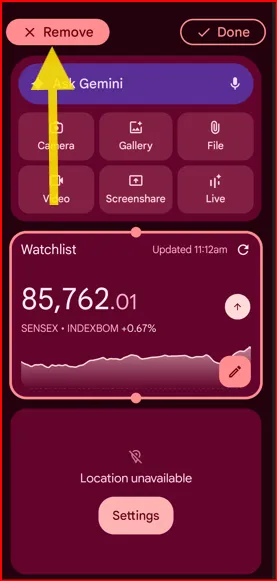
Remove Widgets from Lock Screen Google Pixel

  1. Access the “Lock screen Widgets” settings as explained above.
  2. Long-press the widget you want to remove and tap “Remove” at the top left corner.
  3. Tap “Done” at the top right corner to save it.

Troubleshooting Common Issues

If your Pixel’s lock screen widgets aren’t displaying correctly, try removing and re-adding them through the lock screen settings. Restarting your Pixel phone can also help resolve minor glitches.

Also, check whether the necessary permissions are enabled in the app’s settings. Some of the widgets don’t support additional changes. In some cases, disabling and re-enabling the widget in lock screen settings can resolve unexpected problems.

Regularly Customize the Lock Screen on Your Pixel Phone

Regularly updating your Pixel’s lock screen with your daily needs. Remove any no-longer-useful widgets, or replace them if they are outdated. Make sure your lock screen is well-organized and up to date. Google Pixel lock screen customization also includes wallpaper, clock style, app shortcuts, and adding text or a phone number to the lock screen, which is helpful if you lose your Pixel, etc.
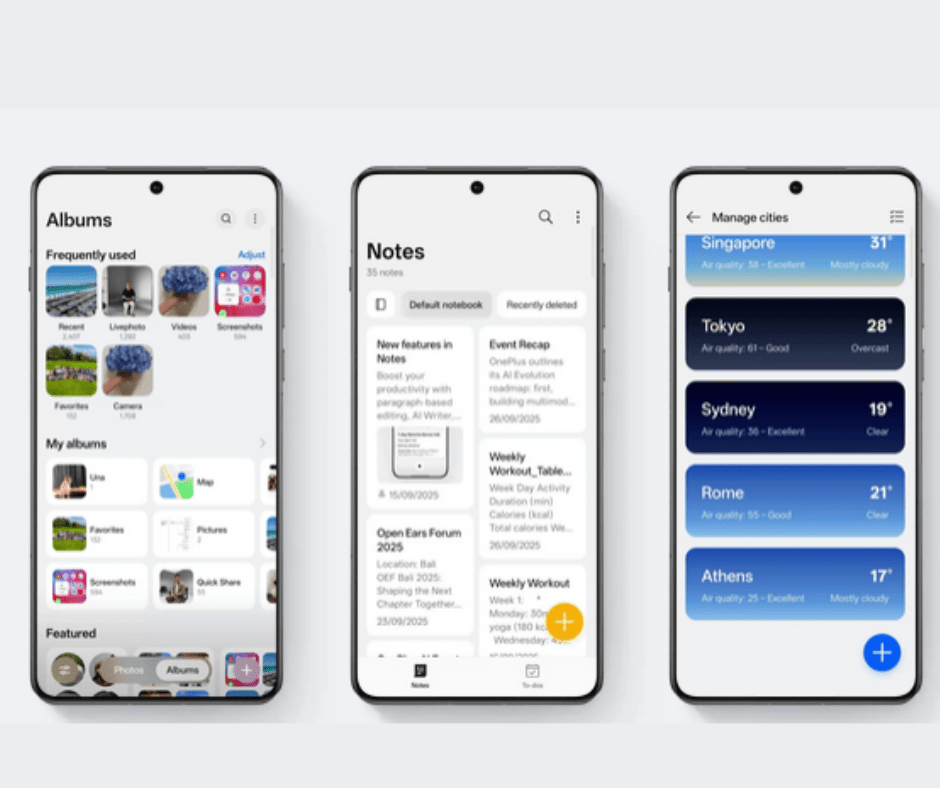
OxygenOS 16: Details You Need to Know

Headlined by Plus Mind, this year, OnePlus is positioning OxygenOS 16 as your “Second brain.” A brain that the company claims is featured by Artificial Intelligence (AI). The new version not only brings a suite of AI-powered features but also has a redesigned user interface, performance enhancements, and new security protocols.

The latest update aims to seamlessly blend artificial intelligence with the brand’s signature “fast and smooth” user experience. So, what are the updates that you need to know about the OxygenOS 16? Here are some of the top features you shouldn’t miss out on.

OxygenOS 16 Changes

Oxygen OS 16 Details You Need to Know

Check out the below given top OxygenOS 16 features list.

AI Writer and Recorder: Productivity Amplified

The AI Writer comes with different tools in one package. It’s like one feature with multiple tools to assist you in writing. Moreover, OxygenOS 16’s AI Writer addresses two important areas: information visualization and social media content creation. First, you get this tool, which can assist in writing emails, social media posts, and notes by offering suggestions and different tones. This includes both formal and casual writing. It can also generate captions for images and create mind maps or tables from text

Next, you get an AI Scan tool. This feature can turn your device’s camera into a document scanner. Well, it’s not just like your regular scanner, where you would have to adjust the corners and fix any marks. This AI-driven tool can automatically produce clean PDF files and remove glare. You also get AI Recorder, which now offers you a real-time transcription with speaker identification. This can also generate smart summaries of your recordings.

Lastly, you get the AI Portrait Glow and AI Perfect Shot. These tools are ideal for photography. The AI Portrait Glow features an AI relight that enhances low-light portraits with multi-skin-tone optimization. On the other hand, the AI Perfect Shot can fix any form of glitch, such as blurred or blinked eyes in photos.

Plus Mind: New Gen Information Management

Plus Mind New Gen Information Management

Plus Mind and Google Gemini Integration is a central feature of the latest OxygenOS 16. This is a unified system for storing and organizing content such as photos, articles, and schedules from different apps. Plus mind features a Voice Note functionality aimed at solving OnePlus’s modern workflow challenges. By long-pressing the Plus Key, you can instantly record 60-second voice notes, which can be automatically processed with AI. You also get AI-generated full transcripts with timestamps, headlines/ titles,  and even intelligent tag suggestions. This can also identify potential tasks and link notes to related content pre-stored in Mind Space. The star feature of Plus Mind is its Smart Collections feature, which can automatically group similar items.

“Breath with You”: All-new Design Language

 This update comes with a new design language called “Breath with You,”. The aim? This language will create a light and airy visual experience. The new UX features include Gaussian blur effects,  rounded corners, and live weather animations, which can respond to real-time conditions.

Personalization Made Just For You: Flux Theme and More

Personalization Made Just For You Flux Theme Oxygen OS 16

The Flux Theme introduces dynamic lock screens featuring Motion Photos or videos with in-depth effects. Full lock screen text customization includes various fonts, sizes, and colors, with AI-suggested captions based on wallpaper content.

In addition to the above-mentioned features, you could also get Private Computing Cloud Architecture, advanced security with Plus Lock, All-Round Video Editor, and more. For more updates, keep visiting BestusefulTips.com

Samsung One UI 8.5: What’s in For You 

Samsung is all set to launch its latest One UI 8.5 update soon. Loved and trusted by many, Samsung will be rolling out the update in January 2026. The new update should come pre-installed on the Samsung Galaxy S26 One UI 8.5 to all S26 series. As of now, not every detail is known, but it has still managed to steal the spotlight. 

According to rumours, the One UI 8.5 will be based on Android 16 QPR2. But what does this mean? This means that it will be closing the gap with Pixels when it comes to software. This also indicates that the core Android experience  will include a few new features, including support for lock screen widgets, forced themed icons, and more. So, what can you expect from the upcoming update? Here’s a brief about what comes with the new Samsung One UI 8 beta 5 update. 

Read More:

Samsung One UI 8.5: Cool Features you Need to Make Space For

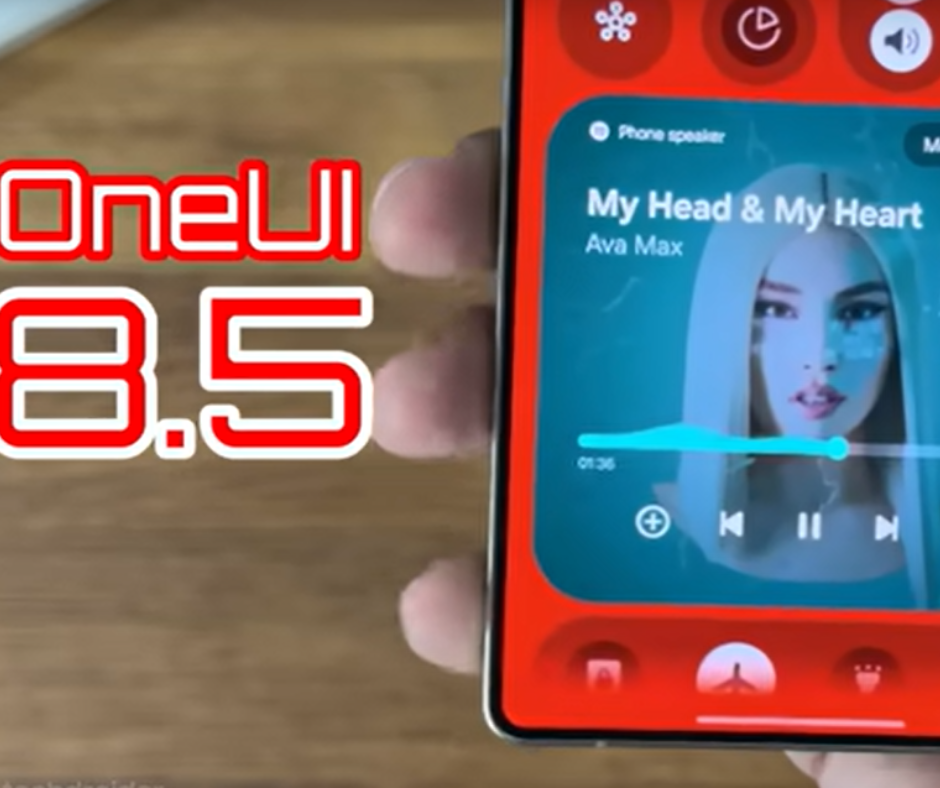
Samsung One UI 8.5 Details Features

The upcoming One UI 8.5 development could be more than an incremental upgrade. All thanks to some major features and changes that are expected to be applied across the user interface. Some of these features include lock screen customizations, privacy protection, notification summaries, quick settings, and more. Apart from these, the other One UI 8.5 features Samsung are mentioned below: 

New Galaxy AI Features:  This update comes with four new AI capabilities on your Samsung Galaxy devices. This includes Smart Clipboard, Touch Assistant, Meeting Assist, Social and Composer.

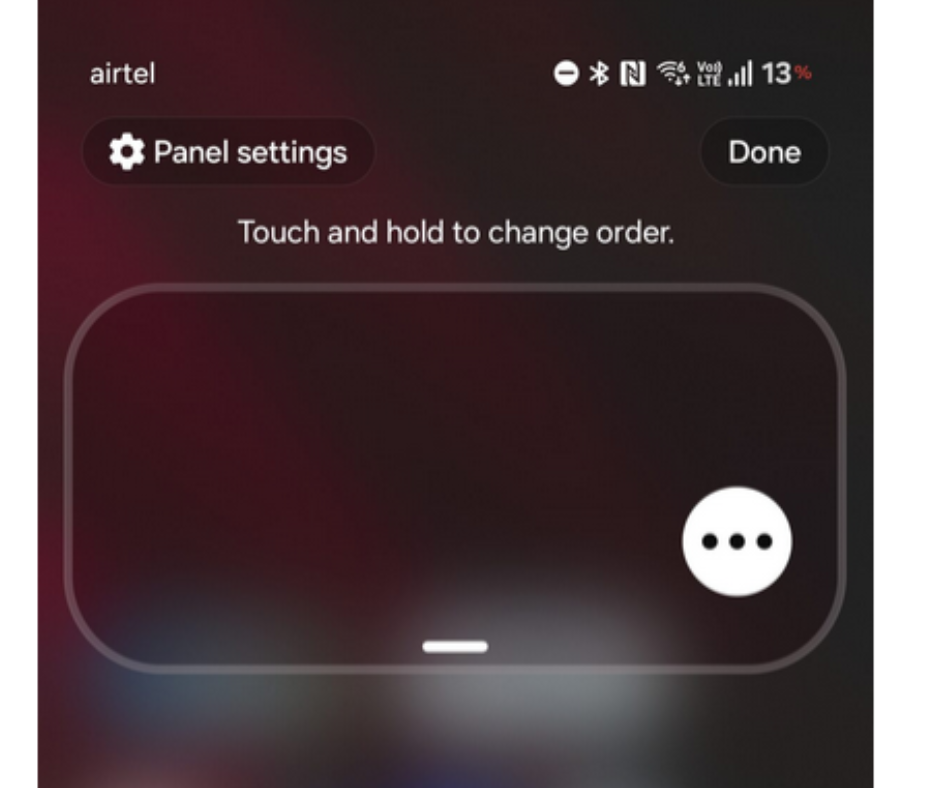
Customisable Quick Settings panel in One UI 8.5

Customisable Quick Settings Panel: This means now you can have the total freedom over your user interface. This includes moving toggles, support for horizontal and vertical layouts. For example moving sliders and certain tiles. Moreover, you can ensure that no space is wasted. The main aim here is to achieve a organised and clean look.

Notification Summaries: This new feature will use Gemini Nano to summarize notifications and text messages from apps. This means now you get a summary of everything without the need for actually opening the, From something going on in a chat or a notification from your favorite Instagram app. This way, you will be able reduce your screen time. Thus, minimizing interactions with your devices.

Samsung Galaxy S26 One UI 8.5

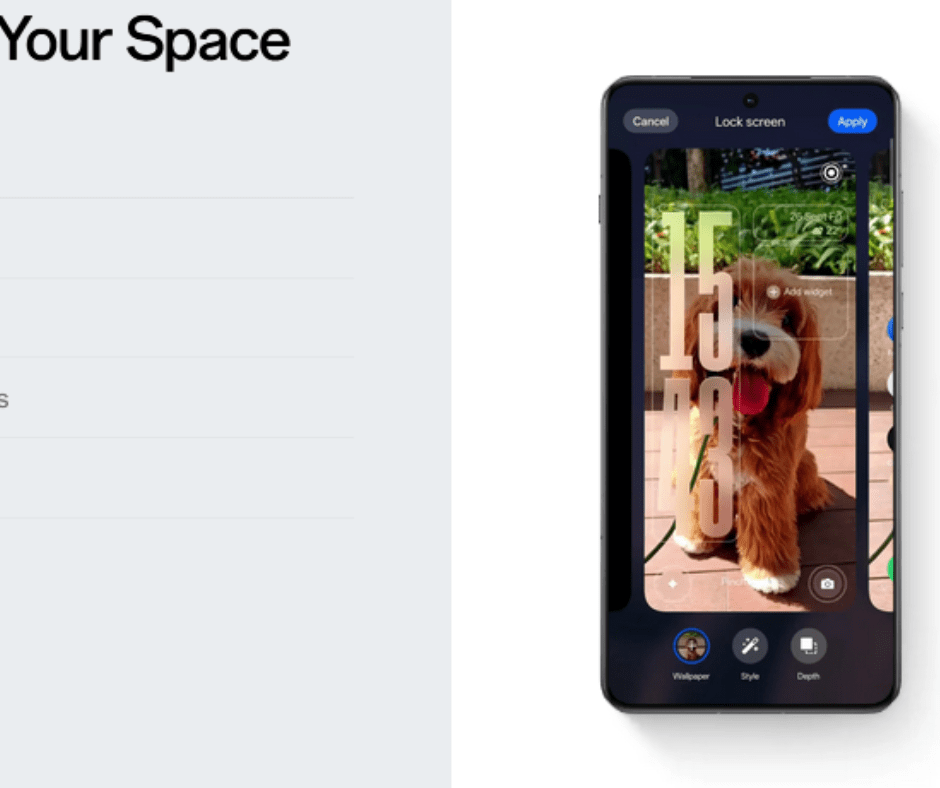
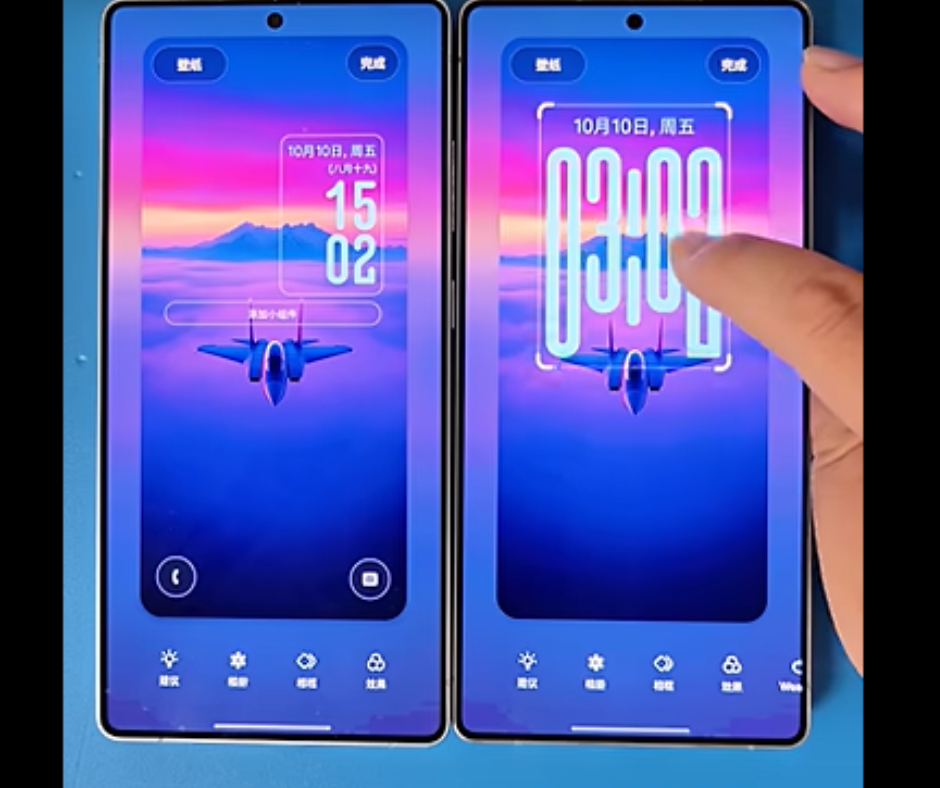
Lock Screen Customization: This comes with a blurred background effect on the lock screen. This is only applicable when you receive any notifications. The main aim is to enhance readability. Apart from this, it will also include redesigned app icons. This will bring a slight change to app icons by adding a subtle 3D effect to them. Thus, making the app icons slightly more prominent. The main aim is to enhance the home screen’s look. It will also allow you with the ability to easily spot your apps. 

In addition to the above features you can also get something called Private Display (or Privacy Display). This will make it harder for people around you to peek inside your screen. You also get an automatic call screening for Galaxy phones inspired from Google Pixel phones. Sone leaks suggest that the new update could also come with an NFC-based file sharing option. This means now you can transfer money simply by holding two devices together closely. For more updates about Samsung, Google Pixel, OnePlus and more Android devices  you can visit BestusefulTips

How to Add Widgets to Lock Screen on Google Pixel 10, 10 Pro, 10 Pro XL

In this article, we’ll teach you step-by-step how to add widgets to lock screen on Google Pixel 10, 10 Pro, 10 Pro XL, and 10 Pro Fold. Easy to customize widgets directly to your Pixel 10 lock screen. Get quick access to essential information like the clock, weather updates, upcoming calendar events, music controls, and more, all without unlocking your device. You can add or remove widgets from the lock screen on your Google Pixel devices running the latest version of Android 16. Anyone can view widgets on your lock screen, even if your device is locked.

Don’t Miss This: How to Add Weather Effects (Local/Rain/Snow/Fog/Sun) to Wallpaper on Google Pixel 10 Series

How to Customize Widgets to Lock Screen on Pixel 10 Pro XL, 10 Pro, 10: Android 16

Apply the settings below to a personalized and productive lock screen experience on the Google Pixel 10 series.

How to Enable Lock Screen Widgets on Pixel 10 Series

How to Enable Show Widgets pm Lock Screen Google Pixel 10, 10 Pro, 10 Pro XL

Make sure to enable widgets on the lock screen settings on your Pixel devices. To enable widgets on the lock screen, go to Settings > Display & touch > Widgets on lock screen in the Appearance section > Toggle on Widgets on lock screen.

Additionally, you can set when to show widgets automatically on your Pixel while charging or when it is upright and charging.

Access Widgets from Lock Screen: Lock your Pixel 10 device and swipe from right to left to access the lock screen widgets.

Adding your favourite widgets (weather, calendar, clock, and more!): You can add or remove the widgets here.

How to Add Widgets:

How to Add Widgets to Lock Screen on Google Pixel 10, 10 Pro, 10 Pro XL

Long-press on the lock screen widget screen > Add widgets in the top left corner > Tap on Featured or Browse (We Selected) at the bottom middle > Tap your favourite widgets category name from the list (We Select Battery) > Tap on the Widget > + Add > Done at the top right corner.

Now, see how widgets look on your Google Pixel 10 lock screen.

How to Remove Widgets:

Lock your device > Swipe the screen from right to left to access the lock screen widgets > Long-press on the widget you want to remove from the lock screen > Remove in the top left corner > Done in the top right corner.

Customizing widget size and placement: You can change the widget’s position by long-pressing it and moving it anywhere on the lock screen. Also, long-press the widgets and move the dots icon to increase or decrease widget size on your lock screen.

Tips for Optimizing Google Pixel 10 Lock Screen for Efficiency and Style (Advanced Tips)

  • Only add widgets that provide essential information at a glance, such as contextual information like weather alerts and calendar events.
  • Set the notification settings to only display crucial alerts on your Pixel lock screen. You can choose to hide sensitive content or silence notifications from less important apps to reduce distractions while working.
  • Set a minimalist wallpaper can make widgets stand out, while a vibrant one might require more transparent or subtle widget designs. You can use the built-in weather effects to make your wallpaper visually engaging, such as rain, snow, or sun.

Easy to add widgets to your Google Pixel 10 lock screen. Do you like these new lock screen widget settings on your Pixel devices? Please share your thoughts in the comments section below.

How to Add Weather Effects to Wallpaper on Google Pixel 10, 10 Pro, 10 Pro XL

Here’s how to add weather effects to wallpaper on Google Pixel 10, 10 Pro, 10 Pro XL, and other Pixel devices running Android 16. You can add real-time weather effects to your home & lock screen wallpaper like gentle rain, or a sunny day, Snow, or local weather to automatically update depending on your place’s weather conditions. Follow the step-by-step guide below to add a live effect to your wallpaper on Google Pixel devices, making it more engaging and attractive.

Read More:

How to Add Live Effects to Wallpaper on Pixel 10, 10 Pro, 10 Pro XL

You can change your Pixel 10 wallpaper with new dynamic weather effects using the settings below.

Google Pixel 10 Wallpaper and Style Settings

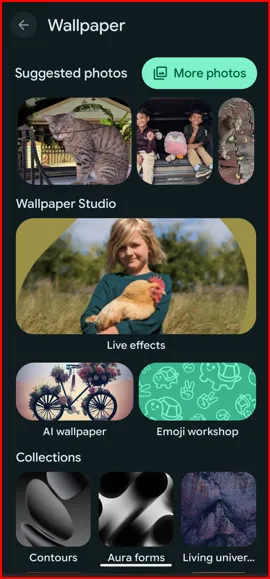
Go to Wallpaper & Style Settings: You can apply different weather effects using Wallpaper & Style Settings. Go to Settings > Wallpaper & Style.

Tap on the Wallpaper on Google Pixel 10 Series

Select the Wallpaper: Tap on the Wallpapers.

Add Live Effects on Pixel 10 Pro

Live Effects: Tap on the Live Effects.

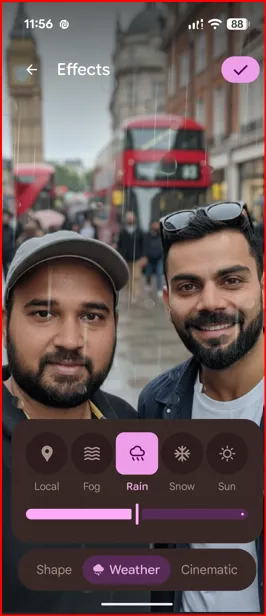
You can see three options here, including Shape, Weather, and Cinematic 3D wallpaper.

How to Add Weather Effects to Wallpaper on Google Pixel 10, 10 Pro, 10 Pro XL

List of different Weather Animations: When you select a photo from your phone gallery, you can see a list of weather effects, including “Local (By default), Fog, Rain, Snow, and Sun”.

Choose a Weather Effect for Home & Lock Screen: Select your real-time weather effect from the list and apply it to your wallpaper.

How to Add Live Effects to Wallpaper on Pixel 10 Pro

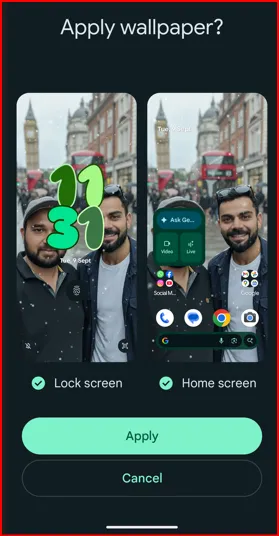
Apply Live Weather Effect to Wallpaper: After selecting the weather effect, tap on the Right arrow icon at the top right corner > Tap Next button at the top right corner > Select where to apply wallpaper (Lock screen/Home Screen) & tap on Apply button.

Now, go to the home screen or lock screen and check how this new effect looks on your Google Pixel 10 series live. You can see the live effects for 5-10 seconds only when you access the home screen or lock screen.

And that’s all. Do you like this new live effect feature for the wallpaper on your Google Pixel device? Which is your favourite real-time weather effect? Please, tell us in the comment section below.

How to Fix Bluetooth Not Working on Google Pixel 10, 10 Pro, 10 Pro XL

Bluetooth is a crucial function that enables you to connect your smartphone with other devices, such as headphones, smartwatches, and car systems, to enjoy music, make phone calls using the car dashboard (Android Auto), and more. Here’s how we cover all the necessary troubleshooting guides to fix Bluetooth not working on Google Pixel 10, 10 Pro, and 10 Pro XL. There are several Bluetooth issues that can be frustrating, like Bluetooth not working, can’t pair with car’s accessories (Creta, KIA, BMW, Audi, etc.), Bluetooth connectivity issues, Bluetooth unpaired, can’t pair with Bluetooth Earbuds/headphones (Pixel Buds, JBL, Samsung Buds, etc.), etc.

Read More: How to Fix WiFi Not Working on Google Pixel 10 Series

How to Fix Bluetooth Issues on Pixel 10 Pro XL, 10 Pro, 10: Android 16

Explore the following potential solutions to resolve Google Pixel 10 Bluetooth connectivity issues.

Step 1: Basic Checks

Toggle Bluetooth On/Off: Swipe down the notification panel from the top and quickly turn Bluetooth off, then back on. Alternatively, you can access this setting from the main Settings app > Connected devices > Connection preferences > Bluetooth > Toggle On/Off.

Restart Your Google Pixel 10 Pro XL: Restarting your phone can often resolve temporary software glitches. Check out how to restart your Pixel device.

Check the Other Device: Ensure the device you’re trying to connect to (e.g., headphones, speaker) is also turned on, charged, and in pairing mode.

Step 2: Forget and Re-pair Device

Access Bluetooth Settings: Show viewers how to go to Settings > Connected devices > Connection preferences > Bluetooth.

Forget and Re-pair Device to Fix Bluetooth Connectivity Issues on Pixel 10 Pro XL

Forget the Device: Tap the device name you want to remove. Tap the Settings gear icon next to its name.

How to Fix Bluetooth Not Working on Google Pixel 10, 10 Pro, 10 Pro XL

Re-pair the Device: Select “Forget” or “Unpair.” Try reconnecting your Pixel device with another accessory, such as a smartphone or a car’s accessories.

Step 3: Clear Bluetooth Cache and Data (Advanced Troubleshooting)

Go to App Info: Navigate to Settings > Apps > See all apps.

Show System Apps: Tap the three vertical dots at the top right corner and select “Show system” to see the system apps.

Find “Bluetooth”: Scroll down and locate the “Bluetooth” option (it may be listed as simply “Bluetooth” or “Bluetooth Share”).

Storage and Cache Settings Bluetooth App on Google Pixel 10

Storage & Cache: Tap on the “Bluetooth,” then “Storage & cache.”

Clear Bluetooth Cache and Data to Fix Bluetooth Connectivity Problem on Google Pixel 10 Pro

Clear the Cache: Tap “Clear Cache” at the top right.

Clear Cache, then Clear Storage/Data: After “Clear the Bluetooth cache”, then “Clear storage” or “Clear data.” Warn them that clearing data will remove all paired Bluetooth devices, so they’ll need to re-pair everything.

Restart Phone: Restart your phone after clearing Bluetooth’s data.

Step 4: Reset Network Settings – Reset Bluetooth & Wi-Fi Settings

When to Use: If you’re Pixel devices are facing any network issues, you will reset Wi-Fi, mobile data, and Bluetooth settings. It will not delete personal data, only reset network connections.

Navigate to Reset Options: Go to Settings > System > “Reset options” at the end of the screen > Reset Bluetooth & Wi-Fi.

Reset Bluetooth & WiFi Settings on Your Google Pixel 10 Pro XL

Confirm Reset: Tap “Reset Bluetooth & WiFi” and confirm by tapping the Reset button.

Re-pair Devices: You will need to re-pair all Bluetooth devices and re-enter your Wi-Fi passwords.

Step 5: Check for System Updates

Checking for Software Updates on your Google Pixel 10 Series

Go to System Update: Ensure your Google Pixel is up to date with the latest version. Go to Settings > System > Software updates or System update.

Check for Updates: Tap on System update to check for and install any available updates.

Step 6: Safe Mode (Check If Any Third-Party App Interference)

Enter Safe Mode: Enter your Pixel device into Safe Mode using this.

Test Bluetooth: Check if Bluetooth works in Safe Mode and if it functions without any issues. It means the recently installed third-party app is likely causing the problem.

Exit Safe Mode: To exit Safe Mode on your Google Pixel device, restart your device using the power menu.

Uninstall Problematic Apps: Uninstall recently installed apps one by one until the issue is resolved.

Conclusion:

End the list of troubleshooting steps to fix Google Pixel 10 Bluetooth Problems. You’ll try each step systematically to fix the issue. If you’re still facing the problems, please get in touch with the Google Support forum for further assistance.